Hermes Agent browser on a VPS: fix CAPTCHAs and lost logins
How the Hermes Agent browser works, why it hits CAPTCHAs and logouts on a VPS, and which backend fixes what: your Chrome, a cloud browser or a signed-in one.
Cotlet team 9 min read
The Hermes Agent browser is a headless Chromium on the machine Hermes runs on, unless you point it somewhere else: a cloud provider such as Browserbase or Browser Use, a Camofox server, or any Chrome you reach over the DevTools protocol with browser.cdp_url or /browser connect. On a VPS the default fails at logins for a predictable reason. A fresh, signed-out headless browser on a datacenter IP looks like a bot, so sites answer with CAPTCHAs, challenges and blocks. The fix is to give Hermes a browser that is already signed in, on an IP the site has seen before.
This guide covers how the browser tooling works as of October 2026, what each backend fixes, a comparison table, and a worked setup with a hosted signed-in browser.
How does the Hermes Agent browser work?
Hermes splits the job into a driver and a browser source. Everything below comes from the Hermes browser docs and the hermes-agent repository, checked on 18 October 2026.
The default driver is Browser Use mode. The model gets one browser_exec tool and writes Python that clicks, types and scrapes. Set browser.backend: "off" in ~/.hermes/config.yaml and you get the older built-in tools instead: browser_navigate, browser_snapshot, browser_click, browser_type and friends, which work on an accessibility tree with refs like @e5.
The browser source is a separate choice:
| Source | How you select it | What it is |
|---|---|---|
| Local Chromium | default, nothing to set | Hermes’s packaged headless Chromium via agent-browser, a clean throwaway profile |
| Real profile | browser.use_real_profile: true |
a copy of your desktop browser’s active profile, run headless |
| Browserbase | BROWSERBASE_API_KEY and BROWSERBASE_PROJECT_ID in ~/.hermes/.env, then hermes tools |
cloud browser with stealth, residential proxies and CAPTCHA solving |
| Browser Use cloud | BROWSER_USE_API_KEY, then hermes tools |
cloud browser with stealth, proxies, CAPTCHA solving and persistent profiles |
| Firecrawl | FIRECRAWL_API_KEY, then hermes setup tools |
cloud browser built for scraping |
| Camofox | CAMOFOX_URL, then hermes tools |
self-hosted Firefox fork with fingerprint spoofing |
| Lightpanda | browser.engine: lightpanda |
light headless engine, falls back to Chrome for unsupported actions |
| Any Chrome over CDP | browser.cdp_url, BROWSER_CDP_URL or /browser connect |
your own Chrome, Brave, Edge or Chromium, or any DevTools endpoint |
hermes tools writes the cloud choice to browser.cloud_provider. A CDP endpoint beats every cloud provider: when one is set, Hermes attaches to it and launches nothing.
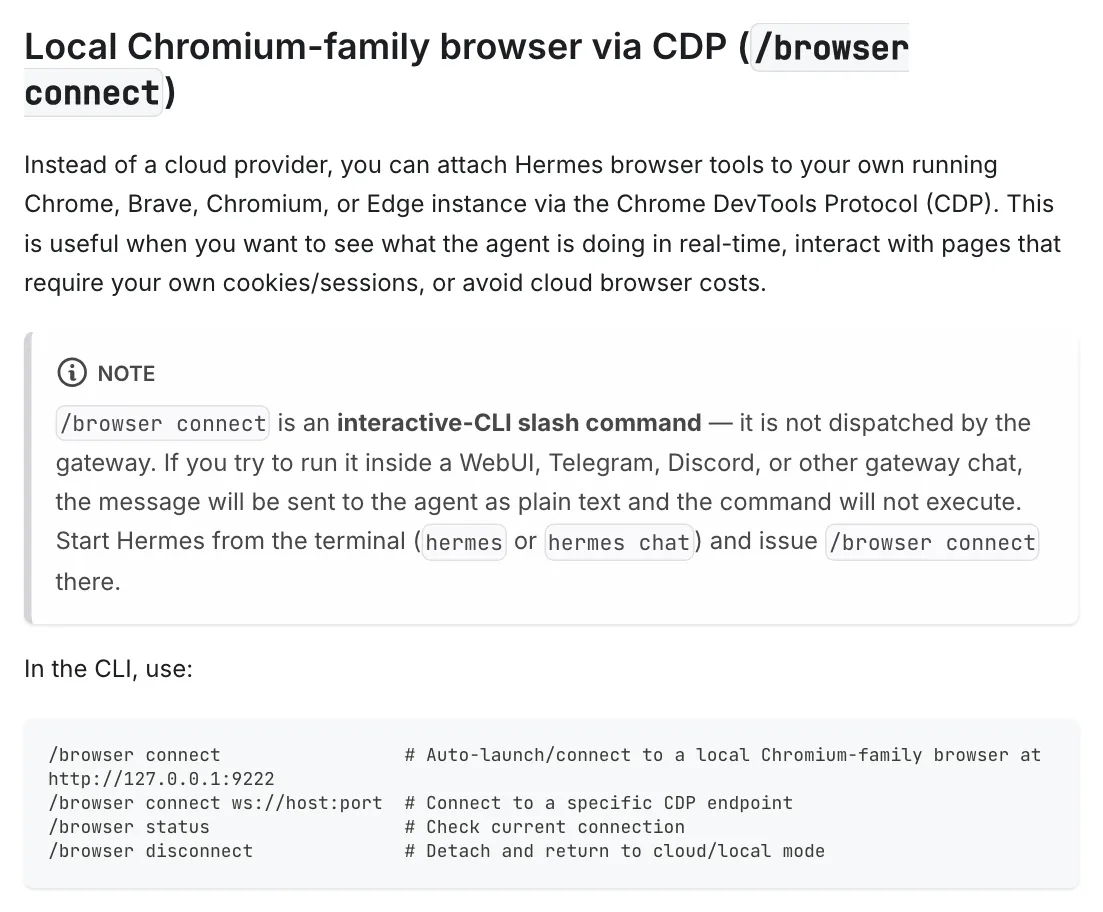
Hermes Agent docs, Browser Automation page, “Local Chromium-family browser via CDP”, October 2026.
Two details in that section matter on a server. /browser connect is a slash command of the interactive CLI, so it does nothing from Telegram, Discord or the web UI. For those, and for cron jobs, put the endpoint in browser.cdp_url instead. Once a CDP endpoint is attached, Hermes also exposes browser_cdp, a raw DevTools passthrough the other backends do not get.
Why does the browser break when Hermes runs on a VPS?
Five things go wrong, and they compound.
The IP is a datacenter IP. Bot checks score the network an IP belongs to, and hosting ranges score badly. A Hermes user put it plainly in issue #102731:

NousResearch/hermes-agent, issue #102731, “Local Browser Control With Secure Human Login Handoff”, opened 4 September 2026.
Every session starts signed out. The default profile is thrown away, so each task logs in again, and each fresh login is exactly the event bot checks watch for. Issue #130533 describes it: logins never persist between tasks, recurring chores re-authenticate every time and hit MFA walls.
Logging in means the VPS holds your credentials. Hermes does not make you paste passwords into the chat. Its credential vault asks once in a masked prompt, encrypts the password on the machine and fills it without the model seeing it. That is well designed. It still means the password sits on the VPS.
2FA breaks unattended runs. A cron job has nobody to type a code. The vault’s answer is to store the authenticator key with the login so Hermes generates codes itself. Then one server holds both factors, which turns two-factor into one-factor with extra steps. Weigh that before you do it for an account you care about.
CAPTCHAs have nobody to solve them. Headless Hermes stops and says so, as in issue #12667, where Google flagged the session and the agent could only report it. Cloud providers ship solvers for this. Whether an agent should solve them is a separate argument, which we make in can AI solve CAPTCHA, and why we refuse to.
Which browser should Hermes use?
| Local headless on the VPS | Your desktop Chrome via SSH tunnel | Camofox, persistent | Browserbase or Browser Use cloud | Hosted signed-in browser (Cotlet) | |
|---|---|---|---|---|---|
| Where it runs | the VPS | your computer | the VPS | provider’s cloud | Cotlet’s EU data centre |
| IP sites see | datacenter | your home or office | datacenter | residential proxy pool | a residential IP in the country you pick, switched when it gets slow |
| Who signs in | the agent, from the vault | you | you via VNC, or the agent | the agent, or a saved profile | you, in your Cloud Browser |
| Session survives restarts | no | yes, while that Chrome runs | yes, with managed_persistence |
Browser Use profiles keep cookies | yes, profile stored encrypted |
| CAPTCHA | blocks the run | you solve it at your screen | fewer, IP unchanged | solved by the provider | never solved, you finish it |
| Cost | free | free, computer must stay on | free, self-hosted | browser hours or usage | credits per call, per browser day, per CDP minute |
A decision rule you can reuse:
- Public pages, no login. Stay on the local headless default. It is free, and
web_extractis often enough anyway. - Your own accounts, and your computer is on when the agent works. Connect your desktop Chrome over an SSH tunnel. Nothing beats a browser you already use, on your own IP, for free.
- Scraping at volume. A cloud provider with proxies is built for that job, solvers included. Check the site’s terms first.
- Your own accounts, 24/7, without the VPS holding passwords or TOTP keys. Use a hosted browser you sign in to yourself. That is the slot Cotlet fills.
- The app has an official API. Use it, and skip the browser. Our comparison of browser automation vs an API covers when each wins.
How do you connect Hermes to your own Chrome over SSH?
Start Chrome on your computer with a dedicated profile. Since Chrome 136, the debug port is ignored on the default profile, because attackers used it to pull cookies.
"/Applications/Google Chrome.app/Contents/MacOS/Google Chrome" \
  --remote-debugging-port=9222 \
  --user-data-dir="$HOME/.hermes-chrome" \
  --no-first-run --no-default-browser-check &
Sign in to the sites the agent needs in that window. Then open a reverse tunnel from your computer to the VPS:
ssh -N -R 9222:127.0.0.1:9222 you@your-vpsOn the VPS, 127.0.0.1:9222 now reaches your Chrome. In the Hermes CLI run /browser connect, or for the gateway and cron set:
# ~/.hermes/config.yaml
browser:
  cdp_url: "http://127.0.0.1:9222"
When the laptop sleeps, the tunnel drops and the agent loses its browser. That is the trade.
Worked example: Hermes with a hosted signed-in browser
This is how Hermes connects to Cotlet. Cotlet gives each workspace its own Chrome in the cloud, the Cloud Browser, with one window per app. You sign in to your apps there yourself, then enable each one for agents. It sleeps when idle, wakes in seconds and works 24/7 with your computer off. How the session is kept is on the security page.
Layer 1: Cotlet as a remote MCP server
For apps in the catalog, the agent never opens a page. Add the server to ~/.hermes/config.yaml with the format from the Hermes MCP config reference:
mcp_servers:
  cotlet:
    url: "https://cotlet.dev/mcp/v1"
    headers:
      Authorization: "Bearer ${COTLET_API_KEY}"
    trust: untrusted
Put COTLET_API_KEY in ~/.hermes/.env, then check it with hermes mcp test cotlet. Hermes registers each tool as mcp_<server>_<tool>. Cotlet gives each app a read tool and a write tool, so Skool arrives as mcp_cotlet_skool_read and mcp_cotlet_skool_write, and the agent picks the operation inside one, such as {"operation": "list_members"}. trust: untrusted makes Hermes ask before any tool that lacks readOnlyHint. Cotlet sets it on every read tool, so Hermes runs reads at once and asks before every write.
A tool call sends the same request your Cloud Browser would, from its IP with its cookies. No clicking, no login per call, and each request is listed in your Background activity.
Layer 2: drive the Cloud Browser over CDP
When no tool fits, the agent can drive the browser itself.
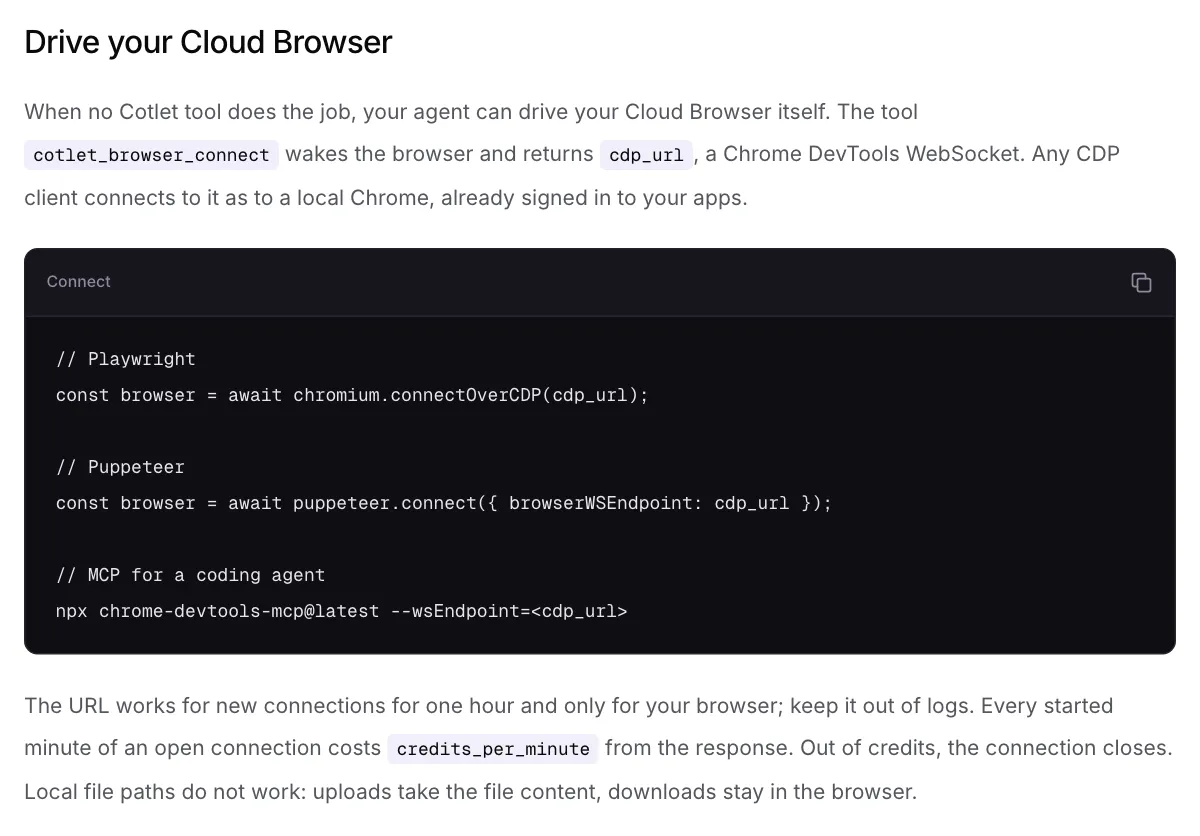
Cotlet docs, MCP server, “Drive your Cloud Browser”, October 2026.
The MCP tool cotlet_browser_connect, or POST https://cotlet.dev/api/v1/browser/cdp-sessions with your key and the app, wakes your browser of that app (Cotlet keeps one per app) and returns cdp_url, expires_at and credits_per_minute. The URL accepts new connections for one hour, so fetch a fresh one per session or job:
CDP_URL=$(curl -s -X POST https://cotlet.dev/api/v1/browser/cdp-sessions \
  -H "Authorization: Bearer $COTLET_API_KEY" -H "Content-Type: application/json" \
  -d '{"app": "pirate-ship"}' | jq -r .cdp_url)
BROWSER_CDP_URL="$CDP_URL" hermes -z "Export last month's shipments from Pirate Ship"BROWSER_CDP_URL, or browser.cdp_url in the config, points Hermes’s browser tools at the Cloud Browser. Use one of those, not /browser connect: in the Hermes source that command cuts any path other than /devtools/browser/... and keeps only the host. If Hermes’s own browser tools give you trouble, the documented fallback is chrome-devtools-mcp as a stdio MCP server, with --wsEndpoint=<cdp_url>.
Know what you are handing over. CDP opens the whole browser of that app, so it skips scopes, read-only mode and approvals. That is why it needs a key with access to all apps, all tools and writes. Each started minute of an open connection is billed, and Hermes keeps a supervisor WebSocket open per browsing task, so end the session when the job is done.
What Cotlet does not do
Cotlet never solves CAPTCHAs and never bypasses MFA. When an app asks for a check, the call returns CAPTCHA_REQUIRED, MFA_REQUIRED or AUTH_EXPIRED with a browser_url, and you finish it yourself in your Cloud Browser. Checks still happen. A signed-in session on a residential IP in one country triggers them far less often than a fresh headless login from a hosting range.
Before you give Hermes a browser with your accounts
- Use a separate browser profile for the agent. Never your main Chrome with your bank signed in.
- Sign in only to the apps the task needs, and sign out of the rest.
- Give API keys and MCP servers the narrowest scope that works.
- Treat every page the agent reads as untrusted input. A comment or email can carry a prompt injection, and a signed-in browser gives it something to act on. Consider
browser.restrict_evaluate: trueon hostile sites. - Keep CDP URLs out of logs, shell history and chat. Hermes masks tokens in query strings, so check where your endpoint keeps its token.
- Never expose port 9222 on a VPS. Anyone who reaches it controls the browser and its cookies. Bind to
127.0.0.1and use an SSH tunnel. - Decide who answers CAPTCHAs and 2FA prompts before you schedule a job, and make it a person.
Where Cotlet fits
If your Hermes runs on a VPS and needs your accounts around the clock, Cotlet gives it a browser you signed in to yourself, on a residential IP in the country you pick, with no password stored and no checks bypassed. Catalog apps are tools, everything else is a CDP session. Sign up and add your apps in the console. When that IP gets slow we move you to another one in the same country, which can sign you out of some sites. The security page lists what we hold and what we never do.