How to connect Systeme.io to AI agents and automate the busywork
Systeme.io has an official MCP server but it skips refunds, invoices and blog posts. Connect ChatGPT, Claude or any AI agent with Cotlet.dev.
Cotlet team 15 min read
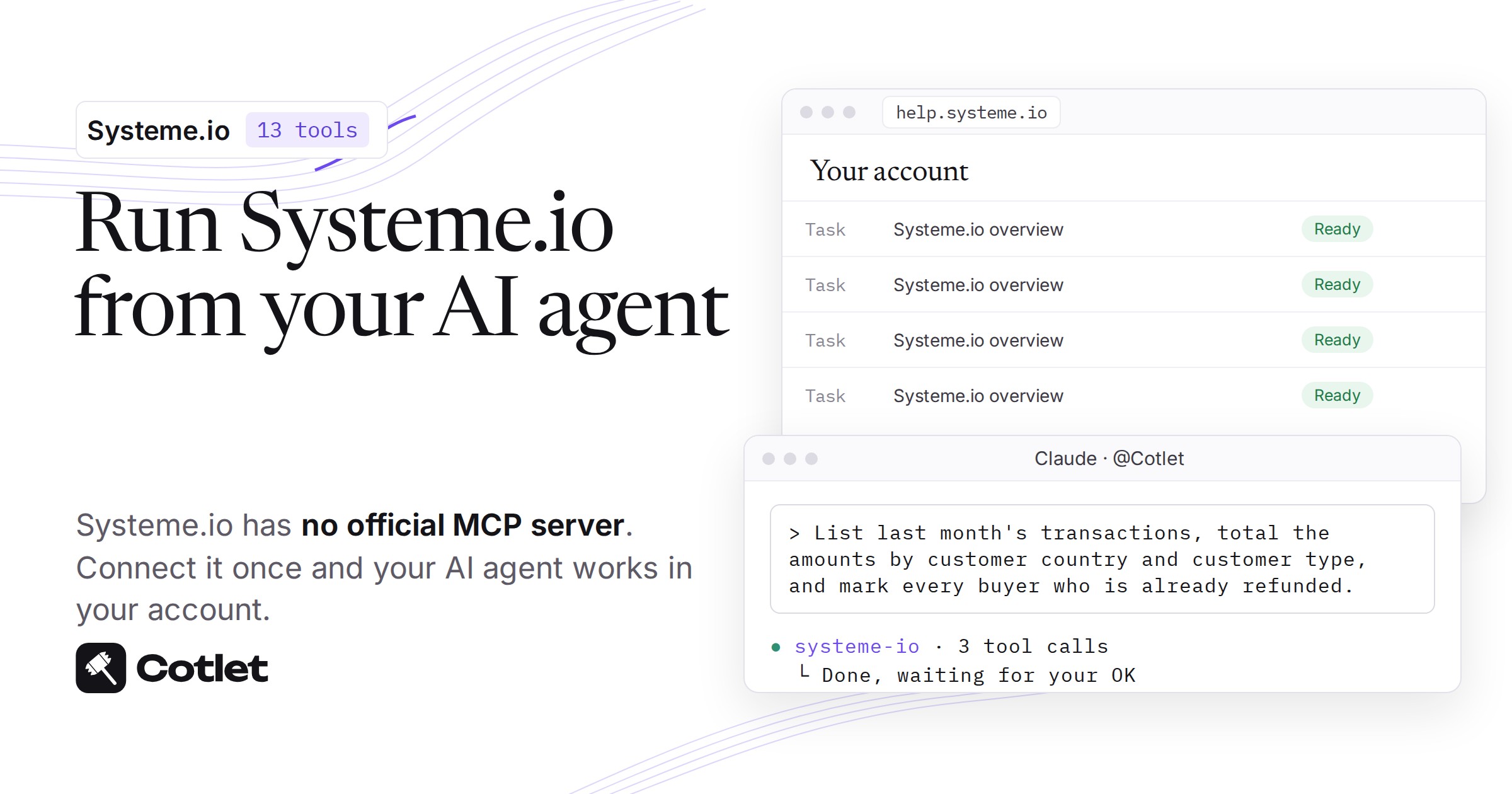
Systeme.io has a public API and an official MCP server for contacts, tags, newsletters, campaigns, products, offers, courses, calendars and automation rules (checked 27 Oct 2026). Neither lists a transaction, issues a refund, sends an invoice, writes a blog post or edits part of an existing funnel page. This guide shows how to connect Systeme.io to ChatGPT, Claude and any AI agent through Cotlet.dev, so your agent can do those jobs in your own account.
Systeme.io owners who sell courses and run funnels know the weekly chores: a buyer asks for a refund, the accountant wants sales by country, a launch date changes on every page of a funnel, and a blog post waits in a Markdown file. Cotlet.dev is for people who run a business in Systeme.io and want an AI agent to manage their account, while a customer who only buys uses Systeme.io’s own channels. Your AI agent takes over the repetitive clicks and asks you before anything reaches a buyer.
ChatGPT and Claude can run sales, funnel text and blog posts in Systeme.io
| Area of Systeme.io | What your agent does there |
|---|---|
| Sales > Transactions | Lists sales with customer, offer, amount and transaction type, opens one sale with its refund status, and starts a CSV export that Systeme.io emails to your account address. |
| Refunds | Refunds a sale in full through its payment gateway; Systeme.io then creates an invoice with a negative amount. |
| Invoices | Emails the invoice of a transaction to its customer. |
| Funnel steps | Lists your funnels with step name, type, URL path and page ID, copies a step with “(copy)” in its name, or permanently deletes a step and its page. |
| Funnel page text | Reads headlines, paragraphs and buttons, then changes the text of chosen elements while the rest of the page stays as it is. |
| Blog | Lists posts with their categories, creates a post from Markdown saved inactive, and activates it when you say so. |
| Contacts, emails, courses, products | The official Systeme.io MCP server handles these (checked 27 Oct 2026). |
Systeme.io actions that reach other people wait for your OK in your Cotlet.dev console: a refund with its amount, an invoice email, new page text, a deleted funnel step and an activated blog post. A copied funnel step and a new blog post run at once, because a copy nobody links to and an inactive post reach no one. Each tool’s inputs and a sample answer are on the Systeme.io integration page.
Systeme.io has an official MCP server and a public API, and Cotlet.dev covers the rest
Systeme.io has a public API and an official MCP server for contacts, tags, newsletters, campaigns, products, offers, courses, calendars and automation rules (checked 27 Oct 2026). Neither lists a transaction, issues a refund, sends an invoice, writes a blog post or edits part of an existing funnel page. The MCP help (12 Oct 2026) says editing or deleting funnel steps is “not supported” and that it can only regenerate the full content of a webinar page. The pages checked on 27 Oct 2026 describe no ChatGPT or Claude app from Systeme.io. Sources: How to use the systeme.io MCP server and Systeme.io MCP Server developer docs.
Cotlet.dev runs its address at https://cotlet.dev/mcp/v1 and offers 13 Systeme.io tools for sales, refunds, invoices, funnel page text and blog posts. Your AI agent works in your own Systeme.io account, with your own login, and the address runs next to Systeme.io’s own MCP server without a clash.
Your Systeme.io login, payment gateway and blog categories decide what the agent can do
- Systeme.io login. Use your own account, on any plan. Sub-accounts are separate Systeme.io accounts with their own login, so each one gets its own Cloud Browser. Plans are listed on Systeme.io pricing.
- Cotlet.dev account. You open Systeme.io inside the Cotlet.dev Cloud Browser and press Enable for agents.
- Systeme.io payment gateway. A refund needs enough money in your Stripe or PayPal balance. When it fails, your AI agent reports the gateway message and does not try again.
- Systeme.io blog. Categories must already exist in the blog, because new posts are saved inactive and need one.
- Systeme.io MCP key. You do not need one. Official MCP keys last 90 days at most and you can hold two at a time (checked 27 Oct 2026).
- Your chat app. ChatGPT and Claude work in your Systeme.io account in their phone apps too.
Step 1: Type your Systeme.io login into the Cloud Browser and enable agents
Cotlet.dev gives each Systeme.io account its own Cloud Browser. Create a Cotlet.dev account, open Systeme.io in the Cloud Browser, log in with your own Systeme.io account on any plan and press Enable for agents.
Systeme.io’s own page takes your email and password, and you type them yourself. Cotlet.dev never sees or stores the password. It keeps your logged-in Systeme.io profile, encrypted with AES-256-GCM, in Finland.
Your AI agent receives the 13 Systeme.io tools and nothing else: no login and no MCP key. If Systeme.io logs you out, Cotlet.dev emails you a sign-in link and you log in again yourself. To cut access, disable the app for agents, reset the browser or delete the key, and the next call fails.
Step 2: Add https://cotlet.dev/mcp/v1 as the connector address in your agent
Systeme.io works with ChatGPT, Claude, Claude Code, Codex, Cursor, Grok, Hermes Agent, n8n and any other MCP client through one address, https://cotlet.dev/mcp/v1.
Pick your AI above to see its steps.
How to connect Systeme.io to ChatGPT
Do this on chatgpt.com in your browser. Cotlet then works in the ChatGPT desktop and phone apps too.
- Open Plugins in ChatGPT and click Add.
- Click Add custom MCP server. Not in the menu? Turn on Developer mode in Settings, Security and login, then come back.
- Paste the name
Cotletand the server URLhttps://cotlet.dev/mcp/v1/connect. Keep Authentication on OAuth. - Tick “I understand and want to continue” and click Create as a plugin.
- Click Connect Cotlet. A Cotlet page opens, click Allow access.
- In a new chat, type
@Cotletand pick it from the list. - Ask ChatGPT: “Are you signed in to Cotlet through MCP?” Then try a first Systeme.io task: “List last month’s transactions, total the amounts by customer country and customer type, and mark every buyer who is already refunded.”
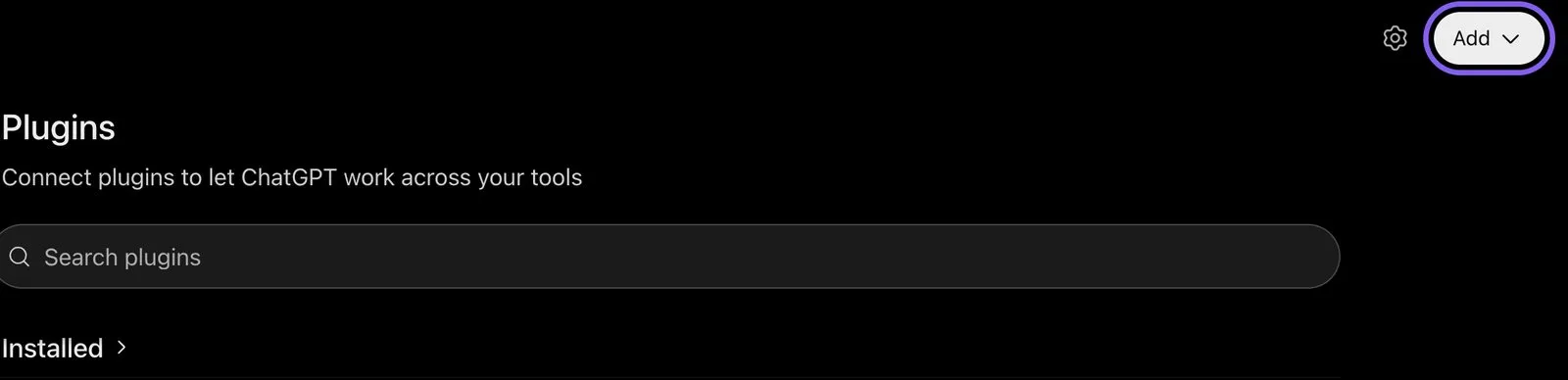
ChatGPT, Plugins page, November 2026.
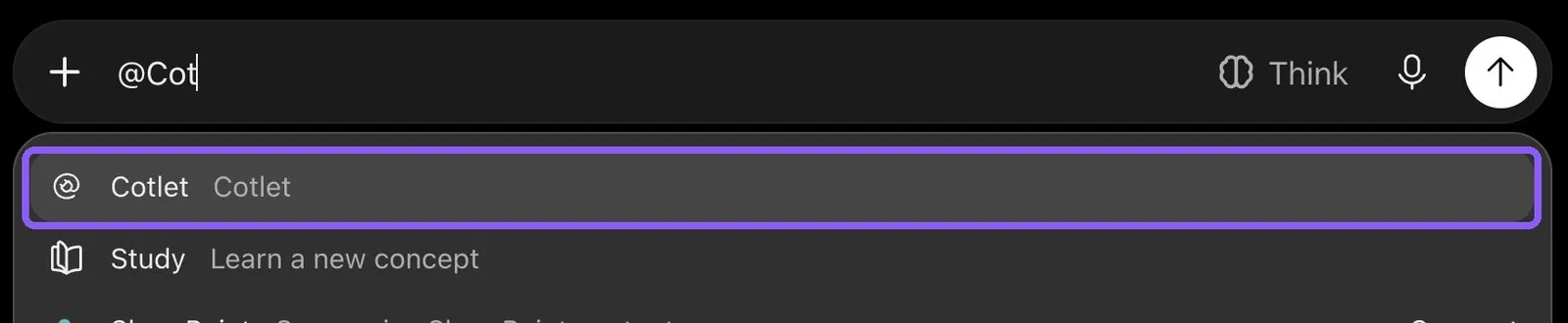
ChatGPT, picking Cotlet in a new chat with @, November 2026.
ChatGPT asks “Allow ChatGPT to use Cotlet?” before some steps. Pick Always allow, or the chat waits for your click. On a Business, Enterprise or Edu workspace, an admin has to allow custom MCP servers first.
How to connect Systeme.io to Claude
- Open Connectors in Claude and click Add. In the desktop app it is under Customize, Connectors.
- Click Add custom connector.
- Paste the name
Cotletand the URLhttps://cotlet.dev/mcp/v1/connect, then click Continue. - Keep the settings and click Add.
- A Cotlet page opens. Click Allow access.
- In a chat, click the plus button, then Connectors, and turn Cotlet on.
- Ask Claude: “Are you signed in to Cotlet through MCP?”, then “In my Spring Launch funnel, change ‘ends Friday’ to ‘ends Sunday’ in every headline and button, and show me each old and new line first.”. Claude asks before it uses a Cotlet tool the first time. Click Allow.

Claude, Customize, Connectors, November 2026.
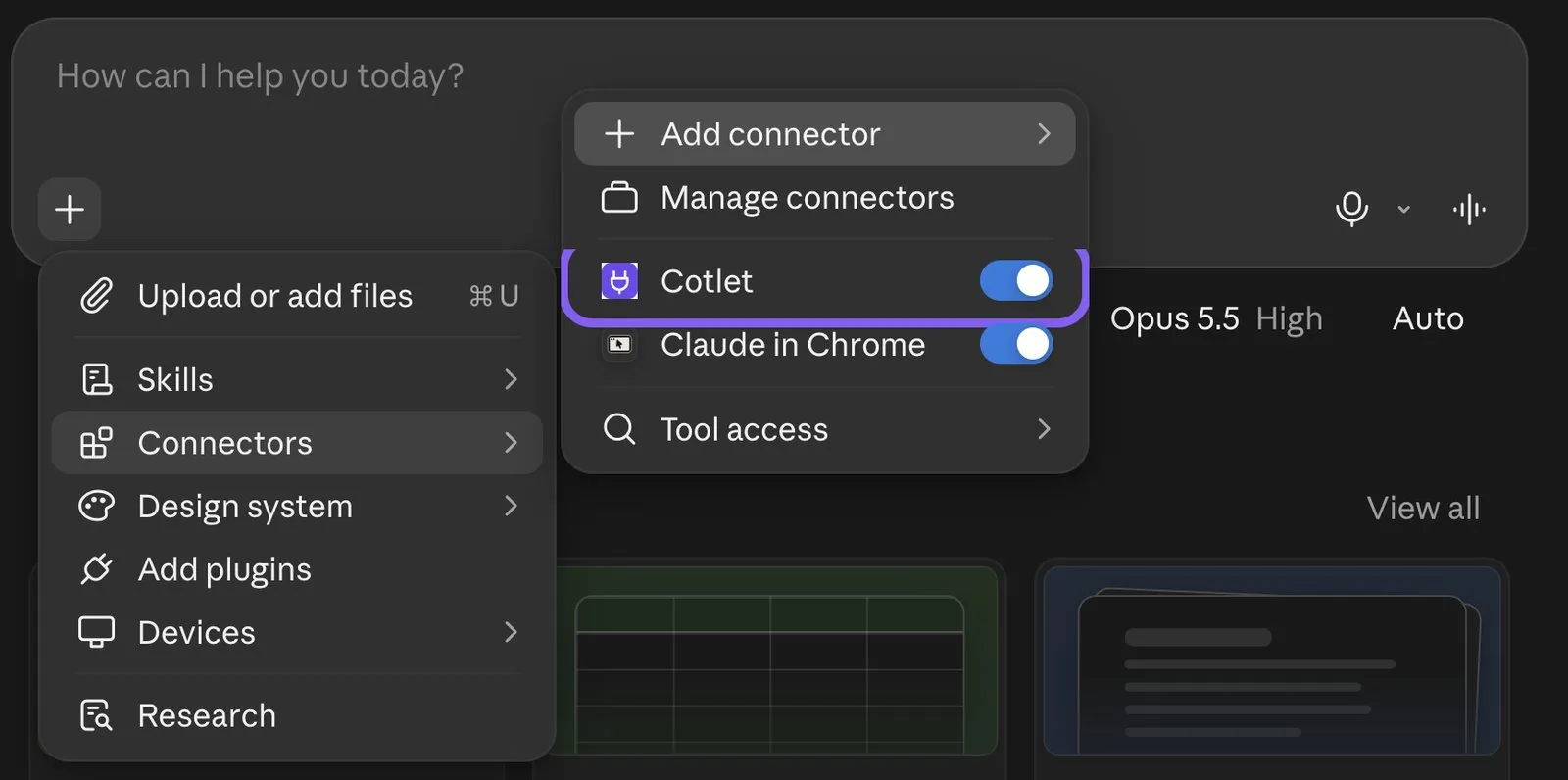
Claude, chat menu, Connectors, November 2026.
Claude’s free plan allows one custom connector. On a Team or Enterprise plan, an owner adds Cotlet in Organization settings, Connectors, and you click Connect next to it.
How to connect Systeme.io to Claude Code
Add Cotlet without a key, then sign in once in the browser:
claude mcp add --transport http cotlet https://cotlet.dev/mcp/v1/connectRun /mcp in Claude Code, pick cotlet and sign in to Cotlet. Prefer an API key, for example on a server? Create one in the Cotlet console and use:
claude mcp add --transport http cotlet https://cotlet.dev/mcp/v1 \
  --header "Authorization: Bearer $COTLET_API_KEY"
How to connect Systeme.io to Codex
Create an API key in the Cotlet console, put it in the COTLET_API_KEY environment variable and add this to ~/.codex/config.toml:
[mcp_servers.cotlet]
url = "https://cotlet.dev/mcp/v1"
bearer_token_env_var = "COTLET_API_KEY"
How to connect Systeme.io to Cursor
Create an API key in the Cotlet console, put it in the COTLET_API_KEY environment variable and add this to ~/.cursor/mcp.json:
{
  "mcpServers": {
    "cotlet": {
      "url": "https://cotlet.dev/mcp/v1",
      "headers": { "Authorization": "Bearer ${env:COTLET_API_KEY}" }
    }
  }
}
How to connect Systeme.io to Grok
Grok takes custom MCP servers on grok.com, per xAI’s connectors documentation (checked 8 November 2026).
- Open grok.com/connectors and click New Connector.
- Pick Custom and paste the server URL
https://cotlet.dev/mcp/v1/connect. - Sign in to Cotlet when Grok asks, then click Allow access.
- Ask Grok: “Are you signed in to Cotlet through MCP?”
On Grok Business, an admin adds the connector first in the xAI console, under Grok Business, Connectors. The Grok chat inside X has no custom connector menu.
How to connect Systeme.io to Hermes Agent
Add Cotlet to ~/.hermes/config.yaml in the format of the Hermes MCP config reference:
mcp_servers:
  cotlet:
    url: "https://cotlet.dev/mcp/v1"
    headers:
      Authorization: "Bearer ${COTLET_API_KEY}"
    trust: untrusted
Put COTLET_API_KEY in ~/.hermes/.env and check it with hermes mcp test cotlet. With trust: untrusted, Hermes runs reads at once and asks before every write. More on Hermes in our post on the Hermes Agent browser.
How to connect Systeme.io to n8n
Use the MCP Client node, or the MCP Client Tool inside an AI Agent node:
- Server Transport: HTTP Streamable
- MCP Endpoint URL:
https://cotlet.dev/mcp/v1 - Authentication: Bearer Auth, with your Cotlet API key as the token
- Tools: Cotlet.dev’s browser tools; the AI Agent node reads the Systeme.io guide first
Use it to run this on a schedule: a blog post from Markdown, saved inactive until you say go.
Any other MCP client
Point the client at https://cotlet.dev/mcp/v1 over Streamable HTTP, with the header Authorization: Bearer <your Cotlet API key>. A client that supports OAuth sign-in can use https://cotlet.dev/mcp/v1/connect instead and needs no key. The full reference is in the MCP docs.
- Add the address. Your AI agent needs https://cotlet.dev/mcp/v1 as its MCP server or connector URL.
- Approve the connection. Chat apps send you to a Cotlet.dev sign-in page. Editors such as Cursor, and n8n, take a key from the console.
- Check the tools. If you enable Systeme.io after connecting, refresh the connector so the 13 Systeme.io tools appear.
Three Systeme.io chores that save the most clicks
Each example below is a request you can paste into your chat app. They come from three different areas of Systeme.io.
Sales by country with refunds already flagged
“List last month’s transactions, total the amounts by customer country and customer type, and mark every buyer who is already refunded.”
Your AI agent reads Sales > Transactions with the same filters you see on the page: customer email, offer, transaction type, date range, customer country and customer type. It opens doubtful sales for their refund status and returns the totals. Systeme.io sales reach your code only as the SALE_NEW and SALE_CANCELED webhooks, from the day you subscribe, and earlier months stay in Sales > Transactions (Systeme.io Public API index, checked 27 Oct 2026), so the agent reads that page instead. Nothing is written, so no approval is needed. For a full file, the agent starts a CSV export and Systeme.io emails the link to your account address. You skip filtering and copying rows into a spreadsheet.
One new date on every page of a funnel, shown before it is saved
“In my Spring Launch funnel, change ‘ends Friday’ to ‘ends Sunday’ in every headline and button, and show me each old and new line first.”
Your AI agent lists the steps of the funnel, reads the text elements of each page and proposes the new wording. Saving the change on each page waits for your OK. Systeme.io’s MCP help (12 Oct 2026) says editing or deleting funnel steps is “not supported” (How to use the systeme.io MCP server), so Cotlet.dev changes chosen text elements and leaves the rest of the page alone. Countdown dates, images and layout stay in the editor. To undo, ask for the old words back. You skip opening every page.
A blog post from Markdown, saved inactive until you say go
“Create a blog post from the Markdown below in the category News, save it inactive and tell me its URL path.”
Your AI agent creates the post from your Markdown and saves it inactive, so nobody sees it. It returns the title and URL path, and activating the post waits for your OK. The category must already exist in your Systeme.io blog. To hide an activated post again, use the Systeme.io dashboard, because no tool deactivates it. You skip pasting and formatting text in the blog editor.
Other ways to reach Systeme.io and where each one stops
- Systeme.io public API and official MCP server: contacts, tags, newsletters, campaigns, products, offers, courses, calendars and automation rules, with no transaction list, refund, invoice or blog post (checked 27 Oct 2026).
- Zapier: new sale, opt-in, tag and webinar triggers, plus contact, tag, campaign and course access actions, also through Zapier MCP, with no refunds, invoices, pages or blog posts (checked 27 Oct 2026, systeme.io on Zapier).
- Make and n8n: a request step can call the 13 Systeme.io tools of Cotlet.dev, and your workflow writes the result to the destination you choose, with no native connector needed.
- softreviewed/systeme-extra-mcp on GitHub: every public API call as 152 actions in 22 groups, but its README says anything missing from the API, “for example, refunds”, is missing there too (checked 27 Oct 2026).
- snzeeee/mcp-server-systemeio on GitHub: contacts, tags, courses and subscriptions for Claude Desktop, running on your computer.
- lexiitong/systemeio-cli on GitHub: command line reads of transactions, funnel stats and newsletters, with no MCP server.
Only Cotlet.dev gives your AI agent everything the owner can do in Systeme.io, on every screen, read and write, from ChatGPT, Claude or any agent, with no API key, on the current Systeme.io plan.
FAQ
Is there an official Systeme.io app for ChatGPT or Claude?
Systeme.io lists an official MCP server and a public API, and the pages checked on 27 Oct 2026 describe no ChatGPT or Claude app. Cotlet.dev adds Systeme.io to ChatGPT and Claude through https://cotlet.dev/mcp/v1, following the steps in your console. Your AI agent then works in your own Systeme.io account.
What do Systeme.io’s own API and MCP server cover?
Systeme.io covers contacts, tags, newsletters, campaigns, products, offers, courses, calendars and automation rules (checked 27 Oct 2026). Neither lists a transaction, issues a refund, sends an invoice, writes a blog post or edits part of an existing funnel page. Official MCP keys last 90 days at most and you can hold two at a time.
Where do Zapier, Make and n8n stop in Systeme.io?
Systeme.io on Zapier offers new sale, opt-in, tag and webinar triggers, and contact, tag, campaign and course access actions (checked 27 Oct 2026). It has the same surface as the API, so there are no refunds, invoices, funnel pages or blog posts. Make and n8n can call the 13 Systeme.io tools of Cotlet.dev through a request step, which needs no native Cotlet.dev connector.
Where do I add the address to link Systeme.io with ChatGPT or Claude?
Cotlet.dev connects ChatGPT and Claude in three moves. Create a Cotlet.dev account and log in to Systeme.io once in its Cloud Browser, add https://cotlet.dev/mcp/v1 as the connector address, then approve the connection on the Cotlet.dev sign-in page. No API key is needed in chat apps.
Can my agent refund half of a sale?
Systeme.io refunds whole sales only, and the payment gateway balance must cover the refund. If you ask for half back, your AI agent stops and tells you instead of refunding the full amount. After a refund, Systeme.io creates an invoice with a negative amount, and the agent can email it to the buyer after your OK.
Do I need a Systeme.io MCP key for Cotlet.dev?
Cotlet.dev needs no Systeme.io MCP key, because it works in your own account after you log in once. Systeme.io’s own MCP keys last 90 days at most and you can hold two at a time (checked 27 Oct 2026), so a connection built on them needs renewing. No paid plan is needed either.
Which events does Systeme.io send as webhooks?
Systeme.io has six webhooks: contact opt-in, contact created, tag added, tag removed, new sale and sale canceled (checked 27 Oct 2026). No event is named for refunds, and the help does not say whether a refund made in the dashboard fires sale canceled. Run your AI agent on a schedule and read Transactions to catch refunds.
How are the Systeme.io tools repaired after an update?
Cotlet.dev tests the Systeme.io sales, funnel and blog reads every 12 h, and the writes a buyer or visitor would see every 24 h. Systeme.io moves fast: its MCP help was rewritten on 12 Oct 2026. When a screen moves, Cotlet.dev repairs the tool and keeps its name, and if the official MCP server gains one of these jobs, use it there.
Can I use Cotlet.dev next to Systeme.io’s own MCP server?
Cotlet.dev runs next to Systeme.io’s own MCP server without a clash, so add both to your agent. Their tools do not overlap: the official server handles contacts, emails, products and courses, while Cotlet.dev handles sales, funnel page text and the blog.
Is Cotlet.dev connected to Systeme.io or ITACWT Limited?
Cotlet.dev is independent and not affiliated with Systeme.io or ITACWT Limited. It works in your own Systeme.io account with your own login, which is why every refund, invoice, deleted step and activated post waits for your OK.
Start with last month’s sales on your own Systeme.io account
Your AI agent can read Sales > Transactions as soon as you press Enable for agents in the Cloud Browser. Ask it which buyers from last month are already refunded, then decide yourself what it may change. The Systeme.io integration page shows the 13 tools and an example answer for each.