How to connect Buildertrend to ChatGPT, Claude and any AI agent
Buildertrend's Open API covers jobs and tasks, in early access. How builders let ChatGPT or Claude write daily logs, move schedules and draft change orders.
Cotlet team 11 min read
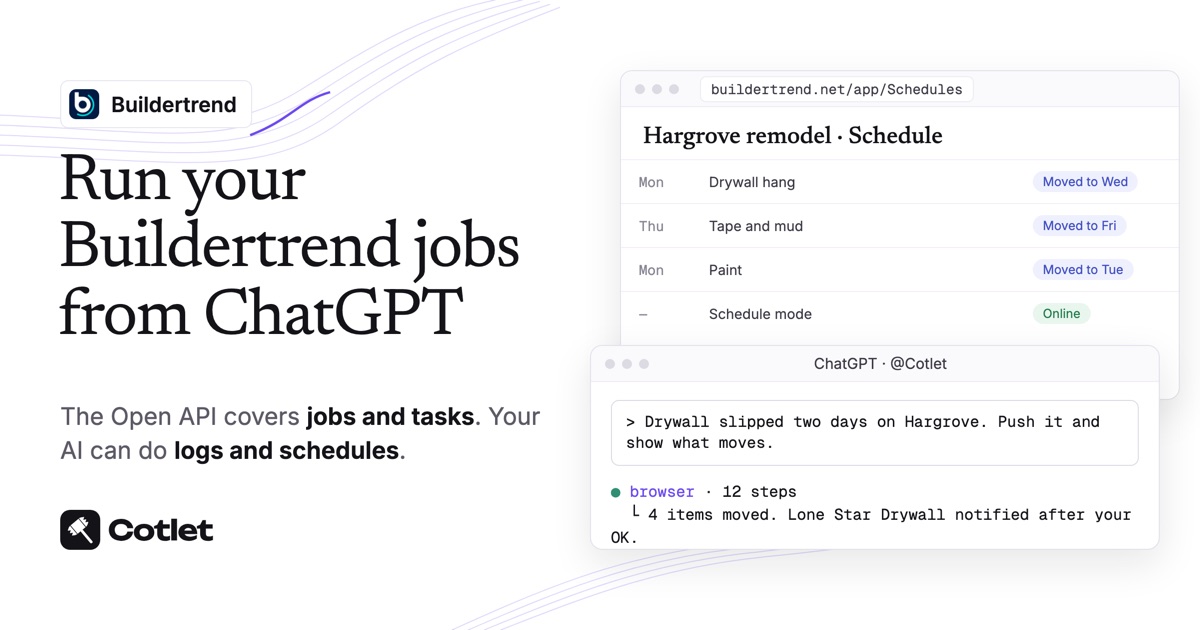
Buildertrend has no ChatGPT app and no Claude connector, and its Open API covers only jobs and tasks, behind an early access waitlist, as of 9 November 2026. Daily logs, the schedule, change orders and selections are not in it. To have ChatGPT, Claude or another AI agent do that work in your Buildertrend account, you connect it with Cotlet: log in to Buildertrend once in a cloud browser, and your AI works in the same screens your office does. Plan on ten minutes and no code.
Cotlet is for the builder or remodeler who runs the company in Buildertrend, and for the office manager and project managers who keep it current. Your clients still see updates and approve selections in the Buildertrend Client Portal. What changes is who does the typing: the notes from site, the slipped drywall date, the change order the homeowner asked for on the walkthrough.
What ChatGPT and Claude can do in Buildertrend once connected
Your AI works in Buildertrend on the web, in your signed-in browser, on the screens your team uses:
| Buildertrend screen | What you can ask your AI to do |
|---|---|
| Jobs | List active jobs, open one, read its details and work days |
| Schedule | Find a schedule item, move it, see what moves after it, check its history |
| Daily Logs | Write today’s log from your notes, set who can see it, check if one exists |
| Change Orders | Draft a change order with line items and a deadline, release it after your OK |
| Selections | Read options and their status, see what the client still has to choose |
| To-Dos | Create and update tasks for the crew |
Anything a client, sub or vendor would see waits for your yes: a released change order, a log shared with the client, a schedule change that sends notifications. Reading jobs, schedules and logs needs no approval.
There is more on the connection on Cotlet’s Buildertrend integration page.
Does Buildertrend have AI, an API or an official ChatGPT app?
Buildertrend has AI built in and an API on the way. Neither lets your own ChatGPT or Claude run the job.
- Built-in AI. Buildertrend’s FAQ says its AI “is built directly into the platform” and needs no ChatGPT or Claude subscription. AI Client Updates is one example: Buildertrend says it cut client update time “from 60 to 6.5 minutes”, per its press release. It works inside Buildertrend, not in your chat.
- Open API, early access. Buildertrend’s developer portal offers an Open API for jobs and tasks, at 60 requests a minute per app (checked 9 November 2026). Access is through a waitlist. If you need jobs and tasks in your own systems, join it.
- No Zapier, no Claude connector. Zapier has no Buildertrend app, and neither ChatGPT nor Claude lists one.
- Read-only bridges. Some third-party tools copy Buildertrend data so an AI can read it, but they cannot change anything in Buildertrend.
So for logs, schedules and change orders, a hosted MCP server that works in Buildertrend as you is the practical route today.
Before you start
- A Buildertrend login with the jobs and permissions you want the AI to use. The owner or an office admin covers schedules, logs and change orders on every job.
- ChatGPT on chatgpt.com, or Claude in the browser or the desktop app. On Claude’s free plan you get one custom connector.
- A Cotlet account; the trial gives 7 days and 2,000 credits without a card.
Step 1: sign in to Buildertrend in your Cloud Browser
Open the Web browser in the Cotlet console, go to buildertrend.net and log in through Buildertrend’s usual login page. Cotlet’s browser runs in the cloud and keeps that login, so your AI can file tonight’s daily log after you have left the site.
Your password only ever goes into Buildertrend’s login page. Cotlet does not see it or save it, it holds the encrypted session and nothing else. If Buildertrend asks you to log in again, the AI stops and sends you the browser link to do it. The security page covers the details.
Step 2: connect Buildertrend to ChatGPT, Claude or another AI agent
Choose your AI below. Office on ChatGPT and field on Claude is fine: both reach the same Buildertrend login in your Cloud Browser.
Pick your AI above to see its steps.
How to connect Buildertrend to ChatGPT
Do this on chatgpt.com in your browser. Cotlet then works in the ChatGPT desktop and phone apps too.
- Open Plugins in ChatGPT and click Add.
- Click Add custom MCP server. Not in the menu? Turn on Developer mode in Settings, Security and login, then come back.
- Paste the name
Cotletand the server URLhttps://cotlet.dev/mcp/v1/connect. Keep Authentication on OAuth. - Tick “I understand and want to continue” and click Create as a plugin.
- Click Connect Cotlet. A Cotlet page opens, click Allow access.
- In a new chat, type
@Cotletand pick it from the list. - Ask ChatGPT: “Are you signed in to Cotlet through MCP?” Then try a first Buildertrend task: “List my active Buildertrend jobs and the next schedule item on each.”
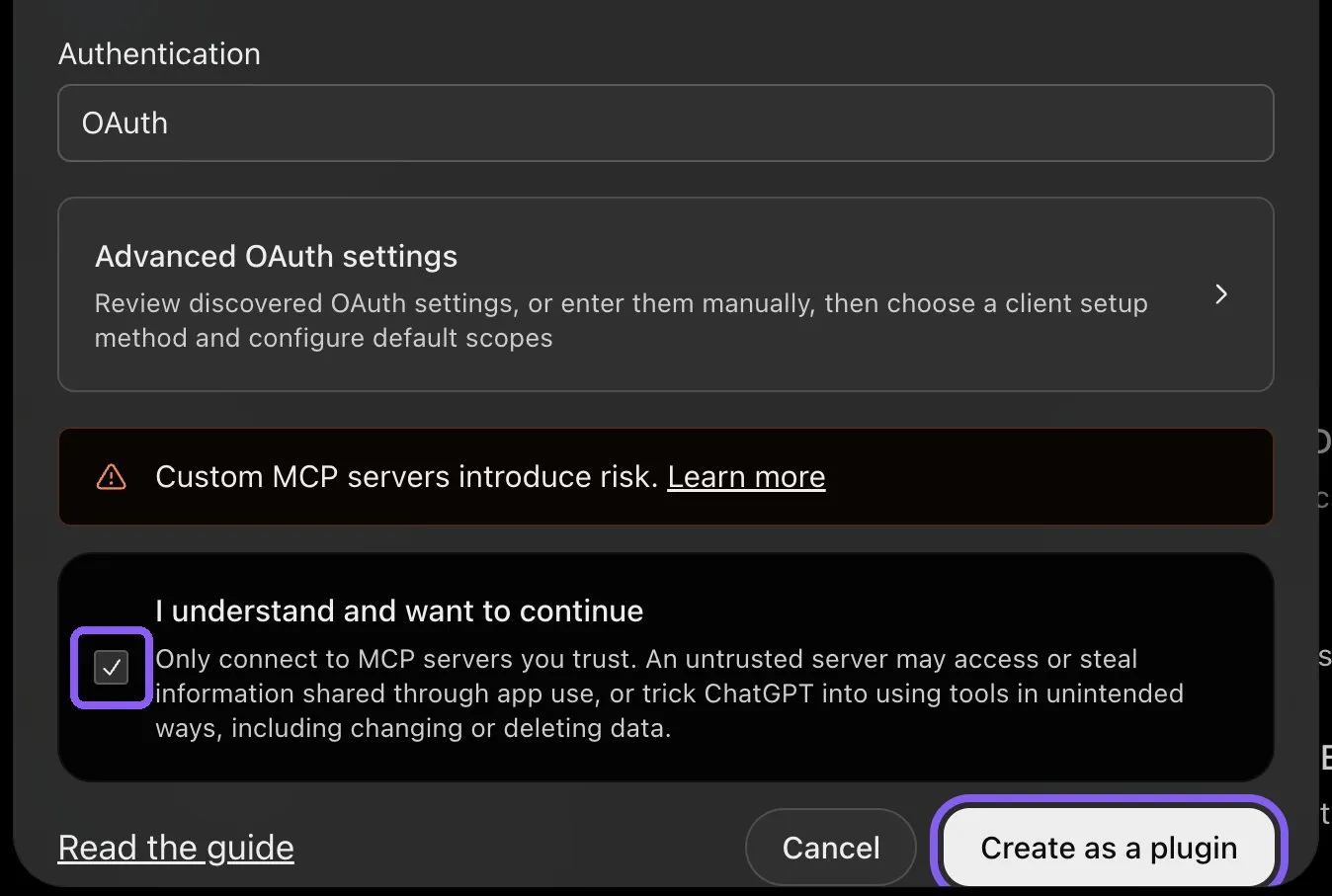
ChatGPT, bottom of the custom MCP server form, November 2026.
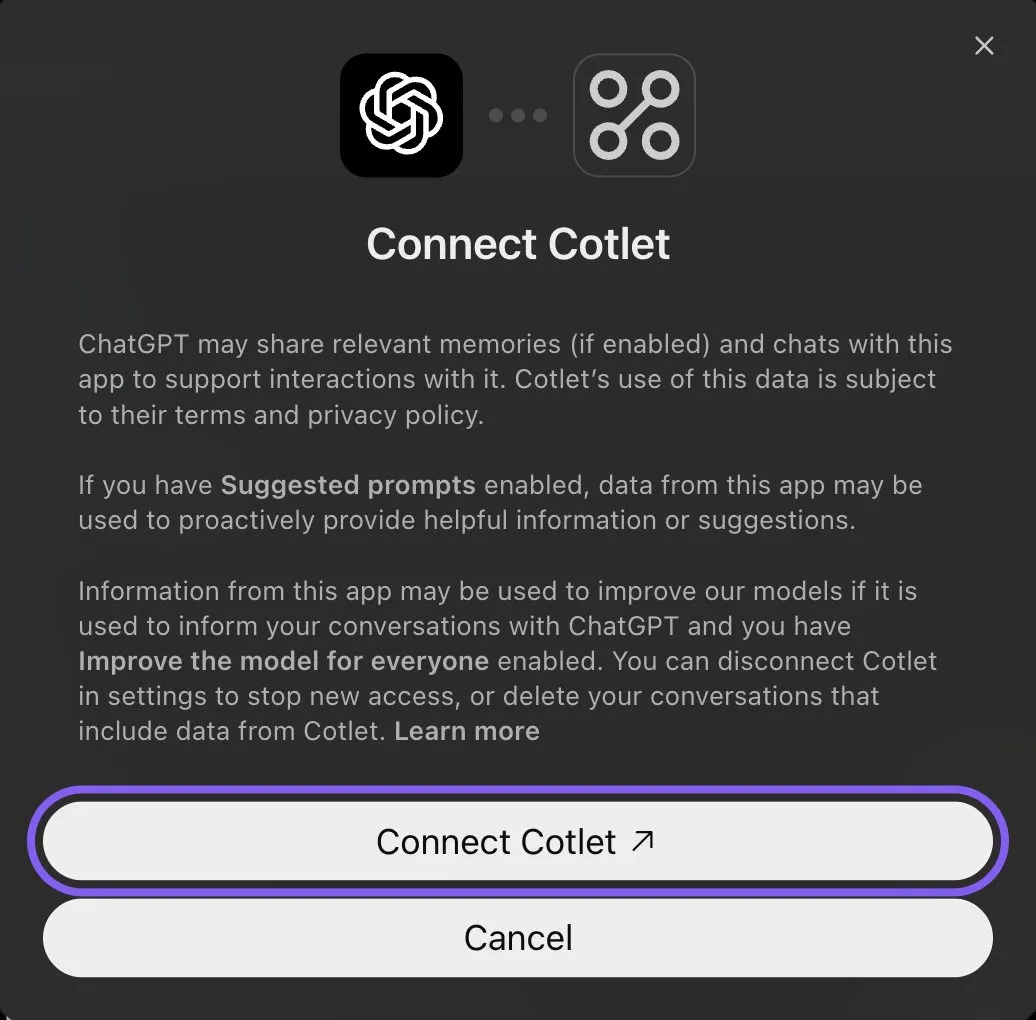
ChatGPT, connecting the Cotlet plugin, November 2026.
ChatGPT asks “Allow ChatGPT to use Cotlet?” before some steps. Pick Always allow, or the chat waits for your click. On a Business, Enterprise or Edu workspace, an admin has to allow custom MCP servers first.
How to connect Buildertrend to Claude
- Open Connectors in Claude and click Add. In the desktop app it is under Customize, Connectors.
- Click Add custom connector.
- Paste the name
Cotletand the URLhttps://cotlet.dev/mcp/v1/connect, then click Continue. - Keep the settings and click Add.
- A Cotlet page opens. Click Allow access.
- In a chat, click the plus button, then Connectors, and turn Cotlet on.
- Ask Claude: “Are you signed in to Cotlet through MCP?”, then “Which Buildertrend change orders are released but not yet approved by the client?”. Claude asks before it uses a Cotlet tool the first time. Click Allow.

Claude, Customize, Connectors, November 2026.
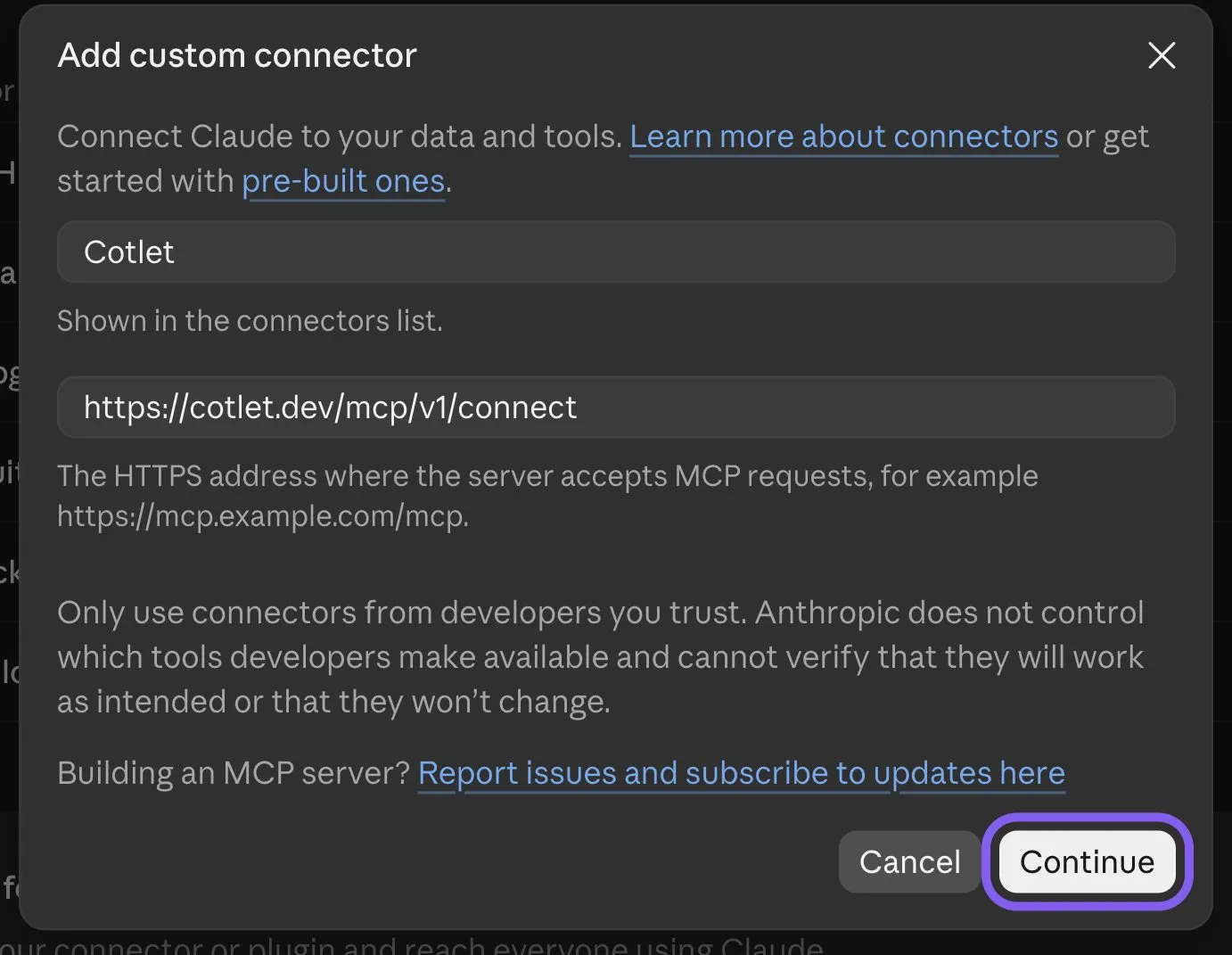
Claude, Add custom connector form, November 2026.
Claude’s free plan allows one custom connector. On a Team or Enterprise plan, an owner adds Cotlet in Organization settings, Connectors, and you click Connect next to it.
How to connect Buildertrend to Claude Code
Add Cotlet without a key, then sign in once in the browser:
claude mcp add --transport http cotlet https://cotlet.dev/mcp/v1/connectRun /mcp in Claude Code, pick cotlet and sign in to Cotlet. Prefer an API key, for example on a server? Create one in the Cotlet console and use:
claude mcp add --transport http cotlet https://cotlet.dev/mcp/v1 \
  --header "Authorization: Bearer $COTLET_API_KEY"
How to connect Buildertrend to Codex
Create an API key in the Cotlet console, put it in the COTLET_API_KEY environment variable and add this to ~/.codex/config.toml:
[mcp_servers.cotlet]
url = "https://cotlet.dev/mcp/v1"
bearer_token_env_var = "COTLET_API_KEY"
How to connect Buildertrend to Cursor
Create an API key in the Cotlet console, put it in the COTLET_API_KEY environment variable and add this to ~/.cursor/mcp.json:
{
  "mcpServers": {
    "cotlet": {
      "url": "https://cotlet.dev/mcp/v1",
      "headers": { "Authorization": "Bearer ${env:COTLET_API_KEY}" }
    }
  }
}
How to connect Buildertrend to Grok
Grok takes custom MCP servers on grok.com, per xAI’s connectors documentation (checked 8 November 2026).
- Open grok.com/connectors and click New Connector.
- Pick Custom and paste the server URL
https://cotlet.dev/mcp/v1/connect. - Sign in to Cotlet when Grok asks, then click Allow access.
- Ask Grok: “Are you signed in to Cotlet through MCP?”
On Grok Business, an admin adds the connector first in the xAI console, under Grok Business, Connectors. The Grok chat inside X has no custom connector menu.
How to connect Buildertrend to Hermes Agent
Add Cotlet to ~/.hermes/config.yaml in the format of the Hermes MCP config reference:
mcp_servers:
  cotlet:
    url: "https://cotlet.dev/mcp/v1"
    headers:
      Authorization: "Bearer ${COTLET_API_KEY}"
    trust: untrusted
Put COTLET_API_KEY in ~/.hermes/.env and check it with hermes mcp test cotlet. With trust: untrusted, Hermes runs reads at once and asks before every write. More on Hermes in our post on the Hermes Agent browser.
How to connect Buildertrend to n8n
Use the MCP Client node, or the MCP Client Tool inside an AI Agent node:
- Server Transport: HTTP Streamable
- MCP Endpoint URL:
https://cotlet.dev/mcp/v1 - Authentication: Bearer Auth, with your Cotlet API key as the token
- Tools: let the AI Agent node use Cotlet’s browser tools; it reads Cotlet’s Buildertrend guide first and works in your logged-in Buildertrend
Use it for work that should run on its own, such as a 6 pm reminder listing the jobs that still have no daily log for today.
Any other MCP client
Point the client at https://cotlet.dev/mcp/v1 over Streamable HTTP, with the header Authorization: Bearer <your Cotlet API key>. A client that supports OAuth sign-in can use https://cotlet.dev/mcp/v1/connect instead and needs no key. The full reference is in the MCP docs.
Three Buildertrend jobs to try first
Use one real job and check it in Buildertrend afterwards.
Push the schedule when a trade slips
Drywall slipped two days on the Hargrove remodel. Push it to Wednesday, show me everything that moves after it, and notify Lone Star Drywall once I confirm.
The AI opens the Hargrove schedule, finds the drywall item and lists the items linked after it with their new dates. After your OK it saves the move and sends the notice. It also checks the schedule’s mode first: Buildertrend says “Schedule notifications will only be sent if the schedule is set to Online”, per its schedule overview. If the job is still Offline, the AI tells you nobody will be notified before it saves.
Draft a change order from the walkthrough
The Maple Street client wants 8 more outlets in the kitchen. Draft a change order at $80 each, cost code 16-100, deadline next Tuesday, and release it once I OK it.
The AI drafts the change order with the line items, cost code and deadline, and shows you the total. It releases it to the client only after your yes. Getting it right before release saves a step, because to edit a released change order you have to “select Unrelease” first and release it again, per Buildertrend’s change order help.
Turn site notes into today’s daily log
Here are my notes from Maple Street today. Turn them into today’s Buildertrend daily log, internal only, and tell me if a log for today already exists.
The AI checks today’s logs on the job so you do not get two, writes the log from your notes and saves it with internal visibility. Buildertrend’s visibility settings decide who sees a log, from Client to Private, which “Restricts visibility to only the internal user who created the daily log”, per its daily log help. The AI asks before any log goes to the client.
What Cotlet costs
Cotlet is pay as you go with credit packs from $29, valid for 12 months, and no subscription. New accounts get 7 days free with 2,000 credits, no card needed. Failed calls are free. Pack sizes are on the pricing page.
Your Buildertrend subscription does not change, and Cotlet does not need Open API access to work.
FAQ
Does Buildertrend have an API?
Yes, in early access: the Buildertrend Open API covers jobs and tasks, at 60 requests a minute, through a waitlist on its developer portal (checked 9 November 2026). Daily logs, schedules, change orders and selections are not in it yet.
Is there a Buildertrend MCP server?
Buildertrend has not published one. A few community and third-party servers exist, mostly read-only. Cotlet’s hosted MCP server works in your live Buildertrend account, reads and writes included, with your approval on anything clients or subs see.
Can ChatGPT or Claude write daily logs and update the schedule in Buildertrend?
Yes, through Cotlet. Your AI writes the daily log from your notes and moves schedule items in your Buildertrend account, and asks before anything goes to a client or a sub.
Can ChatGPT agent log in to Buildertrend instead?
For a one-off look, maybe. OpenAI’s agent help article says the agent hands the browser back to you whenever a site needs a login. A daily log every evening on five jobs is a different job: Cotlet keeps Buildertrend logged in between runs, and the same login serves Claude, ChatGPT and an n8n schedule.
Is this an official Buildertrend integration?
No. Cotlet is independent and not affiliated with Buildertrend. It works through your own signed-in Buildertrend account, the way you would by hand.
Let your AI keep Buildertrend up to date
The office work on a job never stops, and the Open API does not reach most of it yet. Sign up for Cotlet, log in to Buildertrend once in the Cloud Browser, and have Claude or ChatGPT write tonight’s daily log. Other software your company runs without an API may be in the integrations catalog.