How to connect Tradify to ChatGPT, Claude and any AI agent
Tradify has no ChatGPT app, no Claude connector and no public API. How to connect it anyway, step by step with screenshots, and three jobs to try first.
Cotlet team 11 min read
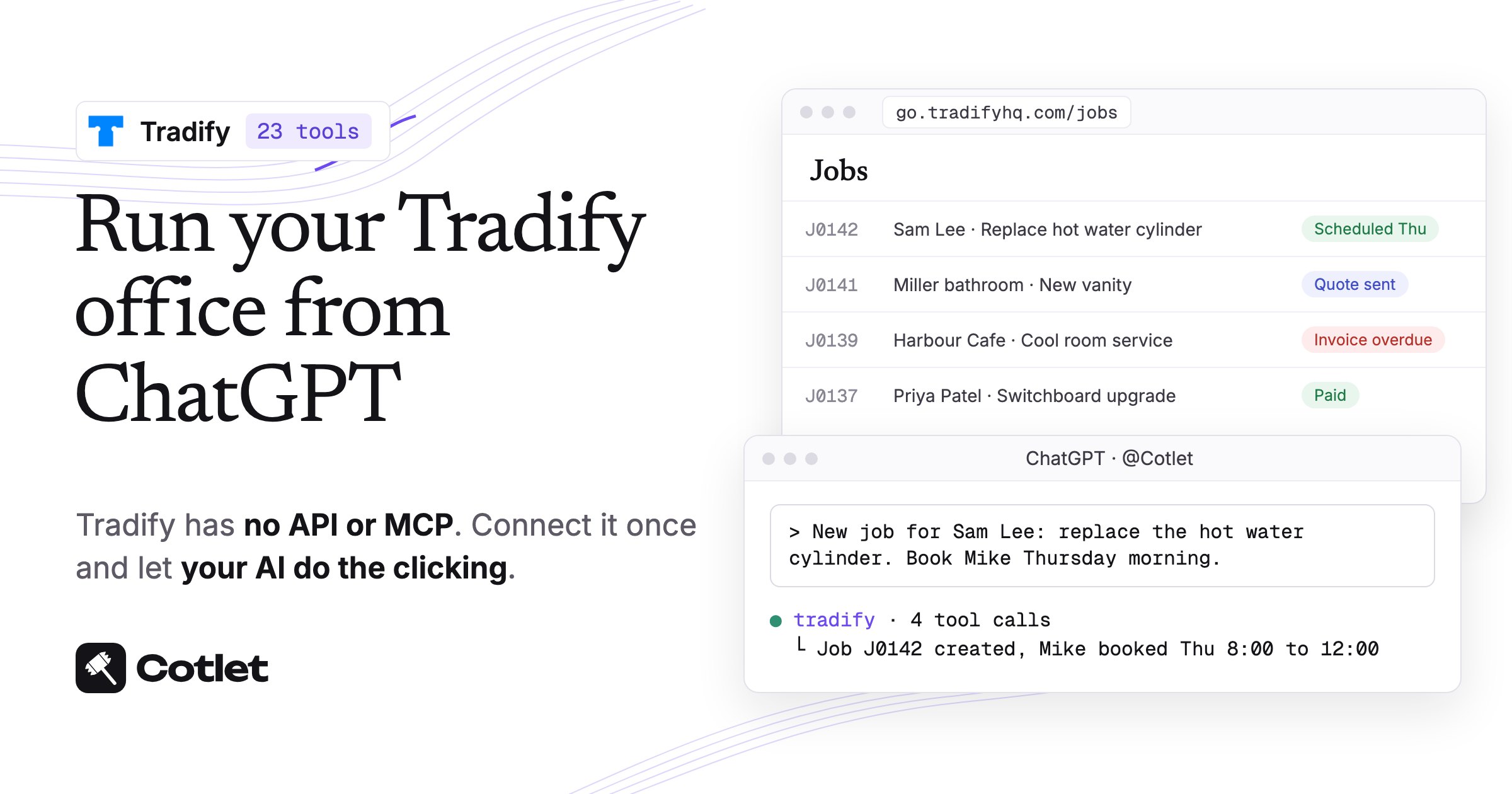
Tradify has no official ChatGPT app, no Claude connector and no public API, as of November 2026. You can still connect Tradify to ChatGPT, Claude or any other AI agent. Cotlet signs in to Tradify as you, in a browser on our side, and gives your AI 23 Tradify tools: jobs, customers, quotes, invoices, payments, the Scheduler and timesheets. The setup below takes about ten minutes and needs no code.
Most people who search this are not developers. They run a plumbing, electrical or HVAC business, they already use ChatGPT or Claude every day, and they want it to do the Tradify part of the office work too. Cotlet is built for exactly them: the owner or office manager who wants an AI to run the jobs, quotes and invoices in their Tradify account. This guide is for them.
What ChatGPT and Claude can do in Tradify once connected
Once Tradify is connected, you ask in plain words and the AI does the clicking. These are the Tradify tools Cotlet gives your agent:
| Area | What the AI can do in your Tradify account |
|---|---|
| Customers | Find a customer by name, phone or email, add a new one |
| Jobs | Create a job, read it, change its status, add a job note |
| Quotes | Create a quote with line items, read it, email it to the customer |
| Invoices | Create an invoice, turn an accepted quote into one, email it |
| Payments | List unpaid and overdue invoices, record a full or part payment |
| Scheduler | Read appointments, book a staff member on a job |
| Time | Log time on a job, read timesheets, run Tradify reports |
Nothing reaches your customers until you say so. Before the AI emails a quote or an invoice, it shows you what it is about to send and waits for your OK.
The full list of tools, with their inputs, is on the Tradify API and MCP server page.
Does Tradify have AI, an API or an official ChatGPT app?
Tradify has some AI of its own, but no way for your AI to get in.
- AI inside Tradify. Tradify SmartTools use AI for quoting, cost tracking and reading bills. They are on the Plus plan only, at $61 USD per user per month, per Tradify’s pricing page (checked 8 November 2026). SmartTools work inside Tradify. They do not let ChatGPT or Claude act in your account.
- No public API. Tradify’s own API page says it “does not currently offer a public API or self-service API keys”, and asks you to vote for one. There are no webhooks and no developer docs either.
- No ChatGPT app or Claude connector. Neither directory lists Tradify as of 8 November 2026.
- Built-in integrations. Tradify connects to Xero, QuickBooks, Sage, Stripe and Google Calendar. They sync invoices, bills and calendar events. Jobs, quotes and the Scheduler stay inside Tradify.
That is why a hosted MCP server is the only way, today, to let an AI agent work in Tradify itself. If Tradify ships an official API or connector later, use it.
Before you start: a short checklist
- A Tradify login with access to what you want the AI to do. The owner or an office user covers quotes, invoices and the Scheduler.
- 2-Step Security on that Tradify login, if the AI should email quotes and invoices. Tradify asks for it before sending.
- ChatGPT on chatgpt.com, or Claude on claude.ai or the desktop app. Claude’s free plan allows one custom connector, which is enough.
- A Cotlet account. The free trial runs 7 days and needs no card.
Step 1: sign in to Tradify in your Cloud Browser
After you sign up, open Tradify in your Cloud Browser in the Cotlet console and sign in to go.tradifyhq.com the way you always do. You type your password into Tradify’s own page. Cotlet never stores your Tradify password. It keeps the signed-in session, encrypted, so your AI can work in Tradify later without you.
You do this once. If Tradify ever signs you out, your AI tells you and gives you a link to sign in again. How the Cloud Browser keeps your session safe is on our security page.
Step 2: connect Tradify to ChatGPT, Claude or another AI agent
Cotlet works with ChatGPT, Claude, Claude Code, Codex, Cursor, Grok, Hermes Agent, n8n and any other client that speaks MCP. Every agent gets the same 23 Tradify tools. Pick yours and follow only that guide.
Pick your AI above to see its steps.
How to connect Tradify to ChatGPT
Do this on chatgpt.com in your browser. Cotlet then works in the ChatGPT desktop and phone apps too.
- Open Plugins in ChatGPT and click Add.
- Click Add custom MCP server.
- Paste the name
Cotletand the server URLhttps://cotlet.dev/mcp/v1/connect. Keep Authentication on OAuth. - Tick “I understand and want to continue” and click Create as a plugin.
- Click Connect Cotlet. A Cotlet page opens, click Allow access.
- In a new chat, type
@Cotletand pick it from the list. - Ask ChatGPT: “Are you signed in to Cotlet through MCP?”
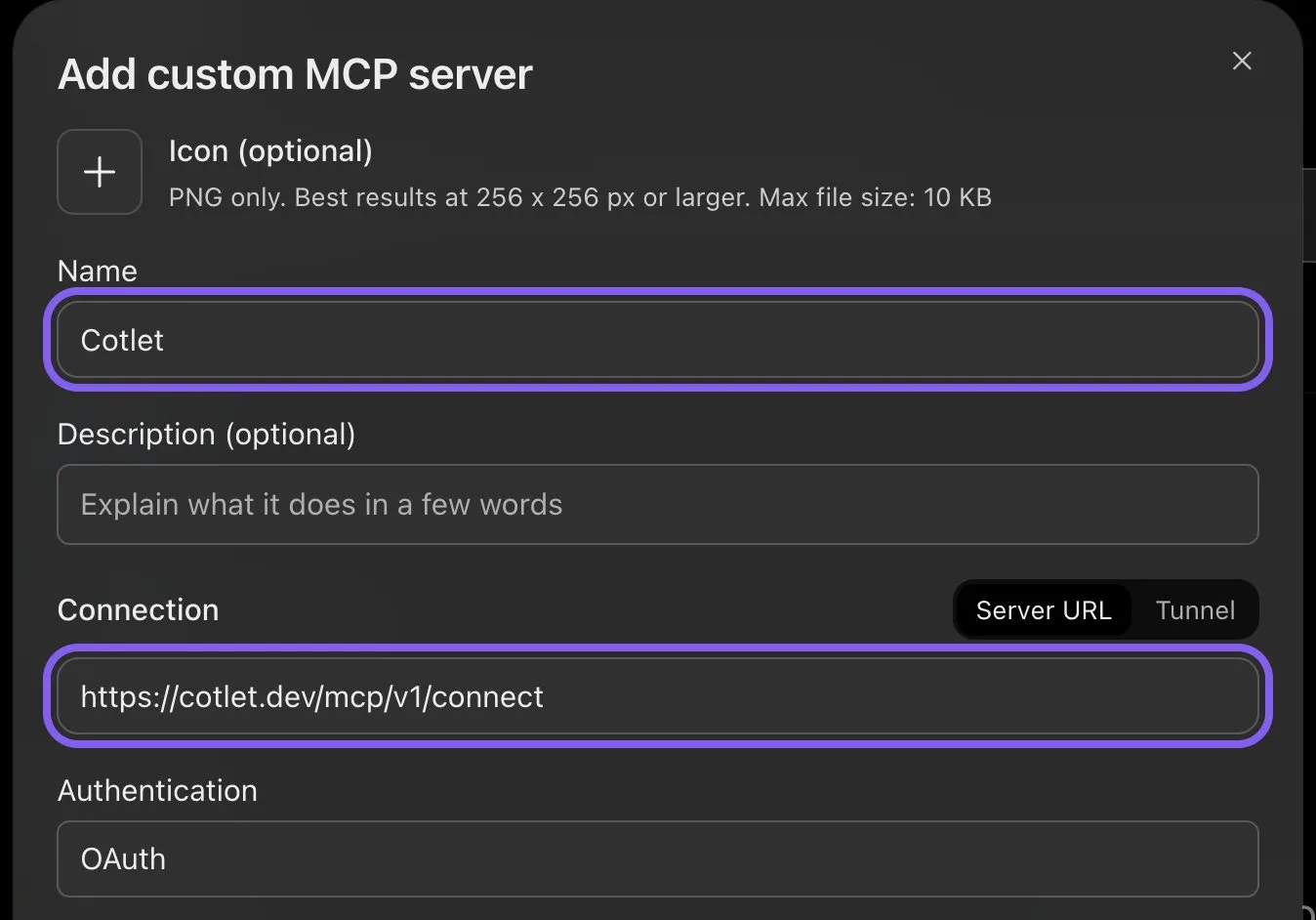
ChatGPT, Add custom MCP server form, November 2026.
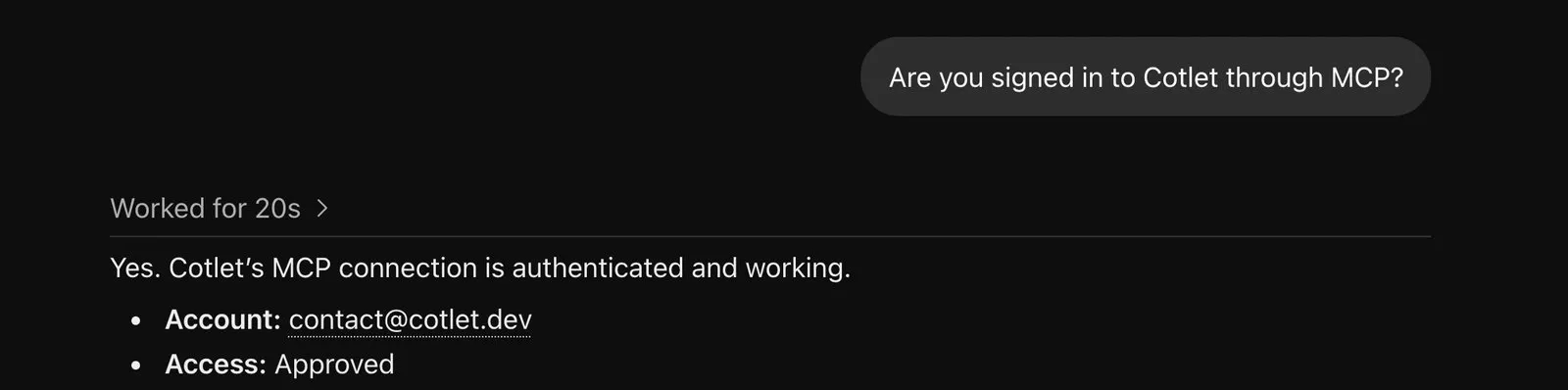
ChatGPT confirming the Cotlet connection, November 2026.
ChatGPT asks “Allow ChatGPT to use Cotlet?” before some steps. Pick Always allow, or the chat waits for your click. On a Business, Enterprise or Edu workspace, an admin has to allow custom MCP servers first.
How to connect Tradify to Claude
- Open Connectors in Claude and click Add. In the desktop app it is under Customize, Connectors.
- Click Add custom connector.
- Paste the name
Cotletand the URLhttps://cotlet.dev/mcp/v1/connect, then click Continue. - Keep the settings and click Add.
- A Cotlet page opens. Click Allow access.
- In a chat, click the plus button, then Connectors, and turn Cotlet on.
- Ask Claude: “Are you signed in to Cotlet through MCP?” Claude asks before it uses a Cotlet tool the first time. Click Allow.
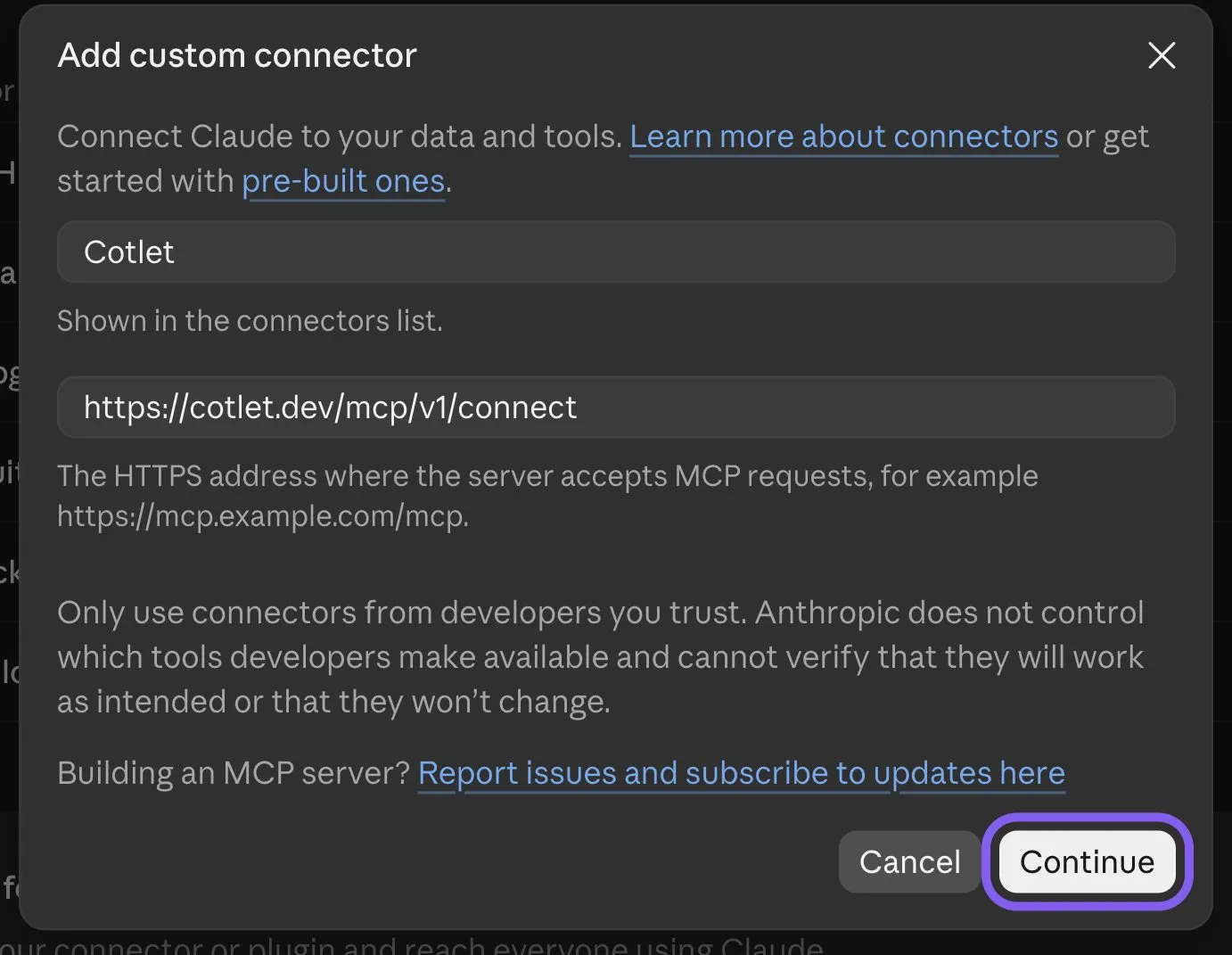
Claude, Add custom connector form, November 2026.
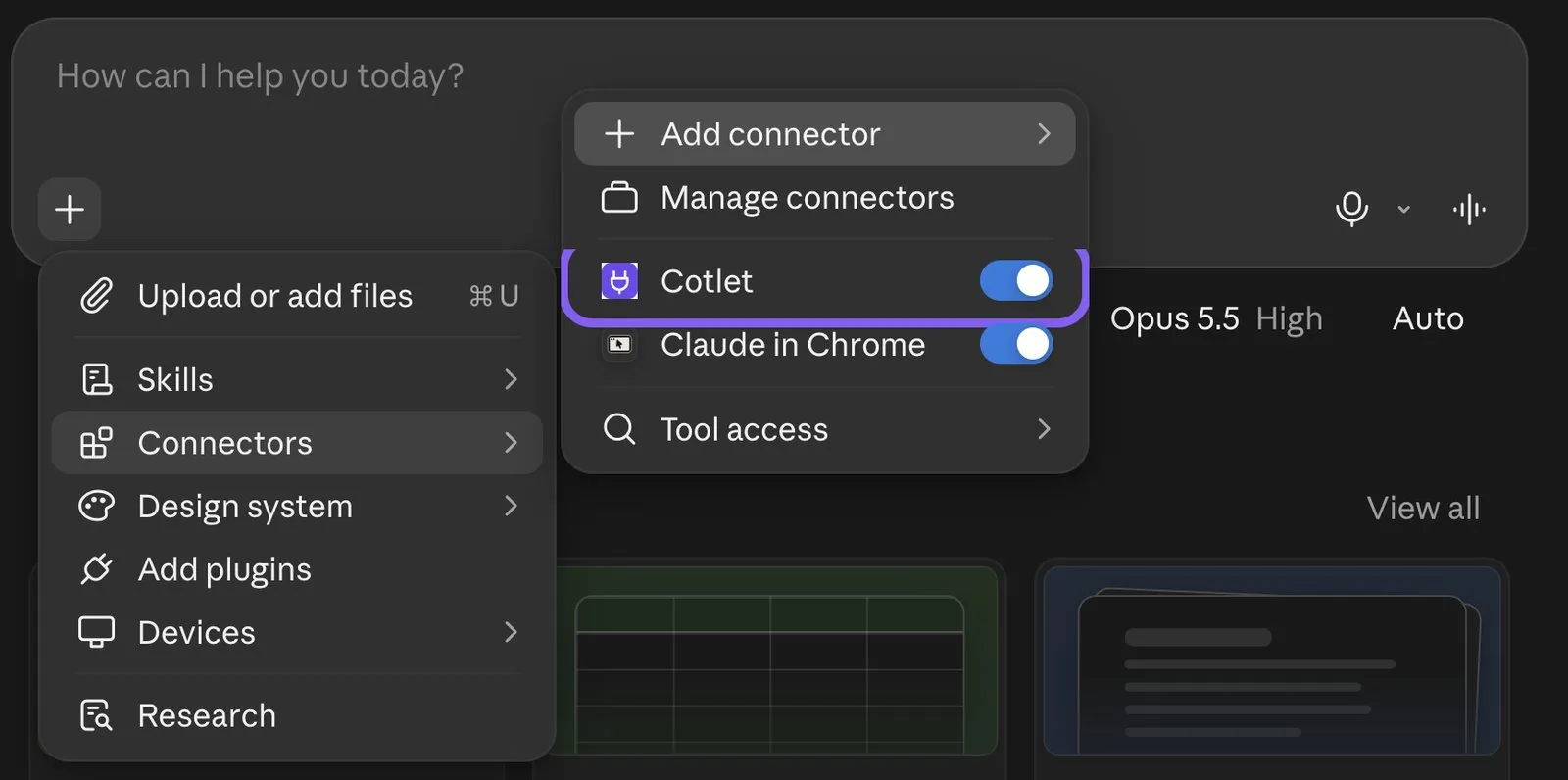
Claude, chat menu, Connectors, November 2026.
Claude’s free plan allows one custom connector. On a Team or Enterprise plan, an owner adds Cotlet in Organization settings, Connectors, and you click Connect next to it.
How to connect Tradify to Claude Code
Add Cotlet without a key, then sign in once in the browser:
claude mcp add --transport http cotlet https://cotlet.dev/mcp/v1/connectRun /mcp in Claude Code, pick cotlet and sign in to Cotlet. Prefer an API key, for example on a server? Create one in the Cotlet console and use:
claude mcp add --transport http cotlet https://cotlet.dev/mcp/v1 \
  --header "Authorization: Bearer $COTLET_API_KEY"
How to connect Tradify to Codex
Create an API key in the Cotlet console, put it in the COTLET_API_KEY environment variable and add this to ~/.codex/config.toml:
[mcp_servers.cotlet]
url = "https://cotlet.dev/mcp/v1"
bearer_token_env_var = "COTLET_API_KEY"
How to connect Tradify to Cursor
Create an API key in the Cotlet console, put it in the COTLET_API_KEY environment variable and add this to ~/.cursor/mcp.json:
{
  "mcpServers": {
    "cotlet": {
      "url": "https://cotlet.dev/mcp/v1",
      "headers": { "Authorization": "Bearer ${env:COTLET_API_KEY}" }
    }
  }
}
How to connect Tradify to Grok
Grok takes custom MCP servers on grok.com, per xAI’s connectors documentation (checked 8 November 2026).
- Open grok.com/connectors and click New Connector.
- Pick Custom and paste the server URL
https://cotlet.dev/mcp/v1/connect. - Sign in to Cotlet when Grok asks, then click Allow access.
- Ask Grok: “Are you signed in to Cotlet through MCP?”
On Grok Business, an admin adds the connector first in the xAI console, under Grok Business, Connectors. The Grok chat inside X has no custom connector menu.
How to connect Tradify to Hermes Agent
Add Cotlet to ~/.hermes/config.yaml in the format of the Hermes MCP config reference:
mcp_servers:
  cotlet:
    url: "https://cotlet.dev/mcp/v1"
    headers:
      Authorization: "Bearer ${COTLET_API_KEY}"
    trust: untrusted
Put COTLET_API_KEY in ~/.hermes/.env and check it with hermes mcp test cotlet. With trust: untrusted, Hermes runs reads at once and asks before every write. More on Hermes in our post on the Hermes Agent browser.
How to connect Tradify to n8n
Use the MCP Client node, or the MCP Client Tool inside an AI Agent node:
- Server Transport: HTTP Streamable
- MCP Endpoint URL:
https://cotlet.dev/mcp/v1 - Authentication: Bearer Auth, with your Cotlet API key as the token
- Tool:
tradify_readfor reads,tradify_writefor changes
This is the route for jobs nobody should have to start by hand, such as a Monday list of overdue invoices.
Any other MCP client
Point the client at https://cotlet.dev/mcp/v1 over Streamable HTTP, with the header Authorization: Bearer <your Cotlet API key>. A client that supports OAuth sign-in can use https://cotlet.dev/mcp/v1/connect instead and needs no key. The full reference is in the MCP docs.
Three Tradify jobs to try first
Start with something you do every week and check the result in Tradify. Each prompt below is real Tradify work the tools cover.
Turn a phone call into a job
New job for Sam Lee at 12 Oak St: replace the hot water cylinder. Book Mike for Thursday morning, about four hours, and email Sam the confirmation.
The AI searches your customers by name, phone or email first, so it does not create a duplicate. It creates the job, checks the Scheduler for Mike’s free time on Thursday, and asks before it books and emails. In Tradify by hand that is three screens per call, usually typed in the van.
Quote from your site notes
Quote for the Miller bathroom from these notes: remove old vanity, supply and fit new 900 mm vanity, 6 hours labour. Show me the quote before you send it.
The AI creates the quote with line items from your notes and shows you the lines and the total. It emails the quote through Tradify only after you say yes. When the customer accepts, one more message turns the quote into an invoice.
Chase overdue invoices after the reminders stop
Record the bank transfers I paste below against their Tradify invoices, then list every invoice still overdue, totalled per customer, oldest first.
Tradify’s own payment reminders stop 7 days after the due date, per its help article on reminders. After that, only you chase. The AI records the payments that already came in, so nobody gets chased twice, and hands you a call list. A transfer that could fit two invoices comes back as a question, not a guess.
What it costs
Cotlet runs on credit packs, with no subscription. Every account starts with a free 7-day trial, no card needed. After that, packs start at $29 and stay valid for 12 months. Only successful calls use credits, failed ones cost nothing. The details are on the pricing page.
Your Tradify plan stays as it is. Cotlet works in the Tradify account you already pay for.
FAQ
Can ChatGPT send quotes and invoices in Tradify?
Yes, once Tradify is connected through Cotlet. ChatGPT creates the quote or invoice in your Tradify account and emails it through Tradify after you confirm. Tradify needs 2-Step Security on your login before it sends email.
Can I use Claude with Tradify?
Yes. Add Cotlet as a custom connector in Claude (the Claude guide in step 2), turn it on in the chat, and Claude works in your own Tradify account.
Does it work on my phone?
Yes, in ChatGPT. Add Cotlet once on chatgpt.com in a browser, and the connection then works in the ChatGPT desktop and phone apps too.
Is it safe to let an AI into my Tradify account?
You type your Tradify password into Tradify’s own page, and Cotlet never stores it. Your session sits encrypted in your own Cloud Browser. You can turn off the AI’s access in one click in the Cotlet console, and the AI asks before it sends anything to a customer. More on the security page.
Is this an official Tradify integration?
No. Cotlet is independent and not affiliated with Tradify. It works in Tradify through your own signed-in account, the same way you do.
Try it on your own Tradify account
Tradify has no API to wait for, and your office work does not wait either. Sign up for Cotlet, sign in to Tradify once in your Cloud Browser, and connect ChatGPT or Claude with the steps above. If you run other apps without an API, they are in the integrations catalog.