How to connect CleanerPlanner to ChatGPT, Claude and any AI agent
CleanerPlanner has no official MCP server or public API (checked 27 Nov 2026). Let ChatGPT or Claude build worksheets and chase payments for you.
Cotlet team 10 min read
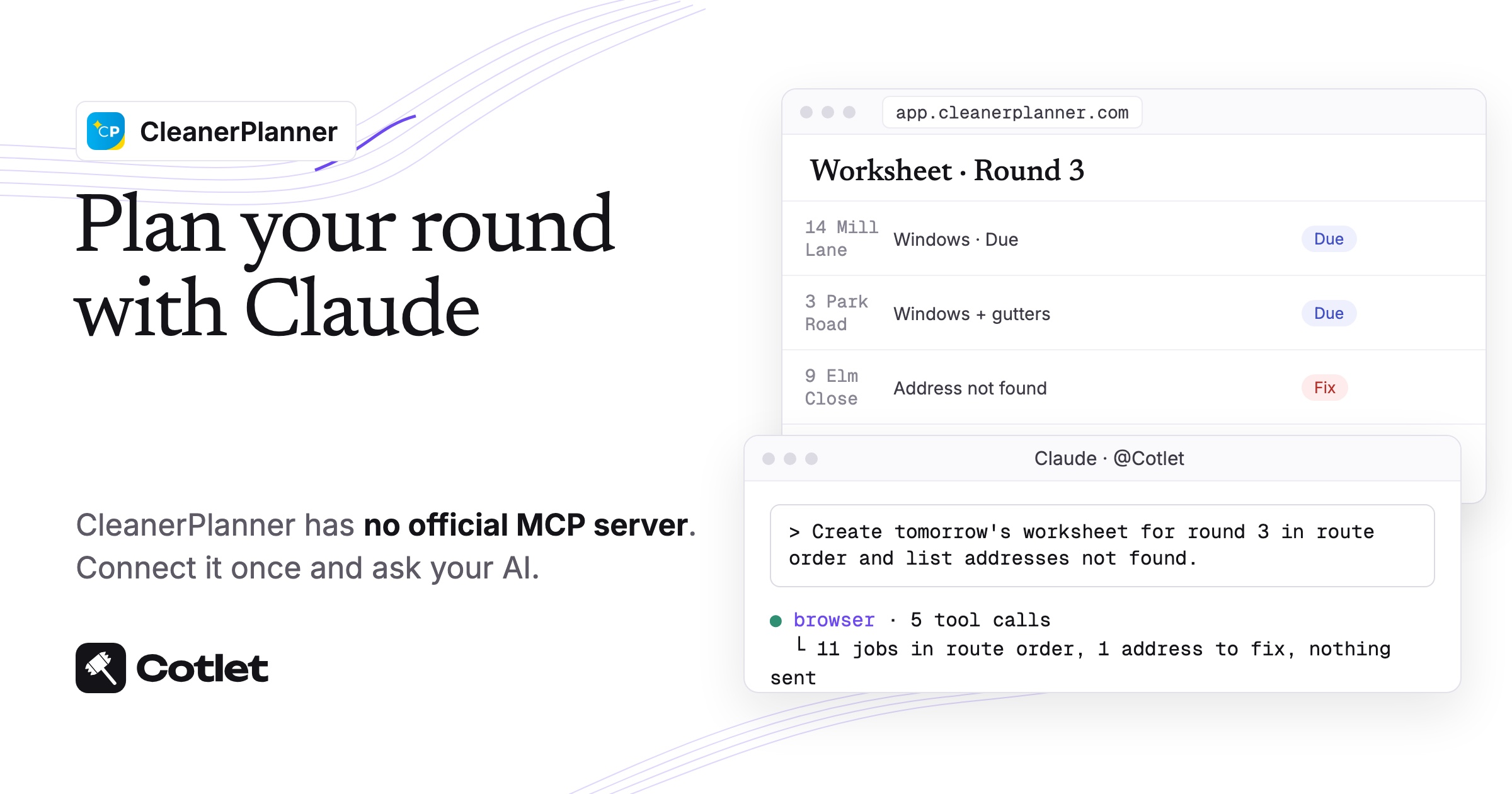
It is 7 pm and tomorrow’s round is not ready. You need the worksheet of jobs due, in route order, with the addresses that could not be found. On 27 November 2026 we found no official CleanerPlanner MCP server, no ChatGPT or Claude app and no public API. Data leaves through the Export buttons as CSV. Cotlet logs in as you inside a Cloud Browser, which lets your AI press the same buttons you press.
This is for owners of window cleaning and other round based cleaning businesses, mostly in the UK, who run customers, rounds, worksheets and invoices in the CleanerPlanner owner account. Your crew’s mobile app and your customers’ side are not covered.
What ChatGPT and Claude can do in CleanerPlanner once connected
Hand the AI a round, a date or a customer and say what you need.
| CleanerPlanner area | Job for the AI |
|---|---|
| Jobs, Due | Builds tomorrow’s worksheet for one round and orders it by route |
| Worksheets, Optimise | Runs route optimisation and lists the addresses it could not place |
| Quotes and Invoices | Pre-invoices completed jobs and drafts the emails. Sends only after you check the list |
| GoCardless | Lists Direct Debit payments taken but not matched to an invoice |
| Customers, Export | Downloads the customer CSV and checks it for blank frequencies |
| Integrations, Webex SMS | Prepares tomorrow’s reminder texts from your template |
| Reports | Pulls the quarter’s income and expenses and lists items with no category |
Looking changes nothing. A text, an invoice or a quote reaches a customer only after you confirm, and payments stay blocked. More ideas are on the CleanerPlanner MCP page.
Does CleanerPlanner have AI, an API or an official ChatGPT app?
Findings from 27 November 2026:
- API: none found. The FAQ page lists SMS, bulk email, GoCardless, Stripe, Mailchimp, Dropbox backup and CSV, and the help center has no article about an API for owners. Every key tab has an Export button that downloads a CSV.
- MCP: nothing from the vendor. The MCP Registry has no CleanerPlanner entry, and neither ChatGPT nor Claude lists the app.
- No Zapier route. The address zapier.com/apps/cleanerplanner returns 404.
- Imports: yes. Support imports data from WCP, George, Aworka, Round Partner, Round Tracker Pro, SmartRound, Squeegee and Excel.
Without an API, a signed-in session is the one way past the CSV files. The full scoring is in CleanerPlanner’s API and MCP review. The API page shows what an endpoint of your own could return.
Before you start
- The owner login for CleanerPlanner, the one that opens Jobs, Quotes and Invoices and Reports.
- The round and the date you want to start with.
- Your GoCardless link switched on, if you want payment checks.
- Either a paid ChatGPT plan or Claude.
- A Cotlet account (pricing).
Step 1: sign in to CleanerPlanner in your Cloud Browser
Visit app.cleanerplanner.com/login in the Cloud Browser and log in the way you do at home.
The password is typed into CleanerPlanner and goes nowhere else, so Cotlet never holds it. Only an encrypted session remains, and a single switch removes the AI’s access (security).
Step 2: connect CleanerPlanner to ChatGPT, Claude or another AI agent
Add Cotlet to your AI once and it will work inside the session you opened. Choose the AI you already use.
Pick your AI above to see its steps.
How to connect CleanerPlanner to ChatGPT
Do this on chatgpt.com in your browser. Cotlet then works in the ChatGPT desktop and phone apps too.
- Open Plugins in ChatGPT and click Add.
- Click Add custom MCP server. Not in the menu? Turn on Developer mode in Settings, Security and login, then come back.
- Paste the name
Cotletand the server URLhttps://cotlet.dev/mcp/v1/connect. Keep Authentication on OAuth. - Tick “I understand and want to continue” and click Create as a plugin.
- Click Connect Cotlet. A Cotlet page opens, click Allow access.
- In a new chat, type
@Cotletand pick it from the list. - Ask ChatGPT: “Are you signed in to Cotlet through MCP?” Then try a first CleanerPlanner task: “In CleanerPlanner, list tomorrow’s due jobs for round 3 in route order. Change nothing.”
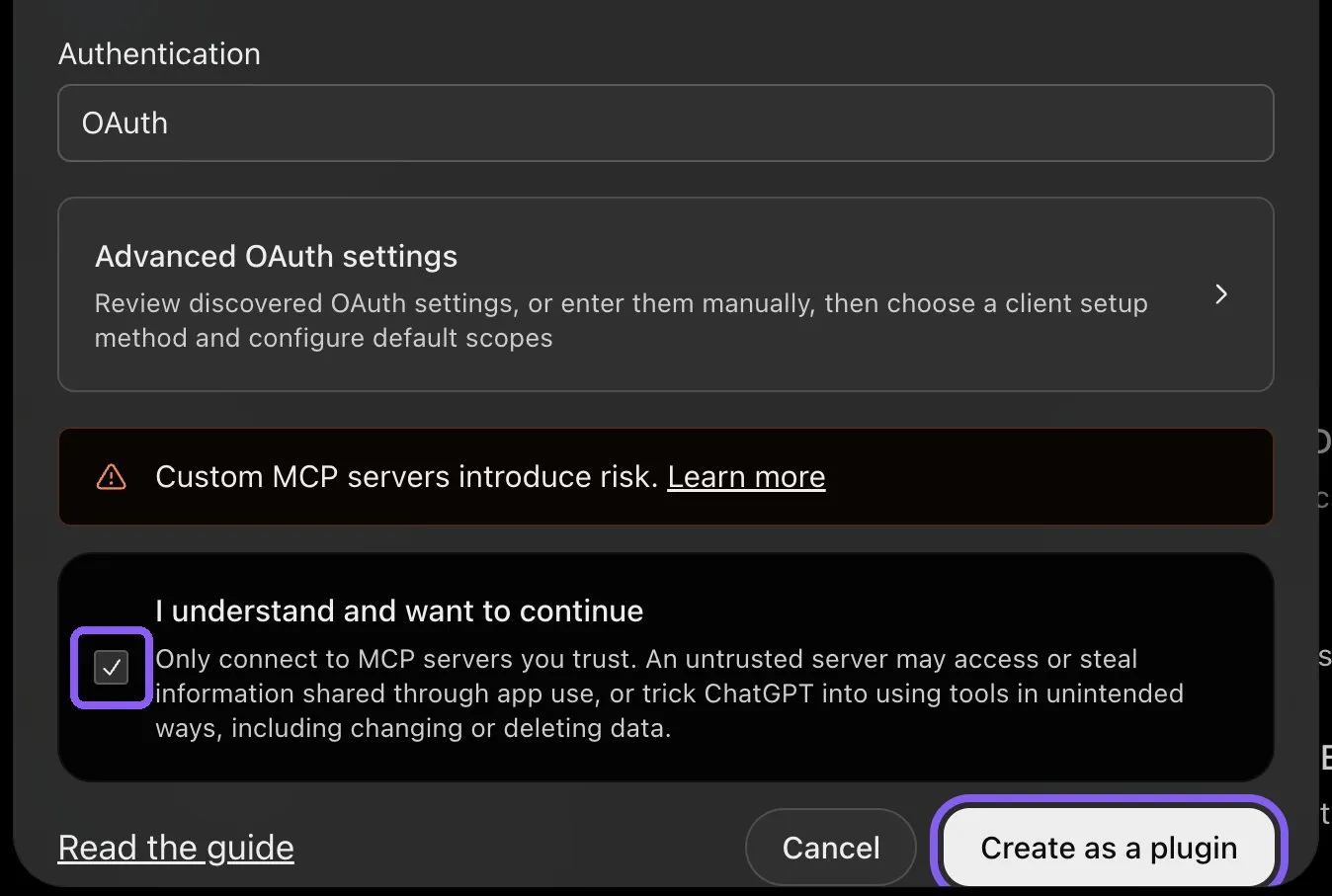
ChatGPT, bottom of the custom MCP server form, November 2026.
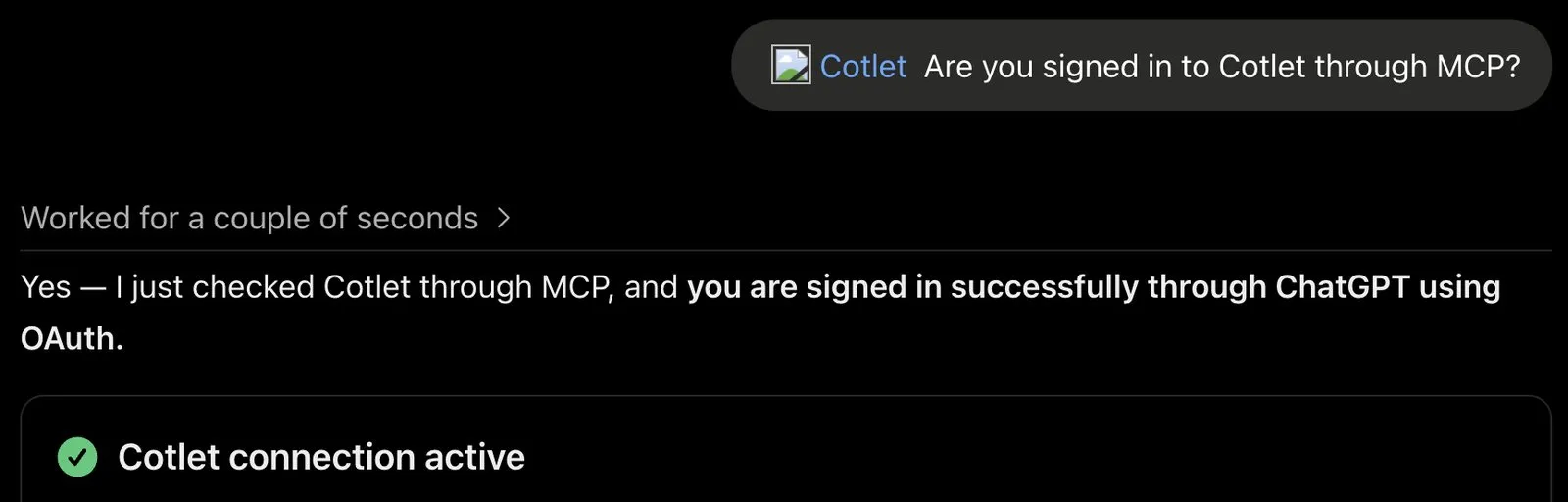
ChatGPT confirming the Cotlet connection, November 2026.
ChatGPT asks “Allow ChatGPT to use Cotlet?” before some steps. Pick Always allow, or the chat waits for your click. On a Business, Enterprise or Edu workspace, an admin has to allow custom MCP servers first.
How to connect CleanerPlanner to Claude
- Open Connectors in Claude and click Add. In the desktop app it is under Customize, Connectors.
- Click Add custom connector.
- Paste the name
Cotletand the URLhttps://cotlet.dev/mcp/v1/connect, then click Continue. - Keep the settings and click Add.
- A Cotlet page opens. Click Allow access.
- In a chat, click the plus button, then Connectors, and turn Cotlet on.
- Ask Claude: “Are you signed in to Cotlet through MCP?”, then “In CleanerPlanner, list GoCardless payments taken but not matched to an invoice. Change nothing.”. Claude asks before it uses a Cotlet tool the first time. Click Allow.

Claude, Customize, Connectors, Add menu, November 2026.
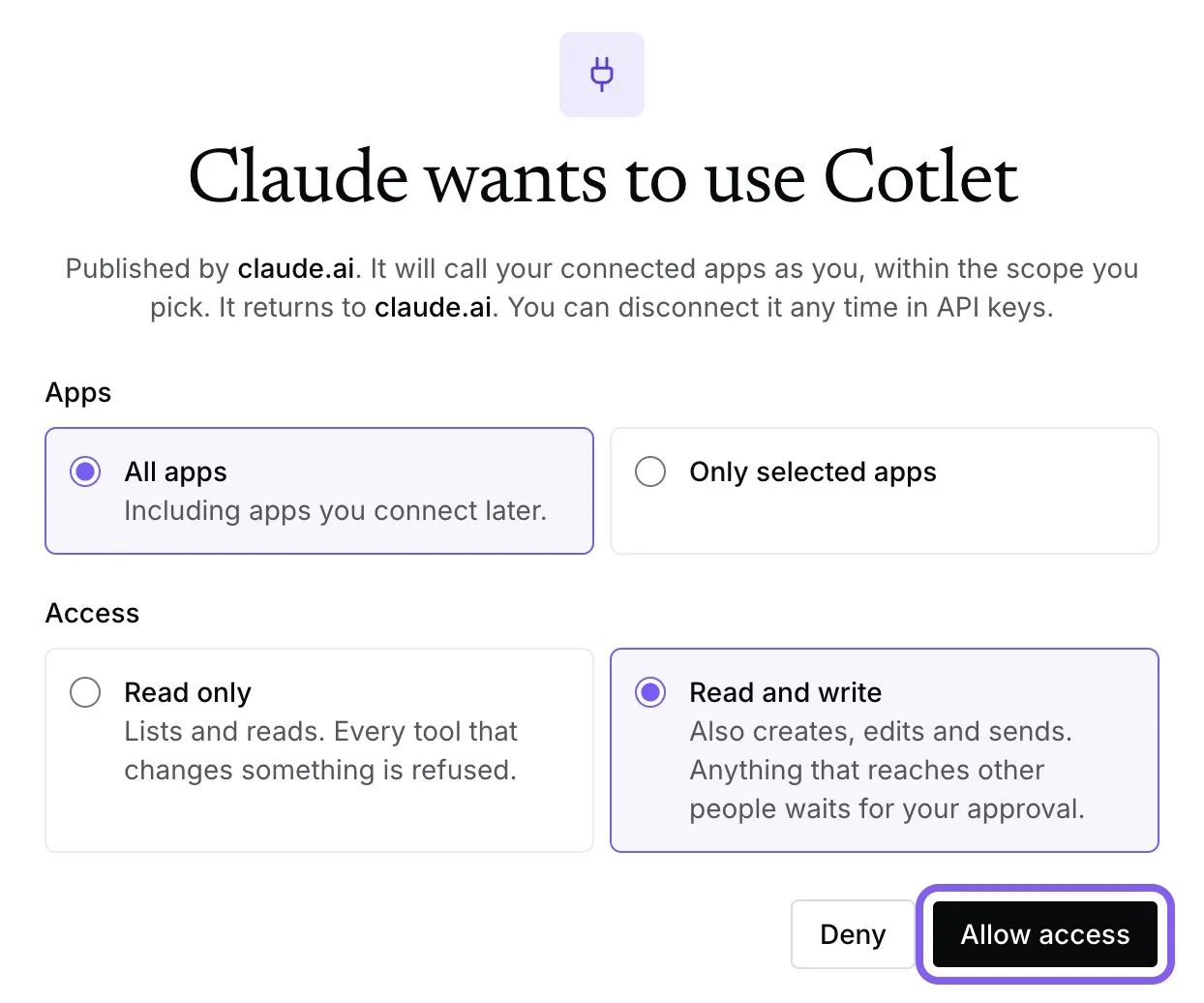
Cotlet consent page after you add the connector in Claude, November 2026.
Claude’s free plan allows one custom connector. On a Team or Enterprise plan, an owner adds Cotlet in Organization settings, Connectors, and you click Connect next to it.
How to connect CleanerPlanner to Claude Code
Add Cotlet without a key, then sign in once in the browser:
claude mcp add --transport http cotlet https://cotlet.dev/mcp/v1/connectRun /mcp in Claude Code, pick cotlet and sign in to Cotlet. Prefer an API key, for example on a server? Create one in the Cotlet console and use:
claude mcp add --transport http cotlet https://cotlet.dev/mcp/v1 \
  --header "Authorization: Bearer $COTLET_API_KEY"
How to connect CleanerPlanner to Codex
Create an API key in the Cotlet console, put it in the COTLET_API_KEY environment variable and add this to ~/.codex/config.toml:
[mcp_servers.cotlet]
url = "https://cotlet.dev/mcp/v1"
bearer_token_env_var = "COTLET_API_KEY"
How to connect CleanerPlanner to Cursor
Create an API key in the Cotlet console, put it in the COTLET_API_KEY environment variable and add this to ~/.cursor/mcp.json:
{
  "mcpServers": {
    "cotlet": {
      "url": "https://cotlet.dev/mcp/v1",
      "headers": { "Authorization": "Bearer ${env:COTLET_API_KEY}" }
    }
  }
}
How to connect CleanerPlanner to Grok
Grok takes custom MCP servers on grok.com, per xAI’s connectors documentation (checked 8 November 2026).
- Open grok.com/connectors and click New Connector.
- Pick Custom and paste the server URL
https://cotlet.dev/mcp/v1/connect. - Sign in to Cotlet when Grok asks, then click Allow access.
- Ask Grok: “Are you signed in to Cotlet through MCP?”
On Grok Business, an admin adds the connector first in the xAI console, under Grok Business, Connectors. The Grok chat inside X has no custom connector menu.
How to connect CleanerPlanner to Hermes Agent
Add Cotlet to ~/.hermes/config.yaml in the format of the Hermes MCP config reference:
mcp_servers:
  cotlet:
    url: "https://cotlet.dev/mcp/v1"
    headers:
      Authorization: "Bearer ${COTLET_API_KEY}"
    trust: untrusted
Put COTLET_API_KEY in ~/.hermes/.env and check it with hermes mcp test cotlet. With trust: untrusted, Hermes runs reads at once and asks before every write. More on Hermes in our post on the Hermes Agent browser.
How to connect CleanerPlanner to n8n
Use the MCP Client node, or the MCP Client Tool inside an AI Agent node:
- Server Transport: HTTP Streamable
- MCP Endpoint URL:
https://cotlet.dev/mcp/v1 - Authentication: Bearer Auth, with your Cotlet API key as the token
- Tools: let the AI Agent node use Cotlet’s browser tools; it reads Cotlet’s CleanerPlanner guide first and works in your signed-in CleanerPlanner account
Use it for work that should run on its own, such as a weekly list of unmatched Direct Debit payments.
Any other MCP client
Point the client at https://cotlet.dev/mcp/v1 over Streamable HTTP, with the header Authorization: Bearer <your Cotlet API key>. A client that supports OAuth sign-in can use https://cotlet.dev/mcp/v1/connect instead and needs no key. The full reference is in the MCP docs.
Three CleanerPlanner jobs to try first
Start with something that changes nothing, and compare the result with the tab on your screen.
Get tomorrow’s route ready the night before
Create the worksheet of jobs due tomorrow for round 3, put them in route order and tell me which addresses could not be found.
CleanerPlanner can create a worksheet of the jobs that are due and optimise the route. The AI does both, then lists the addresses the optimiser rejected, so you fix a typo at 7 pm and not at the van. You print or send the worksheet yourself.
Find the Direct Debit payments that did not match
List customers whose GoCardless payment was taken but not matched to an invoice in CleanerPlanner, and tell me which ones to sync.
A payment can arrive at GoCardless and still sit unmatched in the planner. The help center has an article on syncing missing payments. The AI finds the gaps and names the customers. The sync itself waits for your OK.
Invoice the round after it is done
Pre-invoice all completed jobs on today’s worksheet and email the invoices, but show me the list before sending.
Pre-invoicing turns done jobs into invoices in one pass. The AI prepares the batch, shows each customer and amount, and emails nothing until you say send.
Three more requests for the same month
- Export my customers and check for blank frequencies before I move any of them to another app.
- Prepare the quarterly income and expense figures for MTD from Reports and list transactions without a category.
- Download my account backup and tell me the date and size of the file.
What it costs
Nothing changes in your CleanerPlanner subscription. On the Cotlet side you buy credits, 5,000 for $29 with a year of validity, and failed calls are free. See pricing for the trial.
FAQ
Does CleanerPlanner have an API or MCP server I can use for my window cleaning business?
No on both counts as of 27 November 2026: no official MCP server and no public API turned up. CSV from the Export buttons is the way out. Cotlet uses your browser session and can run those exports and open those screens for you.
Can ChatGPT or Claude send my reminder texts from CleanerPlanner?
It can prepare the list and the text. It sends only after you approve, because texts go to your customers and cost credits.
Can the AI move my round data to another app?
It can run the exports, check the CSV files for gaps and list what to fix. The import itself is done by the other app’s support or by you.
Does Zapier, Make or n8n have a CleanerPlanner app?
Not that we could find on 27 November 2026. You can still schedule an n8n workflow that calls Cotlet.
Is this an official CleanerPlanner integration?
No. Cotlet is independent of CleanerPlanner, and the vendor took no part in making it.
Try it on your own CleanerPlanner account
Tonight’s worksheet makes a fair first test. Start a free Cotlet week, log in once and ask for the route. Browse other cleaning software in the catalog.