How to connect Clean Smarts to ChatGPT, Claude and any AI agent
Clean Smarts has no official MCP server (checked 27 Nov 2026). Let ChatGPT or Claude check timesheets, inspection scores and contract margins for you.
Cotlet team 11 min read
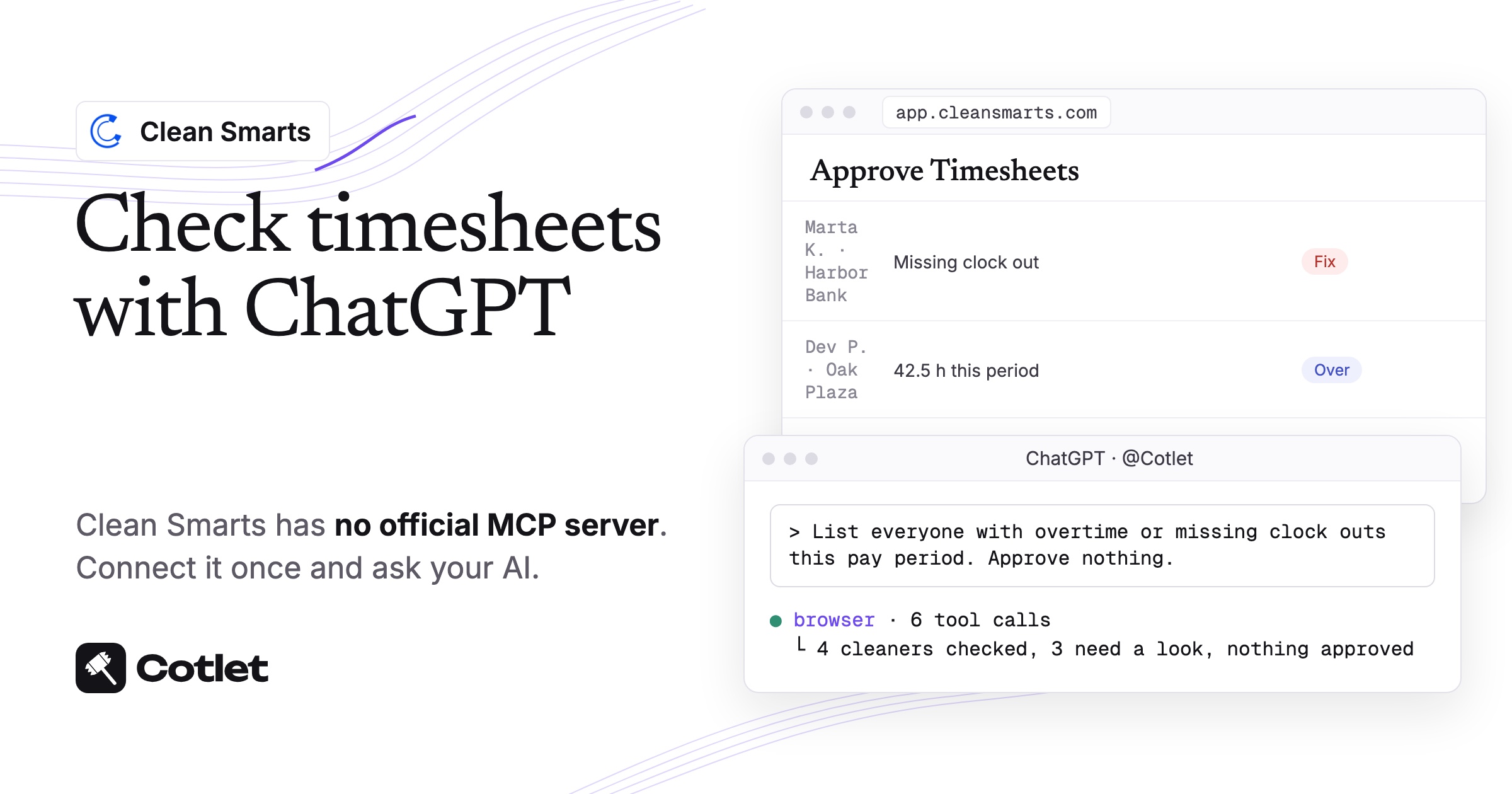
Payroll closes at noon. Before you approve anything, you open Time, scan every cleaner’s punches, and look for the one who forgot to clock out at the bank building. As of 27 November 2026 nobody ships an official Clean Smarts MCP server, and there is no ChatGPT or Claude app for it. A public REST API exists, but keys come only with the Expert plan. With Cotlet you skip the key: your AI opens Clean Smarts in a Cloud Browser under your login and reads what you would read.
This is for owners and office managers of commercial cleaning and janitorial companies who run schedules, time, inspections and work orders in the Clean Smarts admin account. Cleaners in the mobile app and customers in the portal use their own side of Clean Smarts, and they are out of scope.
What ChatGPT and Claude can do in Clean Smarts once connected
Name a location, a pay period or a month, and say what you want counted.
| Clean Smarts area | Job for the AI |
|---|---|
| Time, Approve Timesheets | Lists overtime, missing clock outs and edited punches for the pay period and says what to fix first |
| Location, Shifts | Shows next week’s shifts with nobody assigned and cleaners over their hours |
| Quality, Inspections | Reads last month’s scores per building and lists the failed items |
| Work, Work Orders | Finds completed extra work with no invoice yet |
| Money, Invoices | Checks which invoices did not reach QuickBooks Online this month |
| Job costing, Scorecard | Compares labor and supply cost with contract revenue per location |
| Supplies, Requests | Lists open requests above the maximum you set |
Looking is free of side effects. An approval, a shift assignment or an invoice is written only when you confirm, and payments stay blocked. Further ideas sit on the Clean Smarts MCP page.
Does Clean Smarts have AI, an API or an official ChatGPT app?
Findings from 27 November 2026:
- API: yes, on one plan. The REST API has Swagger docs at developer.cleansmarts.com. An admin creates keys in Company Settings, Security, API Keys, as the help article describes. The pricing page lists API access under the Expert plan, from $200 a month for the first 10 users. Other plans are told that an Expert plan is required to create and manage keys.
- MCP: none from Clean Smarts. A search of the MCP Registry finds no entry. Do not confuse the company with Clean Pro or with CleanSmart from cleansmartlabs.com, which are different products.
- Chat assistants: nothing listed. Neither ChatGPT’s app directory nor Claude’s connector list shows Clean Smarts, and its help center offers no AI assistant.
- Built in instead of Zapier. The Zapier page for Clean Smarts returns 404. What the product offers itself is QuickBooks Online and timesheet exports for ADP, Gusto, Paychex and Paycom.
An API suits a developer syncing data to another system. A signed-in session suits the owner who wants Monday’s problems in one list without paying for Expert. How each point scores is in Clean Smarts’ API and MCP review, and a custom endpoint on your own data is described on the API page.
Before you start
- An admin login for Clean Smarts, the one that opens Time, Quality, Work and Money.
- The pay period or the location you want checked first.
- A paid ChatGPT plan, or a Claude account.
- A Cotlet account (pricing).
Step 1: sign in to Clean Smarts in your Cloud Browser
Go to app.cleansmarts.com/login inside the Cloud Browser and log in with your admin details.
The password goes into Clean Smarts itself, so Cotlet cannot see or store it. What stays behind is an encrypted session, and you end the AI’s access with one switch (security).
Step 2: connect Clean Smarts to ChatGPT, Claude or another AI agent
Cotlet is added to your AI once, and from then on it works in the session you just opened. Pick whichever AI you already pay for.
Pick your AI above to see its steps.
How to connect Clean Smarts to ChatGPT
Do this on chatgpt.com in your browser. Cotlet then works in the ChatGPT desktop and phone apps too.
- Open Plugins in ChatGPT and click Add.
- Click Add custom MCP server. Not in the menu? Turn on Developer mode in Settings, Security and login, then come back.
- Paste the name
Cotletand the server URLhttps://cotlet.dev/mcp/v1/connect. Keep Authentication on OAuth. - Tick “I understand and want to continue” and click Create as a plugin.
- Click Connect Cotlet. A Cotlet page opens, click Allow access.
- In a new chat, type
@Cotletand pick it from the list. - Ask ChatGPT: “Are you signed in to Cotlet through MCP?” Then try a first Clean Smarts task: “In Clean Smarts, list everyone with overtime or missing clock outs for this pay period. Approve nothing.”
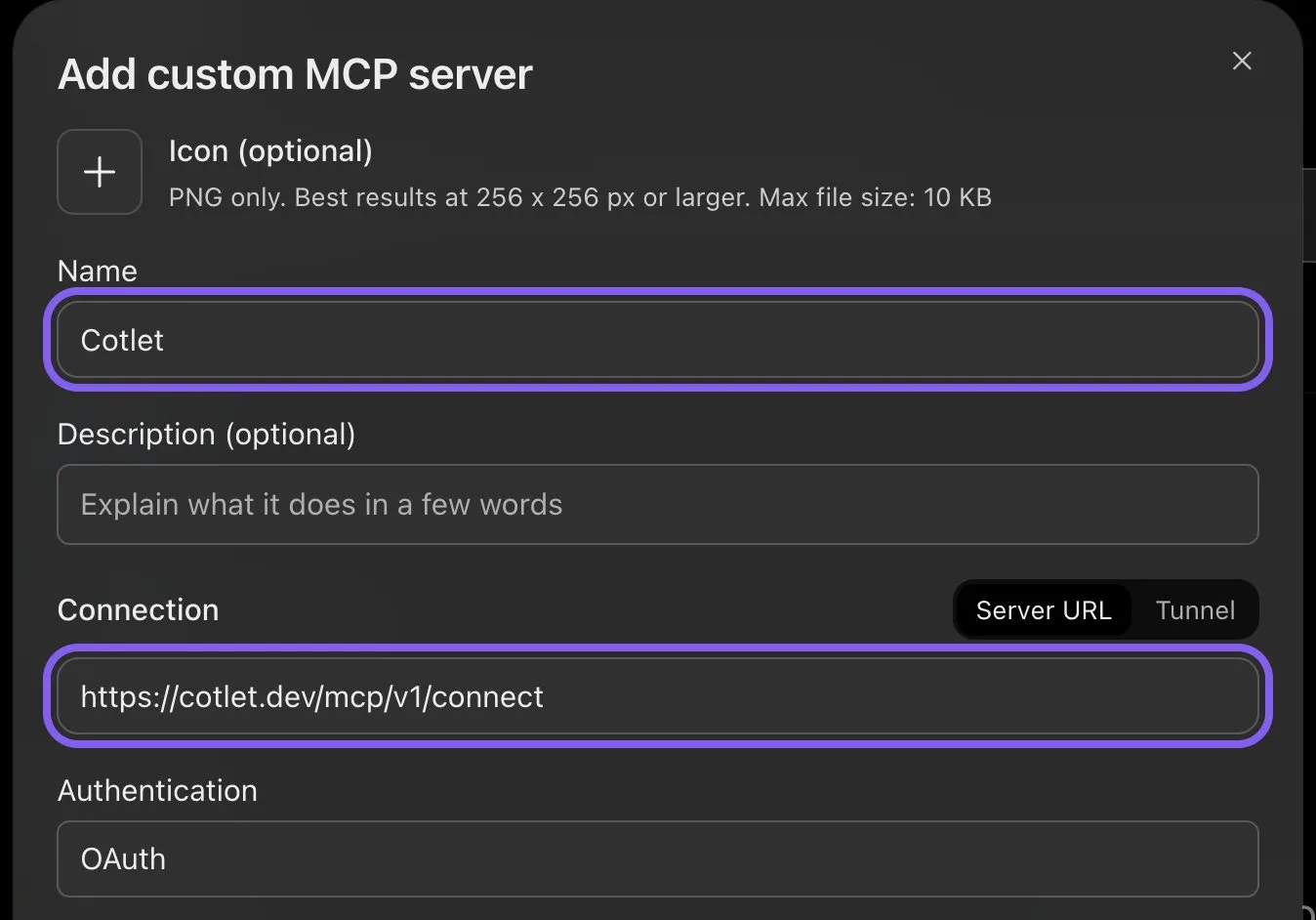
ChatGPT, Add custom MCP server form, November 2026.
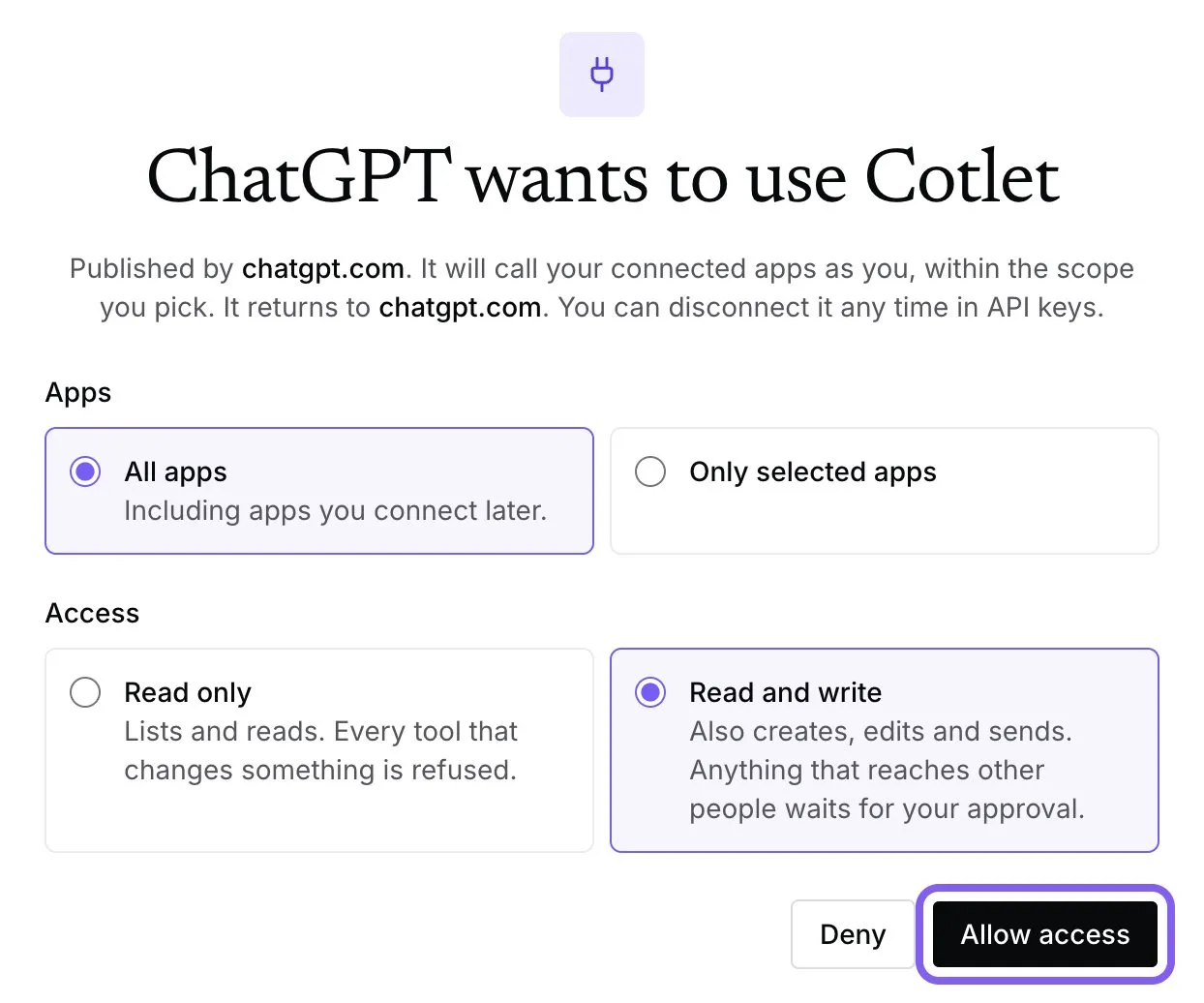
Cotlet consent page after you connect it in ChatGPT, November 2026.
ChatGPT asks “Allow ChatGPT to use Cotlet?” before some steps. Pick Always allow, or the chat waits for your click. On a Business, Enterprise or Edu workspace, an admin has to allow custom MCP servers first.
How to connect Clean Smarts to Claude
- Open Connectors in Claude and click Add. In the desktop app it is under Customize, Connectors.
- Click Add custom connector.
- Paste the name
Cotletand the URLhttps://cotlet.dev/mcp/v1/connect, then click Continue. - Keep the settings and click Add.
- A Cotlet page opens. Click Allow access.
- In a chat, click the plus button, then Connectors, and turn Cotlet on.
- Ask Claude: “Are you signed in to Cotlet through MCP?”, then “From Clean Smarts Inspections, list last month’s failed items per location. Change nothing.”. Claude asks before it uses a Cotlet tool the first time. Click Allow.

Claude, Customize, Connectors, November 2026.
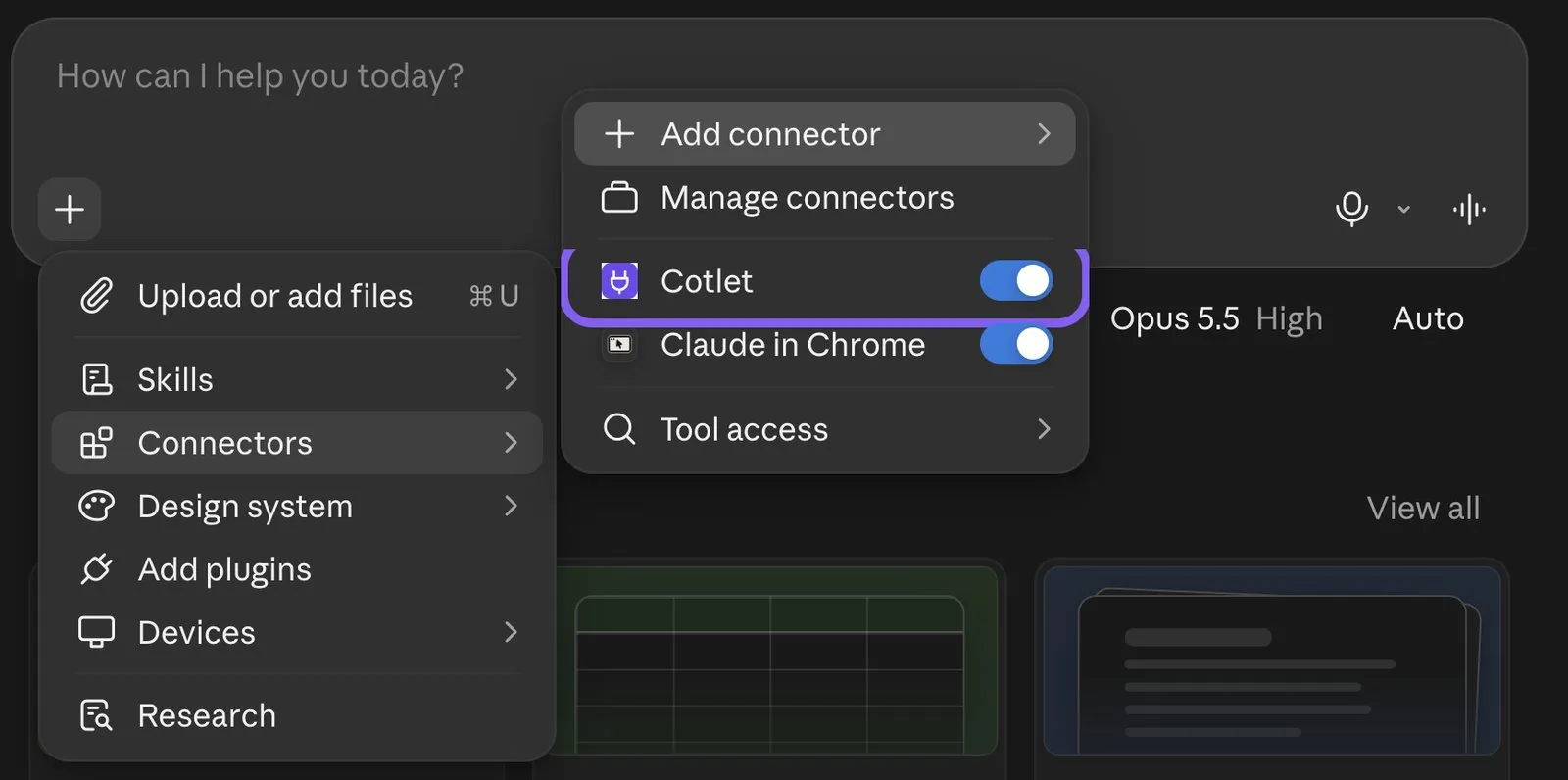
Claude, chat menu, Connectors, November 2026.
Claude’s free plan allows one custom connector. On a Team or Enterprise plan, an owner adds Cotlet in Organization settings, Connectors, and you click Connect next to it.
How to connect Clean Smarts to Claude Code
Add Cotlet without a key, then sign in once in the browser:
claude mcp add --transport http cotlet https://cotlet.dev/mcp/v1/connectRun /mcp in Claude Code, pick cotlet and sign in to Cotlet. Prefer an API key, for example on a server? Create one in the Cotlet console and use:
claude mcp add --transport http cotlet https://cotlet.dev/mcp/v1 \
  --header "Authorization: Bearer $COTLET_API_KEY"
How to connect Clean Smarts to Codex
Create an API key in the Cotlet console, put it in the COTLET_API_KEY environment variable and add this to ~/.codex/config.toml:
[mcp_servers.cotlet]
url = "https://cotlet.dev/mcp/v1"
bearer_token_env_var = "COTLET_API_KEY"
How to connect Clean Smarts to Cursor
Create an API key in the Cotlet console, put it in the COTLET_API_KEY environment variable and add this to ~/.cursor/mcp.json:
{
  "mcpServers": {
    "cotlet": {
      "url": "https://cotlet.dev/mcp/v1",
      "headers": { "Authorization": "Bearer ${env:COTLET_API_KEY}" }
    }
  }
}
How to connect Clean Smarts to Grok
Grok takes custom MCP servers on grok.com, per xAI’s connectors documentation (checked 8 November 2026).
- Open grok.com/connectors and click New Connector.
- Pick Custom and paste the server URL
https://cotlet.dev/mcp/v1/connect. - Sign in to Cotlet when Grok asks, then click Allow access.
- Ask Grok: “Are you signed in to Cotlet through MCP?”
On Grok Business, an admin adds the connector first in the xAI console, under Grok Business, Connectors. The Grok chat inside X has no custom connector menu.
How to connect Clean Smarts to Hermes Agent
Add Cotlet to ~/.hermes/config.yaml in the format of the Hermes MCP config reference:
mcp_servers:
  cotlet:
    url: "https://cotlet.dev/mcp/v1"
    headers:
      Authorization: "Bearer ${COTLET_API_KEY}"
    trust: untrusted
Put COTLET_API_KEY in ~/.hermes/.env and check it with hermes mcp test cotlet. With trust: untrusted, Hermes runs reads at once and asks before every write. More on Hermes in our post on the Hermes Agent browser.
How to connect Clean Smarts to n8n
Use the MCP Client node, or the MCP Client Tool inside an AI Agent node:
- Server Transport: HTTP Streamable
- MCP Endpoint URL:
https://cotlet.dev/mcp/v1 - Authentication: Bearer Auth, with your Cotlet API key as the token
- Tools: let the AI Agent node use Cotlet’s browser tools; it reads Cotlet’s Clean Smarts guide first and works in your signed-in Clean Smarts account
Use it for work that should run on its own, such as a Friday morning list of timesheet problems before payroll.
Any other MCP client
Point the client at https://cotlet.dev/mcp/v1 over Streamable HTTP, with the header Authorization: Bearer <your Cotlet API key>. A client that supports OAuth sign-in can use https://cotlet.dev/mcp/v1/connect instead and needs no key. The full reference is in the MCP docs.
Three Clean Smarts jobs to try first
Begin with read only requests and hold each answer against the screen.
Clean up the timesheets before you approve
List everyone with overtime, missing clock outs or edited punches for this pay period and tell me what to fix before I approve. Approve nothing yet.
Clean Smarts has an approval screen for hours, and approval feeds payroll. The AI reads that screen, groups the problems by cleaner and by site, and drafts a text to each person who forgot a punch. You approve in Clean Smarts, or you tell the AI to do it after you have checked.
Get a score report per building
Send me last month’s inspection scores for these five locations and the items that failed, as a short list per building.
Recurring inspections already run on a schedule you set. The AI collects the results into a page you can forward to a facility manager before they ask. If a location has no inspection this month, it says so and offers to schedule one after your yes.
See which contracts lose money
Show labor and supply cost against contract revenue for each location last month and flag the contracts that lost money.
Job costing puts labor and supplies next to revenue. The AI reads it location by location and gives you a short list with the gap in dollars. Bring that list to the renewal call, not the full report.
Three more requests for the same week
- List the work orders completed this month that have no invoice yet, with location and price. Draft the invoices for me to review.
- Which invoices did not sync to QuickBooks Online this month? Show the customers and the amounts.
- Show open supply requests per location, which ones are over the maximum I set, and what to order this week.
What it costs
Your Clean Smarts plan stays as it is. Cotlet sells credits, 5,000 for $29, valid for a year, and calls that fail are not charged. Current trial terms and the price per call are on pricing.
FAQ
Does Clean Smarts have an API or MCP server I can use for my cleaning company?
A REST API with Swagger docs exists, and keys are created only on the Expert plan. An official MCP server does not. Cotlet runs in your account through a browser, so any plan works and no developer is needed.
Can ChatGPT or Claude approve timesheets in Clean Smarts for me?
It can review hours, overtime and missing punches, and prepare the approval. It approves only after you say yes, because approval feeds payroll.
Can the AI prepare my payroll export?
It can open the approved timesheets and list the employees missing an employee number. Clean Smarts exports for providers such as ADP, Gusto and Paychex, and you send the file yourself.
Does Zapier, Make or n8n have a Clean Smarts app?
Not as of 27 November 2026, when the Zapier page returned 404. A scheduled n8n workflow can still call Cotlet and read Clean Smarts for you.
Is this an official Clean Smarts integration?
No. Cotlet is an independent service, and the Clean Smarts team did not build or review it.
Try it on your own Clean Smarts account
Take the Monday check you dread most and hand it over. Start a free Cotlet week, log in to Clean Smarts one time and run the first request. Other cleaning software is in the catalog.