How to connect CoachAccountable to ChatGPT, Claude and AI agents
CoachAccountable has an open API but no official MCP server or ChatGPT app (checked 27 Nov 2026). Use ChatGPT or Claude in your account with no code.
Cotlet team 9 min read
Your Monday starts with a list: who has overdue actions, which invoices are unpaid, whose engagement ends this month. In CoachAccountable that is Actions, then Invoicing, then Engagements. On 27 Nov 2026 we found no official CoachAccountable MCP server, ChatGPT app or Claude connector. There is an open API, and the vendor’s blog post of 17 August 2026 points AI agents to it. The API needs code. Cotlet’s agent, working in a Cloud Browser where you are logged in, builds the same lists without code.
It is for coaches and small coaching firms who run their practice in CoachAccountable. Clients in the portal are out of scope.
What ChatGPT and Claude can do in CoachAccountable once connected
Ask for the result you want. The agent finds the page.
| Where in CoachAccountable | What you get |
|---|---|
| Actions | Lists clients with overdue actions and how many days late, with a draft check-in |
| Engagements | Finds clients with one session left and shows their next appointment |
| Invoicing | Lists unpaid and overdue invoices with a draft reminder for each |
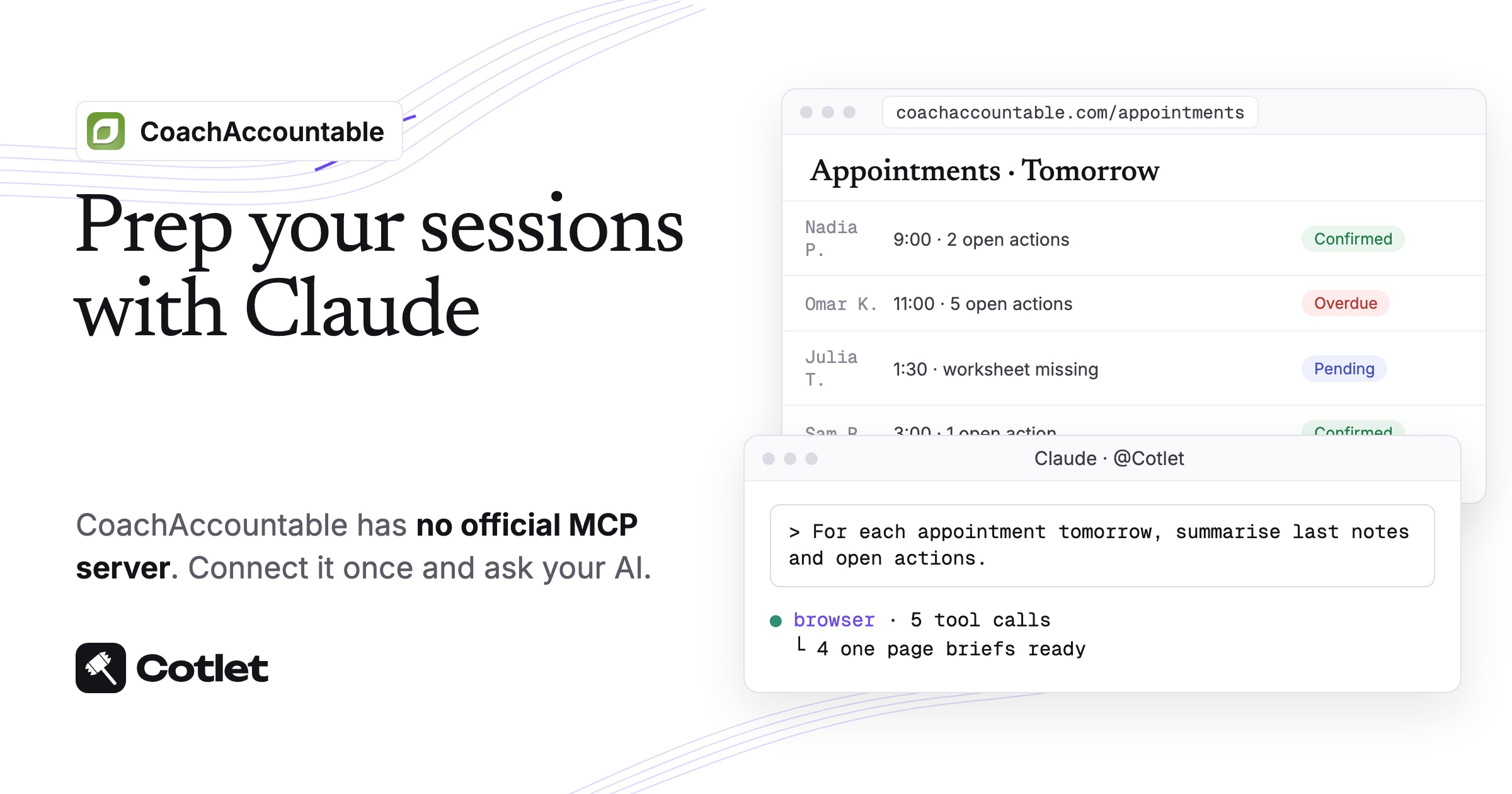
| Appointments and Session notes | Summarises each client’s last notes and open actions before tomorrow’s sessions |
| Worksheets | Shows who has not filled in the pre-session worksheet |
| Agreements | Lists clients who have not signed their agreement |
| Metrics | Reads a client’s metrics against their targets over 90 days |
Looking changes nothing. A reminder to a client or a saved note is held until you approve it. The MCP page for CoachAccountable has more.
Does CoachAccountable have AI, an API or an official ChatGPT app?
State on 27 November 2026:
- API: yes, open. You send calls to www.coachaccountable.com/API/ with an API ID and key from your account, as the API reference explains. Trial accounts are limited to 10 calls per minute and 100 per day.
- Chat connector: none. The MCP Registry lists no CoachAccountable server, and the vendor’s blog post names the API, not an MCP server.
- Zapier: yes. The features page lists Zapier and Integrately, and Zapier has a CoachAccountable app.
- Webhooks: none found in the API documentation or on the features page.
A developer can wire an agent to the API today. A coach who is not a developer has the screens. The CoachAccountable access review scores each point.
Before you start
- Your coach or team login, not a client’s.
- Clients, actions or invoices already in the account.
- ChatGPT or Claude.
- A Cotlet trial (pricing). No API ID or key is involved.
Step 1: sign in to CoachAccountable in your Cloud Browser
Point the Cloud Browser at coachaccountable.com/login and sign in on that page. The password is entered on CoachAccountable’s page and never reaches us. The session is kept encrypted, and the console has a switch that revokes the agent (security).
Step 2: connect CoachAccountable to ChatGPT, Claude or another AI agent
A few minutes, one time. Afterwards every new chat can open your account.
Pick your AI above to see its steps.
How to connect CoachAccountable to ChatGPT
Do this on chatgpt.com in your browser. Cotlet then works in the ChatGPT desktop and phone apps too.
- Open Plugins in ChatGPT and click Add.
- Click Add custom MCP server. Not in the menu? Turn on Developer mode in Settings, Security and login, then come back.
- Paste the name
Cotletand the server URLhttps://cotlet.dev/mcp/v1/connect. Keep Authentication on OAuth. - Tick “I understand and want to continue” and click Create as a plugin.
- Click Connect Cotlet. A Cotlet page opens, click Allow access.
- In a new chat, type
@Cotletand pick it from the list. - Ask ChatGPT: “Are you signed in to Cotlet through MCP?” Then try a first CoachAccountable task: “In CoachAccountable, list clients with overdue actions and how many days late. Change nothing.”
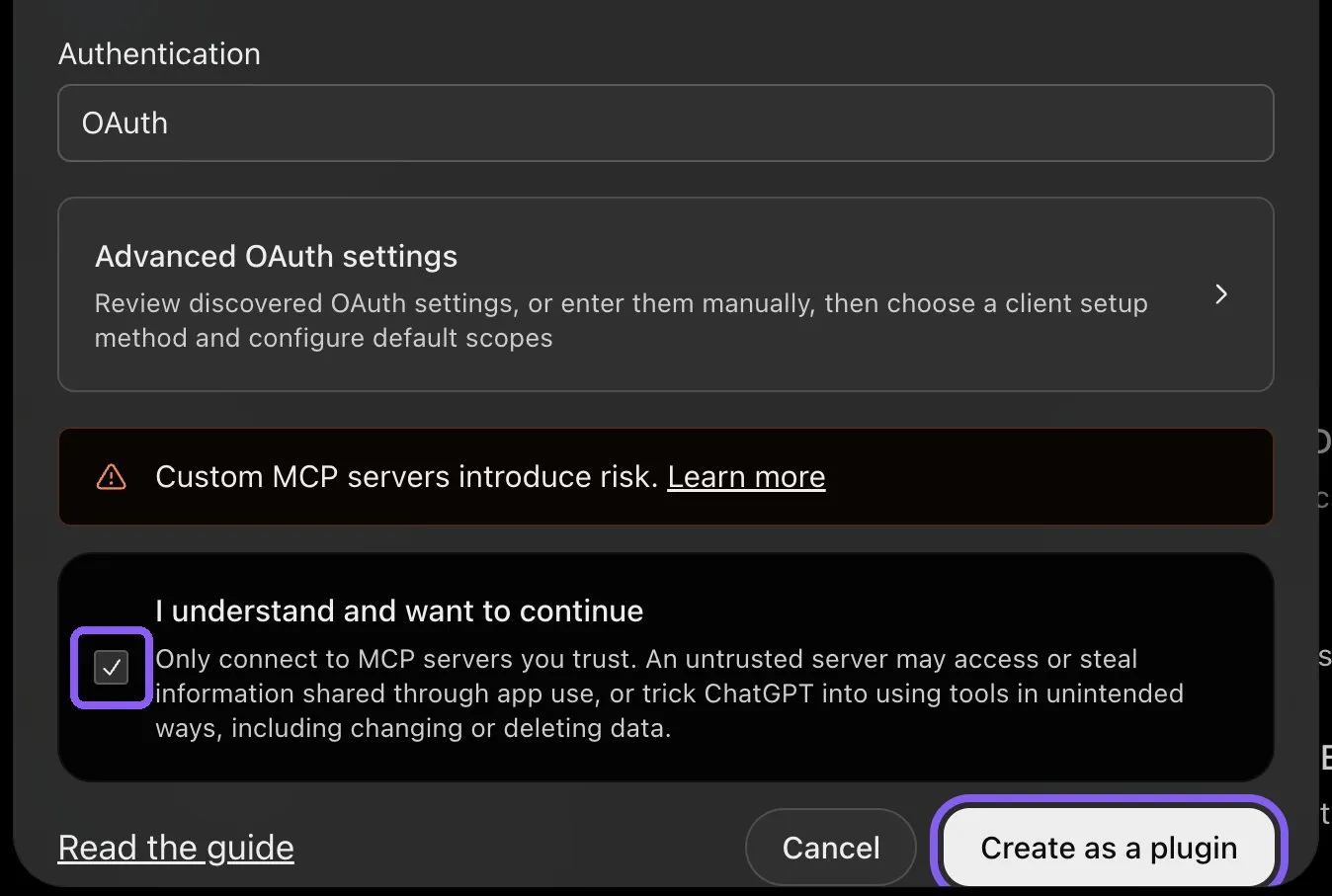
ChatGPT, bottom of the custom MCP server form, November 2026.
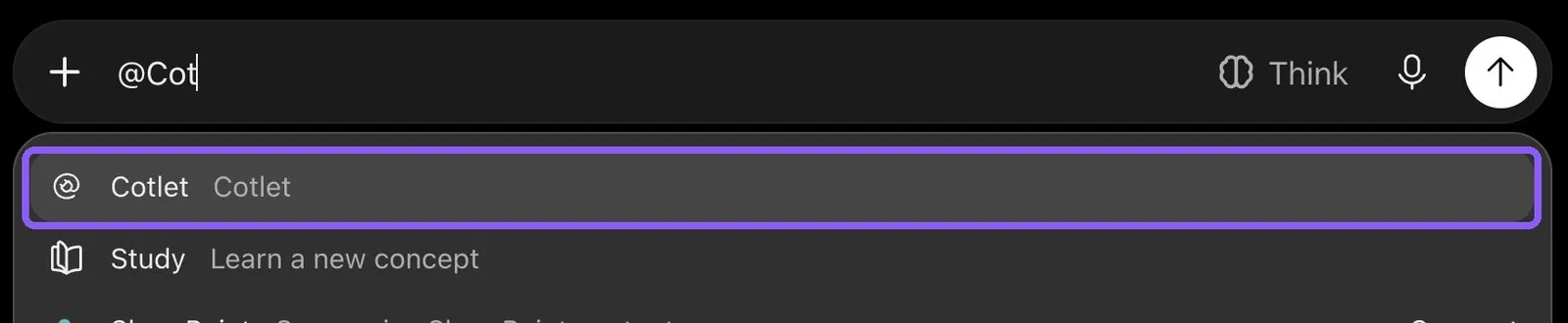
ChatGPT, picking Cotlet in a new chat with @, November 2026.
ChatGPT asks “Allow ChatGPT to use Cotlet?” before some steps. Pick Always allow, or the chat waits for your click. On a Business, Enterprise or Edu workspace, an admin has to allow custom MCP servers first.
How to connect CoachAccountable to Claude
- Open Connectors in Claude and click Add. In the desktop app it is under Customize, Connectors.
- Click Add custom connector.
- Paste the name
Cotletand the URLhttps://cotlet.dev/mcp/v1/connect, then click Continue. - Keep the settings and click Add.
- A Cotlet page opens. Click Allow access.
- In a chat, click the plus button, then Connectors, and turn Cotlet on.
- Ask Claude: “Are you signed in to Cotlet through MCP?”, then “In CoachAccountable, which clients have only one session left in their engagement, and when is their next appointment? Change nothing.”. Claude asks before it uses a Cotlet tool the first time. Click Allow.
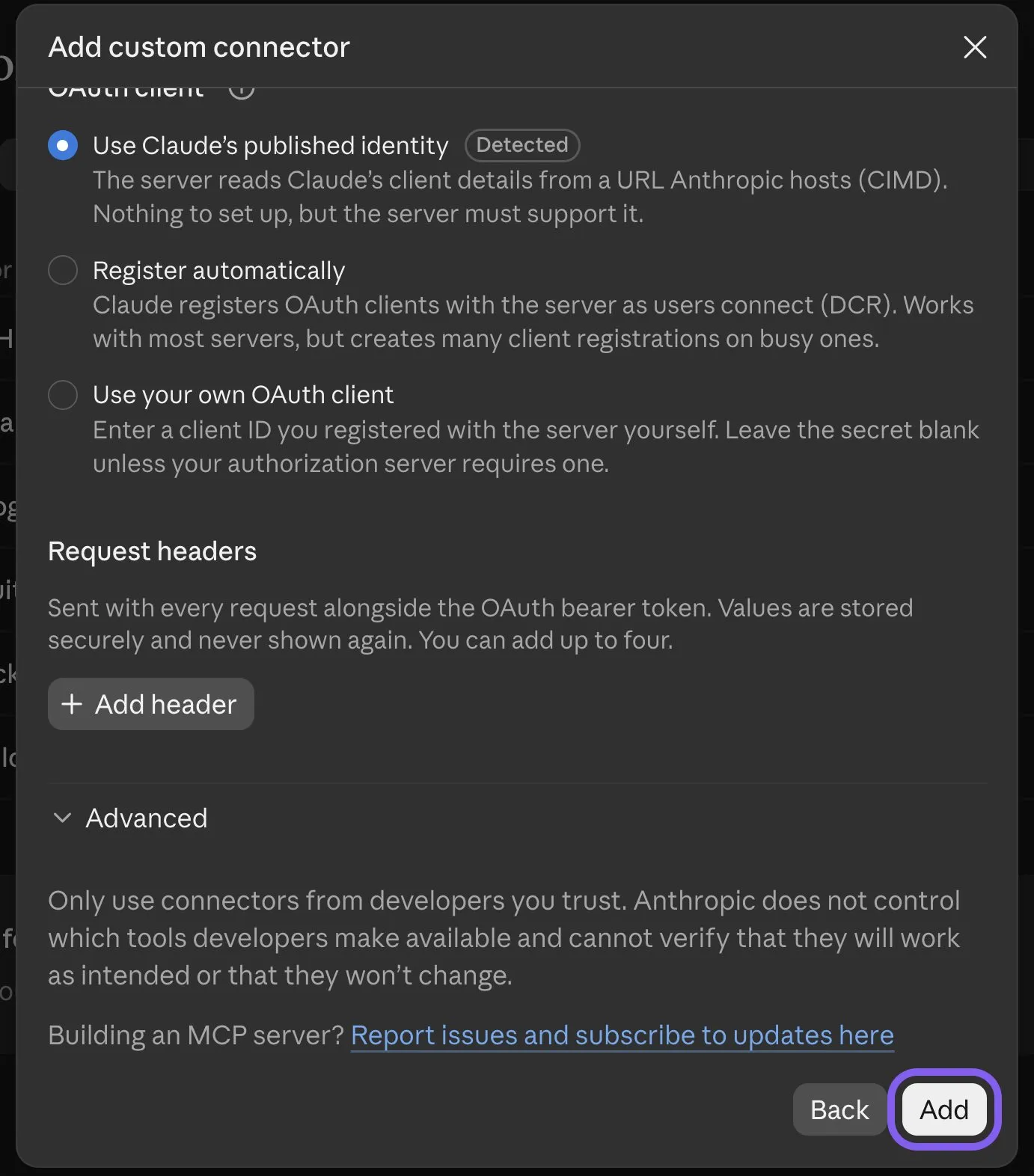
Claude, Add custom connector, last screen, November 2026.
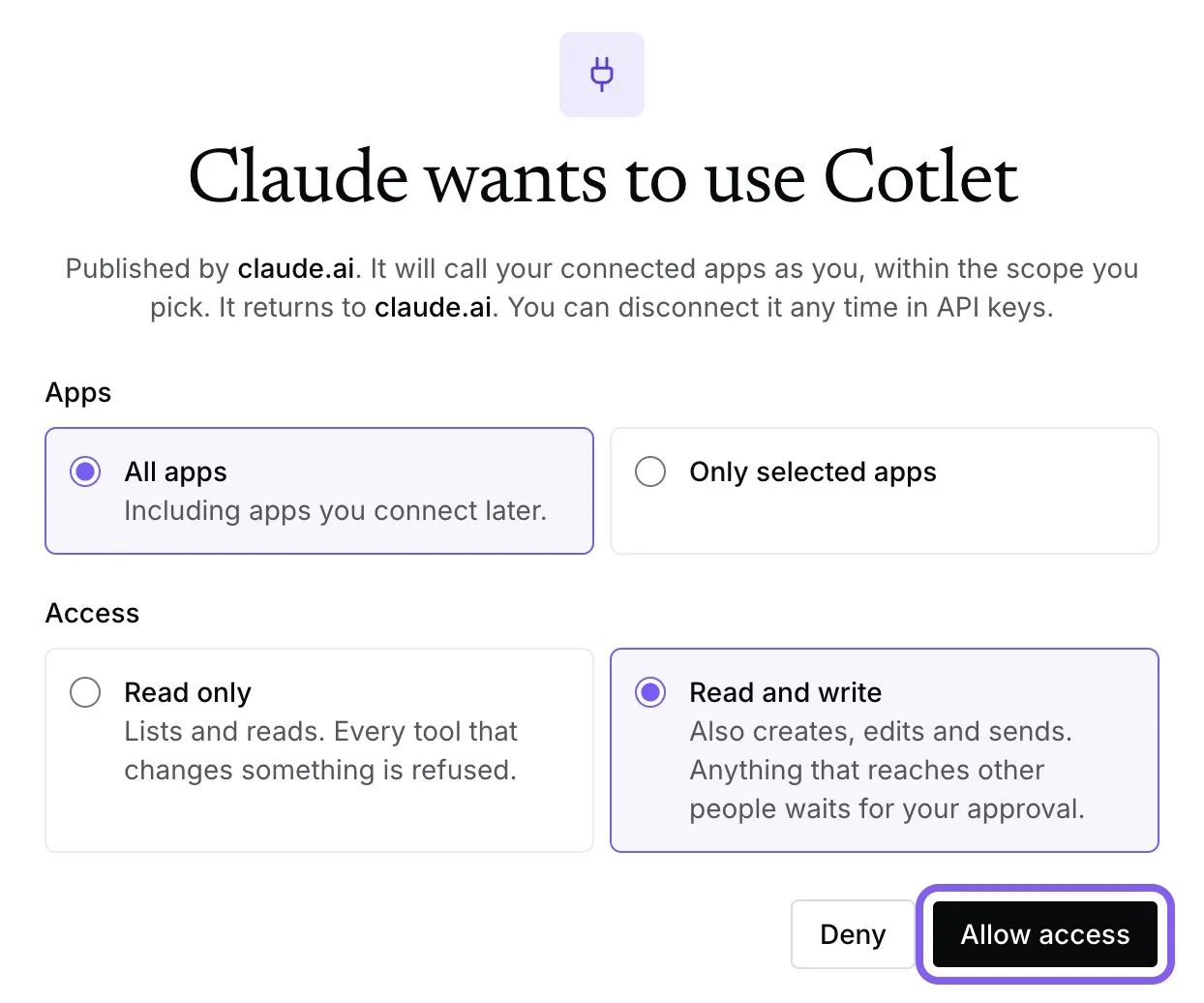
Cotlet consent page after you add the connector in Claude, November 2026.
Claude’s free plan allows one custom connector. On a Team or Enterprise plan, an owner adds Cotlet in Organization settings, Connectors, and you click Connect next to it.
How to connect CoachAccountable to Claude Code
Add Cotlet without a key, then sign in once in the browser:
claude mcp add --transport http cotlet https://cotlet.dev/mcp/v1/connectRun /mcp in Claude Code, pick cotlet and sign in to Cotlet. Prefer an API key, for example on a server? Create one in the Cotlet console and use:
claude mcp add --transport http cotlet https://cotlet.dev/mcp/v1 \
  --header "Authorization: Bearer $COTLET_API_KEY"
How to connect CoachAccountable to Codex
Create an API key in the Cotlet console, put it in the COTLET_API_KEY environment variable and add this to ~/.codex/config.toml:
[mcp_servers.cotlet]
url = "https://cotlet.dev/mcp/v1"
bearer_token_env_var = "COTLET_API_KEY"
How to connect CoachAccountable to Cursor
Create an API key in the Cotlet console, put it in the COTLET_API_KEY environment variable and add this to ~/.cursor/mcp.json:
{
  "mcpServers": {
    "cotlet": {
      "url": "https://cotlet.dev/mcp/v1",
      "headers": { "Authorization": "Bearer ${env:COTLET_API_KEY}" }
    }
  }
}
How to connect CoachAccountable to Grok
Grok takes custom MCP servers on grok.com, per xAI’s connectors documentation (checked 8 November 2026).
- Open grok.com/connectors and click New Connector.
- Pick Custom and paste the server URL
https://cotlet.dev/mcp/v1/connect. - Sign in to Cotlet when Grok asks, then click Allow access.
- Ask Grok: “Are you signed in to Cotlet through MCP?”
On Grok Business, an admin adds the connector first in the xAI console, under Grok Business, Connectors. The Grok chat inside X has no custom connector menu.
How to connect CoachAccountable to Hermes Agent
Add Cotlet to ~/.hermes/config.yaml in the format of the Hermes MCP config reference:
mcp_servers:
  cotlet:
    url: "https://cotlet.dev/mcp/v1"
    headers:
      Authorization: "Bearer ${COTLET_API_KEY}"
    trust: untrusted
Put COTLET_API_KEY in ~/.hermes/.env and check it with hermes mcp test cotlet. With trust: untrusted, Hermes runs reads at once and asks before every write. More on Hermes in our post on the Hermes Agent browser.
How to connect CoachAccountable to n8n
Use the MCP Client node, or the MCP Client Tool inside an AI Agent node:
- Server Transport: HTTP Streamable
- MCP Endpoint URL:
https://cotlet.dev/mcp/v1 - Authentication: Bearer Auth, with your Cotlet API key as the token
- Tools: let the AI Agent node use Cotlet’s browser tools; it reads Cotlet’s CoachAccountable guide first and works in your signed-in account
Use it for work that should run on its own, such as a daily page per client before tomorrow’s sessions.
Any other MCP client
Point the client at https://cotlet.dev/mcp/v1 over Streamable HTTP, with the header Authorization: Bearer <your Cotlet API key>. A client that supports OAuth sign-in can use https://cotlet.dev/mcp/v1/connect instead and needs no key. The full reference is in the MCP docs.
Three CoachAccountable jobs to try first
All of these read.
Brief yourself on tomorrow’s sessions
For each appointment tomorrow, summarise the client’s last session notes and open actions on one page.
The features page lists session notes, with templates and private or shared notes. The agent opens each appointment, reads the latest notes and the action list, and gives you one page per client.
Find clients about to run out of sessions
Which clients have only one session left in their engagement, and when is their next appointment?
Engagements track package progress, including remaining sessions. You get a short list of who to talk to about renewing, with the next date next to each name.
Collect unsigned agreements
List clients who have not signed their agreement yet, with the date it was sent.
Agreements carry signatures, so an unsigned one is easy to spot on a single client and hard to spot across forty. The agent goes through the list and gives you the gaps.
Later in the week
- List unpaid invoices with client, amount and due date, and draft a polite reminder for each.
- Check which clients have not completed the pre-session worksheet.
- Combine a month of session notes into a summary and save it as a draft for review.
What it costs
The 7 day trial includes 2,000 credits and asks for no card. Later you buy a pack from $29 valid for a year, and failed calls are free (pricing). Your CoachAccountable plan stays as is.
FAQ
Is there an API key route from CoachAccountable to ChatGPT?
Not through an official connector. CoachAccountable has an API with an ID and key, and no MCP server. Cotlet needs no key, since it works from the session you opened.
Should I use the API instead of Cotlet?
If you have a developer and a fixed integration, the API is a fine choice. If you are the coach and want answers from screens such as Actions or Engagements today, Cotlet avoids the code.
Can the AI read invoices and notes I keep for clients?
It reads whatever your coach login can open. Client messages and saved notes wait until you approve them.
Is Cotlet affiliated with CoachAccountable?
No. They are separate companies.
Try it on your own CoachAccountable account
Tomorrow’s session briefs make a good first request. Run it on a free trial: log in, then ask.