How to connect GlossGenius to ChatGPT, Claude and any AI agent
GlossGenius has its own AI agents but no API, Zapier or Claude connector. How stylists let their own ChatGPT or Claude run the calendar and waitlist.
Cotlet team 11 min read
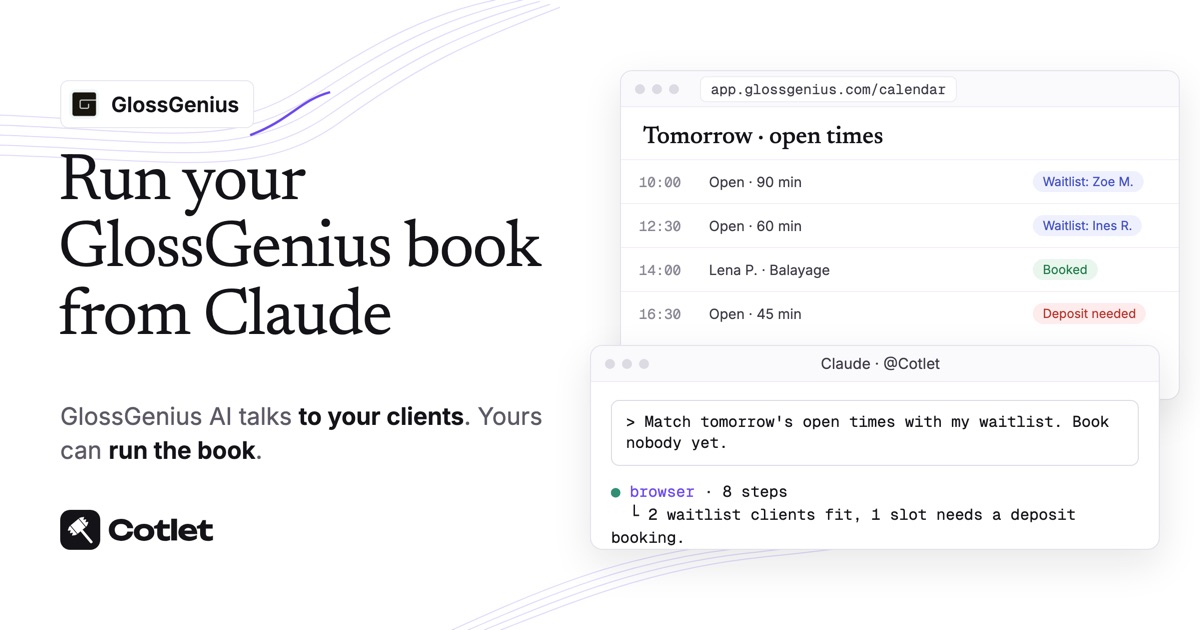
GlossGenius offers its own AI, Reception and Growth Analyst, but no public API, no Zapier app and no ChatGPT or Claude connector, as of November 2026. If you want the ChatGPT or Claude you already use to work in your GlossGenius account, Cotlet is how you connect them. Sign in to GlossGenius once in a cloud browser, and your AI can book, move and note appointments, work your waitlist and read your reports there. Setup is roughly ten minutes, and you write no code.
Cotlet is for the stylist, nail tech or salon owner who runs the book in GlossGenius and wants their own AI assistant to handle the busywork. Your clients keep booking through your GlossGenius booking site exactly as before. This guide is about what happens behind the chair: a sick day, a waitlist that keeps growing, the weekly numbers your bookkeeper asks for.
What ChatGPT and Claude can do in GlossGenius once connected
Your AI works in GlossGenius on the web, at app.glossgenius.com, in your signed-in browser. It uses the same screens you would:
| GlossGenius screen | What you can ask your AI to do |
|---|---|
| Calendar | Read a day or week, book a client, move or cancel an appointment, block time |
| Waitlist | Match waitlist clients to open times, convert an entry into an appointment |
| Clients | Find a client, read their history, add a note like a color formula |
| Reports | Read the Sales Report and past appointments for a period |
| Marketing | Draft an SMS or email campaign for you to approve |
| Settings | Check which services require a deposit |
Before your AI books, moves or cancels anything, or messages a client, it shows you what it will do and waits. Reading the calendar and reports needs no approval.
The GlossGenius integration page on Cotlet has more on the connection.
Does GlossGenius have AI, an API or an official ChatGPT app?
GlossGenius has built AI of its own, and it stays inside GlossGenius.
- Reception and Growth Analyst. Reception “answers every call and replies to every text, 24/7” and books into your calendar, for $50 a month, and Growth Analyst answers questions about your data, with 20 queries a month on Gold, per the GlossGenius pricing page (checked 9 November 2026). Both are GlossGenius’s agents, not a door for yours.
- No API, no Zapier. GlossGenius publishes no developer docs or API keys, and Zapier has no GlossGenius app. GlossGenius’s own help center says it does not “offer direct integrations with any third-party accounting or reporting tools, such as QuickBooks”, per its accounting article.
- No ChatGPT or Claude app. Neither assistant lists GlossGenius as an app or connector, as of November 2026.
That leaves a hosted MCP server that works in GlossGenius as you, if you want your own AI to do the work. If GlossGenius opens an API, use it.
Before you start
- Your GlossGenius login. Exporting the client list is an Account Owner permission in GlossGenius, so the owner login gives your AI the most to work with.
- Your phone or inbox nearby the first time: GlossGenius sends a code when you log in, and you type it yourself.
- ChatGPT on the web at chatgpt.com, or Claude on the web or desktop app, whose free plan fits one custom connector.
- A Cotlet account with the free trial: 7 days, no card on file.
Step 1: sign in to GlossGenius in your Cloud Browser
In the Cotlet console, open the Web browser, go to app.glossgenius.com/login and sign in, then type the code GlossGenius sends you. The browser runs on Cotlet’s side and stays signed in afterwards, so your AI can open GlossGenius while you are with a client.
You enter your password and code on GlossGenius’s page only. Cotlet never keeps your password, just the encrypted signed-in session. If GlossGenius ever asks for a new code, your AI stops and sends you the browser link to enter it. Details on our security page.
Step 2: connect GlossGenius to ChatGPT, Claude or another AI agent
Choose where you chat with AI. Whichever you pick below, it works in GlossGenius through the Cloud Browser you just signed in to.
Pick your AI above to see its steps.
How to connect GlossGenius to ChatGPT
Do this on chatgpt.com in your browser. Cotlet then works in the ChatGPT desktop and phone apps too.
- Open Plugins in ChatGPT and click Add.
- Click Add custom MCP server.
- Paste the name
Cotletand the server URLhttps://cotlet.dev/mcp/v1/connect. Keep Authentication on OAuth. - Tick “I understand and want to continue” and click Create as a plugin.
- Click Connect Cotlet. A Cotlet page opens, click Allow access.
- In a new chat, type
@Cotletand pick it from the list. - Ask ChatGPT: “Are you signed in to Cotlet through MCP?” Then try a first GlossGenius task: “Read my GlossGenius calendar for Saturday and tell me where I still have open time.”
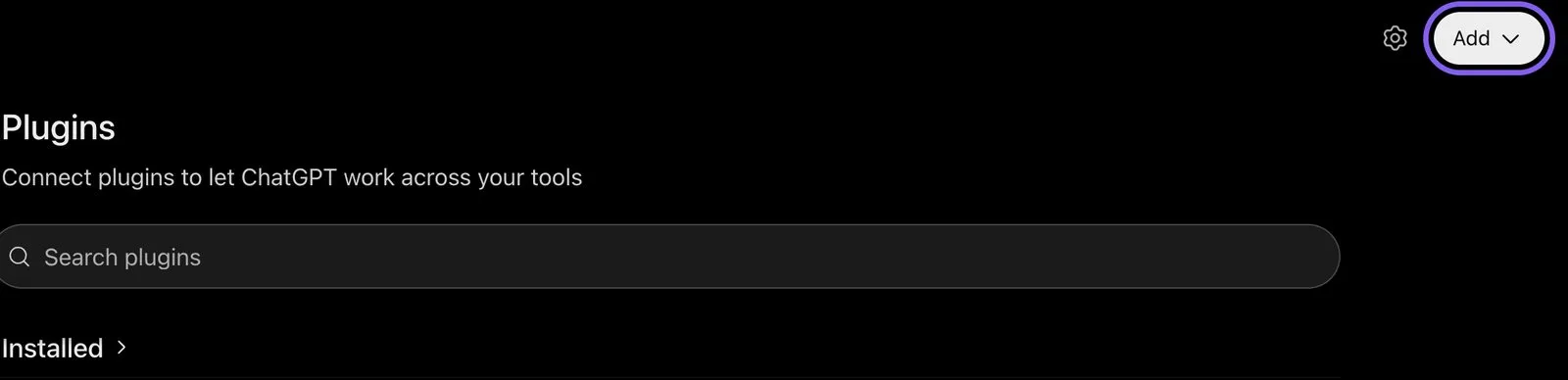
ChatGPT, Plugins page, November 2026.
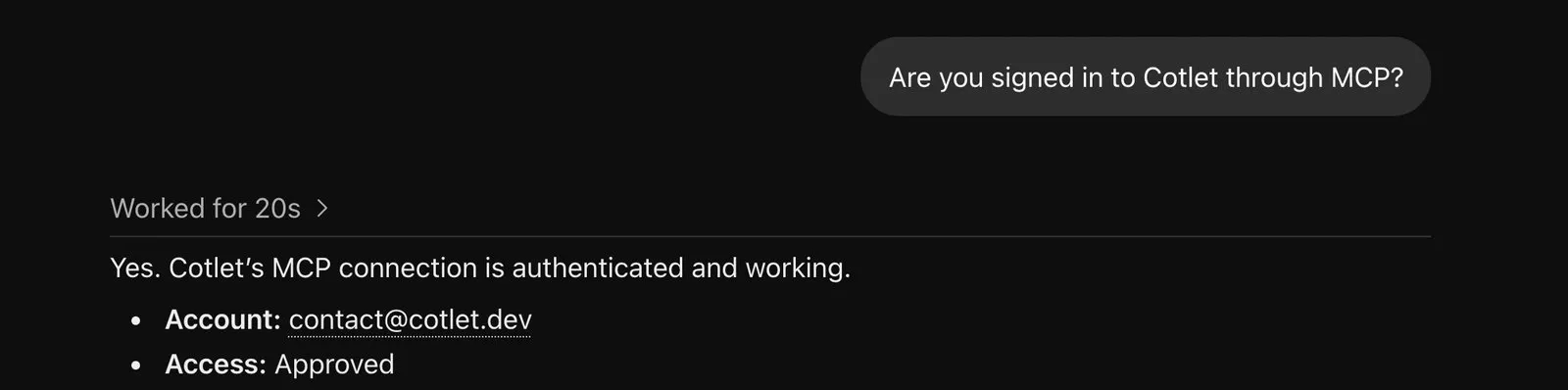
ChatGPT confirming the Cotlet connection, November 2026.
ChatGPT asks “Allow ChatGPT to use Cotlet?” before some steps. Pick Always allow, or the chat waits for your click. On a Business, Enterprise or Edu workspace, an admin has to allow custom MCP servers first.
How to connect GlossGenius to Claude
- Open Connectors in Claude and click Add. In the desktop app it is under Customize, Connectors.
- Click Add custom connector.
- Paste the name
Cotletand the URLhttps://cotlet.dev/mcp/v1/connect, then click Continue. - Keep the settings and click Add.
- A Cotlet page opens. Click Allow access.
- In a chat, click the plus button, then Connectors, and turn Cotlet on.
- Ask Claude: “Are you signed in to Cotlet through MCP?”, then “Who is on my GlossGenius waitlist right now, and for which services?”. Claude asks before it uses a Cotlet tool the first time. Click Allow.
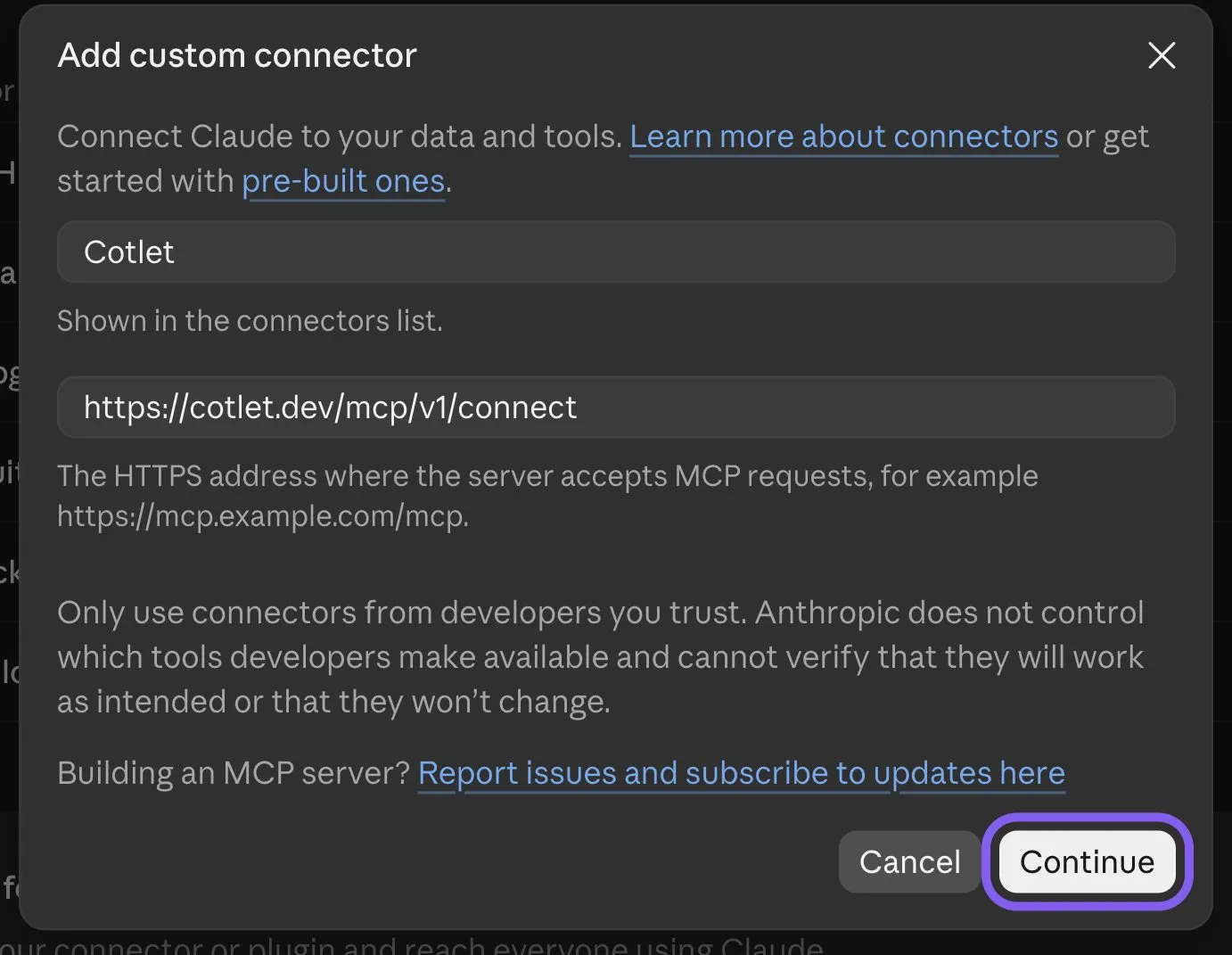
Claude, Add custom connector form, November 2026.
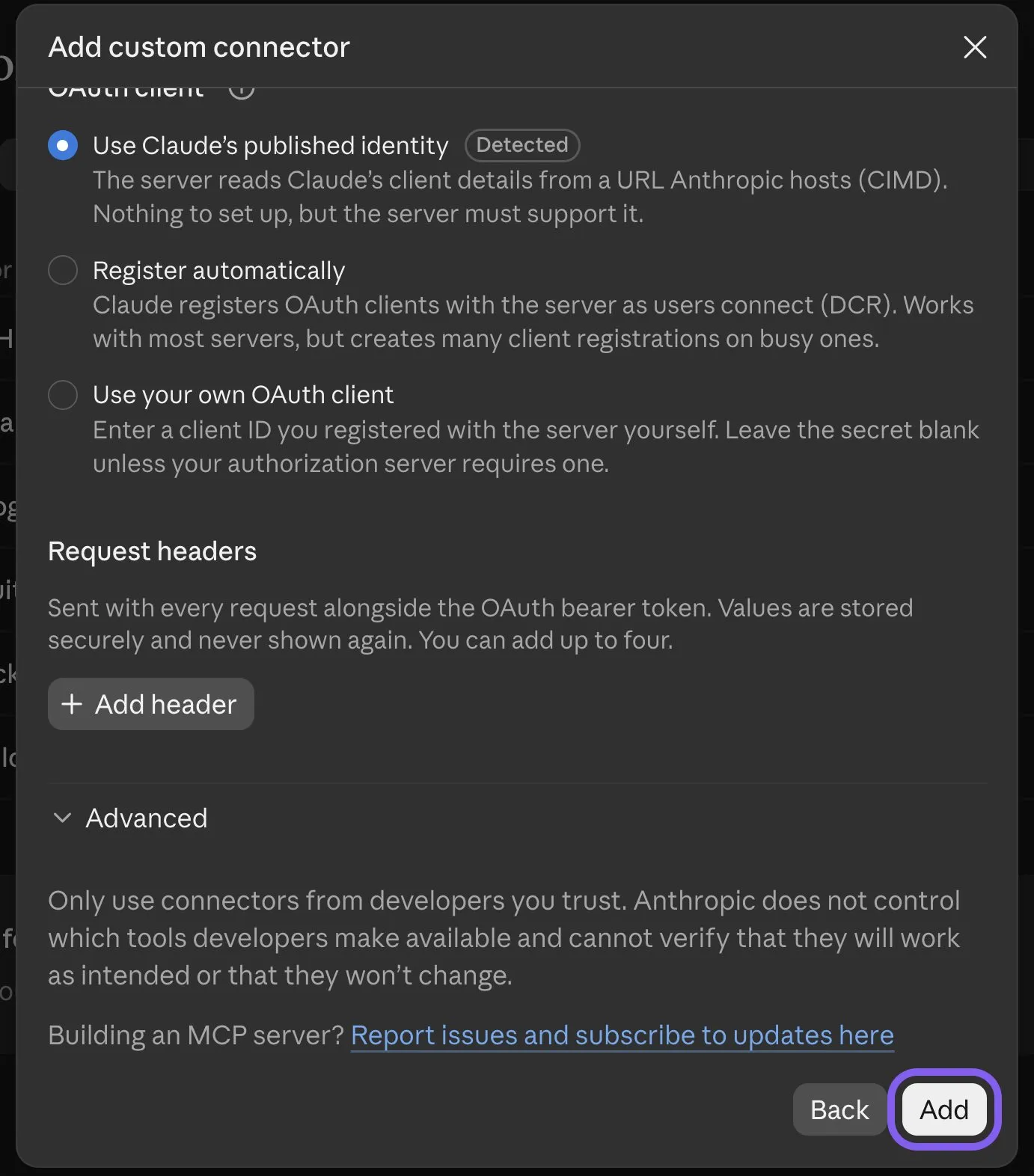
Claude, Add custom connector, last screen, November 2026.
Claude’s free plan allows one custom connector. On a Team or Enterprise plan, an owner adds Cotlet in Organization settings, Connectors, and you click Connect next to it.
How to connect GlossGenius to Claude Code
Add Cotlet without a key, then sign in once in the browser:
claude mcp add --transport http cotlet https://cotlet.dev/mcp/v1/connectRun /mcp in Claude Code, pick cotlet and sign in to Cotlet. Prefer an API key, for example on a server? Create one in the Cotlet console and use:
claude mcp add --transport http cotlet https://cotlet.dev/mcp/v1 \
  --header "Authorization: Bearer $COTLET_API_KEY"
How to connect GlossGenius to Codex
Create an API key in the Cotlet console, put it in the COTLET_API_KEY environment variable and add this to ~/.codex/config.toml:
[mcp_servers.cotlet]
url = "https://cotlet.dev/mcp/v1"
bearer_token_env_var = "COTLET_API_KEY"
How to connect GlossGenius to Cursor
Create an API key in the Cotlet console, put it in the COTLET_API_KEY environment variable and add this to ~/.cursor/mcp.json:
{
  "mcpServers": {
    "cotlet": {
      "url": "https://cotlet.dev/mcp/v1",
      "headers": { "Authorization": "Bearer ${env:COTLET_API_KEY}" }
    }
  }
}
How to connect GlossGenius to Grok
Grok takes custom MCP servers on grok.com, per xAI’s connectors documentation (checked 8 November 2026).
- Open grok.com/connectors and click New Connector.
- Pick Custom and paste the server URL
https://cotlet.dev/mcp/v1/connect. - Sign in to Cotlet when Grok asks, then click Allow access.
- Ask Grok: “Are you signed in to Cotlet through MCP?”
On Grok Business, an admin adds the connector first in the xAI console, under Grok Business, Connectors. The Grok chat inside X has no custom connector menu.
How to connect GlossGenius to Hermes Agent
Add Cotlet to ~/.hermes/config.yaml in the format of the Hermes MCP config reference:
mcp_servers:
  cotlet:
    url: "https://cotlet.dev/mcp/v1"
    headers:
      Authorization: "Bearer ${COTLET_API_KEY}"
    trust: untrusted
Put COTLET_API_KEY in ~/.hermes/.env and check it with hermes mcp test cotlet. With trust: untrusted, Hermes runs reads at once and asks before every write. More on Hermes in our post on the Hermes Agent browser.
How to connect GlossGenius to n8n
Use the MCP Client node, or the MCP Client Tool inside an AI Agent node:
- Server Transport: HTTP Streamable
- MCP Endpoint URL:
https://cotlet.dev/mcp/v1 - Authentication: Bearer Auth, with your Cotlet API key as the token
- Tools: let the AI Agent node use Cotlet’s browser tools; it reads Cotlet’s GlossGenius guide first and works in your signed-in GlossGenius
Use it for work that should run on its own, such as a Monday row of last week’s GlossGenius sales in your bookkeeping sheet.
Any other MCP client
Point the client at https://cotlet.dev/mcp/v1 over Streamable HTTP, with the header Authorization: Bearer <your Cotlet API key>. A client that supports OAuth sign-in can use https://cotlet.dev/mcp/v1/connect instead and needs no key. The full reference is in the MCP docs.
Three GlossGenius jobs to try first
Pick a real one from this week, then check your GlossGenius calendar.
Clear your book for a sick day, quietly
I’m sick tomorrow. Block my day, show me where each of my clients could move this week, move them only after I say go, and do not message anyone yet.
The AI blocks tomorrow, finds open times for each client’s service this week and shows you the full plan. It moves each appointment after your OK and tells you exactly who has not been notified. That matters in GlossGenius: after an edit it asks whether to send an update, and “If you tap No, your client will not be made aware of the changes”, per its reschedule guide. You decide when, and how, each client hears about it.
Fill tomorrow’s gaps from the waitlist
Check tomorrow’s open times against my waitlist and tell me who fits which gap. Book nobody until I say yes.
The AI compares the waitlist with your open slots and suggests one client per gap. After your yes, it converts the entry into an appointment. For a service that needs a deposit, it books from the calendar instead, because “Deposits cannot be collected when converting waitlist entries manually”, per GlossGenius’s waitlist guide.
Send your bookkeeper the week’s numbers
Every Monday, put last week’s service and retail revenue, tips, taxes and appointment count into my bookkeeping sheet, one row per week.
The AI reads last week in GlossGenius Reports and writes one row to your sheet after you approve the first run. It is the step GlossGenius leaves to you, since it has no QuickBooks or accounting integration. The same run can flag a week where retail drops, before your bookkeeper notices.
What Cotlet costs
Cotlet has no monthly plan. Credit packs start at $29 and last 12 months, and every account begins with 7 free days, no card. You pay only for calls that succeed. See the pricing page.
Your GlossGenius plan is unchanged. Cotlet does not need Reception or any add-on.
FAQ
Does GlossGenius have an API?
Not one you can use. As of November 2026 there are no developer docs and no keys for owners, and your data comes out only as exports and in-app reports.
Is there a GlossGenius MCP server?
Not from GlossGenius, and none is announced. The MCP server you add with Cotlet is hosted for you, so ChatGPT or Claude can reach your GlossGenius calendar, waitlist and clients without anything installed on your laptop.
Does GlossGenius work with ChatGPT or Claude?
Not officially. GlossGenius’s AI features run inside GlossGenius. With Cotlet, the ChatGPT or Claude you already pay for can work in your GlossGenius account.
Does GlossGenius work with Zapier?
No. Zapier has no GlossGenius app, so there are no Zaps or Zapier MCP tools for it.
Can an AI reply to my GlossGenius reviews?
Third-party review tools such as Repuso read public GlossGenius reviews for Claude and ChatGPT, per Repuso’s developer page. They do not touch bookings, clients or sales. Cotlet works in the account itself.
Is this an official GlossGenius integration?
No. Cotlet is independent and not affiliated with GlossGenius. It works through your own signed-in GlossGenius account, the way you would by hand.
Give your own AI the GlossGenius calendar
GlossGenius’s AI answers your clients. Yours can run the rest. Open a Cotlet account, sign in to GlossGenius in the Cloud Browser once, and ask ChatGPT or Claude who is on your waitlist for tomorrow. If you use other apps without an API, find them in the integrations catalog.