How to connect Google Discover to an AI agent like ChatGPT or Claude
Google has no official MCP server or API for the Discover feed (checked 25 Oct 2026). Connect ChatGPT or Claude with Cotlet.dev.
Cotlet team 15 min read
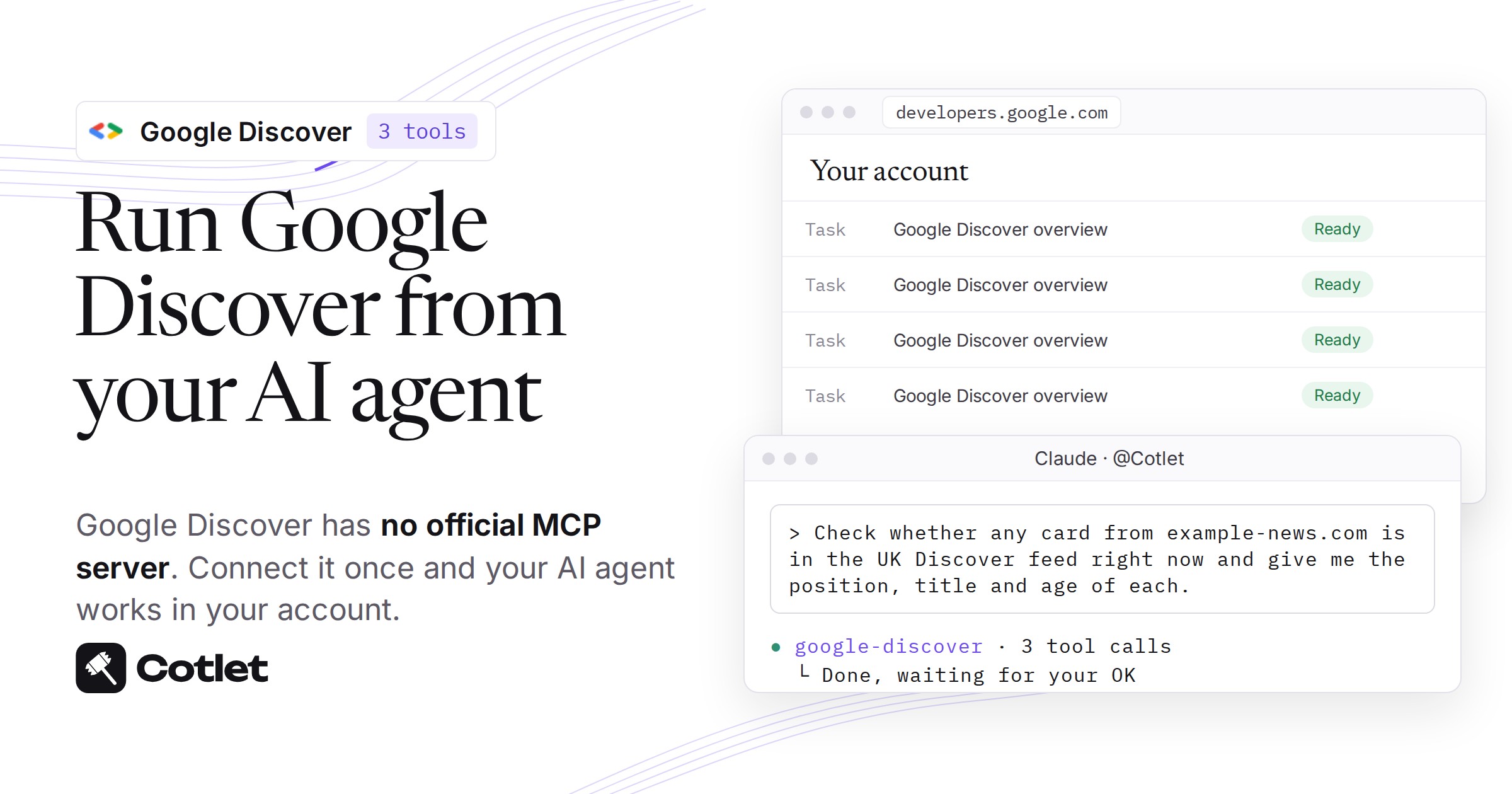
Google Discover has no official MCP server or API for the Discover feed (checked 25 Oct 2026). Google’s only official Discover data is the Discover report in Search Console, which shows clicks and impressions for sites you own, not which cards a country sees. Cotlet.dev runs 3 hosted Google Discover tools that read the feed of a country, and this guide shows how to connect Google Discover to ChatGPT, Claude and any AI agent.
Google Discover is part of your day if you publish stories: a news site, a local outlet or a niche blog where a card in the feed can drive the day’s traffic. You want to know whether your story is in the feed and what competitors show beside it. Cotlet.dev is for people who run a business in Google Discover and want an AI agent to watch it, while a reader who only scrolls the feed uses Google’s own apps.
What an agent can read for you in Google Discover
Your AI agent reads the feed through 3 Cotlet.dev tools, and the table lists each area of Google Discover it covers and what the agent does there.
| Area of Google Discover | What your AI agent does |
|---|---|
| Country feed | Reads the cards Google Discover shows in a country right now, in feed order, with position, title, publisher, URL, domain, article or video, age and image. |
| Your domain | Checks whether cards from your domain, subdomains included, are in a country’s feed and at which positions. |
| Hourly watch | Runs the domain check again every hour, so you see when a story enters and leaves the feed. |
| Countries and languages | Compares the feeds of different countries and languages. |
| Competitors | Counts the cards that competitors have in the feed. |
| Videos | Lists the videos Discover pushes, with article or video marked on each card. |
| Bigger sample | Collects up to 300 different cards from one country, with how often each appeared. |
Google Discover is read only through these tools: nothing changes at Google. Anything that reaches other people, such as a summary you ask the agent to send to your editor, waits for your OK first. Every tool, input and example response is on the Cotlet.dev Google Discover integration page.
Official Google Discover API, MCP server or ChatGPT app: what exists
Google Discover has no official MCP server or API for the Discover feed (checked 25 Oct 2026). Google’s only official Discover data is the Discover report in Search Console: clicks and impressions for sites you own, not which cards a country sees (Search Console Help: Discover performance report).
Google Discover shows its feed inside apps: Chrome’s New Tab page on phones, the Google app and Pixel phones (Search Central: Google Discover, Chromium source: the New Tab feed). Mobile google.com showed only trending searches in our checks on 25 Oct 2026.
Google Discover also has paid panel tools such as DiscoverSnoop, which sell totals from the personal feeds of many users. We found no GitHub MCP server for the feed (searched 25 Oct 2026).
Cotlet.dev fills that gap with a hosted MCP server at https://cotlet.dev/mcp/v1 that offers 3 Google Discover tools: read a country’s feed, check whether a domain is in it, and collect up to 300 cards. Your AI agent works from your own Cotlet.dev connection, reads the signed-out feed that Chrome for Android shows, and needs no Google sign-in.
What you need on hand for Google Discover
- Google Discover asks for no role or permissions from you: the tools read the feed of someone not signed in to Google, so no Google account is used.
- Cotlet.dev needs an account of its own: sign up, open Google Discover under Integrations in the console and press Activate.
- Your AI agent needs an MCP client such as ChatGPT, Claude, Cursor or Codex; chat apps sign you in to Cotlet.dev, while editors, n8n and scripts take a key from the console.
- Google Discover data here is the signed-out Chrome for Android feed: one country and language per call, about 30 cards, reused for up to 15 minutes.
- Google Discover numbers for your own site, clicks and impressions, stay in the Search Console report, because Cotlet.dev does not return them.
- Your AI agent works from ChatGPT and Claude in the browser and in their phone apps, because the feed is read through Cotlet.dev.
Step 1: Activate Google Discover in the console, no Google sign-in
Cotlet.dev needs one activation for Google Discover, done in the console: sign up, open Google Discover under Integrations and press Activate. There is no Google account to connect and no Cloud Browser to start for this app.
Google Discover has no login page in this setup, so no password is typed anywhere and Cotlet.dev never stores one. Because no Google account is used, nothing of yours is signed in or stored. Cotlet.dev keeps only the time, tool and status of each call.
Step 2: Paste the Cotlet.dev address into ChatGPT, Claude or another AI agent
Cotlet.dev connects Google Discover to ChatGPT, Claude, Claude Code, Codex, Cursor, Grok, Hermes Agent, n8n and other MCP clients, and the picker below shows the steps for the client you use.
Pick your AI above to see its steps.
How to connect Google Discover to ChatGPT
Do this on chatgpt.com in your browser. Cotlet then works in the ChatGPT desktop and phone apps too.
- Open Plugins in ChatGPT and click Add.
- Click Add custom MCP server.
- Paste the name
Cotletand the server URLhttps://cotlet.dev/mcp/v1/connect. Keep Authentication on OAuth. - Tick “I understand and want to continue” and click Create as a plugin.
- Click Connect Cotlet. A Cotlet page opens, click Allow access.
- In a new chat, type
@Cotletand pick it from the list. - Ask ChatGPT: “Are you signed in to Cotlet through MCP?” Then try a first Google Discover task: “Check whether any card from example-news.com is in the UK Discover feed right now and give me the position, title and age of each.”
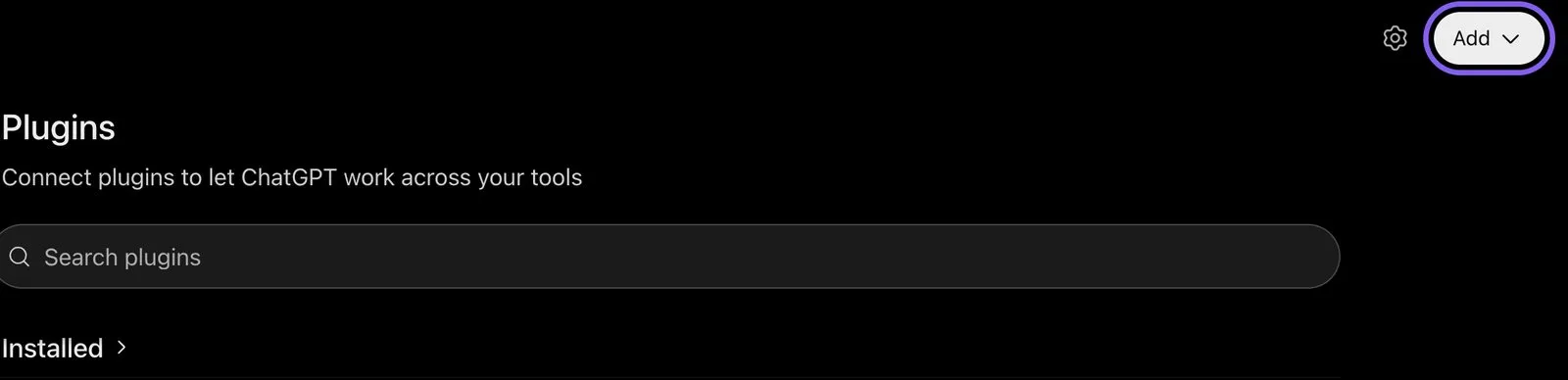
ChatGPT, Plugins page, November 2026.
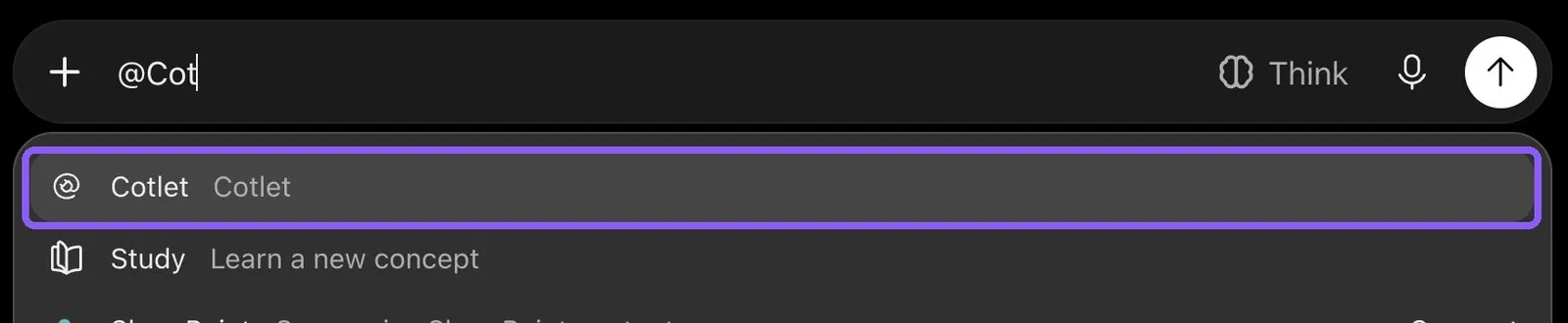
ChatGPT, picking Cotlet in a new chat with @, November 2026.
ChatGPT asks “Allow ChatGPT to use Cotlet?” before some steps. Pick Always allow, or the chat waits for your click. On a Business, Enterprise or Edu workspace, an admin has to allow custom MCP servers first.
How to connect Google Discover to Claude
- Open Connectors in Claude and click Add. In the desktop app it is under Customize, Connectors.
- Click Add custom connector.
- Paste the name
Cotletand the URLhttps://cotlet.dev/mcp/v1/connect, then click Continue. - Keep the settings and click Add.
- A Cotlet page opens. Click Allow access.
- In a chat, click the plus button, then Connectors, and turn Cotlet on.
- Ask Claude: “Are you signed in to Cotlet through MCP?”, then “Read the US and UK Discover feeds in English, then tell me which publishers appear in both and how many cards in each are videos.”. Claude asks before it uses a Cotlet tool the first time. Click Allow.

Claude, Customize, Connectors, Add menu, November 2026.
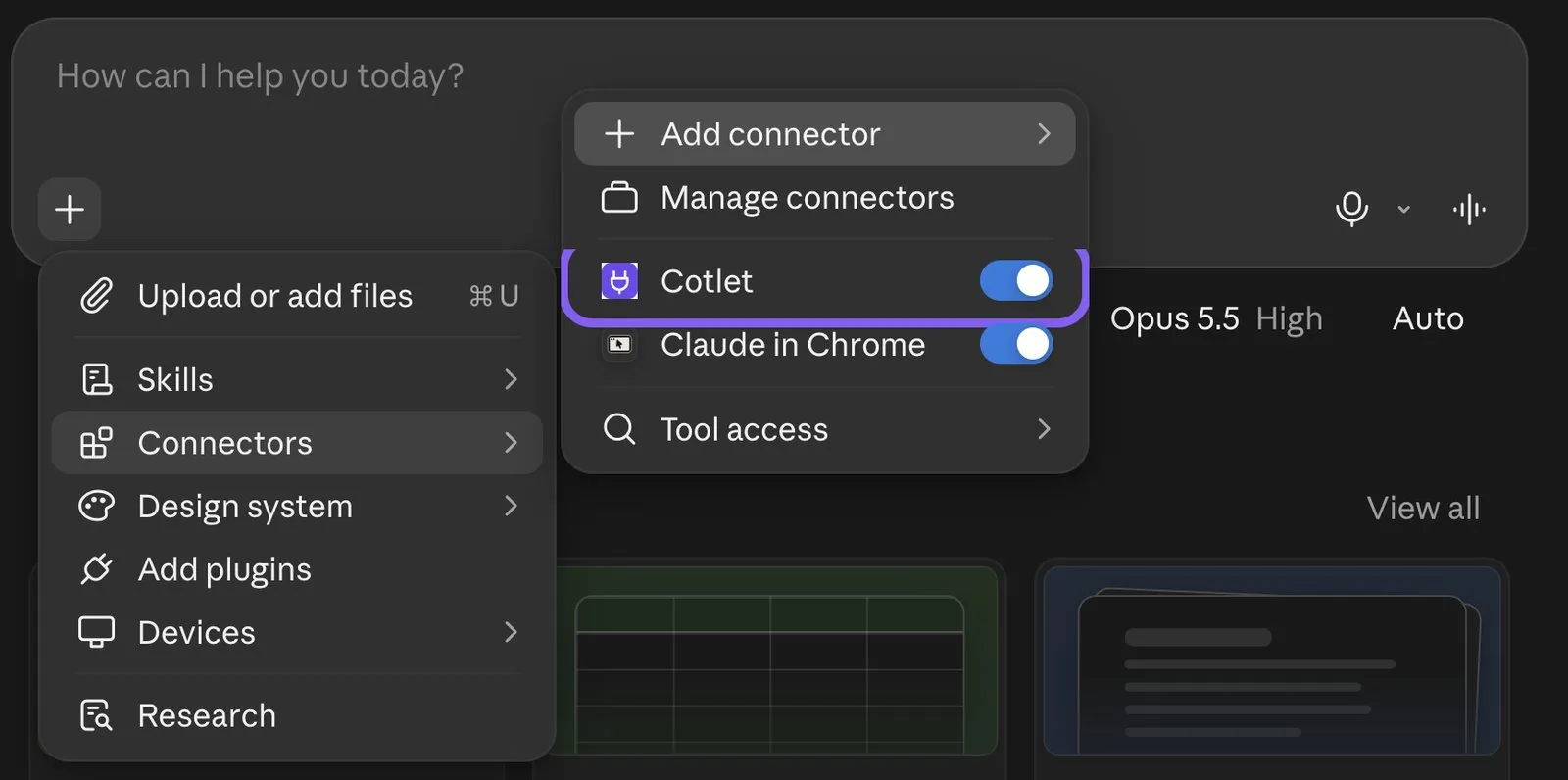
Claude, chat menu, Connectors, November 2026.
Claude’s free plan allows one custom connector. On a Team or Enterprise plan, an owner adds Cotlet in Organization settings, Connectors, and you click Connect next to it.
How to connect Google Discover to Claude Code
Add Cotlet without a key, then sign in once in the browser:
claude mcp add --transport http cotlet https://cotlet.dev/mcp/v1/connectRun /mcp in Claude Code, pick cotlet and sign in to Cotlet. Prefer an API key, for example on a server? Create one in the Cotlet console and use:
claude mcp add --transport http cotlet https://cotlet.dev/mcp/v1 \
  --header "Authorization: Bearer $COTLET_API_KEY"
How to connect Google Discover to Codex
Create an API key in the Cotlet console, put it in the COTLET_API_KEY environment variable and add this to ~/.codex/config.toml:
[mcp_servers.cotlet]
url = "https://cotlet.dev/mcp/v1"
bearer_token_env_var = "COTLET_API_KEY"
How to connect Google Discover to Cursor
Create an API key in the Cotlet console, put it in the COTLET_API_KEY environment variable and add this to ~/.cursor/mcp.json:
{
  "mcpServers": {
    "cotlet": {
      "url": "https://cotlet.dev/mcp/v1",
      "headers": { "Authorization": "Bearer ${env:COTLET_API_KEY}" }
    }
  }
}
How to connect Google Discover to Grok
Grok takes custom MCP servers on grok.com, per xAI’s connectors documentation (checked 8 November 2026).
- Open grok.com/connectors and click New Connector.
- Pick Custom and paste the server URL
https://cotlet.dev/mcp/v1/connect. - Sign in to Cotlet when Grok asks, then click Allow access.
- Ask Grok: “Are you signed in to Cotlet through MCP?”
On Grok Business, an admin adds the connector first in the xAI console, under Grok Business, Connectors. The Grok chat inside X has no custom connector menu.
How to connect Google Discover to Hermes Agent
Add Cotlet to ~/.hermes/config.yaml in the format of the Hermes MCP config reference:
mcp_servers:
  cotlet:
    url: "https://cotlet.dev/mcp/v1"
    headers:
      Authorization: "Bearer ${COTLET_API_KEY}"
    trust: untrusted
Put COTLET_API_KEY in ~/.hermes/.env and check it with hermes mcp test cotlet. With trust: untrusted, Hermes runs reads at once and asks before every write. More on Hermes in our post on the Hermes Agent browser.
How to connect Google Discover to n8n
Use the MCP Client node, or the MCP Client Tool inside an AI Agent node:
- Server Transport: HTTP Streamable
- MCP Endpoint URL:
https://cotlet.dev/mcp/v1 - Authentication: Bearer Auth, with your Cotlet API key as the token
- Tools: Cotlet.dev’s browser tools; the AI Agent node reads the Google Discover guide first
Use it to run this on a schedule: count the cards Search Console never shows you.
Any other MCP client
Point the client at https://cotlet.dev/mcp/v1 over Streamable HTTP, with the header Authorization: Bearer <your Cotlet API key>. A client that supports OAuth sign-in can use https://cotlet.dev/mcp/v1/connect instead and needs no key. The full reference is in the MCP docs.
Cotlet.dev serves every app you have access to at https://cotlet.dev/mcp/v1, Google Discover included. Chat apps sign you in to Cotlet.dev, while editors, n8n and scripts take a key from the console. If you got access after connecting, refresh the connector in your client.
Your AI agent can then answer a first question such as which cards the US feed holds right now. ChatGPT and Claude work the same way in their phone apps.
Three jobs to hand your agent first
Spot your story in a country’s feed
Your AI agent can take this request: “Check whether any card from example-news.com is in the UK Discover feed right now and give me the position, title and age of each.”
Your AI agent reads the UK feed, about 30 cards, keeps the cards on that domain or its subdomains, and reports position, title, age and the feed size. It asks for no approval, because the check is read only. By hand you would need a phone in the UK, since the feed shows in apps such as Chrome’s New Tab page and the Google app (Search Central: Google Discover). If the answer is no matching card, that means not in the current sampled feed, not absent from all of Discover.
Compare what two countries see
Your AI agent can take this request: “Read the US and UK Discover feeds in English, then tell me which publishers appear in both and how many cards in each are videos.”
Your AI agent makes one read per country and language, lists publisher, article or video and age for each card, and puts the two feeds side by side. Nothing waits for approval unless you ask it to send the comparison to someone. In reads on 25 Oct 2026 both feeds held 31 cards, and 12 of the US cards and 6 of the UK cards were YouTube videos. By hand this means two phones in two countries and no record, while one read here is reused for up to 15 minutes per country and language.
Count the cards Search Console never shows you
Your AI agent can take this request: “Collect up to 300 different cards from the US feed and count how many come from each publisher, with how often each appeared.”
Google Discover’s Search Console report shows clicks and impressions only for sites you own, so it cannot tell you how many cards your competitors have in a country’s feed (Search Console Help: Discover performance report). Your AI agent reads the feed many times, merges the cards and counts them by publisher; in our US test on 25 Oct 2026, 300 different cards took 88 reads and 55 seconds. It asks for approval only if you want the table sent anywhere. By hand you would scroll one phone feed and tally by eye.
Other routes to Google Discover data
- Google Discover’s official report: the Discover report in Search Console shows clicks and impressions for sites you own, not which cards a country sees (Search Console Help, checked 25 Oct 2026).
- Google Discover’s official API or MCP server: none exists for the Discover feed (checked 25 Oct 2026).
- Google Discover panel tools: DiscoverSnoop sells rankings, trends and publisher stats from a panel of users’ feeds in 54 countries, with 5 countries on the $299 a month Pro plan and the API $299 a month on top (checked 25 Oct 2026).
- Google Discover tracking in newsrooms: NewzDash offers Discover tracking inside a news SEO dashboard, with plans after a demo.
- Google Discover automation tools: Zapier, Make and n8n can send authenticated requests to Cotlet.dev’s 3 tools, and you build the schedule, destination and saved state in the tool yourself (checked 25 Oct 2026).
- Google Discover by hand: open Chrome’s New Tab page or the Google app and scroll; you see one country, the one your phone is in, and nothing is recorded.
Only Cotlet.dev puts the feed of any country in front of ChatGPT, Claude or any agent, one call per read, with no API key in a chat app and no Google account; all 3 tools are read only, so nothing in Google Discover changes.
FAQ
Is there an official Google Discover connector for ChatGPT or Claude?
Google Discover has no official MCP server or API for the Discover feed (checked 25 Oct 2026), so ChatGPT and Claude reach it through a hosted MCP server instead. Cotlet.dev offers 3 Google Discover tools at https://cotlet.dev/mcp/v1, and you add it to ChatGPT or Claude by following the steps in your console. Cotlet.dev is independent and not affiliated with Google.
Has Google published an API or MCP server for the Discover feed?
Google Discover has no official API or MCP server for the feed (checked 25 Oct 2026); its only official data is the Discover report in Search Console. That report gives clicks and impressions for sites you own, not which cards a country sees. Paid panel tools fill part of the gap with totals from many users’ feeds.
Can Zapier, Make or n8n pull in Google Discover data?
Cotlet.dev lets Zapier, Make and n8n send authenticated requests to the same 3 Google Discover tools (checked 25 Oct 2026). You set the schedule, destination and saved state in the automation tool, and Cotlet.dev only reads the feed. For asking questions in plain words, connect an MCP client such as ChatGPT or Claude instead.
Do I need a Google account for this?
Google Discover needs no Google account here. The tools read the feed that someone who is not signed in to Google sees, so there is nothing to sign in to and no Cloud Browser runs for this app. Activation happens in the Cotlet.dev console under Integrations.
Is the feed my own personalised Discover feed?
Google Discover cards in these tools are not your personal feed. They come from the default feed that Chrome for Android shows to someone not signed in, so your searches do not shape it. People who are signed in see feeds tuned to their activity, so their cards differ.
Which countries and languages can the tools read?
Cotlet.dev reads any two-letter ISO country code where it has a home connection. The country sets the region, and the language code, such as de-DE, sets the language of the stories, by default the country’s main one. Reads from the US, GB, DE, FR, PL, BR, JP and IN all answered on 25 Oct 2026.
How many Discover cards come back in one call?
Google Discover feed reads hold about 30 cards each, and one call can return up to 300 different cards. The larger call reads the feed many times and merges the cards, with how often each appeared. In our US test on 25 Oct 2026, 300 different cards took 88 reads and 55 seconds.
Why does one country’s feed change between calls?
Google Discover changes its feed through the day, and each read leaves from a different connection in the country, so local news follows that city. A UK read on 25 Oct 2026 held outlets from Manchester, and a US read held a West Virginia TV station. Reads of one country and language are reused for up to 15 minutes, so calls inside that window return the same cards.
Is this the same data as DiscoverSnoop?
Cotlet.dev does not return the same data as DiscoverSnoop or another panel. A panel collects the personal feeds of many users and sells totals such as rankings and history. Cotlet.dev reads one feed per call and has no click counts and no history, so your agent builds a history by calling on a schedule.
What can the tools not do?
Cotlet.dev reads the signed-out feed of a country and checks a domain in it, nothing else. It does not open the more-stories group of a card or read the feed of a signed-in person, and it keeps no history: one call is one look at the feed. Your own clicks and impressions stay in Search Console.
Point your agent at your own domain
Google Discover is easiest to judge on a story you know, so make the next story you publish the test: ask your agent whether its card is in the feed an hour later. Cotlet.dev lists the inputs and an example response for each of the 3 tools on its Google Discover integration page.