How to connect Invoice Simple to ChatGPT, Claude and AI agents
No official Invoice Simple MCP or ChatGPT/Claude connector (checked 12 Nov 2026) and no public API found. Use Cotlet to draft invoices and chase payments.
Cotlet team 11 min read
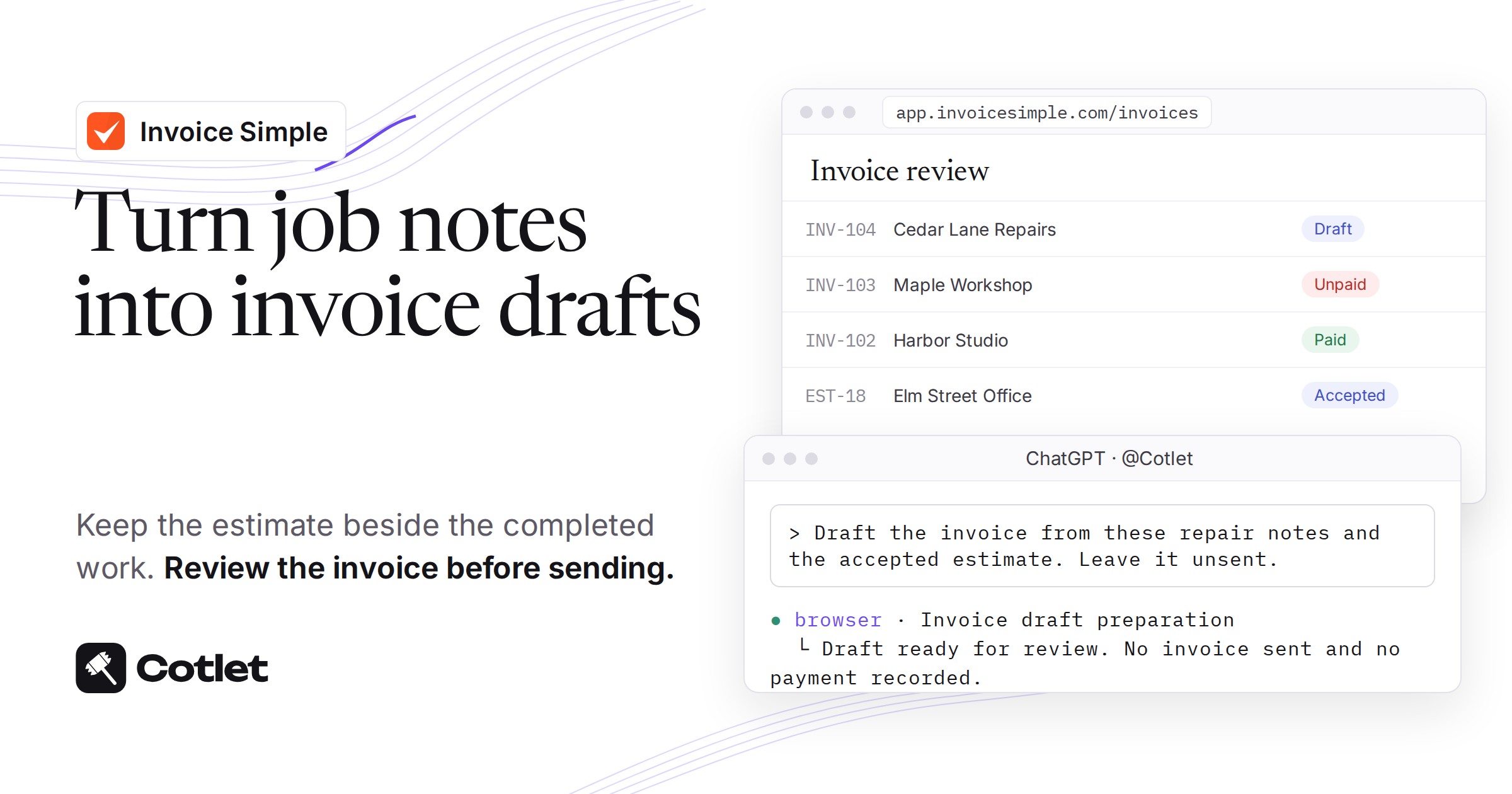
No official Invoice Simple MCP server or ChatGPT/Claude connector was found in the vendor material checked on 12 November 2026. Its help center documents no public API reference or customer API-key setup. To connect Invoice Simple to ChatGPT, Claude or another AI agent, open your account in Cotlet’s Cloud Browser and connect Cotlet to the assistant. You can then ask it to prepare an invoice from your job notes, review accepted estimates and find unpaid invoices in the account you already use.
This guide is for the contractor or small-business owner who sends the paperwork after doing the work. A customer paying your invoice should use the payment link you send; they do not need this setup. Cotlet is for your side of the business: turning accurate job information into drafts and keeping the follow-up list tied to the actual invoice records.
What ChatGPT and Claude can do in Invoice Simple once connected
Keep the customer, document and action separate in your instruction. Creating a draft, emailing it and recording a payment are three different requests. Your assistant should not infer the last two from the first.
| Office task | A practical request |
|---|---|
| Clients | Find the right customer before preparing a document |
| Invoice drafts | Add the supplied job description and line items |
| Estimates | Read the estimate and its recorded status |
| Conversion | Prepare an invoice from the estimate you select |
| Follow-up | List unpaid documents with their dates and amounts |
| Payment records | Record a payment you confirm you already received |
Read the supported actions on the Invoice Simple integration page. Cotlet calls marked Asks first wait for approval by default, and you can disable that confirmation per tool. Review the recipient and amount before approving anything that reaches a customer or updates a financial record.
Does Invoice Simple have AI, an API or an official ChatGPT app?
No official Invoice Simple MCP server or ChatGPT/Claude connector was found in the checked vendor material (12 Nov 2026). No public API reference or customer API-key setup was found in its help center or product information. Cotlet runs a hosted Invoice Simple MCP server, https://cotlet.dev/mcp/v1/invoice-simple, with 10 tools your agent uses in your own account.
- Built-in payments: the vendor plans describe payment workflows within Invoice Simple.
- Export: use a spreadsheet snapshot when your output is a file for review; request an account edit through the connection below.
Among these options, Cotlet gives ChatGPT, Claude or any MCP client a way to read and write in the Invoice Simple screens your account can use, without a vendor API key or a vendor plan upgrade.
Have the job details ready
- Keep the customer name, work description and agreed amounts together.
- Separate labor, materials, tax and any discount exactly as you want them recorded.
- Identify the existing estimate if the invoice should come from an agreed quote.
- Use your own Invoice Simple login and your normal AI assistant.
- Create a Cotlet account before connecting the assistant.
Step 1: sign in to Invoice Simple in your Cloud Browser
From the Cotlet console, open Invoice Simple and sign in at app.invoicesimple.com. Check that you see the business and customer records you expect. The assistant should use that account, rather than inventing a new invoice in a disconnected template.
Cotlet never stores your password. The signed-in browser profile is encrypted, as described on the security page. When Invoice Simple asks for another sign-in, reopen your Cloud Browser and complete it. Leave business-account credentials, subscription billing and payment-provider settings with the owner.
Step 2: connect Invoice Simple to ChatGPT, Claude or another AI agent
Choose your assistant below. Begin by finding a client or reading a known invoice. After you recognize the result, give it the job notes for a draft that you can inspect before it leaves the office.
Pick your AI above to see its steps.
How to connect Invoice Simple to ChatGPT
Do this on chatgpt.com in your browser. Cotlet then works in the ChatGPT desktop and phone apps too.
- Open Plugins in ChatGPT and click Add.
- Click Add custom MCP server.
- Paste the name
Cotletand the server URLhttps://cotlet.dev/mcp/v1/connect. Keep Authentication on OAuth. - Tick “I understand and want to continue” and click Create as a plugin.
- Click Connect Cotlet. A Cotlet page opens, click Allow access.
- In a new chat, type
@Cotletand pick it from the list. - Ask ChatGPT: “Are you signed in to Cotlet through MCP?” Then try a first Invoice Simple task: “Find Cedar Lane Repairs in Invoice Simple and show its latest estimate. Do not create or send any document.”
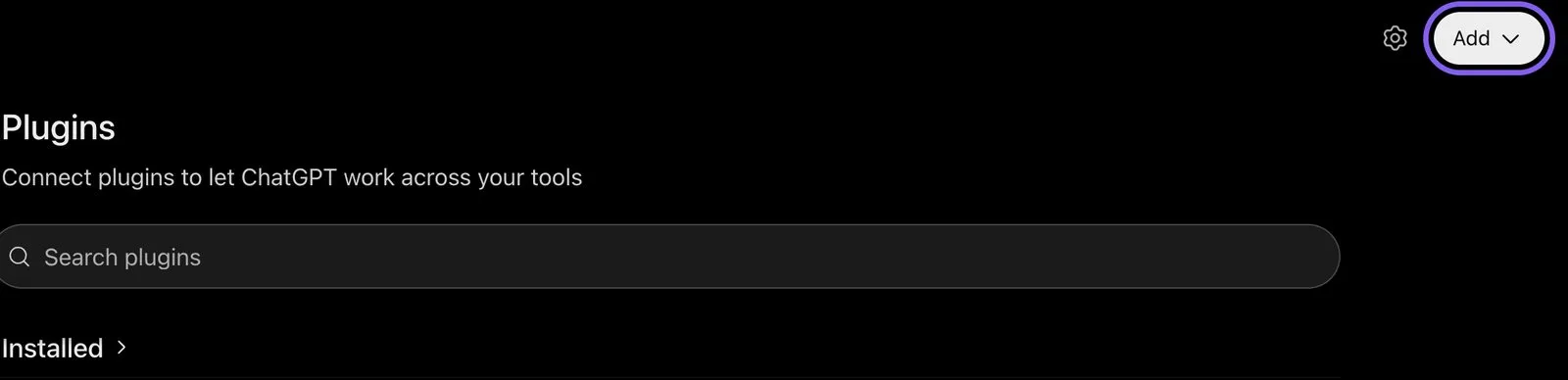
ChatGPT, Plugins page, November 2026.
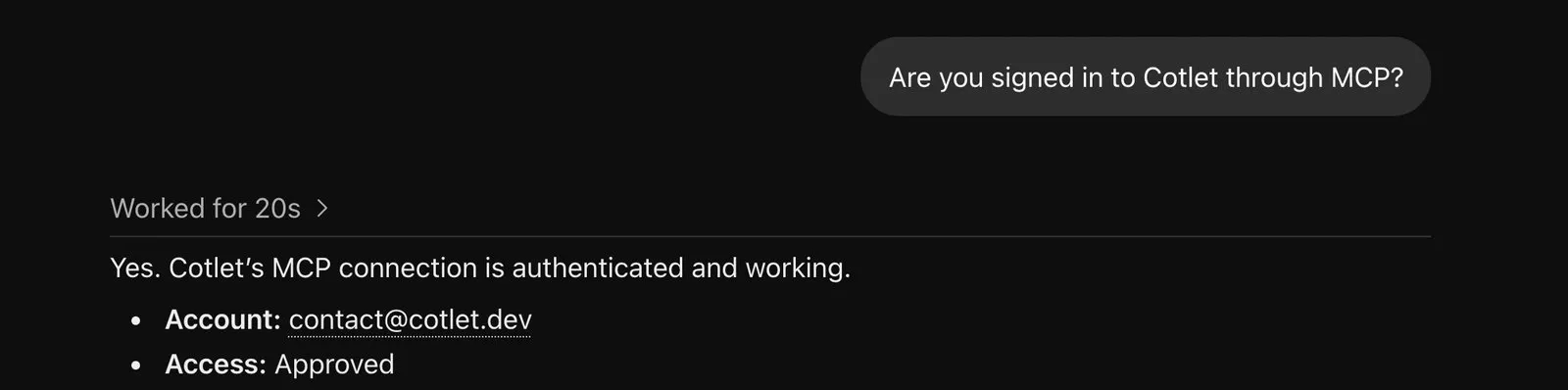
ChatGPT confirming the Cotlet connection, November 2026.
ChatGPT asks “Allow ChatGPT to use Cotlet?” before some steps. Pick Always allow, or the chat waits for your click. On a Business, Enterprise or Edu workspace, an admin has to allow custom MCP servers first.
How to connect Invoice Simple to Claude
- Open Connectors in Claude and click Add. In the desktop app it is under Customize, Connectors.
- Click Add custom connector.
- Paste the name
Cotletand the URLhttps://cotlet.dev/mcp/v1/connect, then click Continue. - Keep the settings and click Add.
- A Cotlet page opens. Click Allow access.
- In a chat, click the plus button, then Connectors, and turn Cotlet on.
- Ask Claude: “Are you signed in to Cotlet through MCP?”, then “Read unpaid Invoice Simple invoices for the period I give you and list references, customers and outstanding amounts. Do not record payments.”. Claude asks before it uses a Cotlet tool the first time. Click Allow.

Claude, Customize, Connectors, November 2026.
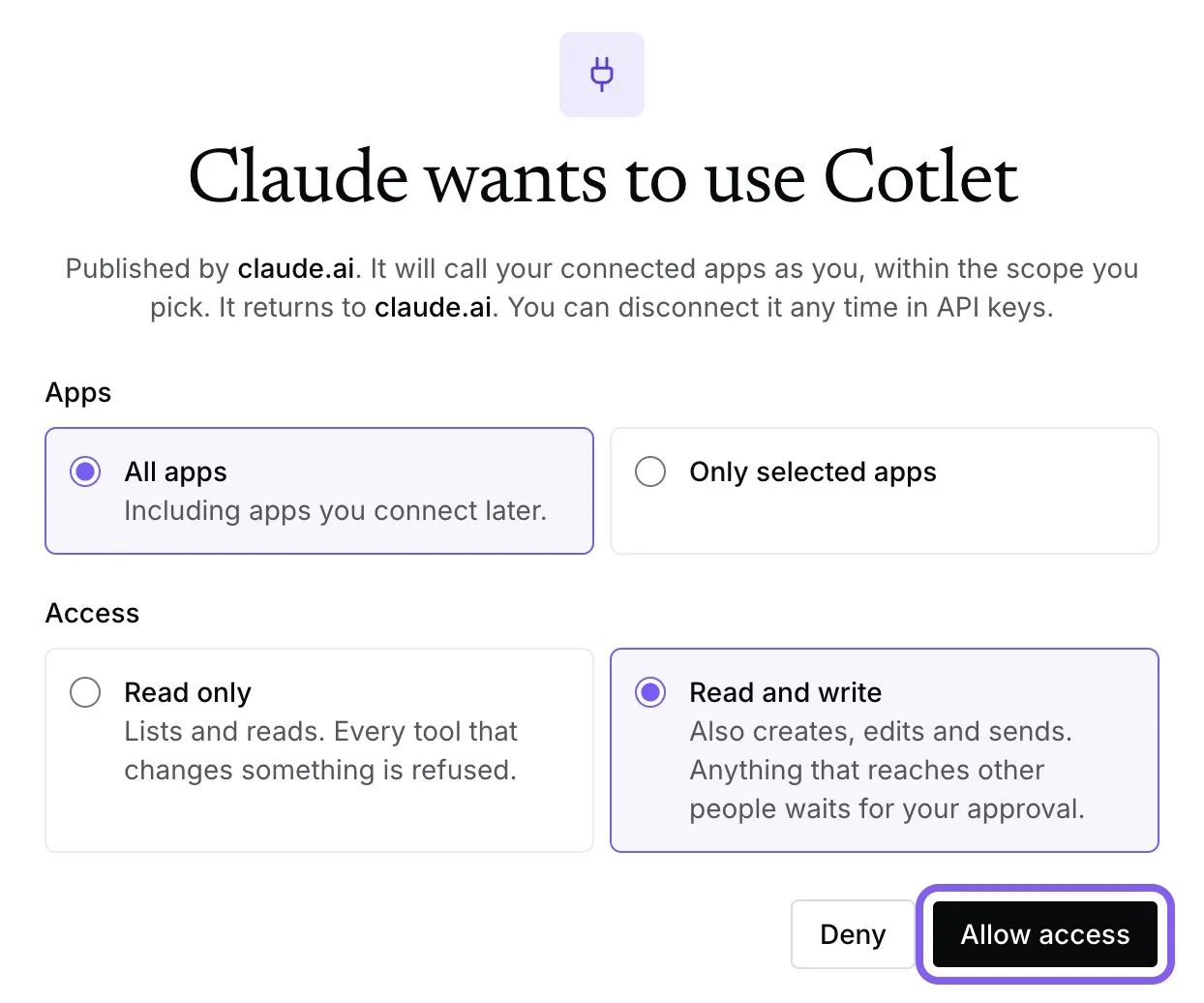
Cotlet consent page after you add the connector in Claude, November 2026.
Claude’s free plan allows one custom connector. On a Team or Enterprise plan, an owner adds Cotlet in Organization settings, Connectors, and you click Connect next to it.
How to connect Invoice Simple to Claude Code
Add Cotlet without a key, then sign in once in the browser:
claude mcp add --transport http cotlet https://cotlet.dev/mcp/v1/connectRun /mcp in Claude Code, pick cotlet and sign in to Cotlet. Prefer an API key, for example on a server? Create one in the Cotlet console and use:
claude mcp add --transport http cotlet https://cotlet.dev/mcp/v1 \
  --header "Authorization: Bearer $COTLET_API_KEY"
How to connect Invoice Simple to Codex
Create an API key in the Cotlet console, put it in the COTLET_API_KEY environment variable and add this to ~/.codex/config.toml:
[mcp_servers.cotlet]
url = "https://cotlet.dev/mcp/v1"
bearer_token_env_var = "COTLET_API_KEY"
How to connect Invoice Simple to Cursor
Create an API key in the Cotlet console, put it in the COTLET_API_KEY environment variable and add this to ~/.cursor/mcp.json:
{
  "mcpServers": {
    "cotlet": {
      "url": "https://cotlet.dev/mcp/v1",
      "headers": { "Authorization": "Bearer ${env:COTLET_API_KEY}" }
    }
  }
}
How to connect Invoice Simple to Grok
Grok takes custom MCP servers on grok.com, per xAI’s connectors documentation (checked 8 November 2026).
- Open grok.com/connectors and click New Connector.
- Pick Custom and paste the server URL
https://cotlet.dev/mcp/v1/connect. - Sign in to Cotlet when Grok asks, then click Allow access.
- Ask Grok: “Are you signed in to Cotlet through MCP?”
On Grok Business, an admin adds the connector first in the xAI console, under Grok Business, Connectors. The Grok chat inside X has no custom connector menu.
How to connect Invoice Simple to Hermes Agent
Add Cotlet to ~/.hermes/config.yaml in the format of the Hermes MCP config reference:
mcp_servers:
  cotlet:
    url: "https://cotlet.dev/mcp/v1"
    headers:
      Authorization: "Bearer ${COTLET_API_KEY}"
    trust: untrusted
Put COTLET_API_KEY in ~/.hermes/.env and check it with hermes mcp test cotlet. With trust: untrusted, Hermes runs reads at once and asks before every write. More on Hermes in our post on the Hermes Agent browser.
How to connect Invoice Simple to n8n
Use the MCP Client node, or the MCP Client Tool inside an AI Agent node:
- Server Transport: HTTP Streamable
- MCP Endpoint URL:
https://cotlet.dev/mcp/v1 - Authentication: Bearer Auth, with your Cotlet API key as the token Let the AI Agent node use Cotlet’s browser tools after reading the Invoice Simple guide; keep invoice preparation separate from sending.
Every Friday morning, prepare an office-only list of unpaid Invoice Simple invoices and draft reminders for the owner to review.
Any other MCP client
Point the client at https://cotlet.dev/mcp/v1 over Streamable HTTP, with the header Authorization: Bearer <your Cotlet API key>. A client that supports OAuth sign-in can use https://cotlet.dev/mcp/v1/connect instead and needs no key. The full reference is in the MCP docs.
Three Invoice Simple jobs to try first
Prepare an invoice from the work you actually did
Find Cedar Lane Repairs in my clients. Draft an invoice from these notes: replace the kitchen trap, labor as agreed in the estimate, materials from the receipt below. Show the customer, line items, tax treatment and total. Leave it unsent.
The assistant should use the amounts you supplied or the document you identified. A missing receipt is a missing source, not permission to guess the materials charge. If the client search has several matches, it should ask you to identify the right customer before creating the document.
Review the wording as well as the total. The invoice should explain the completed job in terms the customer recognizes. Sending is a separate decision: a draft in your account gives you room to correct a description or amount before it reaches anybody.
Reconcile an accepted estimate before conversion
Read the estimate I select and show its customer, items and recorded status. If it is accepted, prepare the invoice from that estimate after I approve the conversion. Flag any difference from the completion notes I provide.
The starting point is the original estimate, not a new reconstruction from memory. That keeps the agreed scope visible when an extra part or change order needs your attention. An accepted document should still be matched to the right job and customer.
Invoice Simple’s help center is the source for its estimate-to-invoice workflow. The assistant should report a status that does not match your instruction instead of silently treating every estimate as approved. When you approve conversion, ask for the resulting invoice reference so you can find it later.
Build a follow-up list without charging anybody
List the unpaid invoices for the period I specify. Show the customer, invoice reference, due date and recorded outstanding amount. Draft a short reminder for the ones I select. Do not send reminders or record payments yet.
The list should come from the account’s current records. A document that was viewed is not necessarily paid, and a payment you received outside the app may need to be recorded before the outstanding list is correct. Have the assistant separate those cases for your review.
If you later say “mark this paid,” state the amount, method and date you actually received. Recording an existing payment is different from charging a card. Do not ask an assistant to declare a debt settled because a reminder was sent or a customer said they would pay.
What the connection costs
Keep Invoice Simple’s own plan for the features you use. Cotlet’s credit pricing is separate: a 7-day trial with no card, followed by packs starting at $29. Packs are valid for 12 months and there is no Cotlet subscription. Reading one known invoice and reconciling a whole quarter are different workloads, so make your first job small and explicit.
FAQ
Is there an official Invoice Simple app for ChatGPT or Claude?
No official MCP server or ChatGPT/Claude connector was found in the checked vendor material (12 Nov 2026). Its information for AI assistants describes the product; it is not an integration. Cotlet is independent and is not affiliated with Invoice Simple.
Does Invoice Simple have an API or an MCP server?
No public Invoice Simple API or customer API-key setup was found, and Cotlet hosts https://cotlet.dev/mcp/v1/invoice-simple with 10 tools (checked 12 Nov 2026). To use it with Claude, sign in to Invoice Simple through Cotlet, add Cotlet to Claude and ask it to read a known document before requesting a change. The help center documents the supported invoice and payment workflows.
Can Zapier, Make or n8n connect to Invoice Simple?
The vendor sources checked for this guide do not document a Zapier, Make or n8n connection; the published plans describe built-in payment integrations instead. Check each automation directory for a current listing before planning a workflow around it.
Can ChatGPT create an invoice without sending it?
Yes. Ask explicitly for an unsent draft and supply the customer and line items. Review the resulting document separately from the send action; preparing it is not consent to email it to your customer.
Does marking an invoice paid charge the customer?
Recording a payment means entering money you confirm was received. It should not be described as initiating a card charge. Keep the method, amount and payment date grounded in the actual transaction.
Finish the paperwork with the source still visible
Connect Invoice Simple and start with the notes from one completed job. Ask for an unsent draft, compare it with the agreed estimate and approve the next action only when it matches. Your assistant can do the account work while you keep control of what the customer receives.