How to connect Nookal to ChatGPT, Claude and any AI agent
Nookal gives you an API key but no public docs, and has no MCP server (checked 26 Nov 2026). Let Claude chase ageing debts and watch NDIS budgets.
Cotlet team 12 min read
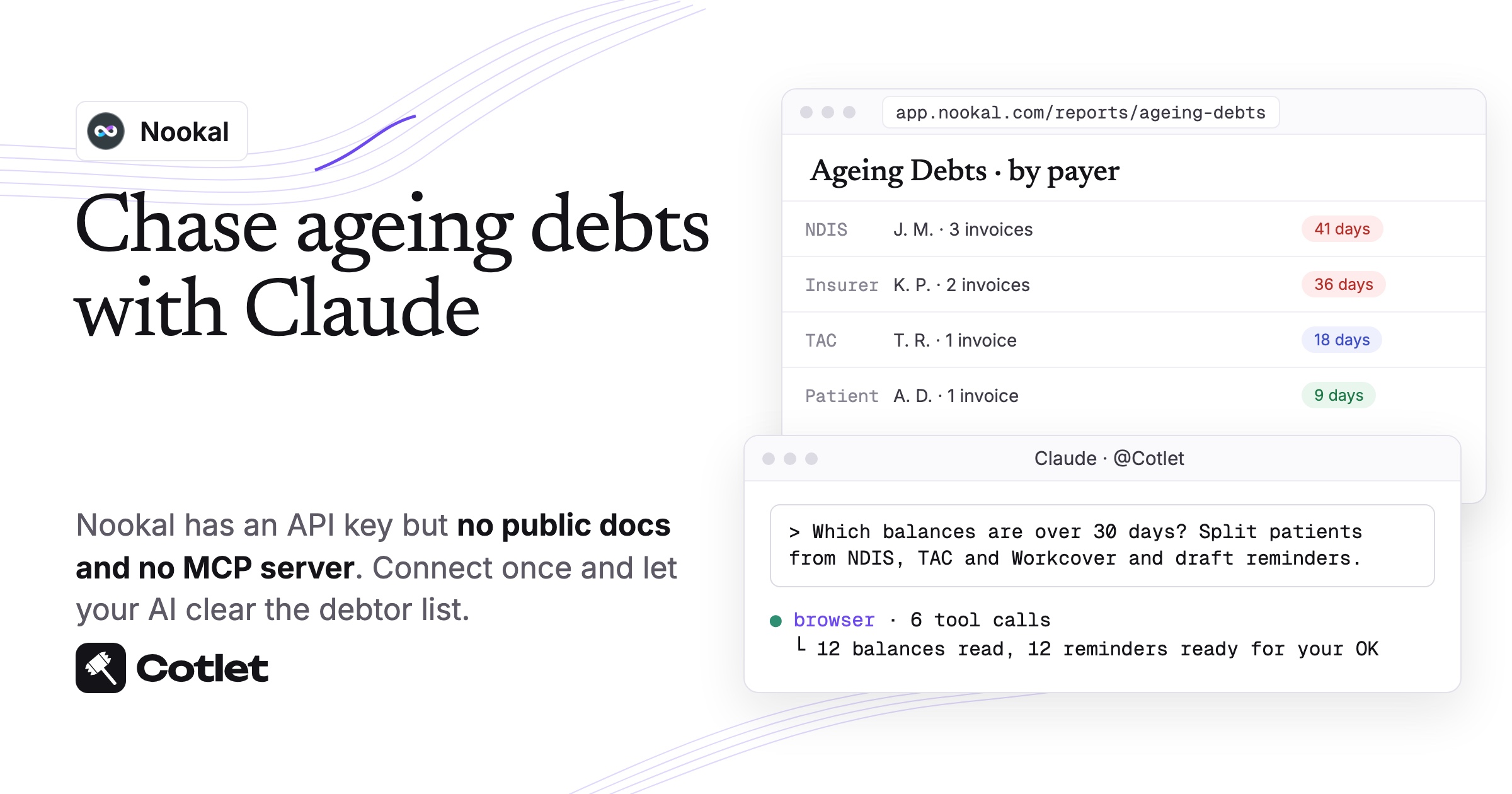
Nookal will let you generate an API key, but as of 26 November 2026 it publishes no API documentation, no MCP server and no ChatGPT or Claude connector. Its own assistant, JAN, answers only inside Nookal. A third option is the Cloud Browser that Cotlet runs on your behalf. Sign in to Nookal there once, and ChatGPT, Claude or another agent uses your calendar, reports and NDIS plans like a second pair of hands. Setup is a ten minute job without any code.
Think of the owner of a physio, chiro, osteo or allied health clinic in Australia, New Zealand or the UK. Think also of the practice manager who builds the Friday debtor list. Cotlet is for whoever works inside Nookal. Patients keep booking, paying and getting reminders as they do now.
Nookal reports and screens your AI can read
Ask in plain words. The AI opens the Nookal report or screen that holds the answer.
| Part of Nookal | What the AI handles |
|---|---|
| Ageing Debts report | Reads balances by age, splits patients from NDIS, TAC and Workcover, and drafts a reminder for each payer |
| Waiting List | Matches a gap in the calendar to patients who want an earlier slot, and drafts a text |
| NDIS plans | Lists clients with a low budget or a plan ending this month |
| Clinical Notes report | Shows attended bookings with no finalised note, per provider |
| Last Attendances | Finds patients last seen 6 to 12 weeks ago with no booking and drafts a check-in |
| Business Performance report | Collects utilisation, new patients and rebook rate per provider |
Text messages, invoice edits and bookings stop and wait for you. Reading a report or writing a draft changes nothing in Nookal.
Every screen is listed on the Nookal MCP server page. To run the same jobs from a sheet or n8n, see build a Nookal API.
What Nookal ships for AI: JAN, an API key, partner apps
On 26 November 2026 a Nookal clinic has the following:
- An API key without public docs. In Setup, Connections, API Keys a user generates a key for chosen locations. The integrations page offers “DIY with our API” for you and your IT team, and links to no documentation. A developer on Postman Community asked where the docs are, and the thread has no public answer.
- JAN, inside Nookal. JAN takes questions, tasks or dictation in a chat in the product, and helps with notes, letters, bookings and numbers. ChatGPT and Claude cannot use it to reach your clinic.
- Partner integrations. Xero, MYOB, Tyro, HICAPS, Medicare, DVA and NDIS sit beside AI scribes such as Heidi and PatientNotes. Each does one job.
- No official MCP server. The MCP Registry lists one Nookal server, built by usefulapi to read data. Nookal does not publish it.
- No Zapier or n8n app. Both pages gave a 404 on the day of writing.
If a developer gets the docs from Nookal, the API suits a one-off sync. For anything else, a hosted MCP server that uses your open session is faster. Each route gets a score on the Nookal API and MCP status page.
Before you start
- Your own Nookal login. Whatever your role can open, the AI can open, so confirm you see Reports, the Waiting List and the Third Party report.
- Which location you work in. The Waiting List is kept per calendar location.
- Your rule for an old balance, such as 30 days for patients and 60 for third parties.
- A ChatGPT or Claude login. Free Claude allows one connector, which is enough.
- A Cotlet account; the first week costs nothing and needs no card (pricing).
Step 1: sign in to Nookal in your Cloud Browser
Switch to the Cloud Browser tab in the Cotlet console and load login.nookal.com. Enter the email and password you use every day, plus a code when Nookal requests one. The dashboard appearing means the step is complete.
The password reaches Nookal alone, since Cotlet stores none. An encrypted browser profile remains in your account. When Nookal closes the session, your AI sends a fresh sign-in link. More is on the security page.
Step 2: point your AI at Cotlet
Paste Cotlet’s MCP address into your AI client once. Afterwards it can reach each Nookal screen that your login opens. Pick the tile matching your client.
Pick your AI above to see its steps.
How to connect Nookal to ChatGPT
Do this on chatgpt.com in your browser. Cotlet then works in the ChatGPT desktop and phone apps too.
- Open Plugins in ChatGPT and click Add.
- Click Add custom MCP server. Not in the menu? Turn on Developer mode in Settings, Security and login, then come back.
- Paste the name
Cotletand the server URLhttps://cotlet.dev/mcp/v1/connect. Keep Authentication on OAuth. - Tick “I understand and want to continue” and click Create as a plugin.
- Click Connect Cotlet. A Cotlet page opens, click Allow access.
- In a new chat, type
@Cotletand pick it from the list. - Ask ChatGPT: “Are you signed in to Cotlet through MCP?” Then try a first Nookal task: “Which Nookal balances are over 30 days, split by payer?”
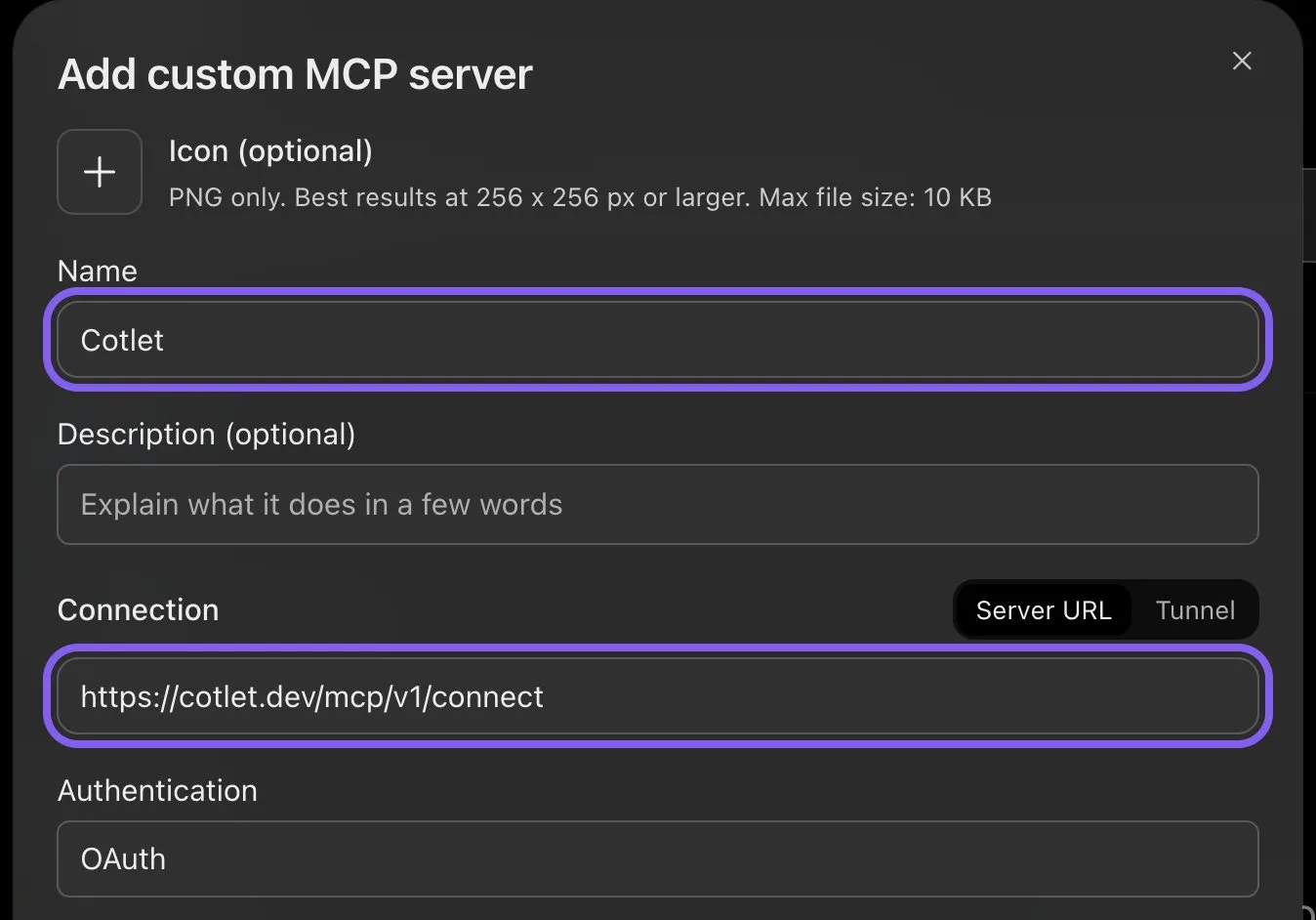
ChatGPT, Add custom MCP server form, November 2026.
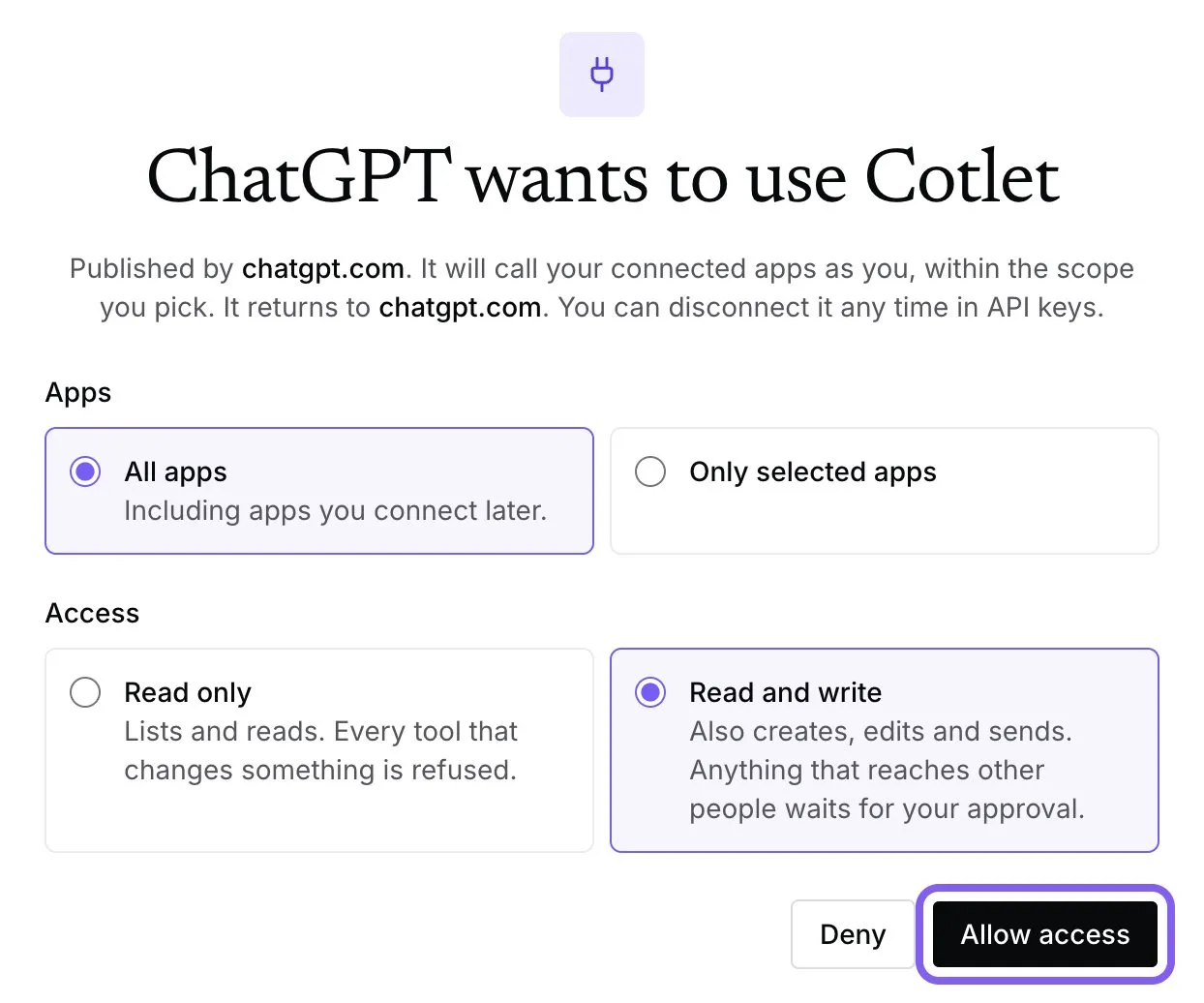
Cotlet consent page after you connect it in ChatGPT, November 2026.
ChatGPT asks “Allow ChatGPT to use Cotlet?” before some steps. Pick Always allow, or the chat waits for your click. On a Business, Enterprise or Edu workspace, an admin has to allow custom MCP servers first.
How to connect Nookal to Claude
- Open Connectors in Claude and click Add. In the desktop app it is under Customize, Connectors.
- Click Add custom connector.
- Paste the name
Cotletand the URLhttps://cotlet.dev/mcp/v1/connect, then click Continue. - Keep the settings and click Add.
- A Cotlet page opens. Click Allow access.
- In a chat, click the plus button, then Connectors, and turn Cotlet on.
- Ask Claude: “Are you signed in to Cotlet through MCP?”, then “Which NDIS clients in Nookal have less than 20% of their plan budget left?”. Claude asks before it uses a Cotlet tool the first time. Click Allow.

Claude, Customize, Connectors, November 2026.
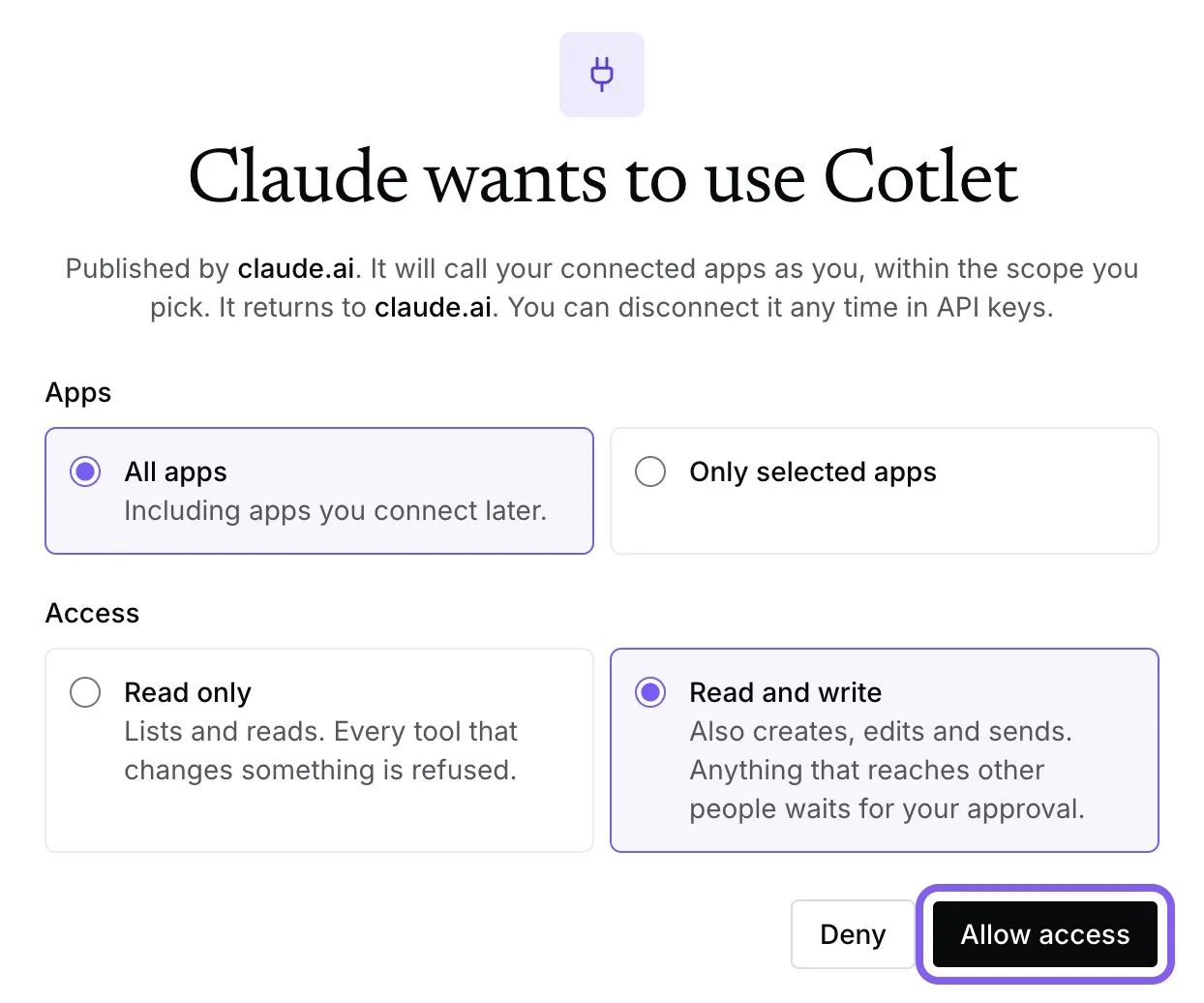
Cotlet consent page after you add the connector in Claude, November 2026.
Claude’s free plan allows one custom connector. On a Team or Enterprise plan, an owner adds Cotlet in Organization settings, Connectors, and you click Connect next to it.
How to connect Nookal to Claude Code
Add Cotlet without a key, then sign in once in the browser:
claude mcp add --transport http cotlet https://cotlet.dev/mcp/v1/connectRun /mcp in Claude Code, pick cotlet and sign in to Cotlet. Prefer an API key, for example on a server? Create one in the Cotlet console and use:
claude mcp add --transport http cotlet https://cotlet.dev/mcp/v1 \
  --header "Authorization: Bearer $COTLET_API_KEY"
How to connect Nookal to Codex
Create an API key in the Cotlet console, put it in the COTLET_API_KEY environment variable and add this to ~/.codex/config.toml:
[mcp_servers.cotlet]
url = "https://cotlet.dev/mcp/v1"
bearer_token_env_var = "COTLET_API_KEY"
How to connect Nookal to Cursor
Create an API key in the Cotlet console, put it in the COTLET_API_KEY environment variable and add this to ~/.cursor/mcp.json:
{
  "mcpServers": {
    "cotlet": {
      "url": "https://cotlet.dev/mcp/v1",
      "headers": { "Authorization": "Bearer ${env:COTLET_API_KEY}" }
    }
  }
}
How to connect Nookal to Grok
Grok takes custom MCP servers on grok.com, per xAI’s connectors documentation (checked 8 November 2026).
- Open grok.com/connectors and click New Connector.
- Pick Custom and paste the server URL
https://cotlet.dev/mcp/v1/connect. - Sign in to Cotlet when Grok asks, then click Allow access.
- Ask Grok: “Are you signed in to Cotlet through MCP?”
On Grok Business, an admin adds the connector first in the xAI console, under Grok Business, Connectors. The Grok chat inside X has no custom connector menu.
How to connect Nookal to Hermes Agent
Add Cotlet to ~/.hermes/config.yaml in the format of the Hermes MCP config reference:
mcp_servers:
  cotlet:
    url: "https://cotlet.dev/mcp/v1"
    headers:
      Authorization: "Bearer ${COTLET_API_KEY}"
    trust: untrusted
Put COTLET_API_KEY in ~/.hermes/.env and check it with hermes mcp test cotlet. With trust: untrusted, Hermes runs reads at once and asks before every write. More on Hermes in our post on the Hermes Agent browser.
How to connect Nookal to n8n
Use the MCP Client node, or the MCP Client Tool inside an AI Agent node:
- Server Transport: HTTP Streamable
- MCP Endpoint URL:
https://cotlet.dev/mcp/v1 - Authentication: Bearer Auth, with your Cotlet API key as the token
- Tools: let the AI Agent node use Cotlet’s browser tools; it reads Cotlet’s Nookal guide first and works in your signed-in Nookal account
Use it for work that should run on its own, such as a Monday 8 am list of balances over 30 days.
Any other MCP client
Point the client at https://cotlet.dev/mcp/v1 over Streamable HTTP, with the header Authorization: Bearer <your Cotlet API key>. A client that supports OAuth sign-in can use https://cotlet.dev/mcp/v1/connect instead and needs no key. The full reference is in the MCP docs.
Do these on a Monday, when last week’s debts are fresh.
Chase ageing debts, payer by payer
Which balances are over 30 days in the Ageing Debts report? Split patients from NDIS, TAC and Workcover payers and draft reminders.
The Ageing Debts report groups unpaid items into 0 to 30, 31 to 60, 61 to 90 and over 90 days, and can be sorted by payer. Nookal’s guide advises keeping the date range at 10 years for accurate debtor figures. The AI sets the range, sorts by payer, expands each invoice and writes one note for every payer. A payer note names the invoices and dates. You read the drafts and nothing is sent before your OK.
Catch NDIS budgets before they run dry
Which NDIS clients have less than 20% of their plan budget left or a plan ending this month?
Nookal keeps NDIS budgets in plans, and its Third Party report shows budget values that can be searched and sorted by status, amount and patient name. The AI reads that report, works out what percentage is left for every client and lists those under 20% or ending this month. You get a short list to act on, with the plan end date beside each name.
Fill a gap from the Waiting List
There is a gap on Thursday at 2pm. Who on the waiting list wants an earlier slot with that practitioner? Draft an SMS to them.
Nookal’s Waiting List records each patient’s preferred provider, day and time, puts priority patients first and belongs to one calendar location. The AI opens the list for your location, keeps those who fit Thursday afternoon with that practitioner, and writes a short text to each. When a patient says yes, it moves the booking through Add from Waiting List and asks you to confirm.
What you pay Cotlet
Your Nookal bill stays the same. There is no Cotlet subscription, only a pack you buy once: $29 for 5,000 credits that last 12 months. A call that succeeds costs between 10 and 100 credits, and a failed one is not charged. After the trial, keeping Nookal connected costs 50 credits per day. A new account starts with 500 credits for 7 days and needs no card (pricing).
FAQ
Can my clinic use the Nookal API?
A key, yes. Nookal documents no public API, so the key alone is not much use. Cotlet needs no docs and no key, since it acts inside the Nookal account you are logged in to.
Where is the Nookal API documentation, and can I use it without a developer?
None is public as of 26 November 2026. The integrations page points to “DIY with our API” and has no link, and developers ask for the docs on forums. Even with the docs, calling the API takes code. Cotlet gives ChatGPT or Claude your account without it.
Is there an official Nookal MCP server?
No. Nookal has no official MCP server, no ChatGPT app and no Claude connector. One Nookal entry exists in the MCP Registry, but a third party made it, it runs on your key and it only reads data.
How is Cotlet different from Nookal’s JAN assistant?
JAN lives inside Nookal and answers there. Cotlet lets ChatGPT, Claude or n8n work in your Nookal account, run on a timer and join Nookal to your sheets, email and other apps.
Can I get Nookal data into Google Sheets or my CRM without the API documentation?
Yes. Your AI opens the report or the client export and copies the rows into your sheet or CRM. Nookal’s own client export sits under Manage, Export, and gives a CSV.
How do I connect Nookal to Zapier?
You cannot. Nookal has no Zapier app, and neither does n8n. Cotlet is the workaround: the AI works in your account, and a Cotlet endpoint can pass data to Zapier, Make or n8n.
Can AI win back lapsed patients from the Last Attendances report?
Yes. Ask for patients last seen 6 to 12 weeks ago with no booking. The AI lists them with the practitioner and drafts one check-in per patient for your OK.
Can AI list tomorrow’s unconfirmed appointments?
Yes. Ask it each afternoon for tomorrow’s appointments that are still unconfirmed, with phone numbers. Reception can then call down the list.
Is Cotlet part of Nookal?
No. Cotlet has no tie to Nookal and acts only as the user you signed in as.
Let the debtor list build itself
Old balances grow older each day you leave them. Open a free trial, log in to Nookal in the Cloud Browser and ask Claude which balances are older than 30 days. Browse the catalog for more clinic tools.