How to connect PartsTech to ChatGPT, Claude and any AI agent
PartsTech has no official MCP server, and API keys go to software developers (checked 26 Nov 2026). Let Claude quote jobs and track orders in your account.
Cotlet team 11 min read
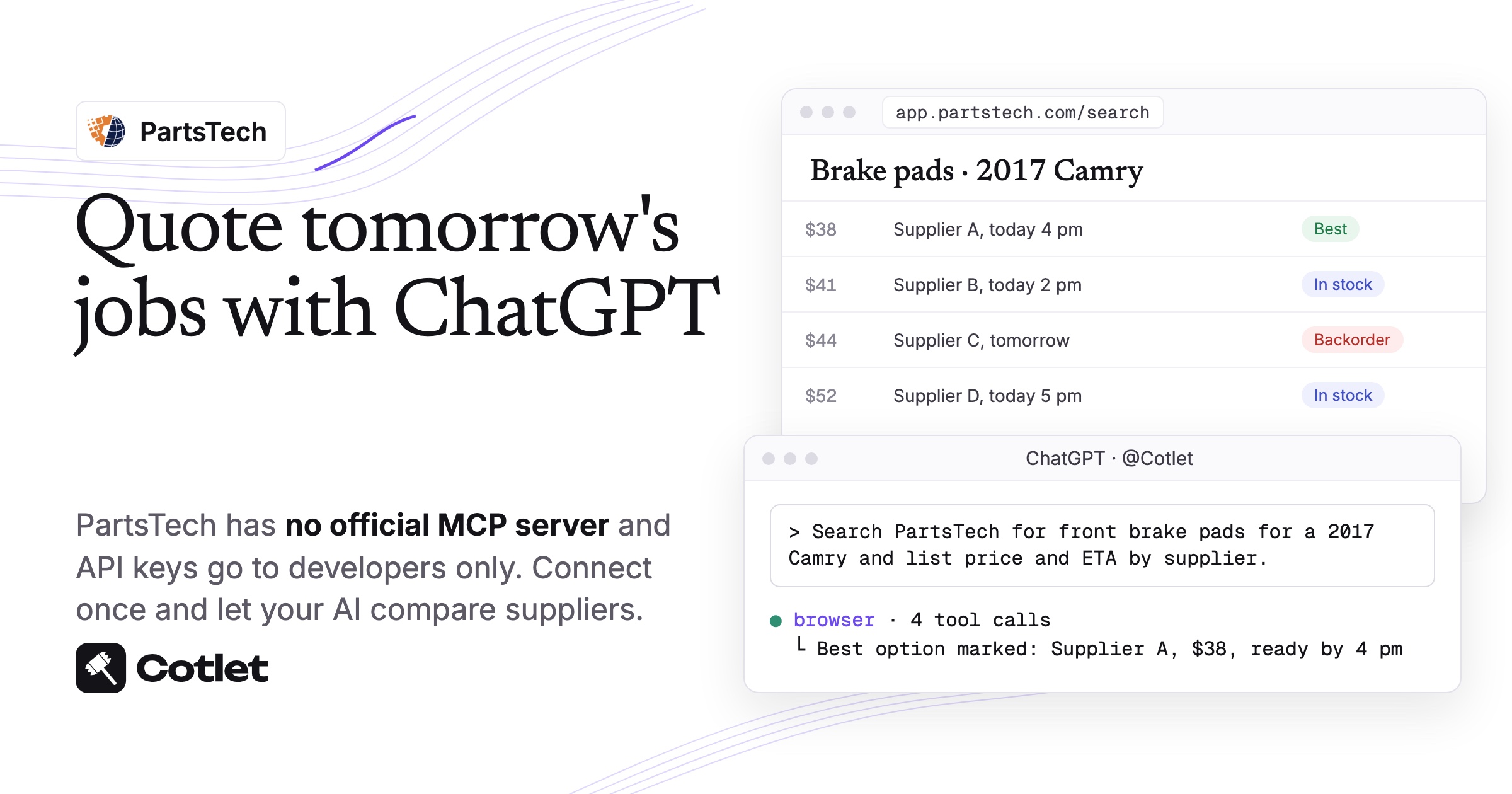
Tomorrow’s schedule has eleven cars, and every one needs parts quoted at several suppliers. PartsTech already searches them side by side, but you still type each part and read each row. On 26 November 2026 PartsTech ships no MCP server, no ChatGPT app and no Claude connector. Its API goes only to software developers who sign an agreement. Your PartsTech account is still open to an AI. After a single login in a cloud browser that Cotlet runs, ChatGPT or Claude runs the searches, compares suppliers and reads your orders. Allow ten minutes for setup, and expect no code at all.
This post is for the owner, service advisor or parts buyer who has a PartsTech login, whether you open it directly or from a repair order in your shop software. Cotlet suits the jobs that cross suppliers and the reports your shop software does not build. It does not replace the PartsTech button inside your estimate.
What ChatGPT and Claude can do in PartsTech once connected
Ask for the result, and the AI uses the screens you know.
| Where in PartsTech | What the AI does |
|---|---|
| Search and quote | Looks up each part for a vehicle and lists price and ETA by supplier, with the best option marked |
| Recent orders | Lists orders not delivered yet with supplier and due date, and flags any that miss the promised time |
| Analytics, spend report | Totals spend by supplier and part for a month and writes it to a sheet |
| Retail pricing | Checks the parts on your invoices against your markup matrix and lists the low margin ones |
| Tires | Quotes tire sizes with the cheapest suppliers and adds your markup |
| Suppliers | Adds a supplier from the account number you give it |
Searching and reading change nothing. A quote saved for a customer, an order or a supplier added waits for your OK, and payments stay blocked. See the PartsTech MCP server page for the full list. To get orders into a sheet or n8n, the PartsTech API page explains how to build your own endpoint.
Does PartsTech have AI, an API or an official ChatGPT app?
As of 26 November 2026:
- It has AI features of its own. One is Smart AI preferred brands. It lives inside PartsTech search, with no link to ChatGPT or Claude.
- There is an API, but not for you. The PartsTech API and Services Agreement covers a Parts Ordering API with punchout carts and orders. Keys go to a developer who signs an Order Form, and the terms say PartsTech must be the exclusive parts catalog in that developer’s application. Keys can be revoked at any time. A shop types its username and access code inside a shop management system and never gets a key.
- No official connector. The MCP Registry lists no PartsTech server. An automotive MCP directory also reported on 3 November 2026 that none was public.
- Shop software connects directly. PartsTech lists 35+ management systems, among them Tekmetric, Shopmonkey, Shop-Ware and Mitchell 1. That route is how most shops reach PartsTech from a repair order.
- PartsTech reaches suppliers, including Worldpac and RepairLink. Its pricing page lists 30k+ parts and tire distributors and OEM parts through a RepairLink integration.
So an AI has no official door into your account. The route that covers quoting, orders and spend in one place is a hosted server working in your logged-in session. See how every route compares on Does PartsTech have an API or MCP server?.
Gather first
- A PartsTech login. The free plan is enough to start, and some jobs below need a paid plan, noted where they apply.
- The suppliers already connected in your account, with their account numbers if you want the AI to add more.
- Tomorrow’s jobs as a list: vehicle and parts, or a sheet from your shop software.
- ChatGPT or Claude. Claude’s free plan has room for one custom connector.
- A Cotlet trial: a free week, no card (pricing).
Step 1: sign in to PartsTech in your Cloud Browser
Go to app.partstech.com in the Cloud Browser that your Cotlet console launches. Use the username and password you already have. Normally reach PartsTech from your shop software? Log in to PartsTech itself here.
The password goes to PartsTech’s page, never to Cotlet. An encrypted session is all that is kept, and one click in the console turns agent access off. When PartsTech ends the session, a fresh sign-in link appears. See the security page.
Step 2: connect PartsTech to ChatGPT, Claude or another AI agent
Paste Cotlet’s address into your AI tool once. Your saved PartsTech login covers everything else. Pick your tool.
Pick your AI above to see its steps.
How to connect PartsTech to ChatGPT
Do this on chatgpt.com in your browser. Cotlet then works in the ChatGPT desktop and phone apps too.
- Open Plugins in ChatGPT and click Add.
- Click Add custom MCP server. Not in the menu? Turn on Developer mode in Settings, Security and login, then come back.
- Paste the name
Cotletand the server URLhttps://cotlet.dev/mcp/v1/connect. Keep Authentication on OAuth. - Tick “I understand and want to continue” and click Create as a plugin.
- Click Connect Cotlet. A Cotlet page opens, click Allow access.
- In a new chat, type
@Cotletand pick it from the list. - Ask ChatGPT: “Are you signed in to Cotlet through MCP?” Then try a first PartsTech task: “Search PartsTech for front brake pads and rotors for a 2017 Toyota Camry and list the price and ETA by supplier.”
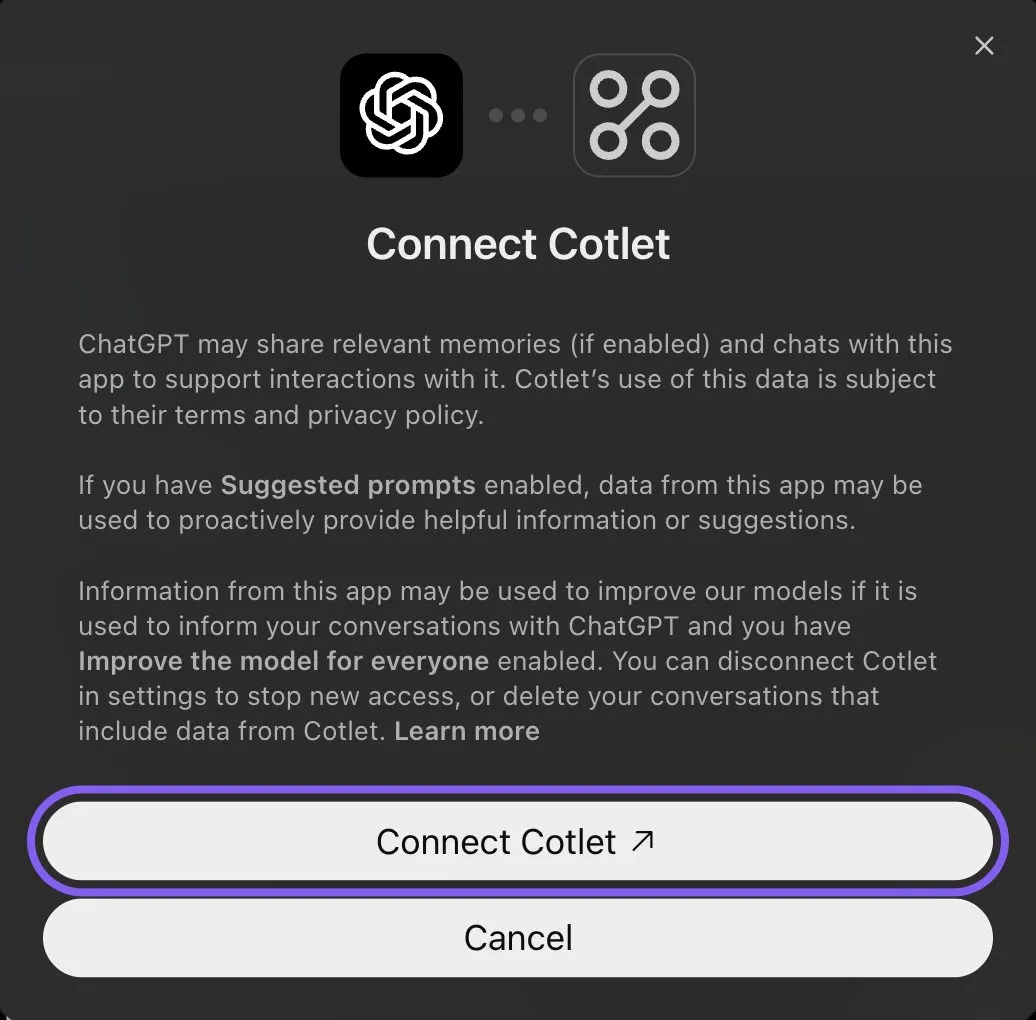
ChatGPT, connecting the Cotlet plugin, November 2026.
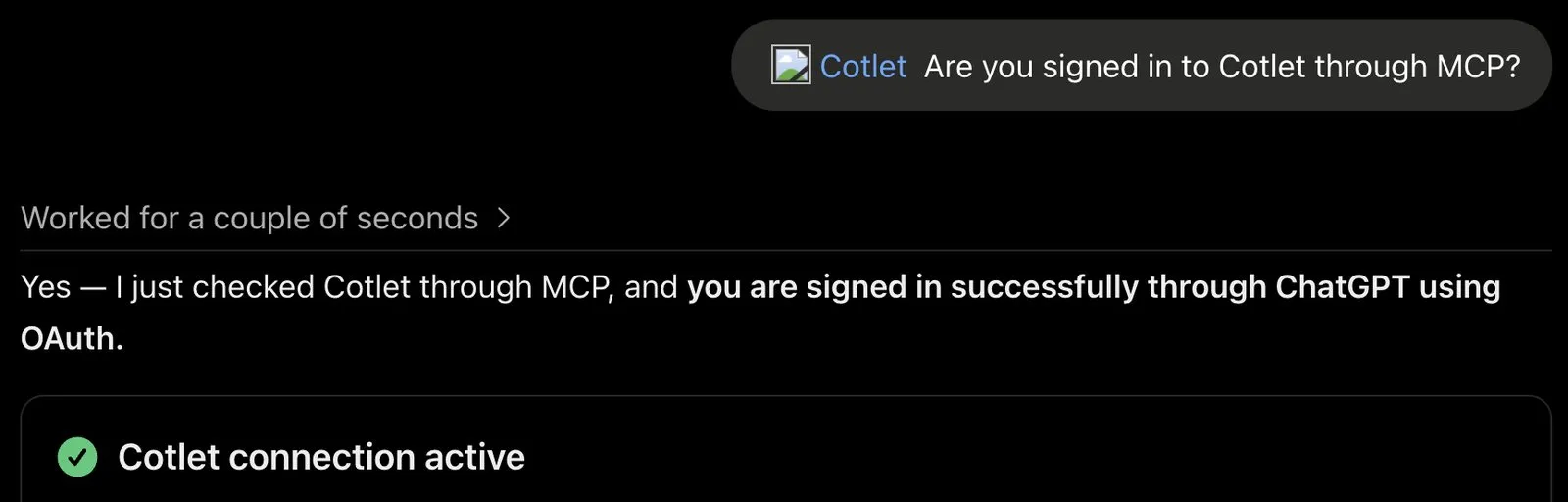
ChatGPT confirming the Cotlet connection, November 2026.
ChatGPT asks “Allow ChatGPT to use Cotlet?” before some steps. Pick Always allow, or the chat waits for your click. On a Business, Enterprise or Edu workspace, an admin has to allow custom MCP servers first.
How to connect PartsTech to Claude
- Open Connectors in Claude and click Add. In the desktop app it is under Customize, Connectors.
- Click Add custom connector.
- Paste the name
Cotletand the URLhttps://cotlet.dev/mcp/v1/connect, then click Continue. - Keep the settings and click Add.
- A Cotlet page opens. Click Allow access.
- In a chat, click the plus button, then Connectors, and turn Cotlet on.
- Ask Claude: “Are you signed in to Cotlet through MCP?”, then “Which PartsTech orders are not delivered yet? List each with the supplier and the due date.”. Claude asks before it uses a Cotlet tool the first time. Click Allow.

Claude, Customize, Connectors, Add menu, November 2026.
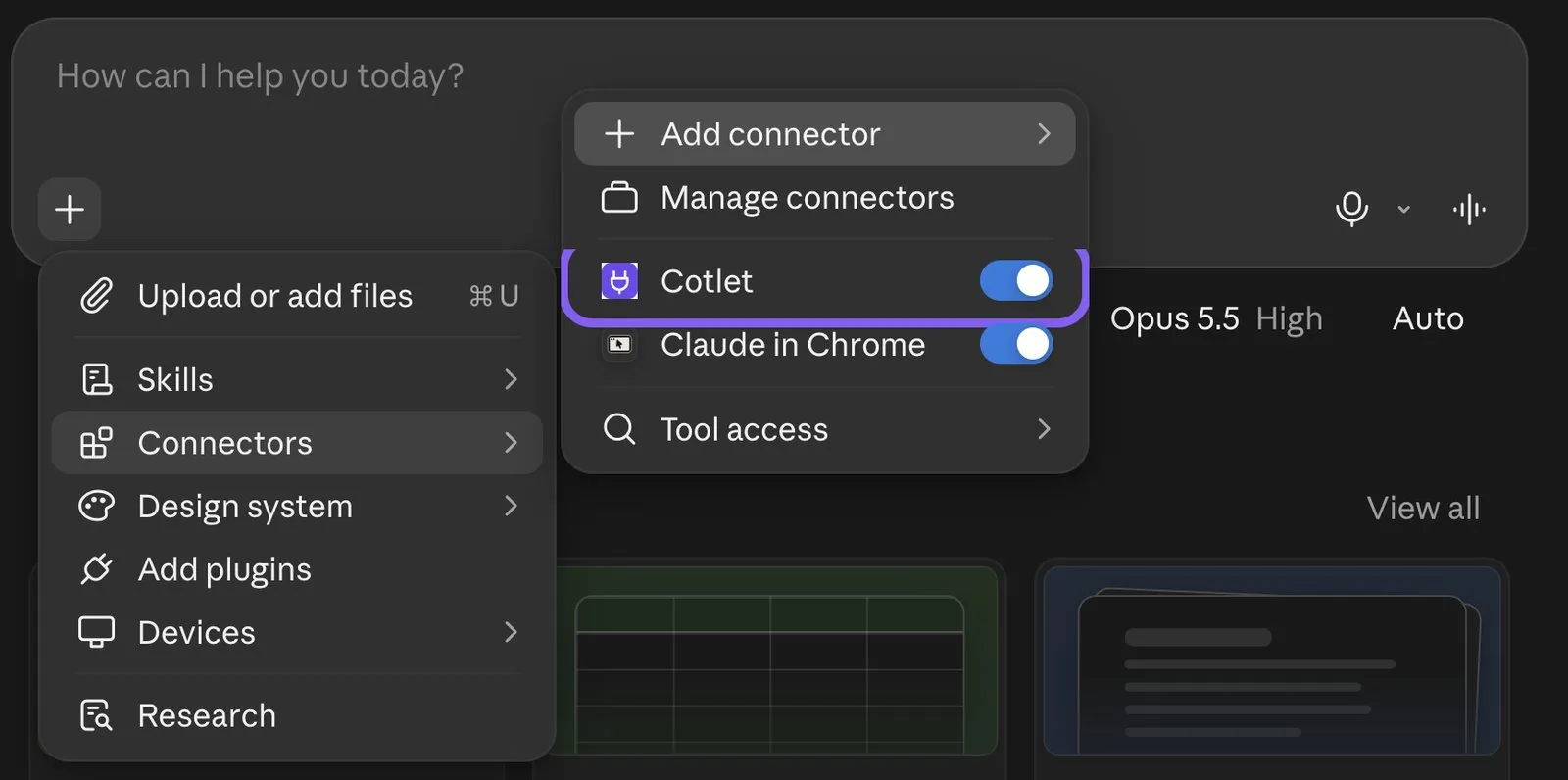
Claude, chat menu, Connectors, November 2026.
Claude’s free plan allows one custom connector. On a Team or Enterprise plan, an owner adds Cotlet in Organization settings, Connectors, and you click Connect next to it.
How to connect PartsTech to Claude Code
Add Cotlet without a key, then sign in once in the browser:
claude mcp add --transport http cotlet https://cotlet.dev/mcp/v1/connectRun /mcp in Claude Code, pick cotlet and sign in to Cotlet. Prefer an API key, for example on a server? Create one in the Cotlet console and use:
claude mcp add --transport http cotlet https://cotlet.dev/mcp/v1 \
  --header "Authorization: Bearer $COTLET_API_KEY"
How to connect PartsTech to Codex
Create an API key in the Cotlet console, put it in the COTLET_API_KEY environment variable and add this to ~/.codex/config.toml:
[mcp_servers.cotlet]
url = "https://cotlet.dev/mcp/v1"
bearer_token_env_var = "COTLET_API_KEY"
How to connect PartsTech to Cursor
Create an API key in the Cotlet console, put it in the COTLET_API_KEY environment variable and add this to ~/.cursor/mcp.json:
{
  "mcpServers": {
    "cotlet": {
      "url": "https://cotlet.dev/mcp/v1",
      "headers": { "Authorization": "Bearer ${env:COTLET_API_KEY}" }
    }
  }
}
How to connect PartsTech to Grok
Grok takes custom MCP servers on grok.com, per xAI’s connectors documentation (checked 8 November 2026).
- Open grok.com/connectors and click New Connector.
- Pick Custom and paste the server URL
https://cotlet.dev/mcp/v1/connect. - Sign in to Cotlet when Grok asks, then click Allow access.
- Ask Grok: “Are you signed in to Cotlet through MCP?”
On Grok Business, an admin adds the connector first in the xAI console, under Grok Business, Connectors. The Grok chat inside X has no custom connector menu.
How to connect PartsTech to Hermes Agent
Add Cotlet to ~/.hermes/config.yaml in the format of the Hermes MCP config reference:
mcp_servers:
  cotlet:
    url: "https://cotlet.dev/mcp/v1"
    headers:
      Authorization: "Bearer ${COTLET_API_KEY}"
    trust: untrusted
Put COTLET_API_KEY in ~/.hermes/.env and check it with hermes mcp test cotlet. With trust: untrusted, Hermes runs reads at once and asks before every write. More on Hermes in our post on the Hermes Agent browser.
How to connect PartsTech to n8n
Use the MCP Client node, or the MCP Client Tool inside an AI Agent node:
- Server Transport: HTTP Streamable
- MCP Endpoint URL:
https://cotlet.dev/mcp/v1 - Authentication: Bearer Auth, with your Cotlet API key as the token
- Tools: let the AI Agent node use Cotlet’s browser tools; it reads Cotlet’s PartsTech guide first and works in your signed-in PartsTech account
Use it for work that should run on its own, such as a sheet on the first of each month with your spend by supplier.
Any other MCP client
Point the client at https://cotlet.dev/mcp/v1 over Streamable HTTP, with the header Authorization: Bearer <your Cotlet API key>. A client that supports OAuth sign-in can use https://cotlet.dev/mcp/v1/connect instead and needs no key. The full reference is in the MCP docs.
Three PartsTech jobs to try first
Start with the one that eats your evening.
Tomorrow’s jobs, quoted across suppliers
Here are tomorrow’s jobs. Search PartsTech for every part and list price and ETA by supplier, with the best option marked.
A service advisor at an independent shop wrote that sometimes you quote twenty things with several parts each, and it gets stressful. The AI picks the vehicle, runs each search and returns one table: part, supplier, price, ETA and a mark on the best choice. You change the choices you disagree with. It saves quotes only after your OK.
Open orders that will miss the promise
Which PartsTech orders are not delivered yet and when are they due? Flag anything that will miss the job’s promised time.
The AI opens Recent Orders, reads every order that is not delivered and sets the due date beside the time you promised the customer. Run it every morning and you hear about a late part at 8 am, not when the customer arrives. You decide whom to call.
Spend and margin in one pass
How much did I spend with each supplier last month and on which parts? Put it in a sheet.
PartsTech’s pricing page puts retail pricing configuration and a spend report on the Plus plan, $45 a month, and the free plan does not include them. With Plus, the AI reads the spend report and builds your sheet. Ask the follow-up in the same chat: check this month’s invoices against the markup matrix and list the parts sold under 60% margin. On the free plan, it can still read the orders list and total it. Nothing changes in your account.
What it costs
Your PartsTech plan stays as it is, apart from the Plus features in the third job. Cotlet credits are bought once, with no renewal: $29 buys 5,000, which last a year. Working calls draw 10 to 100 credits, and failures draw none. A seven day trial includes 500 credits and needs no card. After that, the Cloud Browser takes 50 credits daily while PartsTech is enabled for agents (pricing).
FAQ
Does PartsTech have an API for my shop?
PartsTech has a Parts Ordering API, but keys go to software developers who sign an agreement. A shop does not get a key. The AI works in your PartsTech account instead.
Can I get PartsTech orders into a spreadsheet without an API key?
Yes. The AI opens Recent Orders in your account, reads them and fills your sheet. Your own Cotlet endpoint can return the same data to another tool.
Is there an official PartsTech MCP server?
No. The MCP Registry has nothing, and neither ChatGPT nor Claude lists a connector. Cotlet is a hosted server that acts inside your own account.
Can AI add my Worldpac and RepairLink accounts to PartsTech?
Yes, if you give it the account numbers. It opens the supplier setup in PartsTech and fills the form. It stops before saving and asks you to confirm.
Can it find shop supplies PartsTech does not show?
It can search for each item and list those PartsTech does not return, so you know what to buy elsewhere. That list is only as good as the suppliers you have connected.
Does it work if I open PartsTech from my shop software?
Yes. Cotlet signs in to PartsTech directly, so it does not need your shop software. It will not change anything inside your shop software.
Is Cotlet part of PartsTech?
No. Cotlet is its own company and only uses your login.
Quote tomorrow’s cars tonight
The prices for tomorrow’s parts are already in PartsTech. Try Cotlet free, log in through the Cloud Browser and have your AI fetch them. Want another tool covered? See the catalog.