How to connect PetExec to ChatGPT, Claude and any AI agent
PetExec has no official MCP server or ChatGPT app (checked 27 Nov 2026). Let ChatGPT or Claude build the check-in list and chase vaccines and balances.
Cotlet team 10 min read
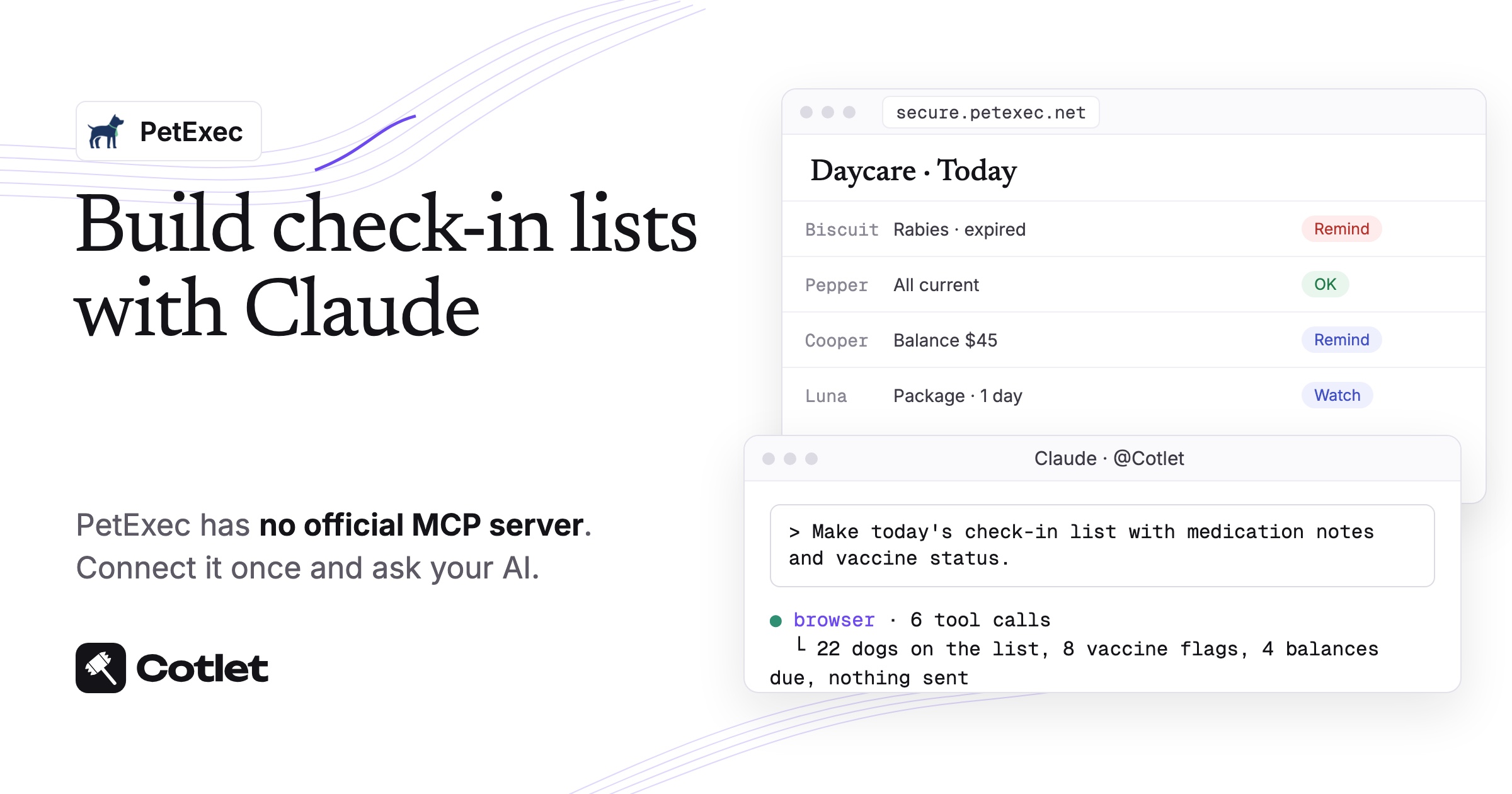
Thirty dogs arrive on Monday, and the check-in list still has to be put together from three screens. PetExec ships no MCP server, ChatGPT app or Claude connector of its own (checked 27 Nov 2026). It does have an API with documentation, but a developer has to build against it. Cotlet lets an AI agent sit in a Cloud Browser with PetExec open, signed in as you, and read the same screens your front desk reads.
The reader runs a daycare, a boarding kennel or a grooming shop on PetExec, as owner, manager or front desk. Pet parents in the owner portal are a different audience. PetExec says on its site that it is now part of the Gingr family, and your account works the same.
What ChatGPT and Claude can do in PetExec once connected
Name the day, the owners or the month, and the answer arrives as a list or a table.
| PetExec screen | What the AI does |
|---|---|
| Daycare and boarding calendar | Builds today’s check-in list with feeding and medication notes |
| Pet vaccination records | Finds dogs in tomorrow’s reservations with an expired vaccine or one that ends this week |
| Owner portal: packages and purchases | Lists owners with a package that has few days left |
| Invoices and balances | Finds negative balances and unpaid invoices |
| Payment reports | Totals card payments and fees by month |
| Calendar counts | Turns next week’s counts into staff needed per day |
| Customers and pets | Reads every record into sheets, as a copy to keep |
Reading changes nothing. A reminder to an owner, a changed reservation and every charge wait for your yes. The PetExec MCP page lists more.
What PetExec offers for AI and APIs today
State on 27 November 2026:
- API: yes, for developers. PetExec calls it “a robust and fully capable API with documentation”. There is a Swagger page and a repository of examples on GitHub. The site does not explain how a customer gets access.
- ChatGPT and Claude: no connector from PetExec. The MCP Registry returns nothing. A third party, Elaichi, lists a PetExec connector that it publishes itself.
- Integrations are about payments and cameras. The integrations page names merchant processing, Stripe, Broadly for reviews and iDogCam.
- Zapier, Make, n8n: no app. The Zapier, Make and n8n pages for PetExec return 404.
The API suits a developer with time. If you want answers today without code, a signed-in browser is the shortest way. How PetExec scores on access is laid out in the API and MCP review.
Before you start
- Your PetExec user name and password.
- A few upcoming reservations, so the first vaccine list is not empty.
- A ChatGPT or Claude account. Free Claude covers the single connector.
- A Cotlet account (pricing).
Step 1: sign in to PetExec in your Cloud Browser
Open secure.petexec.net/login.php in the Cloud Browser and sign in. PetExec allows one login per username at a time, and the latest one wins, so avoid being signed in on two devices at once.
You enter the password on the PetExec page only. Cotlet keeps the session encrypted and you can revoke the agent in one click (security).
Step 2: connect PetExec to ChatGPT, Claude or another AI agent
Set this up one time. Chats you start later use the PetExec login from step 1.
Pick your AI above to see its steps.
How to connect PetExec to ChatGPT
Do this on chatgpt.com in your browser. Cotlet then works in the ChatGPT desktop and phone apps too.
- Open Plugins in ChatGPT and click Add.
- Click Add custom MCP server. Not in the menu? Turn on Developer mode in Settings, Security and login, then come back.
- Paste the name
Cotletand the server URLhttps://cotlet.dev/mcp/v1/connect. Keep Authentication on OAuth. - Tick “I understand and want to continue” and click Create as a plugin.
- Click Connect Cotlet. A Cotlet page opens, click Allow access.
- In a new chat, type
@Cotletand pick it from the list. - Ask ChatGPT: “Are you signed in to Cotlet through MCP?” Then try a first PetExec task: “In PetExec, make today’s check-in list with feeding and medication notes and vaccine status. Change nothing.”
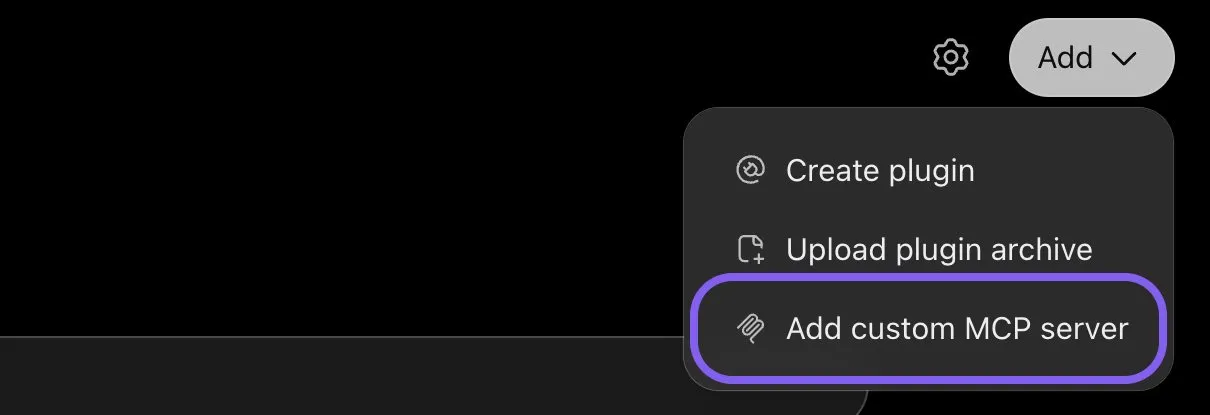
ChatGPT, Add menu on the Plugins page, November 2026.
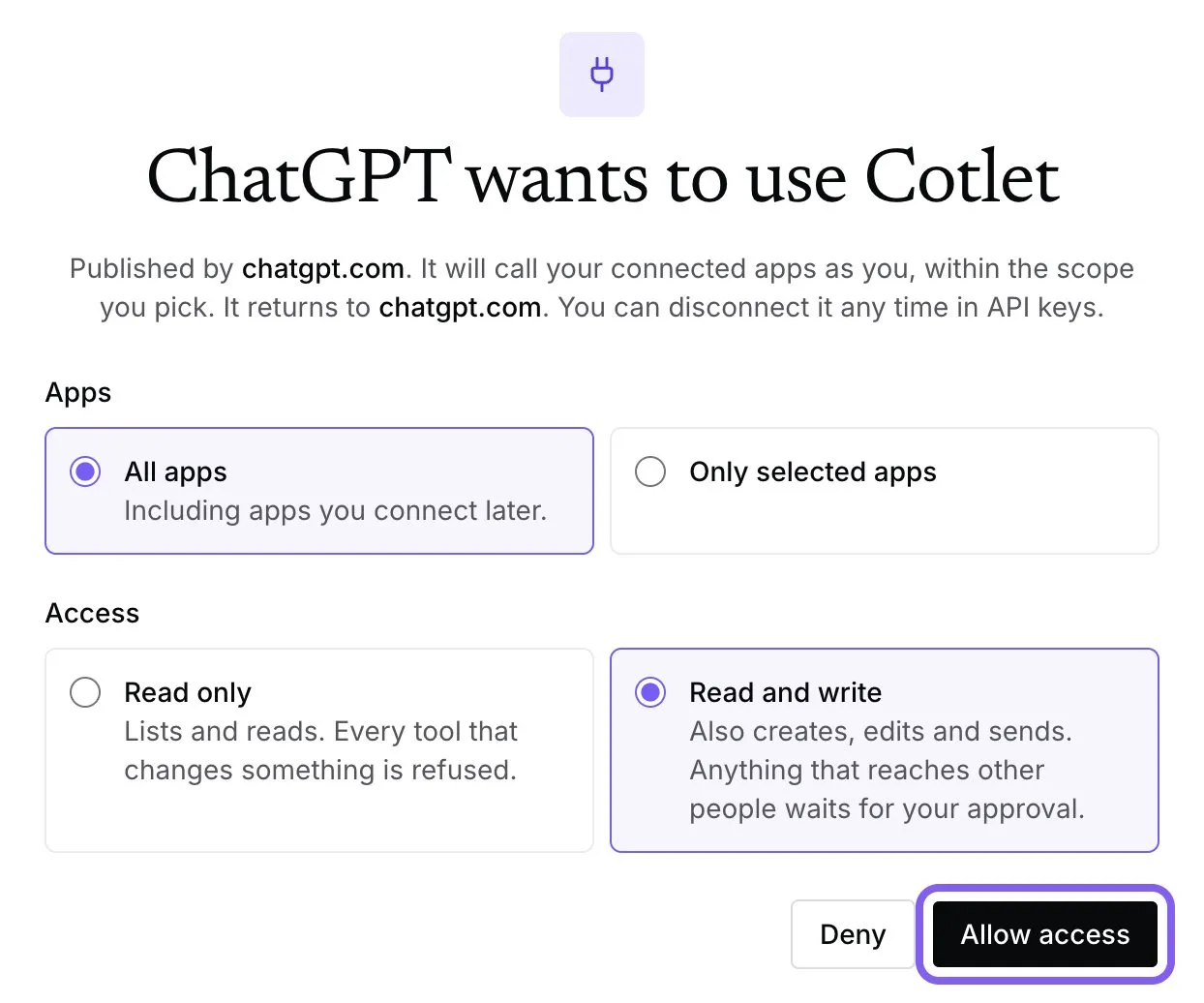
Cotlet consent page after you connect it in ChatGPT, November 2026.
ChatGPT asks “Allow ChatGPT to use Cotlet?” before some steps. Pick Always allow, or the chat waits for your click. On a Business, Enterprise or Edu workspace, an admin has to allow custom MCP servers first.
How to connect PetExec to Claude
- Open Connectors in Claude and click Add. In the desktop app it is under Customize, Connectors.
- Click Add custom connector.
- Paste the name
Cotletand the URLhttps://cotlet.dev/mcp/v1/connect, then click Continue. - Keep the settings and click Add.
- A Cotlet page opens. Click Allow access.
- In a chat, click the plus button, then Connectors, and turn Cotlet on.
- Ask Claude: “Are you signed in to Cotlet through MCP?”, then “In PetExec, list owners with a negative balance or a package with few days left. Charge nothing.”. Claude asks before it uses a Cotlet tool the first time. Click Allow.

Claude, Customize, Connectors, November 2026.
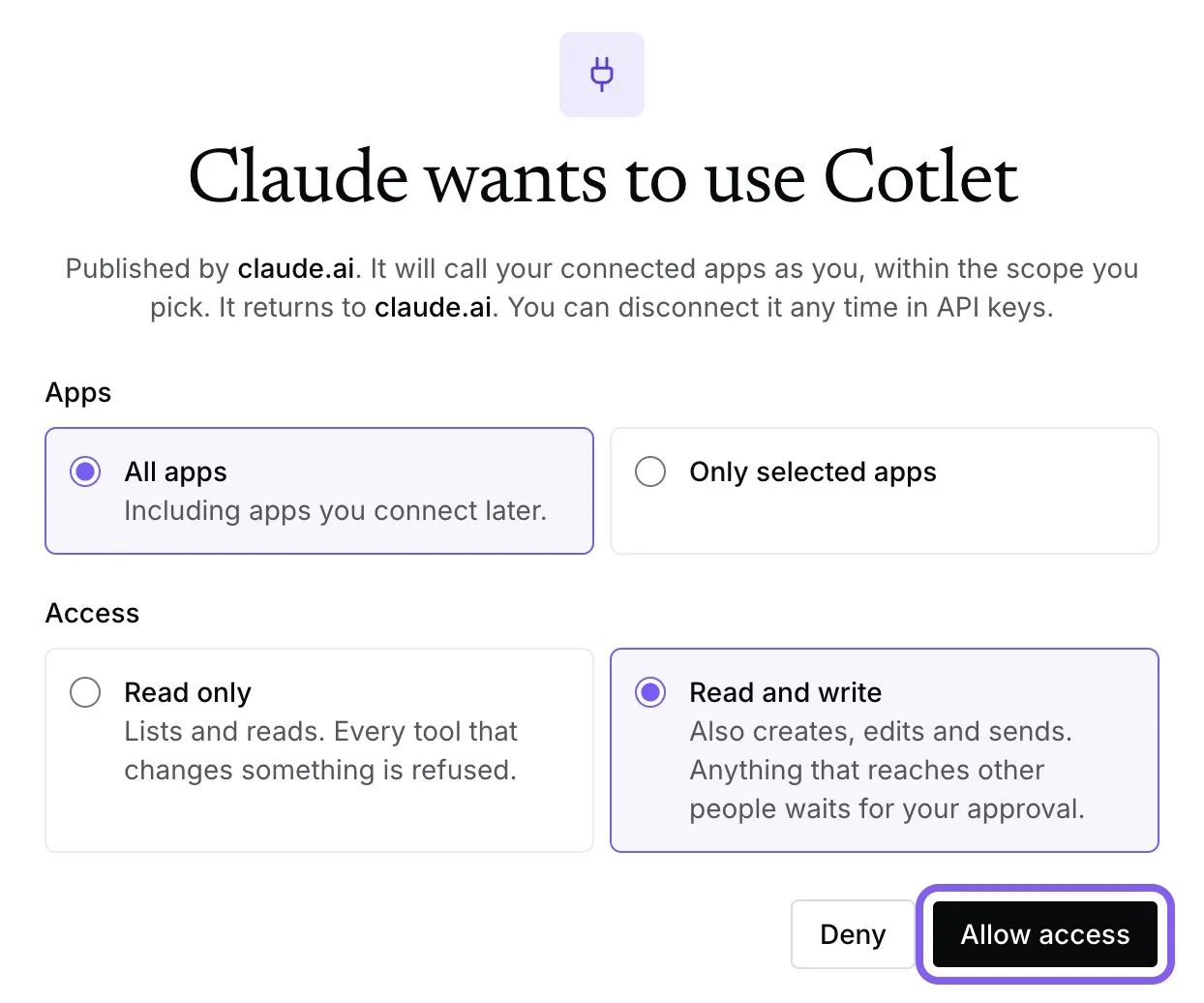
Cotlet consent page after you add the connector in Claude, November 2026.
Claude’s free plan allows one custom connector. On a Team or Enterprise plan, an owner adds Cotlet in Organization settings, Connectors, and you click Connect next to it.
How to connect PetExec to Claude Code
Add Cotlet without a key, then sign in once in the browser:
claude mcp add --transport http cotlet https://cotlet.dev/mcp/v1/connectRun /mcp in Claude Code, pick cotlet and sign in to Cotlet. Prefer an API key, for example on a server? Create one in the Cotlet console and use:
claude mcp add --transport http cotlet https://cotlet.dev/mcp/v1 \
  --header "Authorization: Bearer $COTLET_API_KEY"
How to connect PetExec to Codex
Create an API key in the Cotlet console, put it in the COTLET_API_KEY environment variable and add this to ~/.codex/config.toml:
[mcp_servers.cotlet]
url = "https://cotlet.dev/mcp/v1"
bearer_token_env_var = "COTLET_API_KEY"
How to connect PetExec to Cursor
Create an API key in the Cotlet console, put it in the COTLET_API_KEY environment variable and add this to ~/.cursor/mcp.json:
{
  "mcpServers": {
    "cotlet": {
      "url": "https://cotlet.dev/mcp/v1",
      "headers": { "Authorization": "Bearer ${env:COTLET_API_KEY}" }
    }
  }
}
How to connect PetExec to Grok
Grok takes custom MCP servers on grok.com, per xAI’s connectors documentation (checked 8 November 2026).
- Open grok.com/connectors and click New Connector.
- Pick Custom and paste the server URL
https://cotlet.dev/mcp/v1/connect. - Sign in to Cotlet when Grok asks, then click Allow access.
- Ask Grok: “Are you signed in to Cotlet through MCP?”
On Grok Business, an admin adds the connector first in the xAI console, under Grok Business, Connectors. The Grok chat inside X has no custom connector menu.
How to connect PetExec to Hermes Agent
Add Cotlet to ~/.hermes/config.yaml in the format of the Hermes MCP config reference:
mcp_servers:
  cotlet:
    url: "https://cotlet.dev/mcp/v1"
    headers:
      Authorization: "Bearer ${COTLET_API_KEY}"
    trust: untrusted
Put COTLET_API_KEY in ~/.hermes/.env and check it with hermes mcp test cotlet. With trust: untrusted, Hermes runs reads at once and asks before every write. More on Hermes in our post on the Hermes Agent browser.
How to connect PetExec to n8n
Use the MCP Client node, or the MCP Client Tool inside an AI Agent node:
- Server Transport: HTTP Streamable
- MCP Endpoint URL:
https://cotlet.dev/mcp/v1 - Authentication: Bearer Auth, with your Cotlet API key as the token
- Tools: let the AI Agent node use Cotlet’s browser tools; it reads Cotlet’s PetExec guide first and works in your signed-in PetExec account
Use it for work that should run on its own, such as a 6 am check-in list with medication notes.
Any other MCP client
Point the client at https://cotlet.dev/mcp/v1 over Streamable HTTP, with the header Authorization: Bearer <your Cotlet API key>. A client that supports OAuth sign-in can use https://cotlet.dev/mcp/v1/connect instead and needs no key. The full reference is in the MCP docs.
Three PetExec jobs to try first
Lists first, owner messages after.
Chase vaccines before the stay
List dogs in tomorrow’s daycare and boarding reservations whose vaccines are expired or expire this week, with the owner’s contact. Draft a reminder for each.
Owners can upload files and keep vaccination records in the portal, but nobody opens every record the night before. The AI checks only tomorrow’s dogs and drafts one note per owner. You choose which go out.
Print the check-in list for the morning
Make today’s check-in list: dog, owner, services, feeding and medication notes, vaccine status and any balance due.
The daycare calendar holds the reservations, and the notes live on each pet. The AI puts them on one page, so staff do not hunt for allergies at the front desk.
Collect before the package runs out
List owners with a negative balance, a package with few days left, or an unpaid invoice, and draft a reminder for each. Charge nothing.
Packages and purchase history sit in the owner portal. The AI lists who is short or overdue and prepares the reminders. Charging an owner stays your decision.
Three more asks for the same week at the kennel
- Show total card payments and fees by month for the last year, so I can compare my processing cost.
- From next week’s counts, say how many staff I need each day and flag days over or under.
- Read customers, pets, vaccination dates and notes into sheets, in case I move to another system.
What it costs
You change nothing on PetExec. Cotlet gives a new account 2,000 credits for 7 days, with no card. After that, credit packs start at $29, last 12 months and charge only for calls that work (pricing).
FAQ
Can a PetExec kennel use an API or MCP server?
Not an MCP server. PetExec publishes a documented API of its own, and calling it takes a developer. Cotlet reads your signed-in account instead, with no key.
Is PetExec part of Gingr?
PetExec says so on its site, and its contact page leads to Gingr. Your PetExec login and screens are unchanged.
Can I move my PetExec records to another system?
The AI can read customers, pets, vaccination dates, notes and purchase history into sheets. It is a copy you keep, and nothing changes in PetExec.
Is PetExec the one running this connection?
No. PetExec has nothing to do with Cotlet.
Try it on your own PetExec account
A check of tomorrow’s vaccine records is a fast first test. Take a free Cotlet week, log in to PetExec inside it and ask your agent. Every other boarding app is in the catalog.