How to connect PetLinx to ChatGPT, Claude and any AI agent
PetLinx has no official MCP server, ChatGPT app or public API (checked 27 Nov 2026). Let ChatGPT or Claude read your PetLinx cloud account for you.
Cotlet team 8 min read
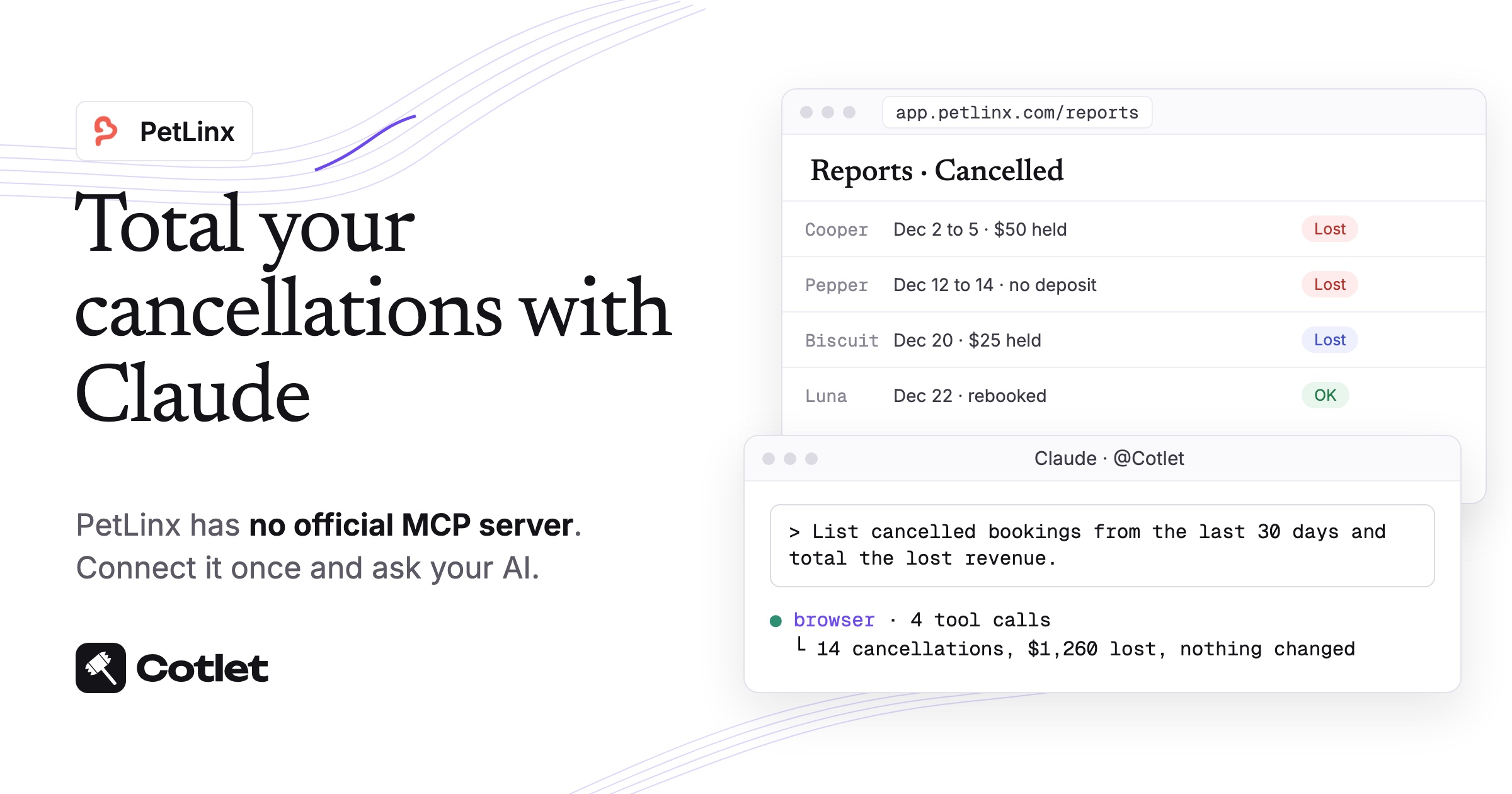
You think three boardings next month have no deposit, and last week produced a handful of cancellations you never added up. Answering either means opening reports and counting. On 27 Nov 2026 PetLinx lists no MCP server, ChatGPT app, Claude connector or public API. Cotlet puts an AI agent in a Cloud Browser, signed in to your PetLinx cloud account, so it can do the opening and counting while you do something else.
It is meant for owners of grooming salons, boarding kennels, catteries and daycares on the PetLinx cloud version at app.petlinx.com. The desktop version is a different product, and Cotlet cannot reach it.
Questions the AI can answer from your account
Ask in your own words. The agent finds the screen and returns a list.
| Where in PetLinx | The AI’s job |
|---|---|
| Reports and bookings | Lists cancellations with deposit and reason, and adds up the lost revenue |
| Clients and pets | Builds a mailing list of clients not seen in 8 weeks |
| Grooming, recurring visits | Finds clients whose repeat appointment lapsed |
| Boarding, deposits | Shows boardings with no deposit or a part payment |
| Arrivals | Shows prepaid credit for tomorrow’s arrivals |
| Pet records | Lists vaccinations that end this month |
Reading changes nothing. A text, an email or a booking change waits for your approval. See the MCP page for PetLinx for more.
What the vendor offers today
State on 27 November 2026:
- API: none found. The integrations page lists Global Payments, SMS, email and QuickBooks, and marks QuickBooks as coming soon.
- ChatGPT and Claude: no connector. The MCP Registry has no entry.
- Zapier, Make, n8n: no app.
- Two versions. PetLinx sells a cloud version and a desktop version, as its page on desktop or cloud explains.
That leaves the reports and the client lists inside the cloud app. The review of PetLinx access shows the checks one by one.
Before you begin
- A PetLinx cloud login, not desktop.
- Some bookings and clients in the account.
- ChatGPT or Claude (free Claude works for one connector).
- A Cotlet account (pricing).
Step 1: log in to PetLinx in the Cloud Browser
Go to app.petlinx.com/login in the Cloud Browser and type your details on that page. The password never passes through Cotlet, the profile is stored encrypted, and you can cut the agent off with one click (security).
Step 2: connect Cotlet to ChatGPT or Claude
A one-time job. Later chats start already signed in.
Pick your AI above to see its steps.
How to connect PetLinx to ChatGPT
Do this on chatgpt.com in your browser. Cotlet then works in the ChatGPT desktop and phone apps too.
- Open Plugins in ChatGPT and click Add.
- Click Add custom MCP server. Not in the menu? Turn on Developer mode in Settings, Security and login, then come back.
- Paste the name
Cotletand the server URLhttps://cotlet.dev/mcp/v1/connect. Keep Authentication on OAuth. - Tick “I understand and want to continue” and click Create as a plugin.
- Click Connect Cotlet. A Cotlet page opens, click Allow access.
- In a new chat, type
@Cotletand pick it from the list. - Ask ChatGPT: “Are you signed in to Cotlet through MCP?” Then try a first PetLinx task: “In PetLinx, list boardings starting in the next 30 days with no deposit, with the client phone. Take no payment.”
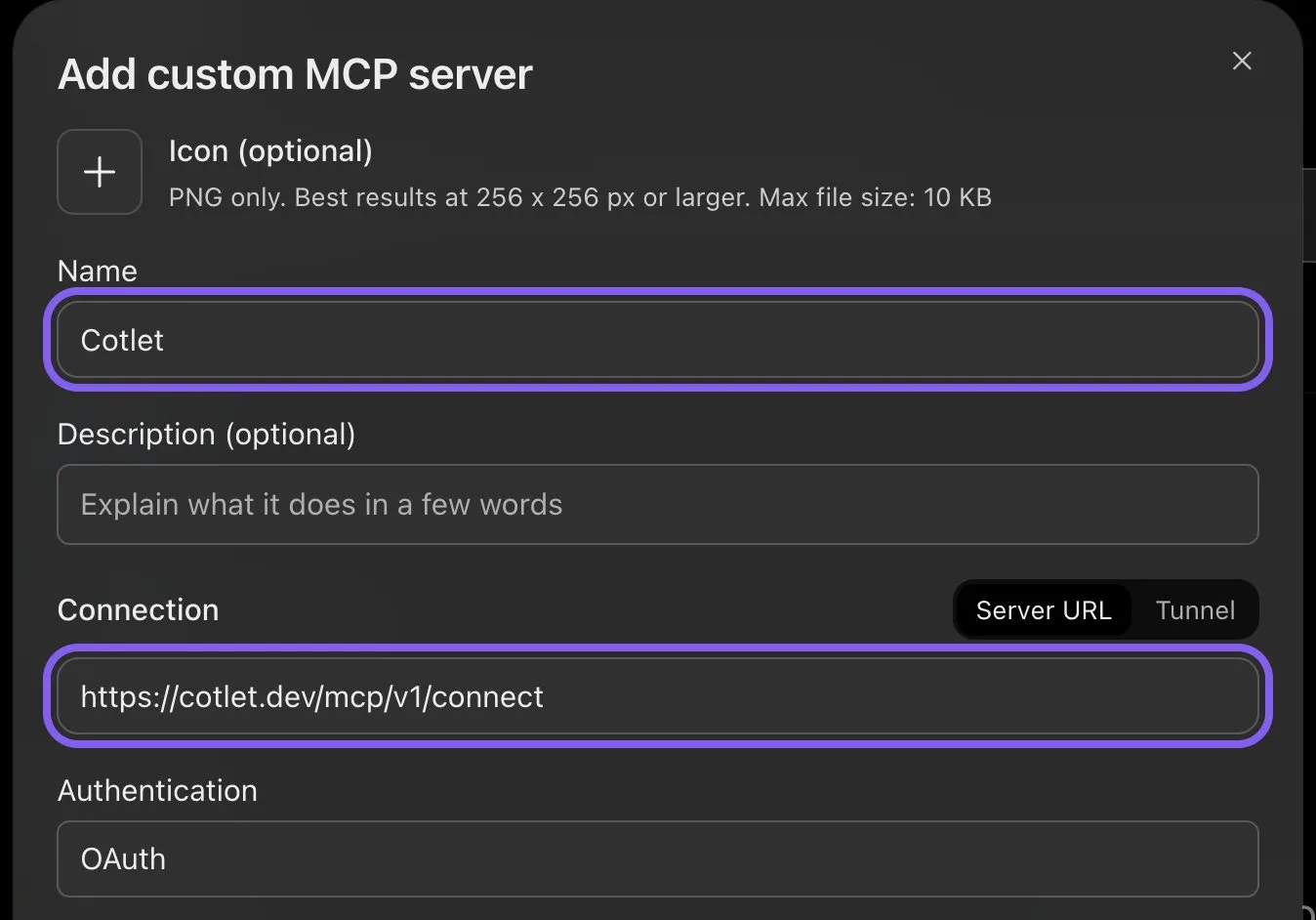
ChatGPT, Add custom MCP server form, November 2026.
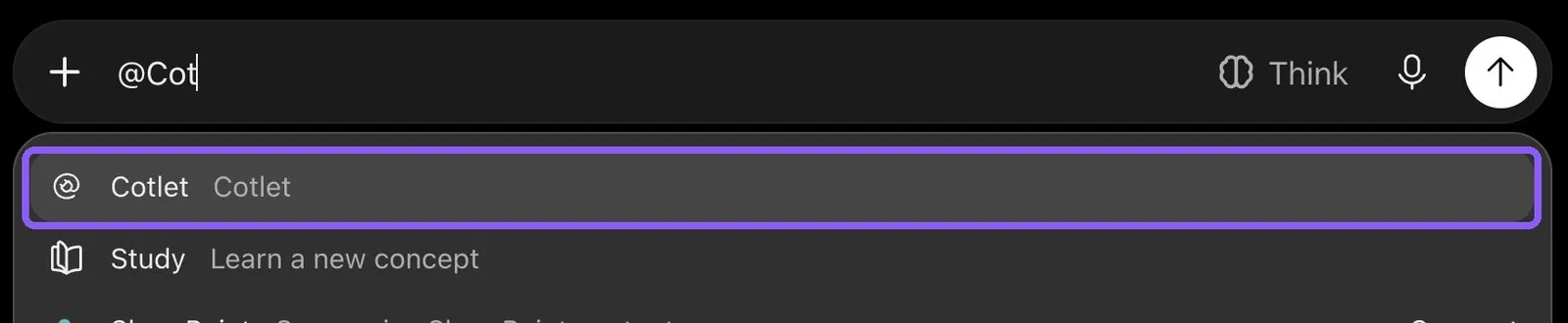
ChatGPT, picking Cotlet in a new chat with @, November 2026.
ChatGPT asks “Allow ChatGPT to use Cotlet?” before some steps. Pick Always allow, or the chat waits for your click. On a Business, Enterprise or Edu workspace, an admin has to allow custom MCP servers first.
How to connect PetLinx to Claude
- Open Connectors in Claude and click Add. In the desktop app it is under Customize, Connectors.
- Click Add custom connector.
- Paste the name
Cotletand the URLhttps://cotlet.dev/mcp/v1/connect, then click Continue. - Keep the settings and click Add.
- A Cotlet page opens. Click Allow access.
- In a chat, click the plus button, then Connectors, and turn Cotlet on.
- Ask Claude: “Are you signed in to Cotlet through MCP?”, then “In PetLinx, list the cancelled bookings of the last 30 days and total the lost revenue. Change nothing.”. Claude asks before it uses a Cotlet tool the first time. Click Allow.
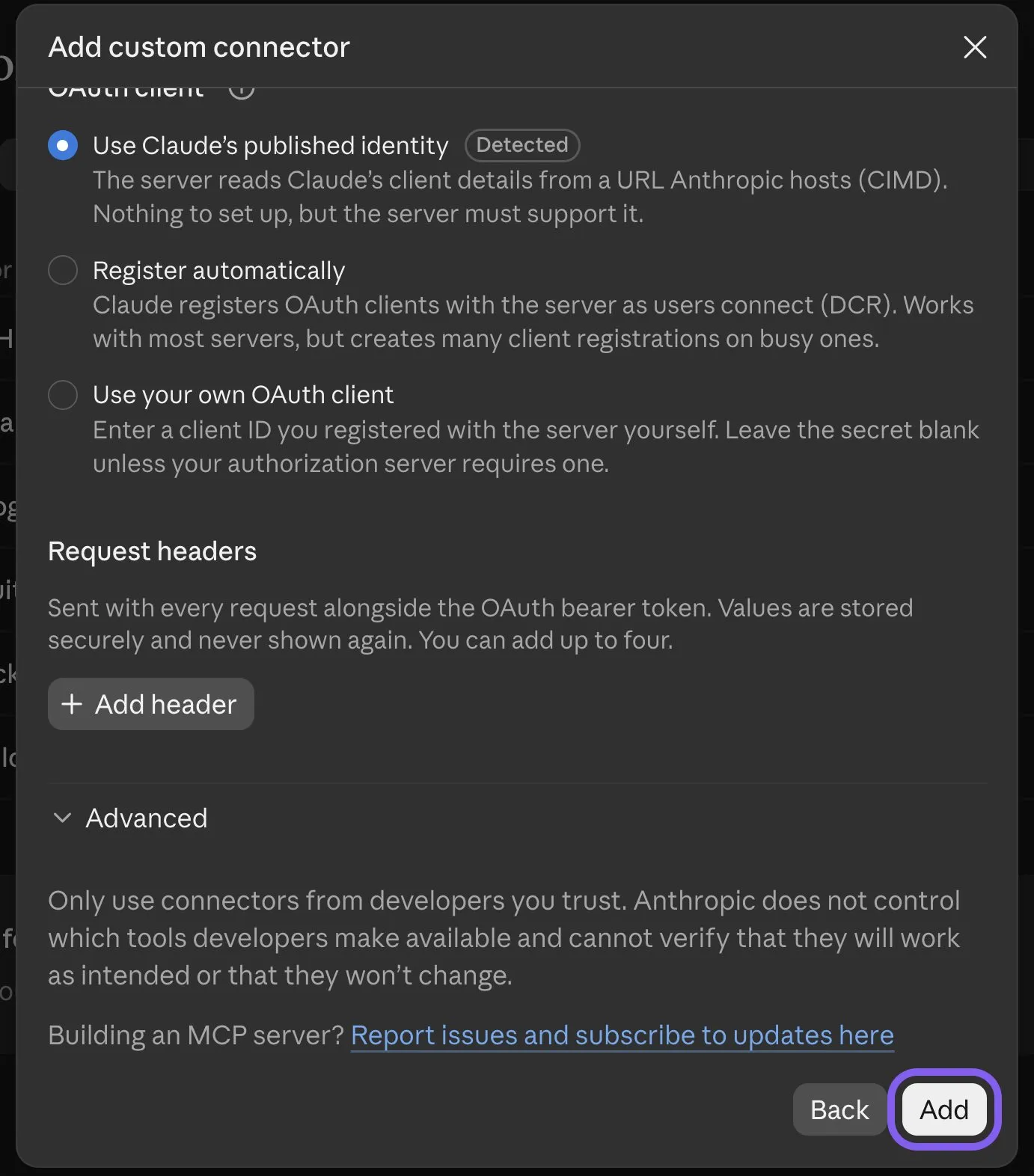
Claude, Add custom connector, last screen, November 2026.
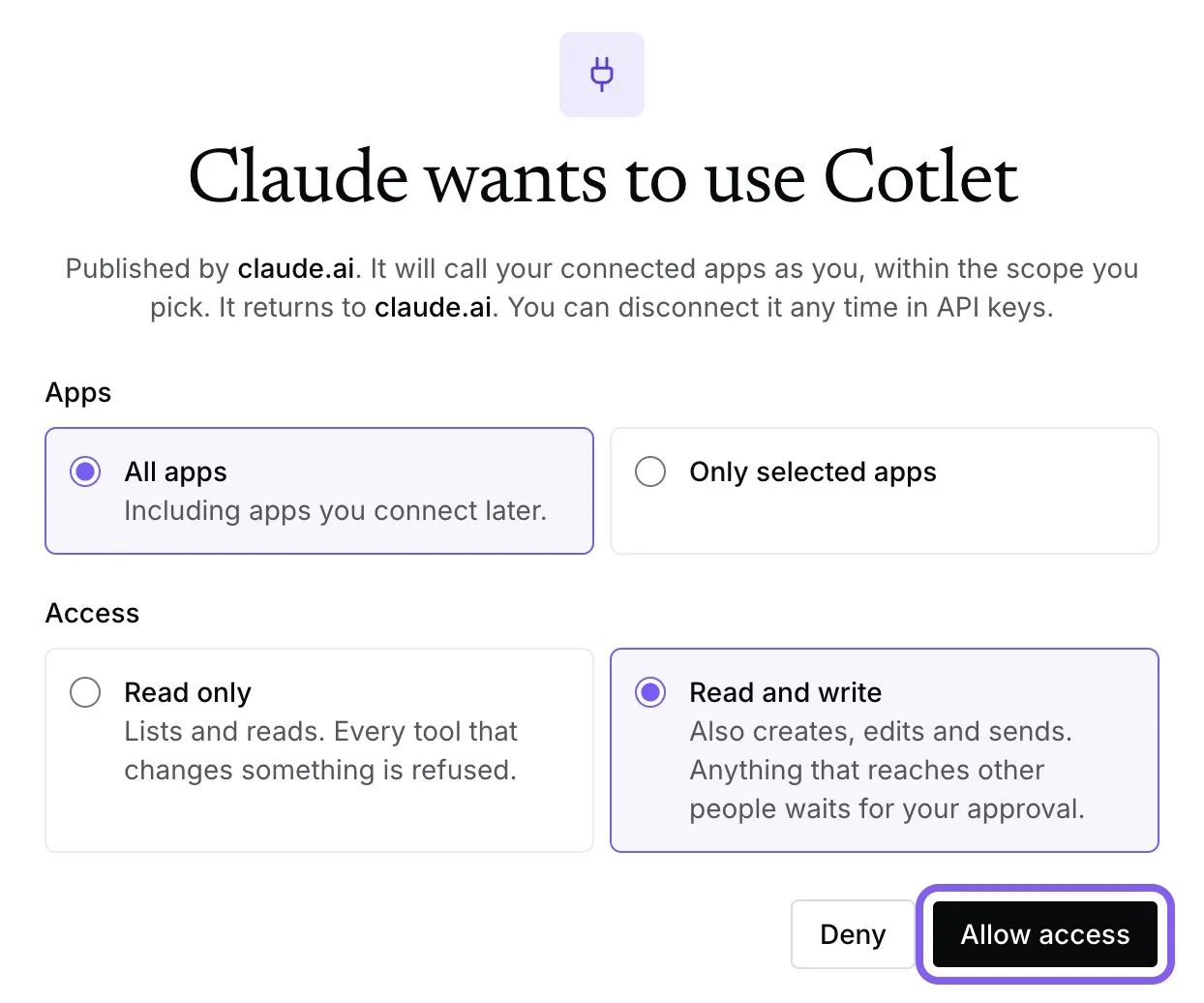
Cotlet consent page after you add the connector in Claude, November 2026.
Claude’s free plan allows one custom connector. On a Team or Enterprise plan, an owner adds Cotlet in Organization settings, Connectors, and you click Connect next to it.
How to connect PetLinx to Claude Code
Add Cotlet without a key, then sign in once in the browser:
claude mcp add --transport http cotlet https://cotlet.dev/mcp/v1/connectRun /mcp in Claude Code, pick cotlet and sign in to Cotlet. Prefer an API key, for example on a server? Create one in the Cotlet console and use:
claude mcp add --transport http cotlet https://cotlet.dev/mcp/v1 \
  --header "Authorization: Bearer $COTLET_API_KEY"
How to connect PetLinx to Codex
Create an API key in the Cotlet console, put it in the COTLET_API_KEY environment variable and add this to ~/.codex/config.toml:
[mcp_servers.cotlet]
url = "https://cotlet.dev/mcp/v1"
bearer_token_env_var = "COTLET_API_KEY"
How to connect PetLinx to Cursor
Create an API key in the Cotlet console, put it in the COTLET_API_KEY environment variable and add this to ~/.cursor/mcp.json:
{
  "mcpServers": {
    "cotlet": {
      "url": "https://cotlet.dev/mcp/v1",
      "headers": { "Authorization": "Bearer ${env:COTLET_API_KEY}" }
    }
  }
}
How to connect PetLinx to Grok
Grok takes custom MCP servers on grok.com, per xAI’s connectors documentation (checked 8 November 2026).
- Open grok.com/connectors and click New Connector.
- Pick Custom and paste the server URL
https://cotlet.dev/mcp/v1/connect. - Sign in to Cotlet when Grok asks, then click Allow access.
- Ask Grok: “Are you signed in to Cotlet through MCP?”
On Grok Business, an admin adds the connector first in the xAI console, under Grok Business, Connectors. The Grok chat inside X has no custom connector menu.
How to connect PetLinx to Hermes Agent
Add Cotlet to ~/.hermes/config.yaml in the format of the Hermes MCP config reference:
mcp_servers:
  cotlet:
    url: "https://cotlet.dev/mcp/v1"
    headers:
      Authorization: "Bearer ${COTLET_API_KEY}"
    trust: untrusted
Put COTLET_API_KEY in ~/.hermes/.env and check it with hermes mcp test cotlet. With trust: untrusted, Hermes runs reads at once and asks before every write. More on Hermes in our post on the Hermes Agent browser.
How to connect PetLinx to n8n
Use the MCP Client node, or the MCP Client Tool inside an AI Agent node:
- Server Transport: HTTP Streamable
- MCP Endpoint URL:
https://cotlet.dev/mcp/v1 - Authentication: Bearer Auth, with your Cotlet API key as the token
- Tools: let the AI Agent node use Cotlet’s browser tools; it reads Cotlet’s PetLinx guide first and works in your signed-in PetLinx cloud account
Use it for work that should run on its own, such as a Monday list of last week’s cancellations.
Any other MCP client
Point the client at https://cotlet.dev/mcp/v1 over Streamable HTTP, with the header Authorization: Bearer <your Cotlet API key>. A client that supports OAuth sign-in can use https://cotlet.dev/mcp/v1/connect instead and needs no key. The full reference is in the MCP docs.
Three requests to start with
Lists first. Messages come later.
Add up the cancellations
List all cancelled bookings in the last 30 days with the client, pet, dates, deposit and cancellation reason, and total the lost revenue.
The booking help articles show where cancellations and deposits live. The agent reads them and gives you one total.
Chase the missing deposits
List boardings starting in the next 30 days with no deposit or a part payment, with the client phone. Take no payment.
You get names and phone numbers. Taking a payment stays with you.
Rebook the lapsed groom
Find clients whose recurring grooming appointment ended or was not rebooked, with pet, last visit and usual style. Draft a rebooking text for each and send nothing.
PetLinx keeps recurring appointments, so a client who stopped appearing is findable. The agent drafts one text per client for you to approve.
Later in the week
- Show tomorrow’s daycare and boarding arrivals with each client’s prepaid credit, and flag low balances.
- List pets with a vaccination ending this month, with the owner’s contact and next booking.
- Put last week’s invoices, payments and occupancy in one table for your bookkeeper, until the QuickBooks sync arrives.
Price
PetLinx stays as it is. A Cotlet trial is 2,000 credits over 7 days with no card. A pack then starts at $29, is valid for a year and charges only for calls that work (pricing).
FAQ
Does PetLinx have an API or MCP server?
Neither, as far as we found: no public API and no official MCP server. Cotlet reads your signed-in cloud account, with no key.
Can I use the desktop version?
No. Cotlet works in a web browser, so it needs the cloud version.
Is Cotlet affiliated with PetLinx?
No. They are separate companies.
Try it on your own login
Start with the cancellation total. Open a free week, log in to PetLinx and ask. The catalog lists other apps.