How to connect PhotoShelter to AI agents and automate the busywork
PhotoShelter has no official MCP server or ChatGPT or Claude app (checked 8 Nov 2026). Connect any AI agent to your account through Cotlet.dev.
Cotlet team 15 min read
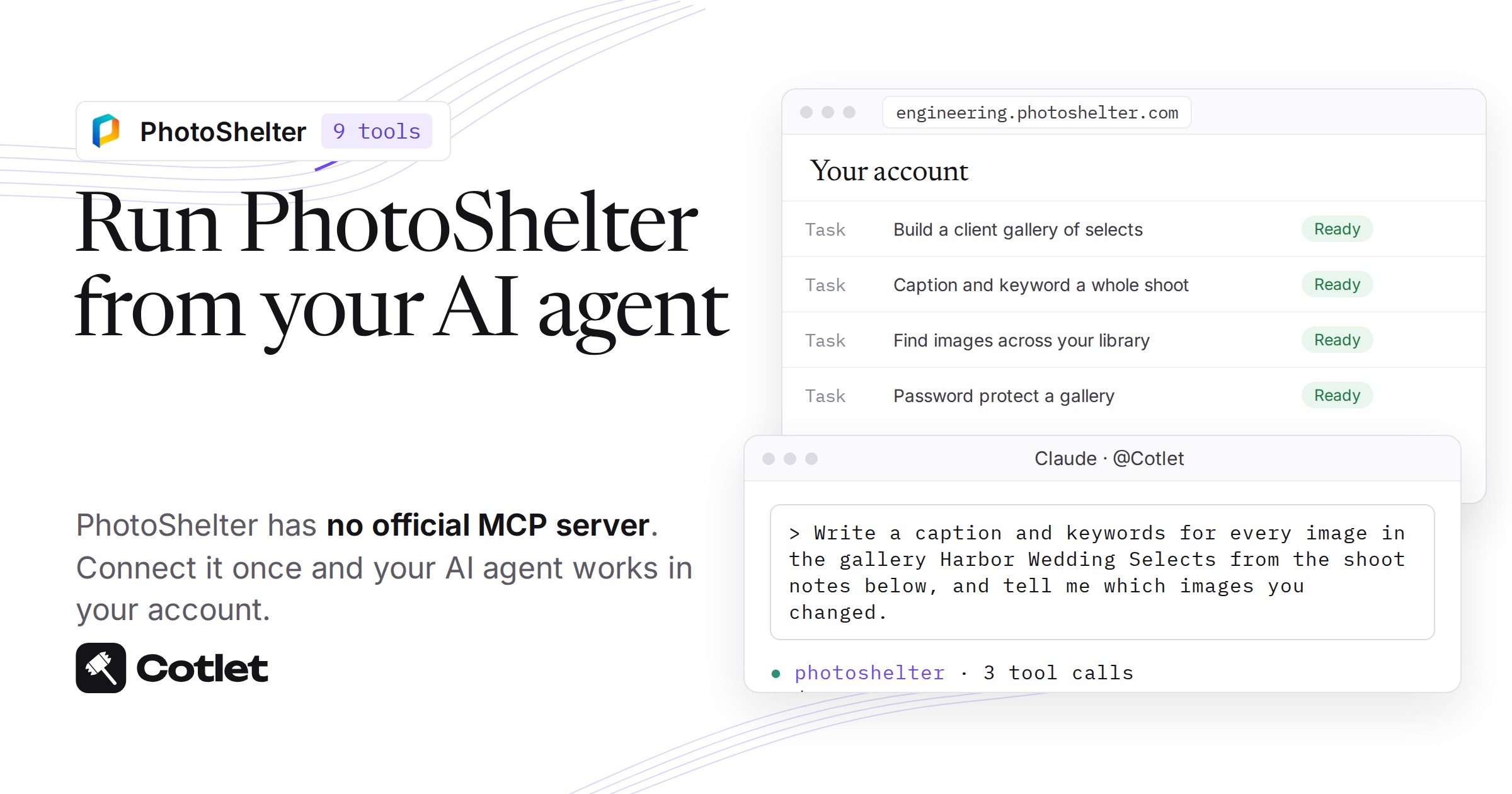
PhotoShelter has no official MCP server and no ChatGPT or Claude connector (checked 8 Nov 2026). PhotoShelter documents an API, but customers contact support for a key instead of generating one (checked 8 Nov 2026). This guide shows how to connect PhotoShelter to ChatGPT, Claude and any AI agent through Cotlet.dev, which runs 9 PhotoShelter tools in your own PhotoShelter login, and then gives you three jobs to hand over.
PhotoShelter is where a photographer, studio owner or office manager keeps the shoots, selects, captions and client galleries the business runs on. Most weeks repeat the same loop: find the selects, build a gallery, caption and keyword the shoot, set access and send the link. Cotlet.dev is for people who run a business in PhotoShelter and want an AI agent to manage their account, while a client who only views or buys photos keeps using PhotoShelter’s own channel.
What your AI agent can do inside PhotoShelter once it is connected
| Area of PhotoShelter | What your AI agent does there |
|---|---|
| Galleries and collections | Lists galleries and collections with access and image counts, and opens one gallery with its images and share settings. |
| Client galleries of selects | Creates a private gallery in a collection and adds library images to it. |
| Image library | Searches by keyword, caption or file name and opens one image with its metadata. |
| Captions and keywords | Writes captions and keywords on many images in one call. |
| Gallery access | Changes who can see a gallery, including a password or public access. |
| Sharing with clients | Emails a gallery link to a client. |
| Old public galleries | Finds galleries open to the public and makes them private. |
PhotoShelter galleries that your AI agent creates start private, and two actions wait for your OK: Set gallery access, which opens a gallery to the public or adds a password, and Share gallery, which emails the link to a client. In PhotoShelter’s tool list that is 2 of 9 tools asking first. Creating a gallery, adding images and editing captions reach no customer, so they run at once. Inputs and example responses for every tool are on the Cotlet.dev PhotoShelter page.
Does PhotoShelter have an API, an MCP server or a ChatGPT integration?
PhotoShelter has no MCP server and no ChatGPT or Claude app (checked 8 Nov 2026). PhotoShelter documents an API in its engineering and API docs, but customers contact support for a key instead of generating one (checked 8 Nov 2026). PhotoShelter’s own AI Assistant works inside PhotoShelter, not in ChatGPT or Claude. PhotoShelter also has no connector in the ChatGPT apps directory or in Claude (checked 8 Nov 2026, source: PhotoShelter for Brands integrations).
Cotlet.dev fills that gap with a hosted MCP server at https://cotlet.dev/mcp/v1 that carries 9 PhotoShelter tools. Add that address to ChatGPT, Claude or any MCP client and your AI agent works in your own PhotoShelter account. It sees the galleries, images, captions and share links that you see when you sign in yourself, and it can do what your account can do in PhotoShelter.
What to have ready before you connect
- PhotoShelter login: you need an account you can already sign in to, because your AI agent sees what your account sees: galleries, images, captions and share links.
- PhotoShelter plan: Cotlet.dev works on your current PhotoShelter plan, so nothing about your PhotoShelter subscription changes.
- Permissions: your AI agent can do what your own PhotoShelter account can do, so sign in with the account of the person who normally builds and shares galleries.
- Sign-in method: you sign in to PhotoShelter yourself, with your PhotoShelter account, inside a Cloud Browser that Cotlet.dev hosts for you.
- Web or phone: the sign-in happens in that browser on the web, and ChatGPT and Claude then work in your PhotoShelter account from their phone apps too.
- Your images: your AI agent works with images already in your library, so upload from Lightroom or the PhotoShelter uploader first.
Step 1: Open PhotoShelter in the Cloud Browser and sign in
PhotoShelter sign-in happens once, in a browser that Cotlet.dev hosts for you. Create a Cotlet.dev account, open PhotoShelter in its Cloud Browser, sign in with your PhotoShelter account and press Enable for agents.
PhotoShelter receives your password on its own sign-in page. You type it there yourself, and Cotlet.dev never stores it. What Cotlet.dev keeps is your signed-in PhotoShelter profile, AES-256-GCM encrypted, in Finland.
Your AI agent gets the 9 PhotoShelter tools and never your sign-in details. If PhotoShelter signs you out at some point, you sign in again yourself in the same Cloud Browser. To cut access at any time, disable PhotoShelter for agents, reset the browser or change your PhotoShelter password.
Step 2: Link PhotoShelter to ChatGPT, Claude or your own agent
Your AI agent can be ChatGPT, Claude, Claude Code, Codex, Cursor, Grok, Hermes Agent, n8n or any other MCP client, and all of them connect the same way: enter https://cotlet.dev/mcp/v1 as the MCP server or connector URL.
Pick your AI above to see its steps.
How to connect PhotoShelter to ChatGPT
Do this on chatgpt.com in your browser. Cotlet then works in the ChatGPT desktop and phone apps too.
- Open Plugins in ChatGPT and click Add.
- Click Add custom MCP server.
- Paste the name
Cotletand the server URLhttps://cotlet.dev/mcp/v1/connect. Keep Authentication on OAuth. - Tick “I understand and want to continue” and click Create as a plugin.
- Click Connect Cotlet. A Cotlet page opens, click Allow access.
- In a new chat, type
@Cotletand pick it from the list. - Ask ChatGPT: “Are you signed in to Cotlet through MCP?” Then try a first PhotoShelter task: “Search my library for the keyword harbor-selects, create a private gallery called Harbor Wedding Selects in my Clients collection, add those images, then ask me before it sets a password or emails the link to the couple.”
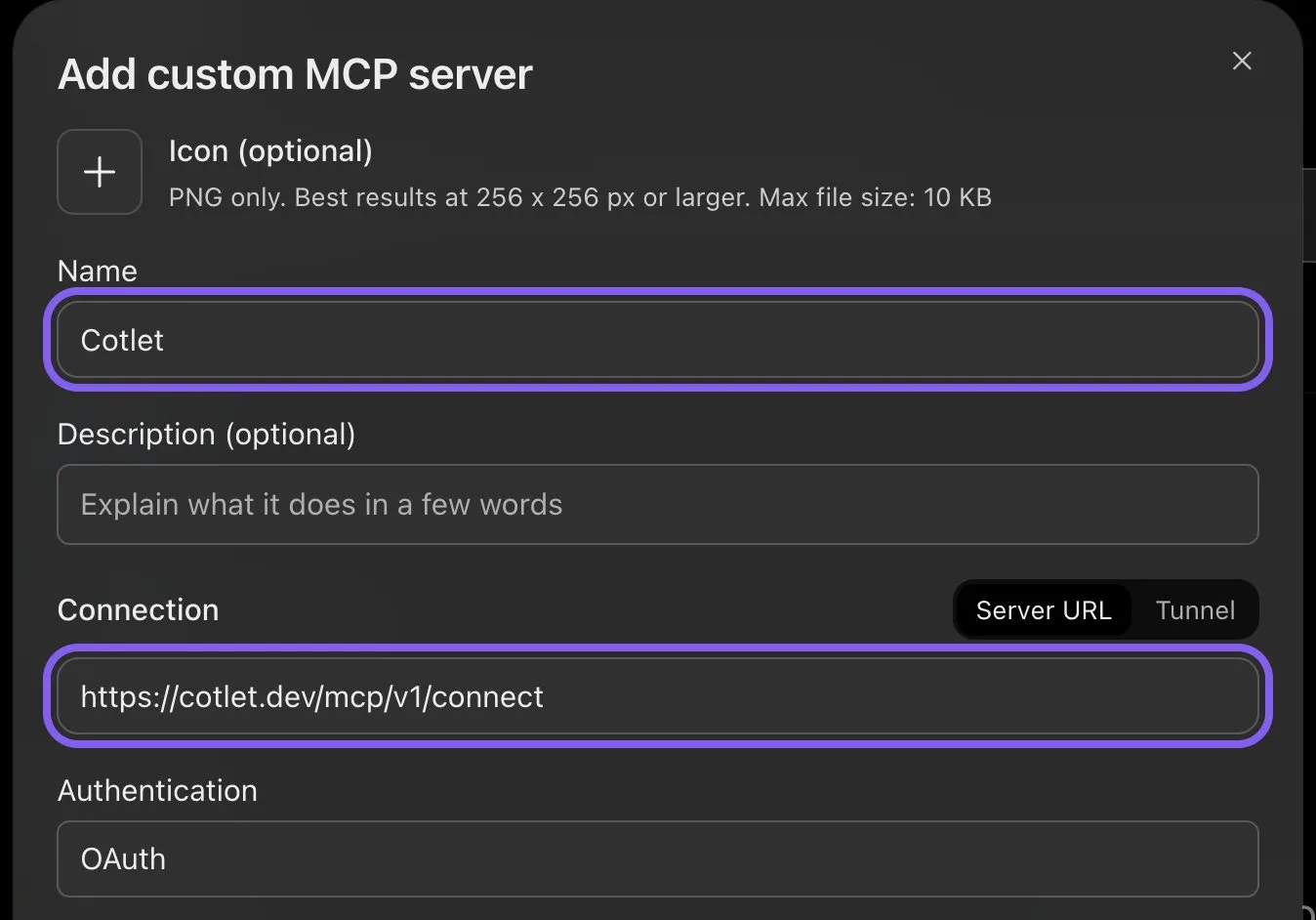
ChatGPT, Add custom MCP server form, November 2026.
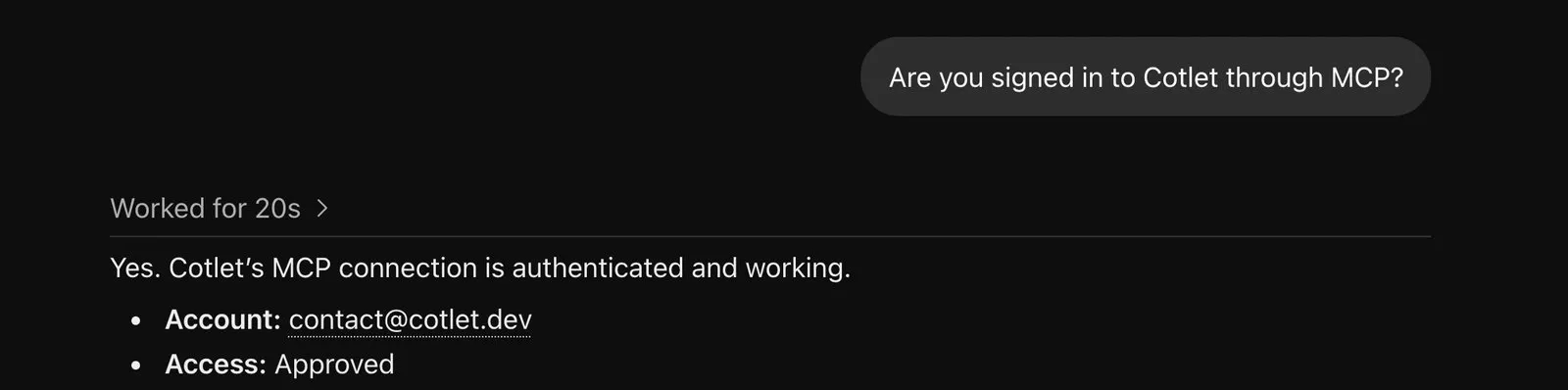
ChatGPT confirming the Cotlet connection, November 2026.
ChatGPT asks “Allow ChatGPT to use Cotlet?” before some steps. Pick Always allow, or the chat waits for your click. On a Business, Enterprise or Edu workspace, an admin has to allow custom MCP servers first.
How to connect PhotoShelter to Claude
- Open Connectors in Claude and click Add. In the desktop app it is under Customize, Connectors.
- Click Add custom connector.
- Paste the name
Cotletand the URLhttps://cotlet.dev/mcp/v1/connect, then click Continue. - Keep the settings and click Add.
- A Cotlet page opens. Click Allow access.
- In a chat, click the plus button, then Connectors, and turn Cotlet on.
- Ask Claude: “Are you signed in to Cotlet through MCP?”, then “Write a caption and keywords for every image in the gallery Harbor Wedding Selects from the shoot notes below, and tell me which images you changed.”. Claude asks before it uses a Cotlet tool the first time. Click Allow.
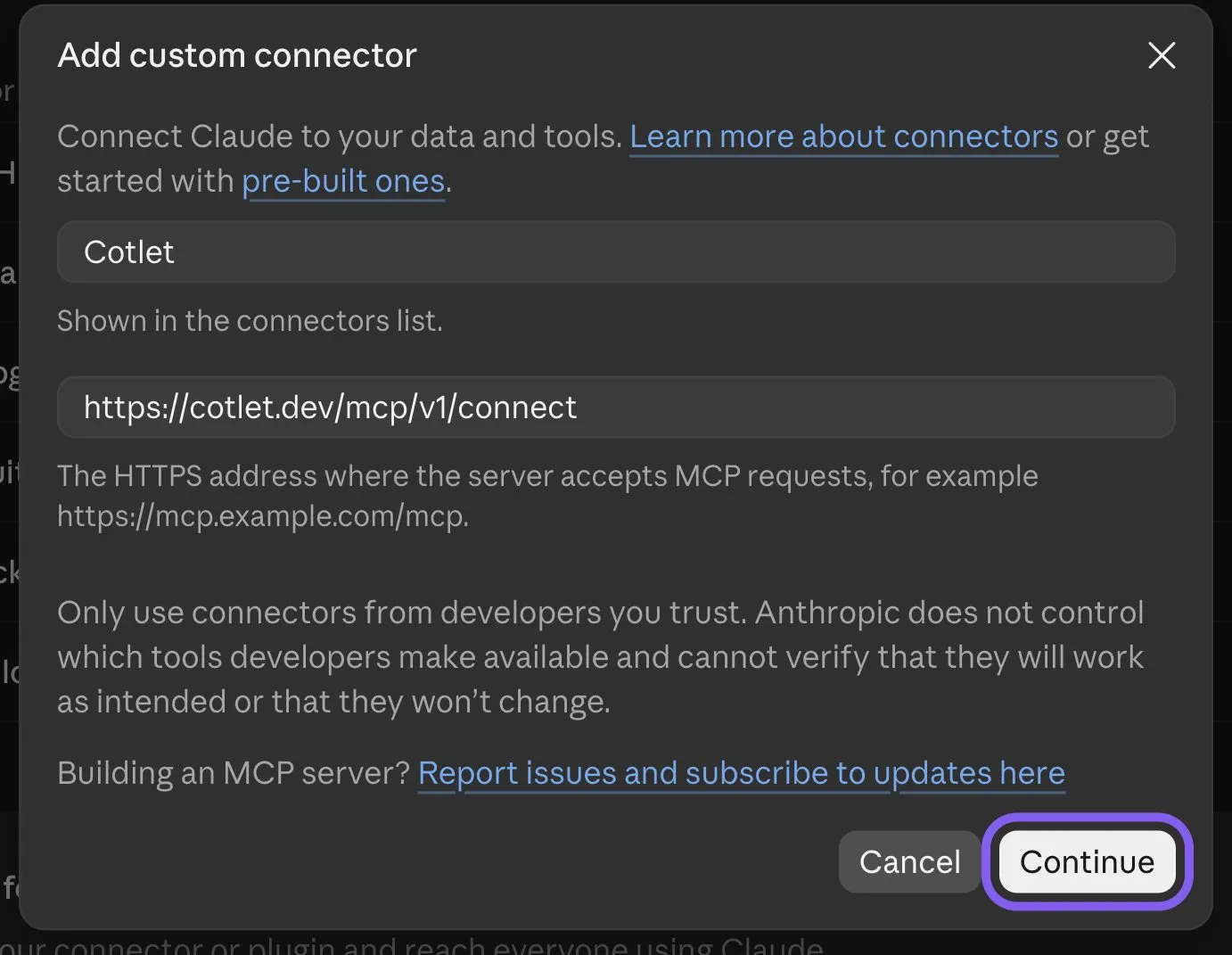
Claude, Add custom connector form, November 2026.
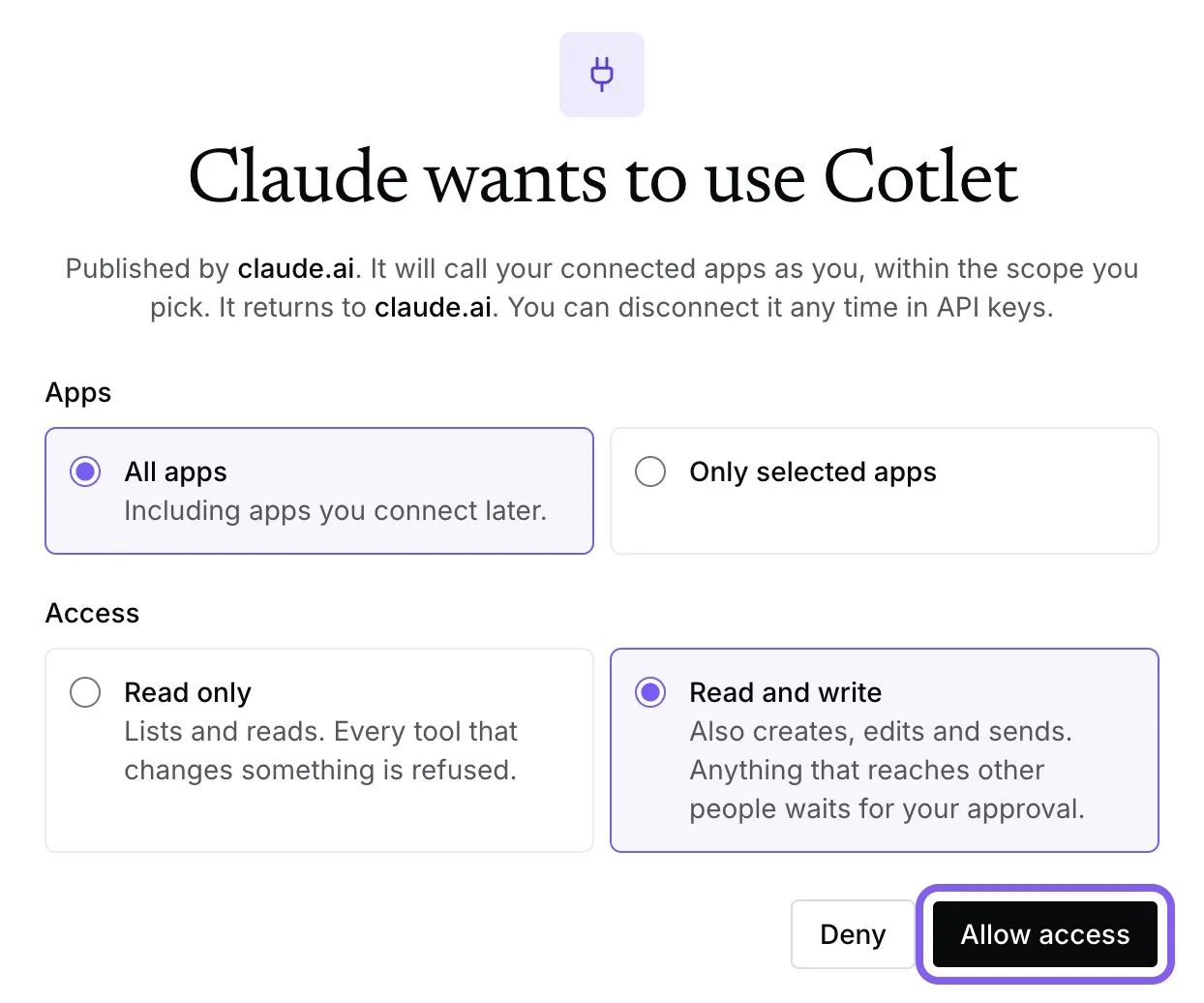
Cotlet consent page after you add the connector in Claude, November 2026.
Claude’s free plan allows one custom connector. On a Team or Enterprise plan, an owner adds Cotlet in Organization settings, Connectors, and you click Connect next to it.
How to connect PhotoShelter to Claude Code
Add Cotlet without a key, then sign in once in the browser:
claude mcp add --transport http cotlet https://cotlet.dev/mcp/v1/connectRun /mcp in Claude Code, pick cotlet and sign in to Cotlet. Prefer an API key, for example on a server? Create one in the Cotlet console and use:
claude mcp add --transport http cotlet https://cotlet.dev/mcp/v1 \
  --header "Authorization: Bearer $COTLET_API_KEY"
How to connect PhotoShelter to Codex
Create an API key in the Cotlet console, put it in the COTLET_API_KEY environment variable and add this to ~/.codex/config.toml:
[mcp_servers.cotlet]
url = "https://cotlet.dev/mcp/v1"
bearer_token_env_var = "COTLET_API_KEY"
How to connect PhotoShelter to Cursor
Create an API key in the Cotlet console, put it in the COTLET_API_KEY environment variable and add this to ~/.cursor/mcp.json:
{
  "mcpServers": {
    "cotlet": {
      "url": "https://cotlet.dev/mcp/v1",
      "headers": { "Authorization": "Bearer ${env:COTLET_API_KEY}" }
    }
  }
}
How to connect PhotoShelter to Grok
Grok takes custom MCP servers on grok.com, per xAI’s connectors documentation (checked 8 November 2026).
- Open grok.com/connectors and click New Connector.
- Pick Custom and paste the server URL
https://cotlet.dev/mcp/v1/connect. - Sign in to Cotlet when Grok asks, then click Allow access.
- Ask Grok: “Are you signed in to Cotlet through MCP?”
On Grok Business, an admin adds the connector first in the xAI console, under Grok Business, Connectors. The Grok chat inside X has no custom connector menu.
How to connect PhotoShelter to Hermes Agent
Add Cotlet to ~/.hermes/config.yaml in the format of the Hermes MCP config reference:
mcp_servers:
  cotlet:
    url: "https://cotlet.dev/mcp/v1"
    headers:
      Authorization: "Bearer ${COTLET_API_KEY}"
    trust: untrusted
Put COTLET_API_KEY in ~/.hermes/.env and check it with hermes mcp test cotlet. With trust: untrusted, Hermes runs reads at once and asks before every write. More on Hermes in our post on the Hermes Agent browser.
How to connect PhotoShelter to n8n
Use the MCP Client node, or the MCP Client Tool inside an AI Agent node:
- Server Transport: HTTP Streamable
- MCP Endpoint URL:
https://cotlet.dev/mcp/v1 - Authentication: Bearer Auth, with your Cotlet API key as the token
- Tools: Cotlet.dev’s browser tools; the AI Agent node reads the PhotoShelter guide first
Use it to run this on a schedule: make old public galleries private.
Any other MCP client
Point the client at https://cotlet.dev/mcp/v1 over Streamable HTTP, with the header Authorization: Bearer <your Cotlet API key>. A client that supports OAuth sign-in can use https://cotlet.dev/mcp/v1/connect instead and needs no key. The full reference is in the MCP docs.
Cotlet.dev opens a sign-in page when a chat app connects, so you approve the connection there and the chat app is linked. Editors, n8n and scripts follow the steps in your Cotlet.dev console.
PhotoShelter shares the address https://cotlet.dev/mcp/v1 with every other app you enable, so one connector covers them all. If you turned PhotoShelter on after connecting, refresh the connector and the 9 tools appear. A good first test is read only: “List my galleries with their access and image counts.”
Three PhotoShelter jobs to give your agent first
These three jobs come from three different areas of PhotoShelter: gallery delivery, the image library and gallery access. Each one is a plain request you can paste into ChatGPT or Claude after you change the names.
Build a client gallery from your selects
Your AI agent takes this request: “Search my library for the keyword harbor-selects, create a private gallery called Harbor Wedding Selects in my Clients collection, add those images, then ask me before it sets a password or emails the link to the couple.”
Your AI agent searches the library by keyword, creates the private gallery, adds the images and stops at two points: the password, which is a Set gallery access change, and the email, which is Share gallery. Nobody can see the gallery until you say yes. By hand you would find and add the images one by one, so the agent saves you that clicking and leaves you only the two approvals.
Caption and keyword a whole shoot
Your AI agent takes this request: “Write a caption and keywords for every image in the gallery Harbor Wedding Selects from the shoot notes below, and tell me which images you changed.”
PhotoShelter’s API could do this in bulk, but it needs a key that support hands out instead of one you generate, so a developer has to get involved (checked 8 Nov 2026, source: PhotoShelter engineering and API docs). Your AI agent writes captions and keywords on many images in one call, so the shoot is searchable the same day. Nothing reaches a customer, so it runs at once, and you can undo it by writing the old values back. By hand you would work through PhotoShelter’s batch tools.
Make old public galleries private
Your AI agent takes this request: “List every gallery that is open to the public with its image count, then make the Spring Portraits and Corporate Headshots galleries private.”
Your AI agent lists galleries with their access and image counts, so you see what is public before anything changes. Changing access is one of the two actions that ask first, so you confirm each change. If you change your mind, you set the gallery back to its old access. By hand you would open every gallery and check its share settings.
Other ways to connect PhotoShelter and where each one stops
- PhotoShelter API: PhotoShelter publishes API docs and hands out keys through support, so your own developer builds and hosts the work (checked 8 Nov 2026, PhotoShelter engineering and API docs).
- PhotoShelter AI Assistant: it works inside PhotoShelter, not from ChatGPT, Claude or n8n (checked 8 Nov 2026).
- PhotoShelter integrations: PhotoShelter lists its integrations on the PhotoShelter for Brands integrations page, and PhotoShelter has no connector in the ChatGPT apps directory or in Claude (checked 8 Nov 2026).
- Zapier, Make and n8n flows: any flow that calls the PhotoShelter API starts with the key that support hands out (checked 8 Nov 2026).
- By hand: every screen of PhotoShelter is open to you, one gallery at a time, at the cost of your editing time.
- Cotlet.dev repository: Cotlet.dev publishes a public repository with a ready PhotoShelter MCP config for Claude Code, Cursor and Codex, plus an agent skill.
Cotlet.dev is the option that gives your AI agent everything you can do in PhotoShelter, on every screen, read and write, from ChatGPT, Claude or any agent, with no API key from PhotoShelter support, on your current PhotoShelter plan.
FAQ
Does PhotoShelter have an official ChatGPT or Claude integration?
PhotoShelter has no official ChatGPT or Claude connector and no official MCP server (checked 8 Nov 2026). PhotoShelter’s own AI Assistant works inside PhotoShelter, not in ChatGPT or Claude. Cotlet.dev is an independent MCP server at https://cotlet.dev/mcp/v1 that connects ChatGPT, Claude and other agents to your signed-in PhotoShelter account, and it is not affiliated with PhotoShelter.
Does PhotoShelter have an API or an MCP server?
PhotoShelter publishes API docs, but support hands out the keys instead of customers generating them (checked 8 Nov 2026). PhotoShelter has no MCP server of its own. Cotlet.dev runs 9 PhotoShelter tools over MCP in your own PhotoShelter login, so you skip the key request.
Can Zapier, Make or n8n connect PhotoShelter to an AI agent?
PhotoShelter’s API needs a key from support, so a Zapier, Make or n8n flow that calls it starts with that key and someone to build the flow (checked 8 Nov 2026). n8n is also one of the MCP clients that connect to Cotlet.dev with the same address, https://cotlet.dev/mcp/v1. Your AI agent then works in your PhotoShelter login without a key request.
Can ChatGPT or Claude create and share a client gallery in PhotoShelter?
Yes, with Cotlet.dev. ChatGPT or Claude creates a private gallery in a collection, adds the images you describe and emails the link to your client after your OK. The gallery stays private until you approve the access change and the share.
Can ChatGPT add captions and keywords to a whole shoot?
Yes, with Cotlet.dev. ChatGPT writes captions and keywords on many images in one call, so a shoot is searchable the same day. Because no customer sees an edit, the change runs at once, and you can undo it by writing the old values back.
Can ChatGPT search my PhotoShelter library?
Yes, with Cotlet.dev. Ask in plain words and ChatGPT searches your library by keyword, caption or file name and lists the matches. It can then open one image with its metadata or one gallery with its images and share settings.
Do I need a PhotoShelter API key to use Cotlet.dev?
No. Cotlet.dev works through your own PhotoShelter sign-in, so you skip the support request for a key. It can do what your account can do in PhotoShelter, and it works on your current PhotoShelter plan.
Can my AI agent upload or delete photos in PhotoShelter?
No. Cotlet.dev has no tool for uploads, deletes, sales and payouts, website design or billing. Upload from Lightroom, the PhotoShelter uploader or the app as you do today, then your AI agent works with the images already in your library.
Is there a PhotoShelter MCP server on GitHub?
PhotoShelter has no official MCP server (checked 8 Nov 2026). Cotlet.dev publishes a public repository on GitHub with a ready PhotoShelter MCP config for Claude Code, Cursor and Codex, an agent skill and a small command-line tool. It points your agent at your own PhotoShelter account through Cotlet.dev.
What happens when PhotoShelter changes its screens?
Cotlet.dev tests the PhotoShelter read tools every 12 h and the sends a customer would notice every 24 h. When PhotoShelter moves a button in the library or renames an access setting, Cotlet.dev fixes the tool and your AI agent calls it the same way. You do not change anything in your prompts.
Start with the next shoot you hand over
Your AI agent is ready to work in PhotoShelter as soon as the Cloud Browser shows you signed in and the connector lists the 9 tools. Pick the gallery from your last shoot, ask for the three jobs above one at a time, and approve each access change and each share yourself. Set it up from the Cotlet.dev PhotoShelter page.