How to connect Pixieset to ChatGPT, Claude and any AI agent
Pixieset has no API, no Zapier app and no ChatGPT connector. How photographers let ChatGPT or Claude run galleries, download checks and invoices.
Cotlet team 11 min read
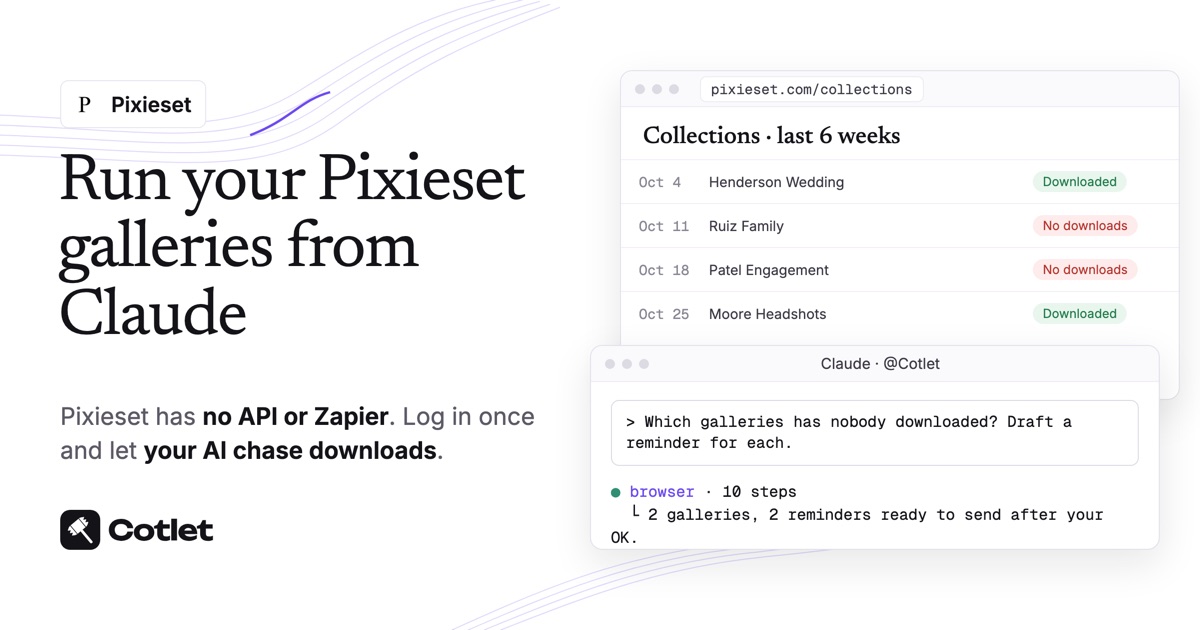
Pixieset has no public API, no Zapier app and no ChatGPT or Claude connector, as of November 2026; even Zapier’s page says “Pixieset has not yet built an integration on Zapier.” The Pixieset tools that exist are a Lightroom plugin, a mobile app and an AI photo editor. To let ChatGPT, Claude or another AI agent work in your Pixieset Client Gallery and Studio Manager, you connect them through Cotlet. You log in to Pixieset once in a cloud browser, and from then on your AI can create collections, check who downloaded what and handle invoices there. No code, about ten minutes.
Cotlet is made for photographers who run their own business on Pixieset, solo or with a second shooter and an assistant, and want an AI to carry the admin between shoots. Your clients keep viewing, favoriting and downloading in their Pixieset gallery as always. This guide covers your side of it: setting up the gallery, finding couples who never downloaded, fixing a retainer invoice.
What ChatGPT and Claude can do in Pixieset once connected
The AI uses pixieset.com in your signed-in Cloud Browser and clicks through the same screens you do:
| Pixieset area | What you can ask your AI to do |
|---|---|
| Collections | Create a collection, check download and favorite settings, read the gallery link and PIN |
| Gallery invites | Prepare the invite email for a collection and send it after your OK |
| Download activity | See who downloaded a gallery or single photos, export the list |
| Favorites | Read a client’s favorites list and copy the file names for Lightroom or Capture One |
| Studio Manager | Read contacts and booked sessions, list unpaid invoices, create a new invoice |
The AI waits for your approval before anything reaches a client: an invite, a reminder, an invoice or a cancellation. Reading settings, activity and favorites happens straight away.
Cotlet’s Pixieset integration page has the technical side.
Does Pixieset have AI, an API or an official ChatGPT app?
Pixieset’s AI lives in its editor and its website builder. There is nothing for your own assistant to plug into.
- AI in the Photo Editor and Website. Pixieset’s Photo Editor uses AI for culling and styles, and Pixieset Website writes alt text with AI. Neither takes instructions from ChatGPT or Claude.
- Apps and plugins, no API. Pixieset’s Apps & Plugins page lists a Lightroom plugin, the Studio Manager mobile app and the Photo Editor (checked 9 November 2026). Pixieset’s help center has no article about an API, webhooks or ChatGPT.
- No Zapier or n8n. Zapier marks Pixieset as not yet supported, and n8n has no Pixieset node.
- No ChatGPT app or Claude connector, as of November 2026.
Until Pixieset opens an API, the way for your own AI to work in Pixieset is a hosted MCP server that does it as you.
What you need
- Your Pixieset login. Client Gallery and Studio Manager share one account, so the AI reaches both.
- Studio Manager on a plan that includes what you want the AI to touch: the Free plan stops at 3 contracts and 3 quotes or questionnaires, per Pixieset’s Studio Manager pricing.
- ChatGPT or Claude, either one, on the web; the desktop Claude app works too, and its free plan has room for one custom connector.
- A Cotlet account, free for 7 days, no card.
Step 1: sign in to Pixieset in your Cloud Browser
Go to the Cotlet console, open the Web browser, visit pixieset.com and log in with your Pixieset email and password. Because that browser runs on Cotlet’s servers and keeps you logged in, your AI can check last month’s galleries while you are shooting.
Pixieset’s login form is the only place your password goes. Cotlet has no access to it and does not store it, only the encrypted session. On the day Pixieset wants a fresh login, the AI pauses and sends you the browser link. More on the security page.
Step 2: connect Pixieset to ChatGPT, Claude or another AI agent
Pick where you talk to AI. Each option below works with Pixieset through the Cloud Browser where you just logged in.
Pick your AI above to see its steps.
How to connect Pixieset to ChatGPT
Do this on chatgpt.com in your browser. Cotlet then works in the ChatGPT desktop and phone apps too.
- Open Plugins in ChatGPT and click Add.
- Click Add custom MCP server.
- Paste the name
Cotletand the server URLhttps://cotlet.dev/mcp/v1/connect. Keep Authentication on OAuth. - Tick “I understand and want to continue” and click Create as a plugin.
- Click Connect Cotlet. A Cotlet page opens, click Allow access.
- In a new chat, type
@Cotletand pick it from the list. - Ask ChatGPT: “Are you signed in to Cotlet through MCP?” Then try a first Pixieset task: “List my Pixieset collections from the last 30 days with their event dates.”
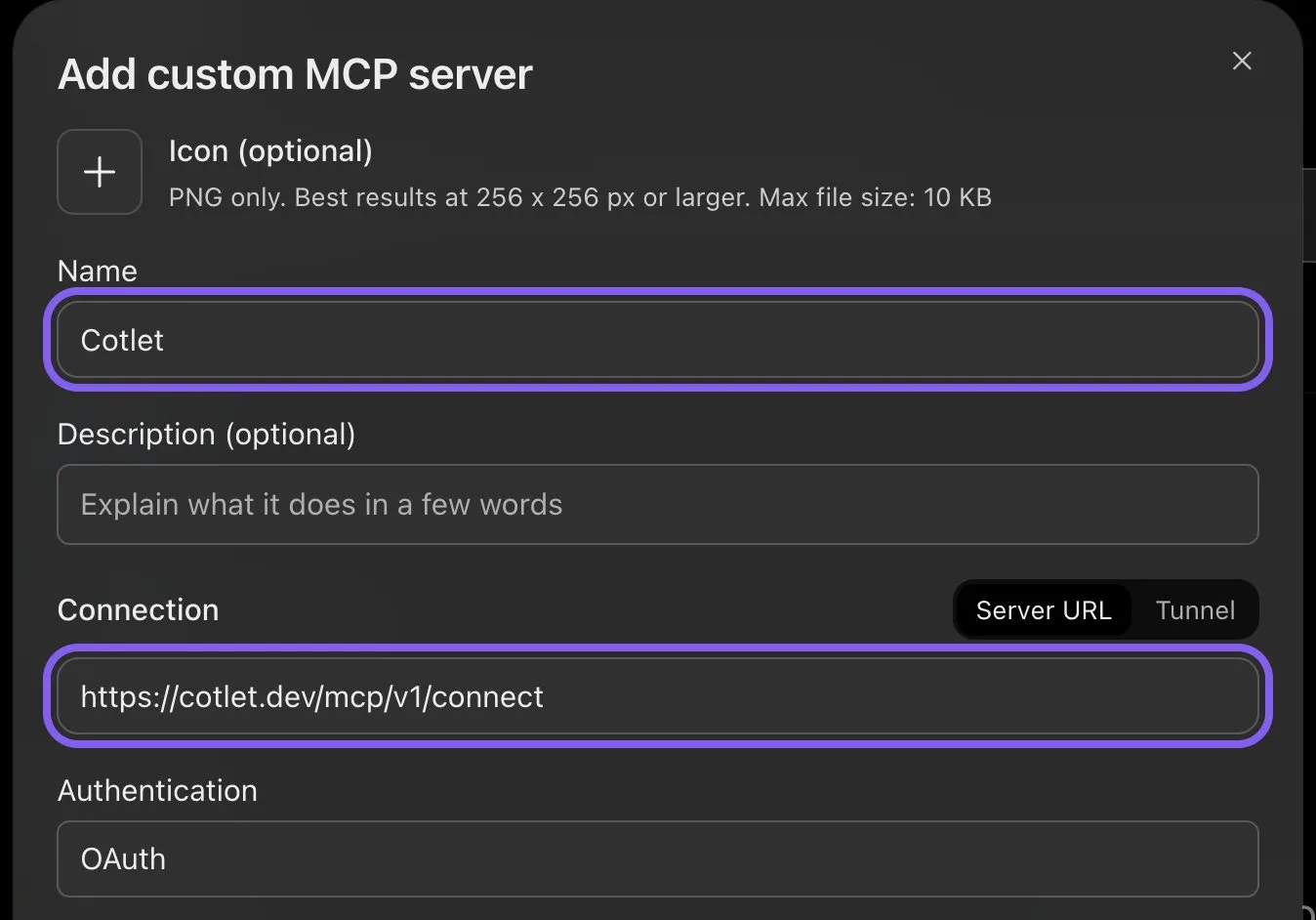
ChatGPT, Add custom MCP server form, November 2026.
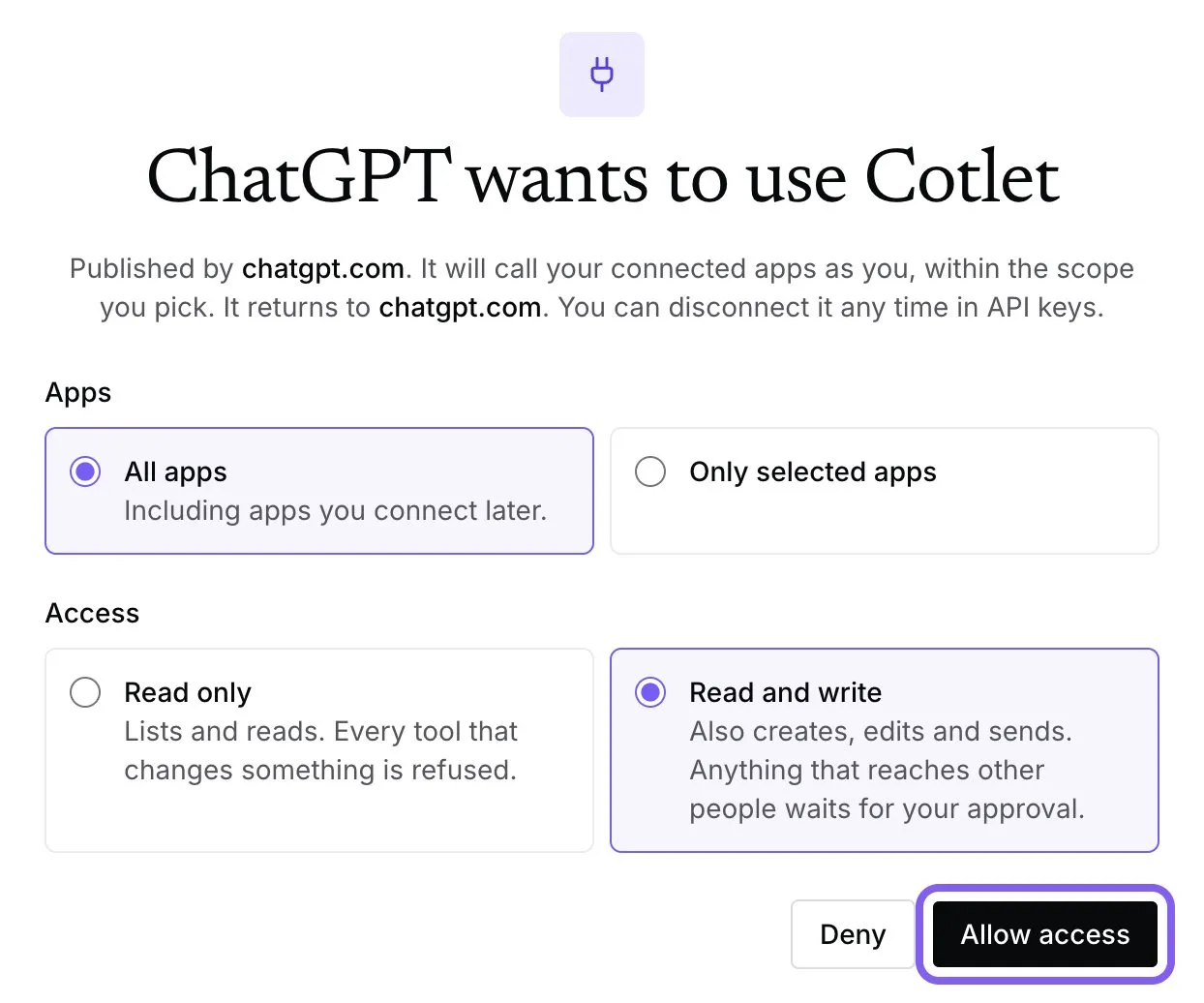
Cotlet consent page after you connect it in ChatGPT, November 2026.
ChatGPT asks “Allow ChatGPT to use Cotlet?” before some steps. Pick Always allow, or the chat waits for your click. On a Business, Enterprise or Edu workspace, an admin has to allow custom MCP servers first.
How to connect Pixieset to Claude
- Open Connectors in Claude and click Add. In the desktop app it is under Customize, Connectors.
- Click Add custom connector.
- Paste the name
Cotletand the URLhttps://cotlet.dev/mcp/v1/connect, then click Continue. - Keep the settings and click Add.
- A Cotlet page opens. Click Allow access.
- In a chat, click the plus button, then Connectors, and turn Cotlet on.
- Ask Claude: “Are you signed in to Cotlet through MCP?”, then “Which Pixieset galleries from last month have favorites from the client, and how many?”. Claude asks before it uses a Cotlet tool the first time. Click Allow.
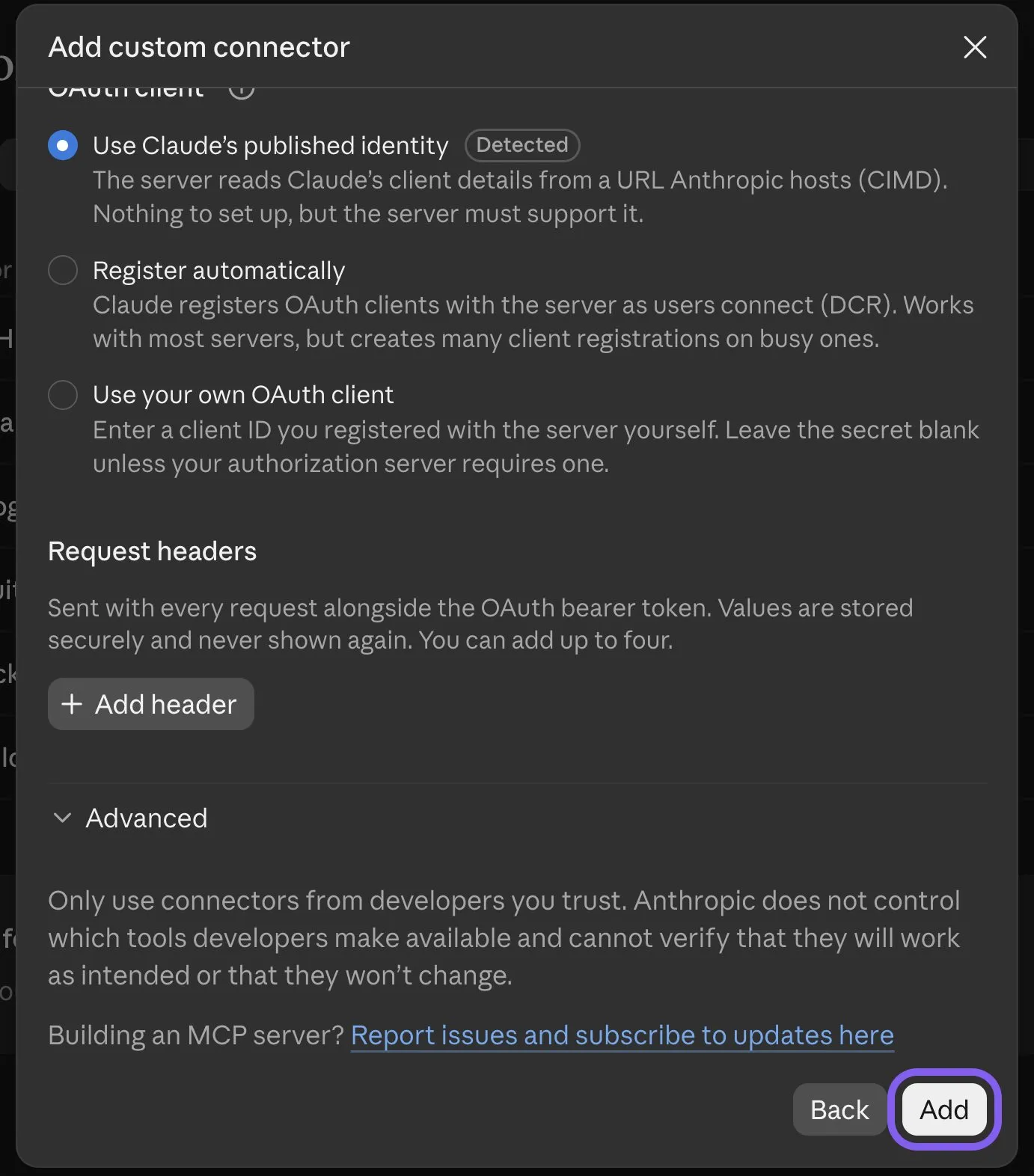
Claude, Add custom connector, last screen, November 2026.
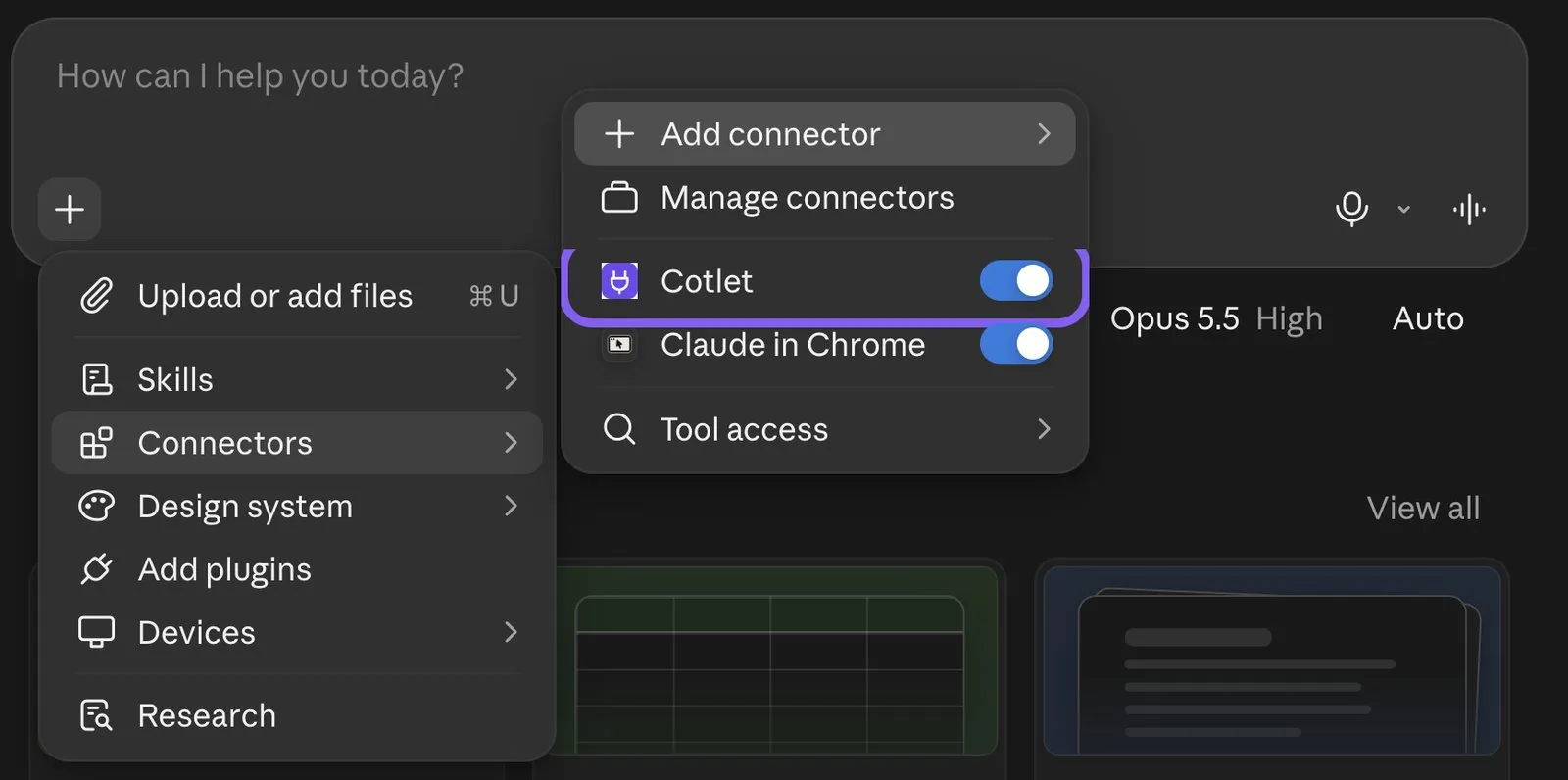
Claude, chat menu, Connectors, November 2026.
Claude’s free plan allows one custom connector. On a Team or Enterprise plan, an owner adds Cotlet in Organization settings, Connectors, and you click Connect next to it.
How to connect Pixieset to Claude Code
Add Cotlet without a key, then sign in once in the browser:
claude mcp add --transport http cotlet https://cotlet.dev/mcp/v1/connectRun /mcp in Claude Code, pick cotlet and sign in to Cotlet. Prefer an API key, for example on a server? Create one in the Cotlet console and use:
claude mcp add --transport http cotlet https://cotlet.dev/mcp/v1 \
  --header "Authorization: Bearer $COTLET_API_KEY"
How to connect Pixieset to Codex
Create an API key in the Cotlet console, put it in the COTLET_API_KEY environment variable and add this to ~/.codex/config.toml:
[mcp_servers.cotlet]
url = "https://cotlet.dev/mcp/v1"
bearer_token_env_var = "COTLET_API_KEY"
How to connect Pixieset to Cursor
Create an API key in the Cotlet console, put it in the COTLET_API_KEY environment variable and add this to ~/.cursor/mcp.json:
{
  "mcpServers": {
    "cotlet": {
      "url": "https://cotlet.dev/mcp/v1",
      "headers": { "Authorization": "Bearer ${env:COTLET_API_KEY}" }
    }
  }
}
How to connect Pixieset to Grok
Grok takes custom MCP servers on grok.com, per xAI’s connectors documentation (checked 8 November 2026).
- Open grok.com/connectors and click New Connector.
- Pick Custom and paste the server URL
https://cotlet.dev/mcp/v1/connect. - Sign in to Cotlet when Grok asks, then click Allow access.
- Ask Grok: “Are you signed in to Cotlet through MCP?”
On Grok Business, an admin adds the connector first in the xAI console, under Grok Business, Connectors. The Grok chat inside X has no custom connector menu.
How to connect Pixieset to Hermes Agent
Add Cotlet to ~/.hermes/config.yaml in the format of the Hermes MCP config reference:
mcp_servers:
  cotlet:
    url: "https://cotlet.dev/mcp/v1"
    headers:
      Authorization: "Bearer ${COTLET_API_KEY}"
    trust: untrusted
Put COTLET_API_KEY in ~/.hermes/.env and check it with hermes mcp test cotlet. With trust: untrusted, Hermes runs reads at once and asks before every write. More on Hermes in our post on the Hermes Agent browser.
How to connect Pixieset to n8n
Use the MCP Client node, or the MCP Client Tool inside an AI Agent node:
- Server Transport: HTTP Streamable
- MCP Endpoint URL:
https://cotlet.dev/mcp/v1 - Authentication: Bearer Auth, with your Cotlet API key as the token
- Tools: let the AI Agent node use Cotlet’s browser tools; it reads Cotlet’s Pixieset guide first and works in your logged-in Pixieset
Use it for work that should run on its own, such as a Sunday list of galleries delivered two weeks ago that nobody has downloaded.
Any other MCP client
Point the client at https://cotlet.dev/mcp/v1 over Streamable HTTP, with the header Authorization: Bearer <your Cotlet API key>. A client that supports OAuth sign-in can use https://cotlet.dev/mcp/v1/connect instead and needs no key. The full reference is in the MCP docs.
Three Pixieset jobs to try first
Start with last week’s delivery and look at the collection in Pixieset when the AI is done.
Set up a wedding gallery
Create a collection called Henderson Wedding dated 4 October, upload the photos from these Dropbox links, and tell me whether downloads need a PIN before you send anything.
The AI creates the collection, uploads the photos and reads the download settings back to you. The PIN question is not idle: Pixieset turns downloads on “with a 4-digit download PIN assigned to it” by default, per its download settings article. The AI puts the PIN in the invite, or turns it off if you say so, and sends the invite after your OK.
Find couples who never downloaded
Which galleries from the last 6 weeks has nobody downloaded? Give me the client names and send each a short reminder once I say OK.
The AI opens Download activity in each recent collection and lists the galleries with no downloads, then drafts one reminder per client. One caveat it flags for you: single-photo downloads appear there only “if the Single Photo Download Email Tracking option has been checked”, per Pixieset’s download activity article. An empty list without that option means nobody tracked, not nobody downloaded.
Replace a retainer invoice that was already paid
List my unpaid invoices, then cancel the Martinez retainer and create a corrected one for $1,200. Show me both before you change anything.
The AI lists open invoices in Studio Manager and prepares the correction. If Martinez already paid part of it online, the AI cannot edit it, because “If an invoice has received a payment through Pixieset Payments, Stripe, or PayPal, it cannot be edited”, per Pixieset’s invoice editing article. So it shows you the plan to cancel and reissue, and does it only after you agree.
Price
You pay Cotlet per use, with no subscription: credit packs from $29 that stay valid for 12 months. The first week is free, with no card. You are only charged for calls that work, and the pricing page lists the packs.
Pixieset keeps billing you as before. Cotlet does not need a higher Pixieset plan, only the screens your current plan already has.
FAQ
Does Pixieset have an official ChatGPT or Claude integration?
No. Pixieset lists a Lightroom plugin, a mobile app and an AI photo editor, but no ChatGPT app or Claude connector, as of November 2026. With Cotlet, ChatGPT or Claude can work in your Pixieset account anyway.
Is there a Pixieset API or MCP server?
Pixieset publishes neither, and its help center has no developer documentation. Cotlet hosts an MCP server for Pixieset that works through your logged-in Cloud Browser, so you add one URL to ChatGPT or Claude and nothing else.
Does Pixieset work with Zapier, Make or n8n?
Not natively. Zapier lists Pixieset as not yet supported and n8n has no Pixieset node. An n8n workflow can still reach Pixieset through Cotlet’s MCP server, as in the n8n guide above.
Can I get all my photos out of Pixieset with AI?
Your AI can read a collection’s download settings and links and hand you the gallery download, the same way you would. Pixieset has no bulk export API, so very large archives are faster with the download button on the collection.
Is this an official Pixieset integration?
No. Cotlet is independent and not affiliated with Pixieset. It works through your own signed-in Pixieset account, the way you would by hand.
Spend the evening editing, not chasing downloads
Your galleries can look after themselves a little more. Try Cotlet free, log in to Pixieset once in the Cloud Browser, and ask Claude which galleries nobody has downloaded yet. If you run other studio tools without an API, look for them in the integrations catalog.