How to connect ServiceSeeking to ChatGPT, Claude and any AI agent
ServiceSeeking has no API, MCP server or ChatGPT app for businesses (checked 25 Nov 2026). Let an AI agent quote your leads and chase replies anyway.
Cotlet team 11 min read
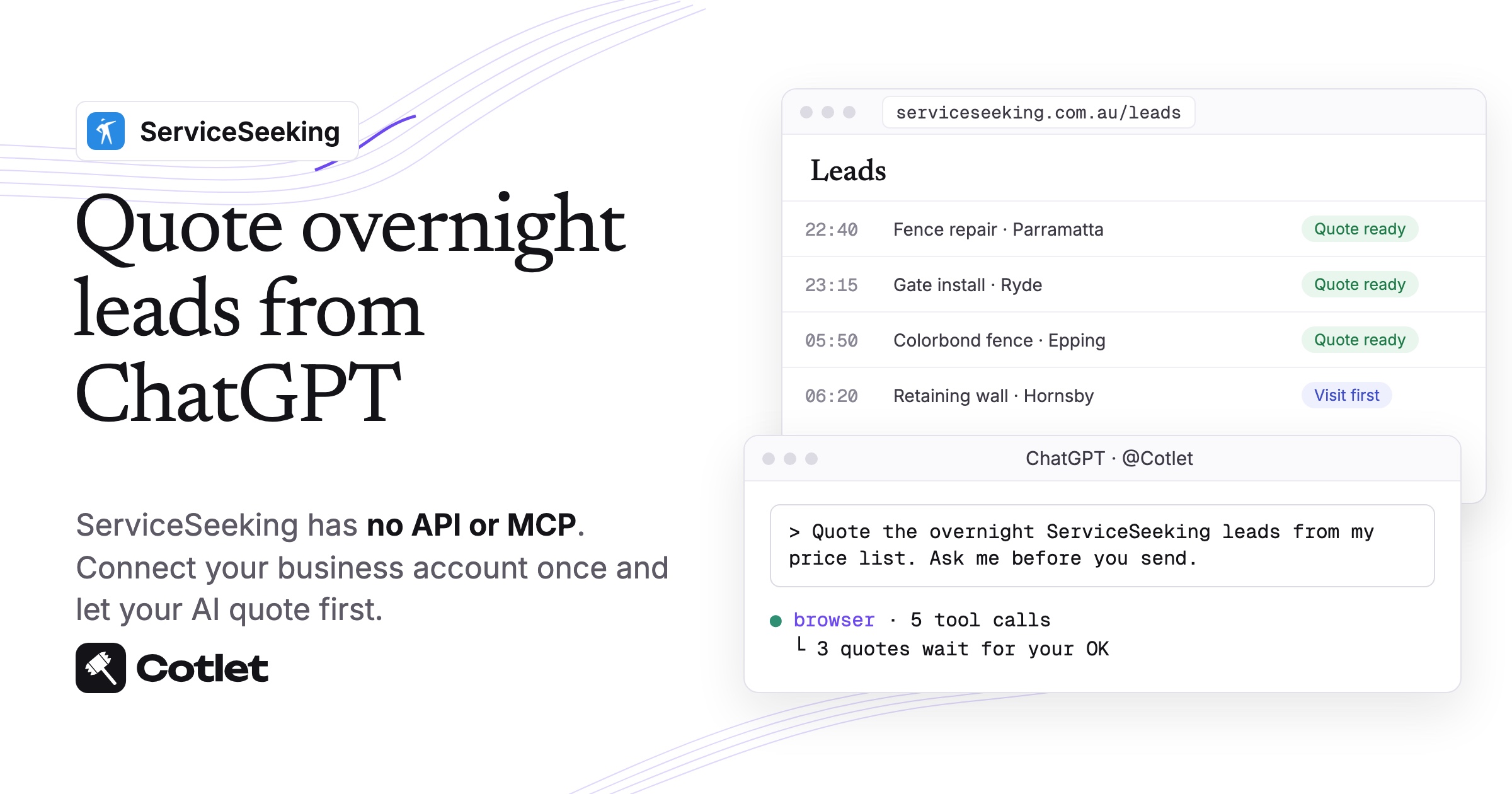
A business on ServiceSeeking gets no public API, no official MCP server and no ChatGPT or Claude connector; we checked all three on 25 November 2026. The business account can still be put in front of ChatGPT, Claude or another AI agent. Cotlet opens ServiceSeeking in a Cloud Browser that belongs to you, you sign in there once as a business, and your AI then works in the Leads, Quotes and Messages screens for you. The setup is a ten minute job with no code.
The people who search for this run a fencing, landscaping, cleaning or building business in Australia and pay ServiceSeeking a monthly membership. Leads land at 10 pm and at 5 am, and the first decent quote usually wins. Cotlet is for the owner or the office person who handles that account and wants an AI to keep the quotes moving. Customers who post a job keep using ServiceSeeking’s own customer app as before.
What ChatGPT and Claude can do in ServiceSeeking once connected
You type what you want, and the AI clicks through your ServiceSeeking business account:
| ServiceSeeking screen | What the AI handles for you |
|---|---|
| Leads | Lists new leads with the job, suburb, timing and photos, and flags the ones you have not quoted |
| Quotes | Sends a quote with your price and message, lists quotes with no reply, counts quotes won |
| Messages | Reads unanswered customer chats and drafts a reply to each |
| Profile | Drafts a new intro or adds a service to your listing |
A quote, a chat message and a profile change all reach customers, so each one waits for your OK. Reading leads, counting quotes or drafting a reply sends nothing.
How each of these works, and what it needs, is on the ServiceSeeking API and MCP server page.
Does ServiceSeeking have AI, an API or an official ChatGPT app?
ServiceSeeking keeps everything inside its own app and site. Checked on 25 November 2026:
- No API for businesses. serviceseeking.com.au publishes no API, developer docs, webhooks or data export for a member’s leads, quotes or chats.
- No MCP server or AI app. The official MCP Registry has no ServiceSeeking entry, and we found no ServiceSeeking app in ChatGPT or Claude.
- Absent from automation tools. Search Zapier, Make or n8n for ServiceSeeking and you get nothing.
- A phone app for members. The Service Seeking for Business app gives lead alerts, customer chats and quoting from the phone. It counts “over 5 million jobs listed and more than 20 million quotes sent by 120,000 businesses”.
With no API and no connector, an AI can only reach your leads through a signed-in account. A hosted MCP server is that route today. If ServiceSeeking ever releases an API for members, switch to it.
Get these ready before you connect
- The email and password of your ServiceSeeking business login, not a customer login. The sign-in page splits them.
- An active membership, so the Leads and Quotes screens have something in them.
- Your price list or usual rates in a note. The AI quotes from it.
- ChatGPT or Claude. On Claude’s free plan you get one custom connector, and Cotlet needs only that one.
- A Cotlet account, free for the first 7 days with no card (pricing).
Step 1: sign in to ServiceSeeking in your Cloud Browser
The Cotlet console has a Cloud Browser button. Use it, type serviceseeking.com.au/users/sign_in and choose Log in as Business. Email and password go into ServiceSeeking’s form, and the leads list appears.
Only ServiceSeeking ever holds that password, since nothing in the Cloud Browser stores one. While you are on the tools, your logged-in profile waits encrypted under AES-256-GCM. A session that ServiceSeeking closes makes the agent stop and message you a link to log back in. Read more on the security page.
Step 2: connect ServiceSeeking to ChatGPT, Claude or another AI agent
Which assistant will quote for you? The panels below cover ChatGPT, Claude, Claude Code, Codex, Cursor, Grok, Hermes Agent and n8n, and any MCP client can use the same address.
Pick your AI above to see its steps.
How to connect ServiceSeeking to ChatGPT
Do this on chatgpt.com in your browser. Cotlet then works in the ChatGPT desktop and phone apps too.
- Open Plugins in ChatGPT and click Add.
- Click Add custom MCP server. Not in the menu? Turn on Developer mode in Settings, Security and login, then come back.
- Paste the name
Cotletand the server URLhttps://cotlet.dev/mcp/v1/connect. Keep Authentication on OAuth. - Tick “I understand and want to continue” and click Create as a plugin.
- Click Connect Cotlet. A Cotlet page opens, click Allow access.
- In a new chat, type
@Cotletand pick it from the list. - Ask ChatGPT: “Are you signed in to Cotlet through MCP?” Then try a first ServiceSeeking task: “List my new ServiceSeeking leads with the job and suburb.”
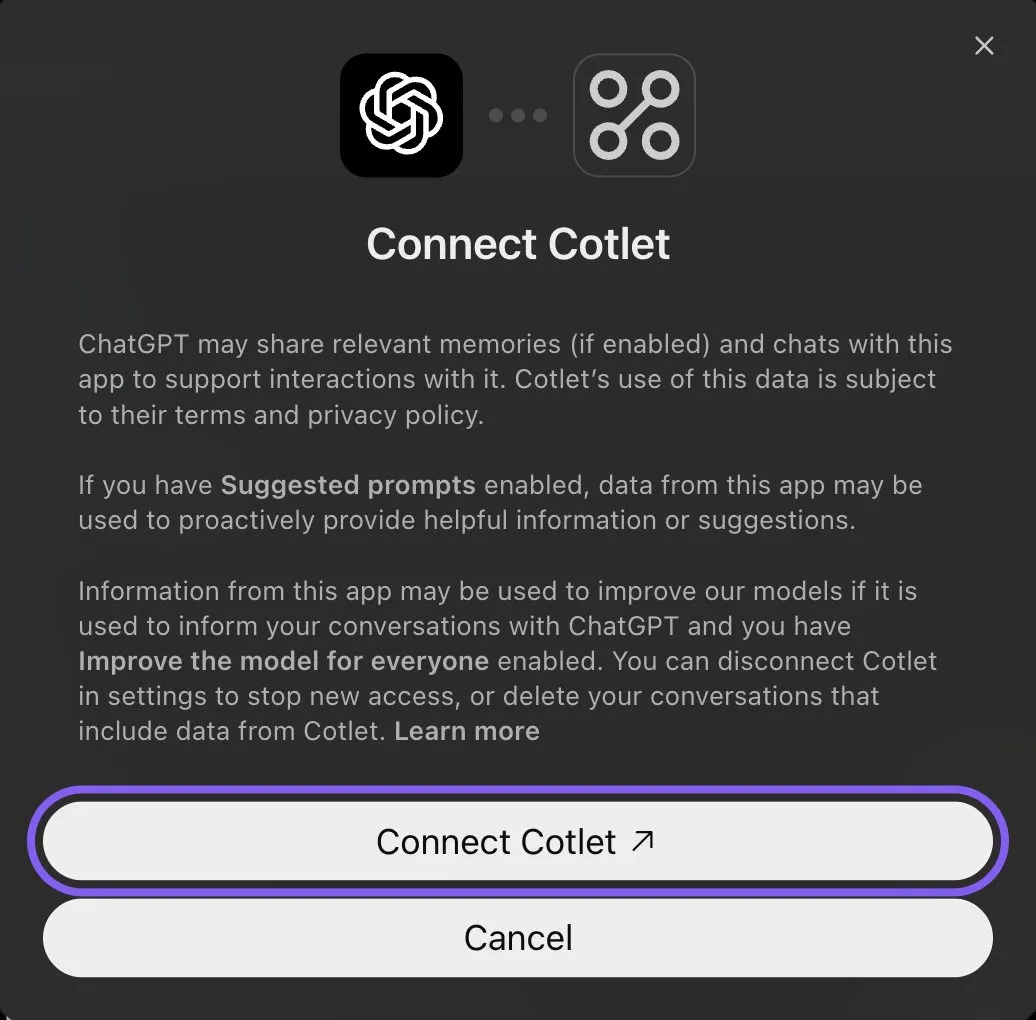
ChatGPT, connecting the Cotlet plugin, November 2026.
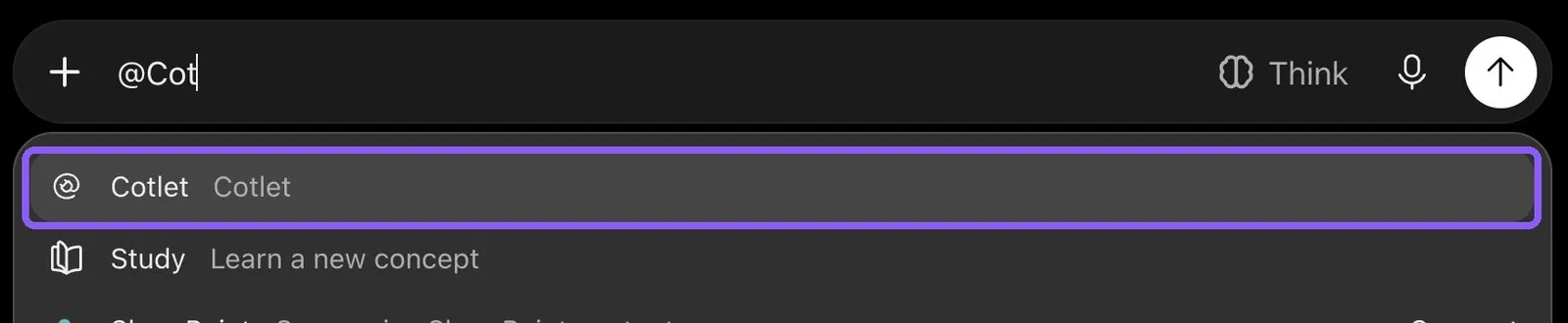
ChatGPT, picking Cotlet in a new chat with @, November 2026.
ChatGPT asks “Allow ChatGPT to use Cotlet?” before some steps. Pick Always allow, or the chat waits for your click. On a Business, Enterprise or Edu workspace, an admin has to allow custom MCP servers first.
How to connect ServiceSeeking to Claude
- Open Connectors in Claude and click Add. In the desktop app it is under Customize, Connectors.
- Click Add custom connector.
- Paste the name
Cotletand the URLhttps://cotlet.dev/mcp/v1/connect, then click Continue. - Keep the settings and click Add.
- A Cotlet page opens. Click Allow access.
- In a chat, click the plus button, then Connectors, and turn Cotlet on.
- Ask Claude: “Are you signed in to Cotlet through MCP?”, then “Which ServiceSeeking quotes have had no reply this week?”. Claude asks before it uses a Cotlet tool the first time. Click Allow.
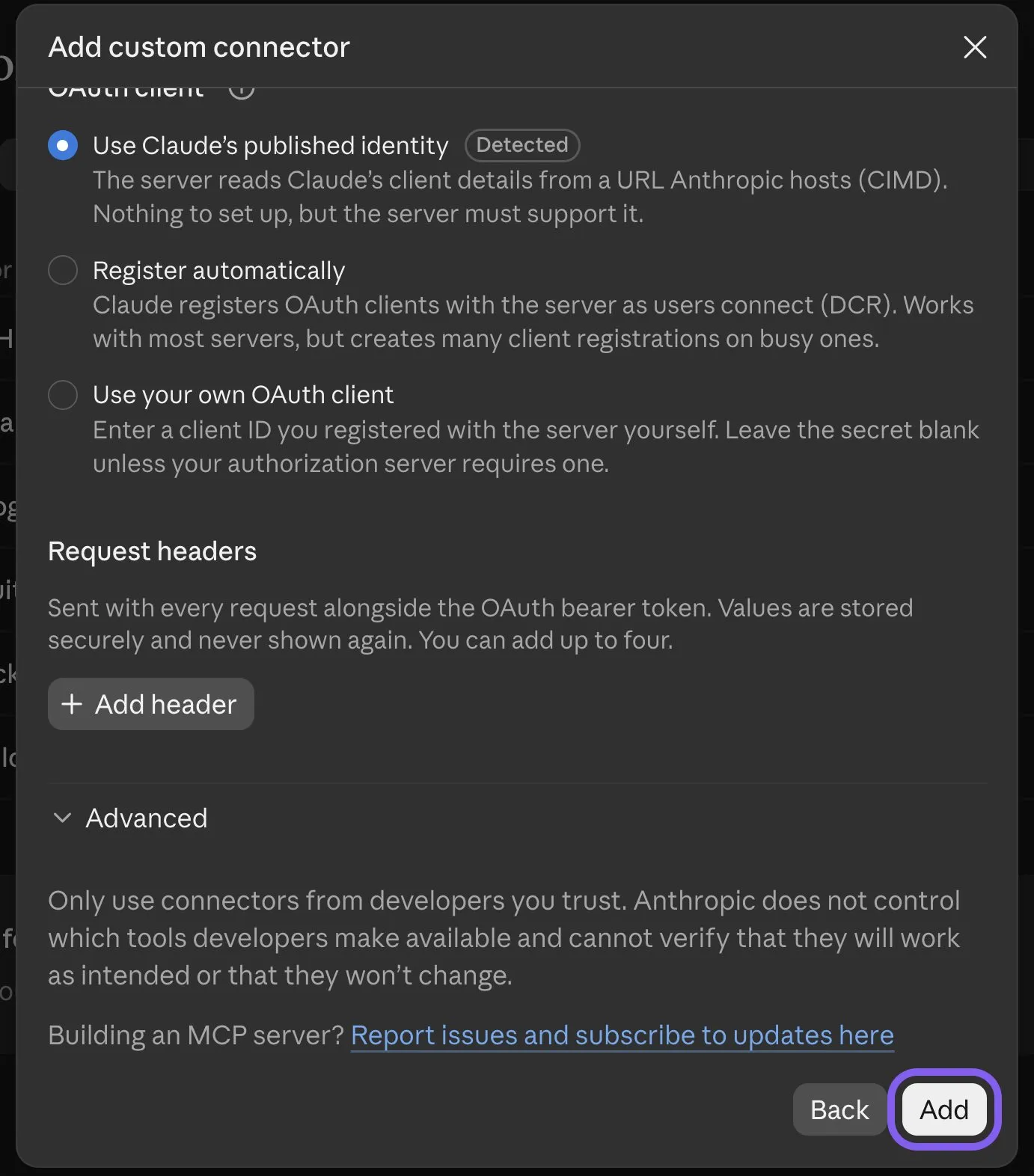
Claude, Add custom connector, last screen, November 2026.
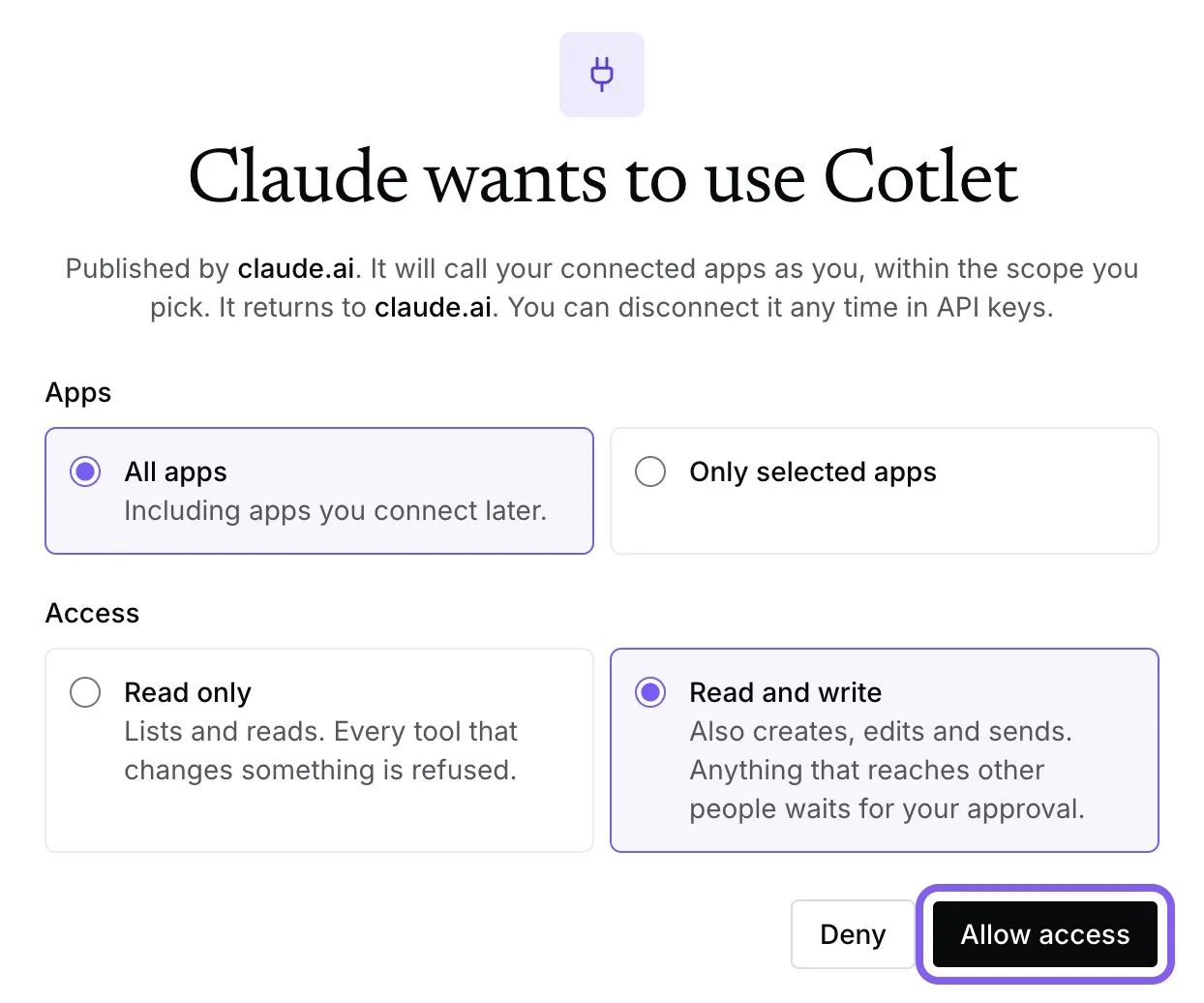
Cotlet consent page after you add the connector in Claude, November 2026.
Claude’s free plan allows one custom connector. On a Team or Enterprise plan, an owner adds Cotlet in Organization settings, Connectors, and you click Connect next to it.
How to connect ServiceSeeking to Claude Code
Add Cotlet without a key, then sign in once in the browser:
claude mcp add --transport http cotlet https://cotlet.dev/mcp/v1/connectRun /mcp in Claude Code, pick cotlet and sign in to Cotlet. Prefer an API key, for example on a server? Create one in the Cotlet console and use:
claude mcp add --transport http cotlet https://cotlet.dev/mcp/v1 \
  --header "Authorization: Bearer $COTLET_API_KEY"
How to connect ServiceSeeking to Codex
Create an API key in the Cotlet console, put it in the COTLET_API_KEY environment variable and add this to ~/.codex/config.toml:
[mcp_servers.cotlet]
url = "https://cotlet.dev/mcp/v1"
bearer_token_env_var = "COTLET_API_KEY"
How to connect ServiceSeeking to Cursor
Create an API key in the Cotlet console, put it in the COTLET_API_KEY environment variable and add this to ~/.cursor/mcp.json:
{
  "mcpServers": {
    "cotlet": {
      "url": "https://cotlet.dev/mcp/v1",
      "headers": { "Authorization": "Bearer ${env:COTLET_API_KEY}" }
    }
  }
}
How to connect ServiceSeeking to Grok
Grok takes custom MCP servers on grok.com, per xAI’s connectors documentation (checked 8 November 2026).
- Open grok.com/connectors and click New Connector.
- Pick Custom and paste the server URL
https://cotlet.dev/mcp/v1/connect. - Sign in to Cotlet when Grok asks, then click Allow access.
- Ask Grok: “Are you signed in to Cotlet through MCP?”
On Grok Business, an admin adds the connector first in the xAI console, under Grok Business, Connectors. The Grok chat inside X has no custom connector menu.
How to connect ServiceSeeking to Hermes Agent
Add Cotlet to ~/.hermes/config.yaml in the format of the Hermes MCP config reference:
mcp_servers:
  cotlet:
    url: "https://cotlet.dev/mcp/v1"
    headers:
      Authorization: "Bearer ${COTLET_API_KEY}"
    trust: untrusted
Put COTLET_API_KEY in ~/.hermes/.env and check it with hermes mcp test cotlet. With trust: untrusted, Hermes runs reads at once and asks before every write. More on Hermes in our post on the Hermes Agent browser.
How to connect ServiceSeeking to n8n
Use the MCP Client node, or the MCP Client Tool inside an AI Agent node:
- Server Transport: HTTP Streamable
- MCP Endpoint URL:
https://cotlet.dev/mcp/v1 - Authentication: Bearer Auth, with your Cotlet API key as the token
- Tools: let the AI Agent node use Cotlet’s browser tools; it reads Cotlet’s ServiceSeeking guide first and works in your signed-in business account
Use it for work that should run on its own, such as a 6 am list of overnight ServiceSeeking leads, each with a draft quote waiting for your approval.
Any other MCP client
Point the client at https://cotlet.dev/mcp/v1 over Streamable HTTP, with the header Authorization: Bearer <your Cotlet API key>. A client that supports OAuth sign-in can use https://cotlet.dev/mcp/v1/connect instead and needs no key. The full reference is in the MCP docs.
Start with one of these on a quiet evening, then check the result in the Service Seeking for Business app.
Quote the overnight leads before you leave the house
Read the ServiceSeeking leads that came in overnight. Quote each from my price list below, put any job that needs a site visit on a separate list, and wait for my OK before you send.
A lead posted at 11 pm is seen first by whoever opens the app at 6 am. The AI reads every new lead with its photos, prices the clear ones from your list and keeps the vague ones aside. You get the quotes as a short list over breakfast and approve them in one reply. That beats typing three quotes on a phone screen in the ute.
Follow up quotes that went quiet
Which of my ServiceSeeking quotes have had no reply for two days? Draft a friendly follow-up for each, mentioning the job, and show me before sending.
Customers collect several quotes and go silent. The Quotes screen shows what you sent, not who still needs a nudge. The AI checks each quote for a customer reply, picks the quiet ones and writes a two line follow-up per customer. You approve, and the messages go out in each chat.
See what your membership earned this month
How many quotes did I send on ServiceSeeking this month, how many did I win, and which job types won most?
ServiceSeeking sells “Monthly Memberships with unlimited quotes. No pay per lead or commissions”, per its registration page. With unlimited quotes, the number that matters is how many turn into work. The AI counts quotes and wins from your account and groups them by job type. It only reads, so nothing asks for approval.
Credits and your membership
Your ServiceSeeking membership stays exactly as it is. Cotlet bills separately, in credits bought as one-off packs: $29 buys 5,000 credits that last 12 months. A completed call costs 10 credits and a failed one costs nothing. On days when ServiceSeeking is enabled for agents, the Cloud Browser adds 50 credits. New accounts run free for a week without a card. Details: pricing.
FAQ
Is there a ServiceSeeking MCP server?
ServiceSeeking has no official MCP server, and the MCP Registry lists none (checked 25 November 2026). Cotlet hosts one at https://cotlet.dev/mcp/v1/serviceseeking that works in your own signed-in business account, with ChatGPT, Claude or any MCP client.
Does ServiceSeeking have an API for developers?
Not for members. serviceseeking.com.au has no API, developer documentation or webhooks for a business’s leads, quotes or chats, as of 25 November 2026.
Can I connect ServiceSeeking to Claude?
Yes. Add Cotlet as a custom connector in Claude with the Claude guide in step 2, switch it on in your chat, and ask about your leads or quotes in plain words.
Can the AI log in with my customer account instead?
No. Cotlet works in the account you sign in to, and the leads and quotes live in the business account. Use Log in as Business in step 1.
Who is behind Cotlet?
Cotlet is an independent company, not part of ServiceSeeking. Your agent works through your own business login, in a browser only your account uses.
Have tomorrow’s overnight leads quoted by 6 am
Your membership already pays for unlimited quotes. Let an agent send more of them, sooner. Start with Cotlet, sign in to ServiceSeeking once and connect ChatGPT or Claude. Using hipages or Tradify too? They are in the integrations catalog.