How to connect Skool to ChatGPT, Claude and any AI agent
No official Skool MCP or ChatGPT/Claude connector (checked 12 Nov 2026); its API key serves Pro Zapier plugins. Use Cotlet for join requests and posts.
Cotlet team 11 min read
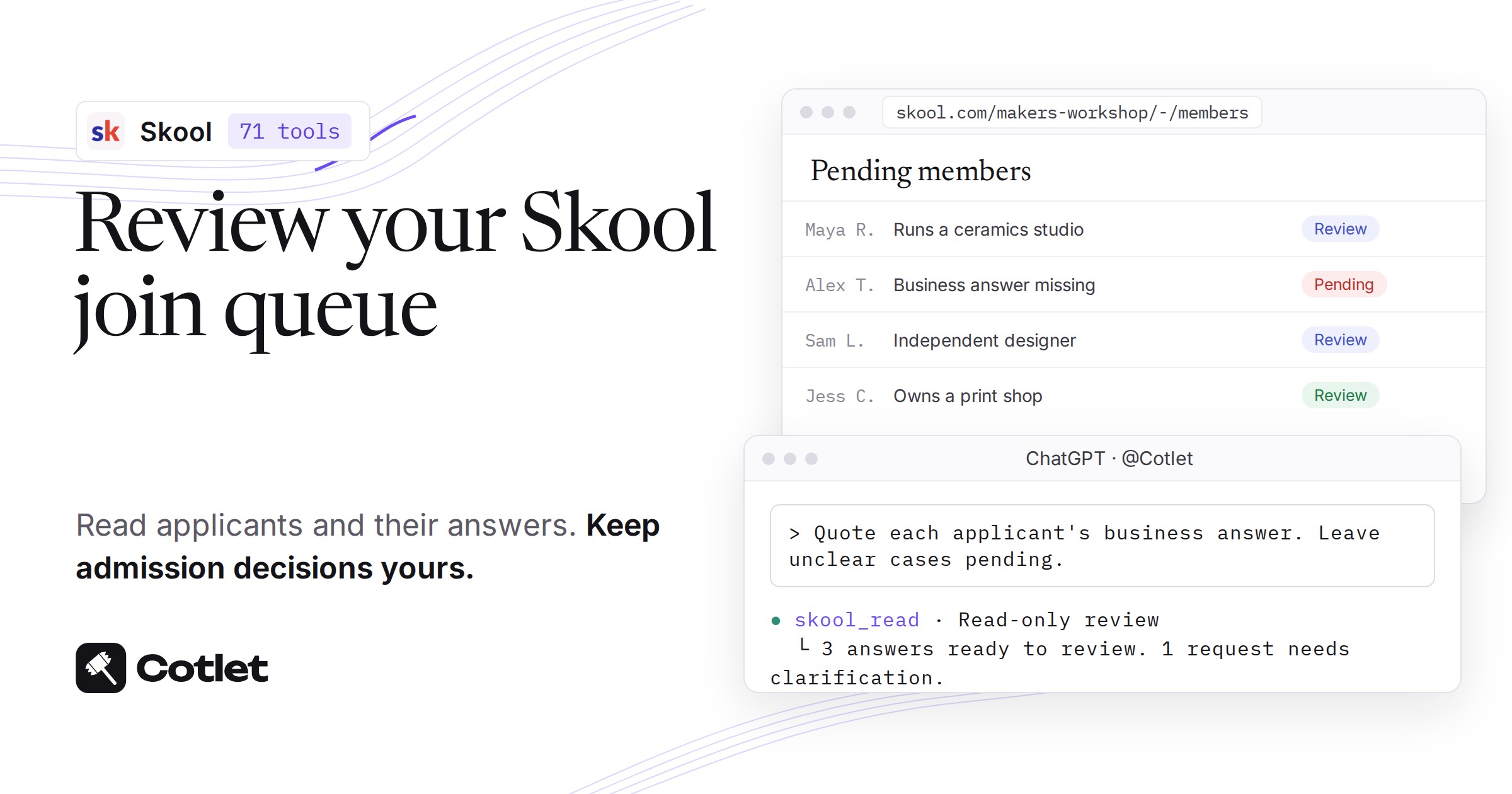
Skool’s checked vendor guides list no official MCP server or ChatGPT/Claude connector (checked 12 November 2026). Its API key comes with the Pro plan’s Zapier plugin and serves only that workflow: the Zapier guide documents two triggers and two actions. To connect Skool to ChatGPT, Claude or another AI agent for membership reviews, posts and messages, sign in to your group in Cotlet’s Cloud Browser, then add Cotlet to your assistant. Its 71 Skool tools work through the screens of your own account.
This guide is for the person running the community: a course creator reviewing applicants, a moderator catching unanswered questions or an owner preparing the next challenge. A member who only wants to take a course can use Skool directly. Your group’s admission criteria and editorial decisions remain yours; the useful handoff is gathering the evidence and doing the approved work.
What ChatGPT and Claude can do in Skool once connected
Give the assistant a group name and a bounded job. An instruction such as “check my community” leaves too much undefined; “show pending applicants and quote their answers” produces a review you can use.
| Group work | A concrete handoff |
|---|---|
| Membership requests | Read applicants and their Membership Questions answers |
| Admission | Approve or decline the requests you select |
| Feed | Find posts, prepare a challenge and publish the approved text |
| Pinned posts | Pin the current announcement and review the previous one |
| Members | Look up a member before changing access |
| Messages | Draft and send a welcome message to a named member |
Calls marked Asks first wait for approval by default; you can disable confirmation per tool in Cotlet. Read the proposed recipient, group and text before approving a message or post. The Skool integration page lists the actual tools and their inputs.
Does Skool have AI, an API or an official ChatGPT app?
Skool’s checked vendor guides list no official MCP server or ChatGPT/Claude connector (checked 12 Nov 2026). Its API key is available through Pro plugins for the supported Zapier workflow. Cotlet runs a hosted Skool MCP server, https://cotlet.dev/mcp/v1/skool, with 71 tools your agent uses in your own account.
- Zapier: the native integration sends paid-member information and membership answers, invites members and unlocks courses.
- Pro plugins: Instant membership approval admits applicants automatically; the invitation webhook sends an invitation after an outside event.
- Zapier MCP: Skool’s listing exposes the actions operated by Zapier.
Among these options, Cotlet gives your chosen AI read and write access through the Skool screens your account can use, without a Skool API key or a vendor plan upgrade.
Before the first moderation handoff
- Use an account with the group role needed for the task. Reviewing requests requires the permissions Skool gives an administrator or moderator.
- Decide the admission rule before opening the pending list. Include a way to leave ambiguous answers for you.
- Keep the exact group name in the prompt if your account belongs to several communities.
- Have ChatGPT, Claude or another MCP client ready, together with a Cotlet account.
Step 1: sign in to Skool in your Cloud Browser
Open Skool from the Cotlet console and sign in at skool.com/login. Enter the community as the same administrator or moderator you use for your regular work. Confirm that the Members and Community areas you need are visible before handing anything off.
Cotlet never stores your password. Your Cloud Browser keeps an encrypted profile, described on the security page. If Skool signs you out, reopen that browser from Cotlet and sign in again. Changing a password, account email or payment details stays with you.
Step 2: connect Skool to ChatGPT, Claude or another AI agent
Choose the assistant where you already write your community briefs. Connect it once, then start with the read-only applicant prompt before asking for any admission changes.
Pick your AI above to see its steps.
How to connect Skool to ChatGPT
Do this on chatgpt.com in your browser. Cotlet then works in the ChatGPT desktop and phone apps too.
- Open Plugins in ChatGPT and click Add.
- Click Add custom MCP server.
- Paste the name
Cotletand the server URLhttps://cotlet.dev/mcp/v1/connect. Keep Authentication on OAuth. - Tick “I understand and want to continue” and click Create as a plugin.
- Click Connect Cotlet. A Cotlet page opens, click Allow access.
- In a new chat, type
@Cotletand pick it from the list. - Ask ChatGPT: “Are you signed in to Cotlet through MCP?” Then try a first Skool task: “In my Makers Workshop Skool group, list pending applicants and quote their membership answers. Leave every decision pending.”
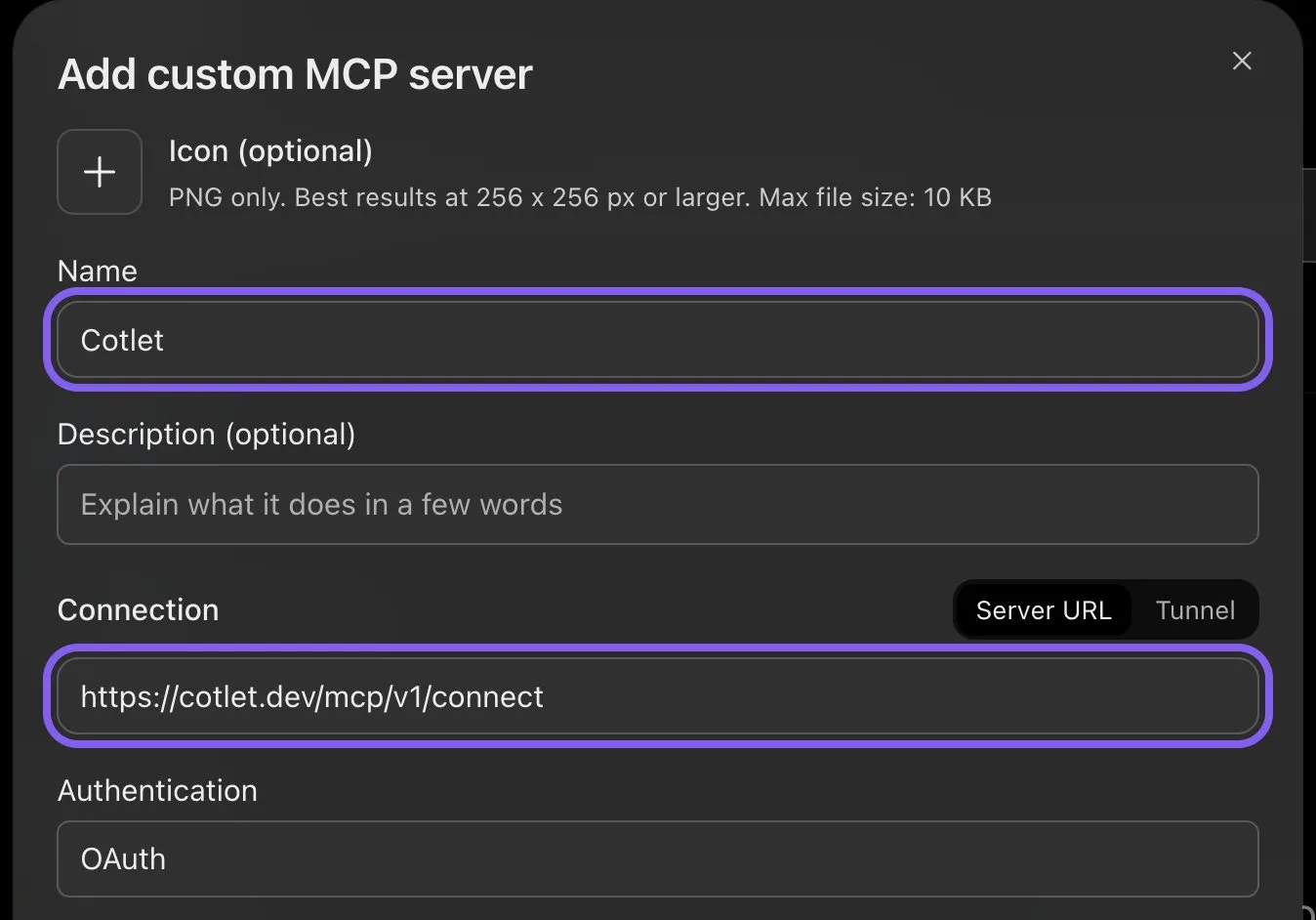
ChatGPT, Add custom MCP server form, November 2026.
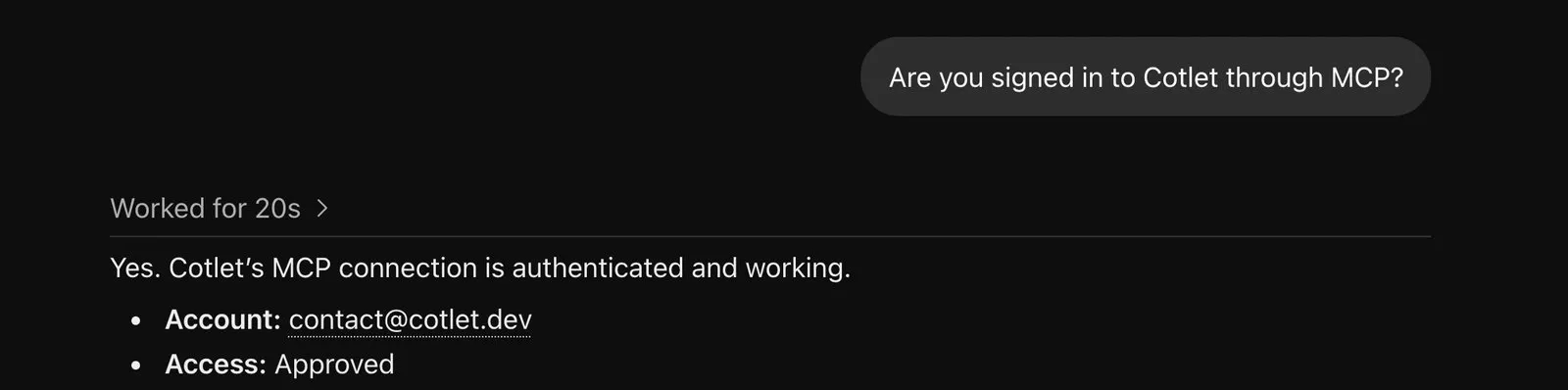
ChatGPT confirming the Cotlet connection, November 2026.
ChatGPT asks “Allow ChatGPT to use Cotlet?” before some steps. Pick Always allow, or the chat waits for your click. On a Business, Enterprise or Edu workspace, an admin has to allow custom MCP servers first.
How to connect Skool to Claude
- Open Connectors in Claude and click Add. In the desktop app it is under Customize, Connectors.
- Click Add custom connector.
- Paste the name
Cotletand the URLhttps://cotlet.dev/mcp/v1/connect, then click Continue. - Keep the settings and click Add.
- A Cotlet page opens. Click Allow access.
- In a chat, click the plus button, then Connectors, and turn Cotlet on.
- Ask Claude: “Are you signed in to Cotlet through MCP?”, then “Read unanswered questions in my Makers Workshop Skool group from this week and draft replies without posting them.”. Claude asks before it uses a Cotlet tool the first time. Click Allow.

Claude, Customize, Connectors, Add menu, November 2026.
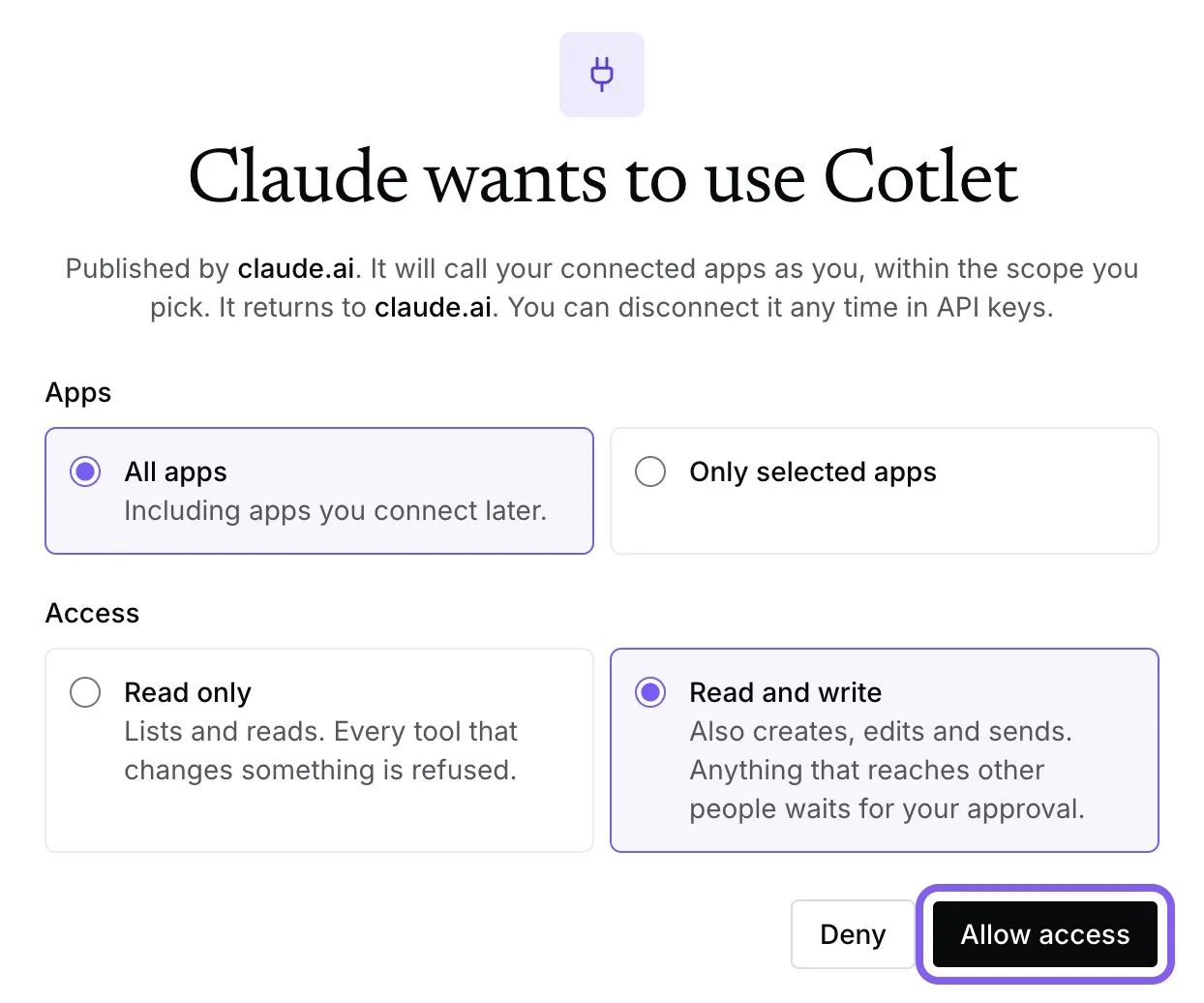
Cotlet consent page after you add the connector in Claude, November 2026.
Claude’s free plan allows one custom connector. On a Team or Enterprise plan, an owner adds Cotlet in Organization settings, Connectors, and you click Connect next to it.
How to connect Skool to Claude Code
Add Cotlet without a key, then sign in once in the browser:
claude mcp add --transport http cotlet https://cotlet.dev/mcp/v1/connectRun /mcp in Claude Code, pick cotlet and sign in to Cotlet. Prefer an API key, for example on a server? Create one in the Cotlet console and use:
claude mcp add --transport http cotlet https://cotlet.dev/mcp/v1 \
  --header "Authorization: Bearer $COTLET_API_KEY"
How to connect Skool to Codex
Create an API key in the Cotlet console, put it in the COTLET_API_KEY environment variable and add this to ~/.codex/config.toml:
[mcp_servers.cotlet]
url = "https://cotlet.dev/mcp/v1"
bearer_token_env_var = "COTLET_API_KEY"
How to connect Skool to Cursor
Create an API key in the Cotlet console, put it in the COTLET_API_KEY environment variable and add this to ~/.cursor/mcp.json:
{
  "mcpServers": {
    "cotlet": {
      "url": "https://cotlet.dev/mcp/v1",
      "headers": { "Authorization": "Bearer ${env:COTLET_API_KEY}" }
    }
  }
}
How to connect Skool to Grok
Grok takes custom MCP servers on grok.com, per xAI’s connectors documentation (checked 8 November 2026).
- Open grok.com/connectors and click New Connector.
- Pick Custom and paste the server URL
https://cotlet.dev/mcp/v1/connect. - Sign in to Cotlet when Grok asks, then click Allow access.
- Ask Grok: “Are you signed in to Cotlet through MCP?”
On Grok Business, an admin adds the connector first in the xAI console, under Grok Business, Connectors. The Grok chat inside X has no custom connector menu.
How to connect Skool to Hermes Agent
Add Cotlet to ~/.hermes/config.yaml in the format of the Hermes MCP config reference:
mcp_servers:
  cotlet:
    url: "https://cotlet.dev/mcp/v1"
    headers:
      Authorization: "Bearer ${COTLET_API_KEY}"
    trust: untrusted
Put COTLET_API_KEY in ~/.hermes/.env and check it with hermes mcp test cotlet. With trust: untrusted, Hermes runs reads at once and asks before every write. More on Hermes in our post on the Hermes Agent browser.
How to connect Skool to n8n
Use the MCP Client node, or the MCP Client Tool inside an AI Agent node:
- Server Transport: HTTP Streamable
- MCP Endpoint URL:
https://cotlet.dev/mcp/v1 - Authentication: Bearer Auth, with your Cotlet API key as the token
Use
skool_readfor group records andskool_writefor approved changes.
Every Tuesday, prepare a private list of Skool applicants whose membership answers need an owner decision. Do not admit anyone automatically.
Any other MCP client
Point the client at https://cotlet.dev/mcp/v1 over Streamable HTTP, with the header Authorization: Bearer <your Cotlet API key>. A client that supports OAuth sign-in can use https://cotlet.dev/mcp/v1/connect instead and needs no key. The full reference is in the MCP docs.
Three Skool jobs to try first
Review applicants against the answers they gave
In my Makers Workshop group, list pending membership requests. Quote each answer about the applicant’s business. Recommend a decision using my rule: they must name a business they run. Leave unclear cases pending. Do not approve or decline anyone yet.
The useful output is an applicant, the quoted answer and a reason. You can change the rule before a decision reaches the applicant. This addresses the distinction in Skool’s Instant approval guidance: admitting everybody is different from checking their answers. After reviewing the list, tell the assistant exactly which requests to approve. It should refresh the queue so that another moderator’s completed work is not repeated.
Prepare the next challenge and its pinned post
Find last week’s challenge in Makers Workshop. Draft this week’s announcement from my outline, and show me its category and text. After I approve it, publish it and pin it. Tell me which older challenge is still pinned.
The assistant reads the previous post before preparing the new one, which keeps links and terminology consistent. Give it the actual challenge instructions rather than asking it to invent a course promise. Publishing and pinning affect the community, so review the final text and destination. An earlier post that should remain visible can stay pinned; the assistant should not infer that every older announcement is obsolete.
Draft a welcome message with the member’s context
Look up the member I just admitted. Draft a short welcome message that answers their Membership Questions response and points to the Getting Started lesson. Show me the recipient and message before sending.
A useful welcome says where this person should begin. It does not make up a personal history or claim that you read work you have not seen. Check the member identity and lesson link, then approve the message. This gives you a repeatable onboarding task without treating every applicant as the same person.
Cost for a community owner
Your Skool subscription stays as it is. Cotlet uses credits separately: the pricing page lists a 7-day trial with no card required, and credit packs starting at $29. Packs last 12 months and Cotlet has no subscription. The work you request determines credit use; a feed audit and a single welcome message are different jobs.
FAQ
Is there an official Skool app for ChatGPT or Claude?
No. Skool’s checked guides list no official MCP server or ChatGPT/Claude connector (checked 12 Nov 2026). Cotlet is independent and is not affiliated with Skool; you add it as a custom connector and work in your signed-in group.
Does Skool have an API or an MCP server?
Skool’s Pro plugin provides an API key for the supported Zapier actions, not a general public API, and Cotlet hosts https://cotlet.dev/mcp/v1/skool with 71 tools (checked 12 Nov 2026). The vendor lists the supported Zapier triggers and actions. A Zapier MCP listing has its own tool coverage and setup; it is not Skool’s own general server.
Can Zapier, Make or n8n automate Skool?
Partly. The Zapier plugin sends paid-member data and membership answers, invites members and unlocks courses; it does not list approving requests based on their answers. Make’s Skool app has one partner-maintained action, Invite a New Member. No official n8n node was found in the sources checked for this guide, and Instant approval is a separate plugin that admits applicants without review.
Can a moderator use the applicant workflow?
Use the permissions Skool gives that moderator in the chosen group. The assistant cannot gain an administrator-only capability by changing the prompt. If a required action is absent for that role, an owner must do it or grant the appropriate access in Skool.
Give the next queue a clear rule
Start with a request for evidence, then approve the changes you want. Connect your Skool account and ask your assistant to quote the pending applicants’ answers before it makes its first decision. Your community keeps its standards while the routine review becomes work you can hand off.