How to connect Trainerize to ChatGPT, Claude and AI agents
Trainerize describes an official FitMetrics MCP for ChatGPT and Claude (12 Nov 2026); API access needs Studio, Enterprise or FitMetrics. Compare Cotlet.
Cotlet team 11 min read
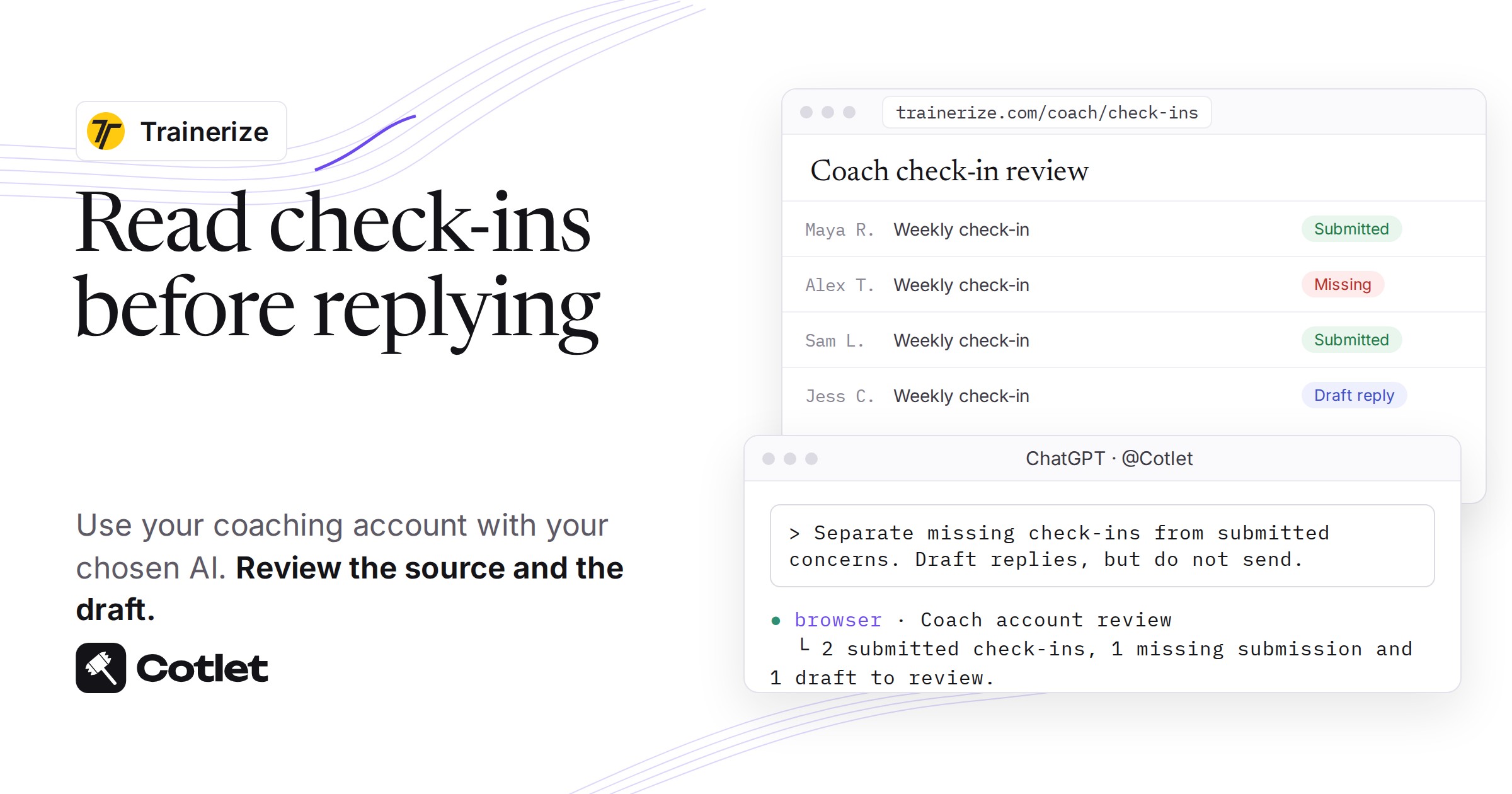
Trainerize describes a FitMetrics MCP connection for ChatGPT and Claude in its November update, checked 12 November 2026, for client and business workflows. API and webhook access depends on a Studio, Enterprise or FitMetrics entitlement, according to its API guide. To connect Trainerize through Cotlet instead, sign in with your coach account in your Cloud Browser and add Cotlet to your assistant; its 14 Trainerize tools work through your own account’s screens. This guide helps you compare the documented routes before handing over check-ins, program admin or appointments.
The reader here is the coach running a roster, not a client logging a workout. You may already have a useful assistant for explaining a training block. The next question is whether it can read the right client records and do the admin inside your actual coaching account. Cotlet is for the coach or studio operator who wants to delegate that account work from the AI they already use.
What ChatGPT and Claude can do in Trainerize once connected
Use the client’s name or identifier and the period you mean. “Check progress” should become a defined review of the check-ins, messages or records the account can access. A request to prepare a reply is different from permission to send it.
| Coaching admin | A useful instruction |
|---|---|
| Roster | Find clients matching the status you specify |
| Check-ins | Review submissions and draft your response |
| Progress | Read the recorded entries for a defined period |
| Programs | Review the current assignment before proposing a replacement |
| Messages | Prepare a client-specific message for approval |
| Appointments | Review availability and the booking change you request |
The Trainerize API and MCP page explains the Cotlet route. It works through the screens your signed-in account can access. Calls marked Asks first wait for approval by default, and you can disable confirmation per tool. Keep clinical judgment, client consent and any account-level settings with the responsible person.
Does Trainerize have AI, an API or an official ChatGPT app?
Trainerize describes a FitMetrics MCP connection for ChatGPT and Claude in its November announcement, checked 12 Nov 2026. Its API and webhooks have access conditions for Studio, Enterprise and FitMetrics. Cotlet runs a hosted Trainerize MCP server, https://cotlet.dev/mcp/v1/trainerize, with 14 tools your agent uses in your own account.
- FitMetrics: the announcement describes more than 220 actions, confirmation before writes, impact previews, audit trails and coach-level scoping.
- Zapier: ABC Trainerize’s connector supports its published triggers and actions.
- Product Automation: configured delivery rules send content tied to purchased products.
Among these routes, Cotlet gives ChatGPT, Claude or any MCP client read and write access through the Trainerize screens your coach account can use, without a Trainerize API key or an API-entitlement upgrade.
Set up the coach account you intend to use
- Use your coach or authorized studio account, with access to the relevant clients.
- Have the client identifier and review period ready for the first task.
- Decide whether you need a draft, an account edit or a message sent to a client.
- Keep your existing ChatGPT or Claude account available and create a Cotlet account.
Step 1: sign in to Trainerize in your Cloud Browser
Open Trainerize from Cotlet and use trainerize.com/login or the studio’s normal branded login. Select the coach workspace you mean to delegate. Before asking for a roster review, confirm that this login sees that roster and is not a separate client account.
Cotlet never stores your password. Its encrypted Cloud Browser profile keeps the sign-in available for your next task; the security page describes this design. If Trainerize requests another sign-in, reopen the Cloud Browser and complete it yourself. Your assistant should not change account credentials or subscription settings as part of a check-in review.
Step 2: connect Trainerize to ChatGPT, Claude or another AI agent
Select your assistant below. Make the first question a client lookup that you can recognize, then move to the check-in workflow after confirming the account and period.
Pick your AI above to see its steps.
How to connect Trainerize to ChatGPT
Do this on chatgpt.com in your browser. Cotlet then works in the ChatGPT desktop and phone apps too.
- Open Plugins in ChatGPT and click Add.
- Click Add custom MCP server.
- Paste the name
Cotletand the server URLhttps://cotlet.dev/mcp/v1/connect. Keep Authentication on OAuth. - Tick “I understand and want to continue” and click Create as a plugin.
- Click Connect Cotlet. A Cotlet page opens, click Allow access.
- In a new chat, type
@Cotletand pick it from the list. - Ask ChatGPT: “Are you signed in to Cotlet through MCP?” Then try a first Trainerize task: “Find this week’s submitted check-ins in my Trainerize coach account. Show client and submission date. Do not send messages.”
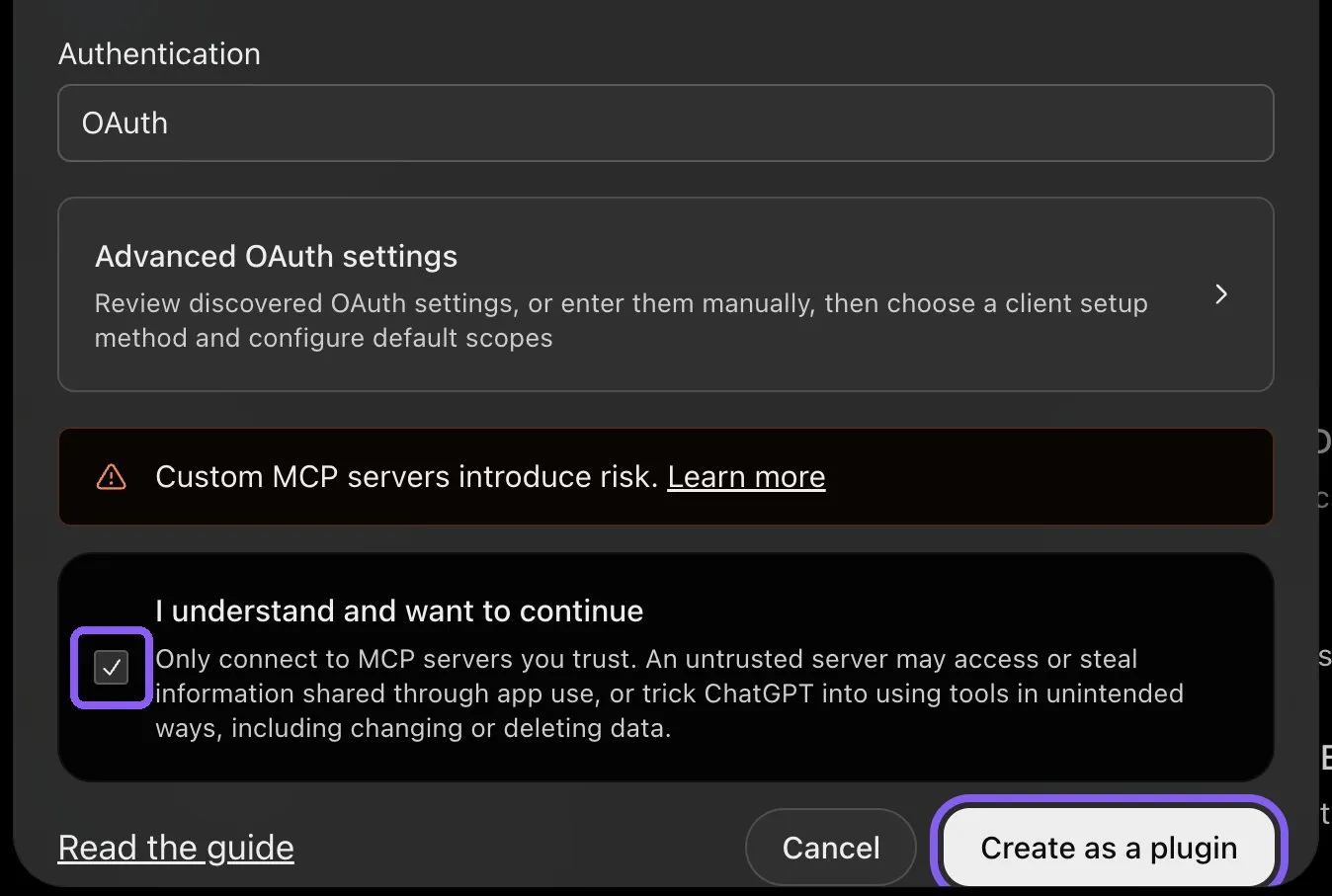
ChatGPT, bottom of the custom MCP server form, November 2026.
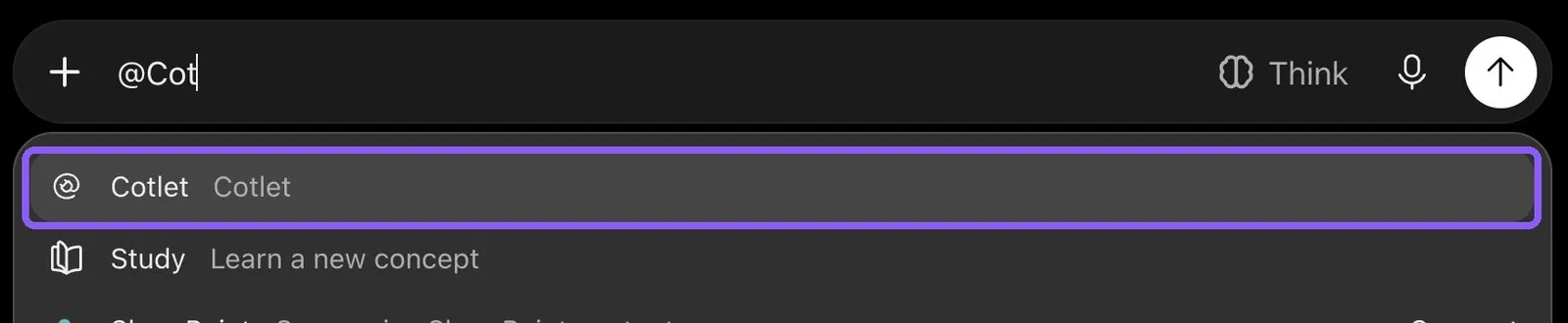
ChatGPT, picking Cotlet in a new chat with @, November 2026.
ChatGPT asks “Allow ChatGPT to use Cotlet?” before some steps. Pick Always allow, or the chat waits for your click. On a Business, Enterprise or Edu workspace, an admin has to allow custom MCP servers first.
How to connect Trainerize to Claude
- Open Connectors in Claude and click Add. In the desktop app it is under Customize, Connectors.
- Click Add custom connector.
- Paste the name
Cotletand the URLhttps://cotlet.dev/mcp/v1/connect, then click Continue. - Keep the settings and click Add.
- A Cotlet page opens. Click Allow access.
- In a chat, click the plus button, then Connectors, and turn Cotlet on.
- Ask Claude: “Are you signed in to Cotlet through MCP?”, then “Read the current Trainerize program assignment for the client I select and show its end date before proposing any change.”. Claude asks before it uses a Cotlet tool the first time. Click Allow.
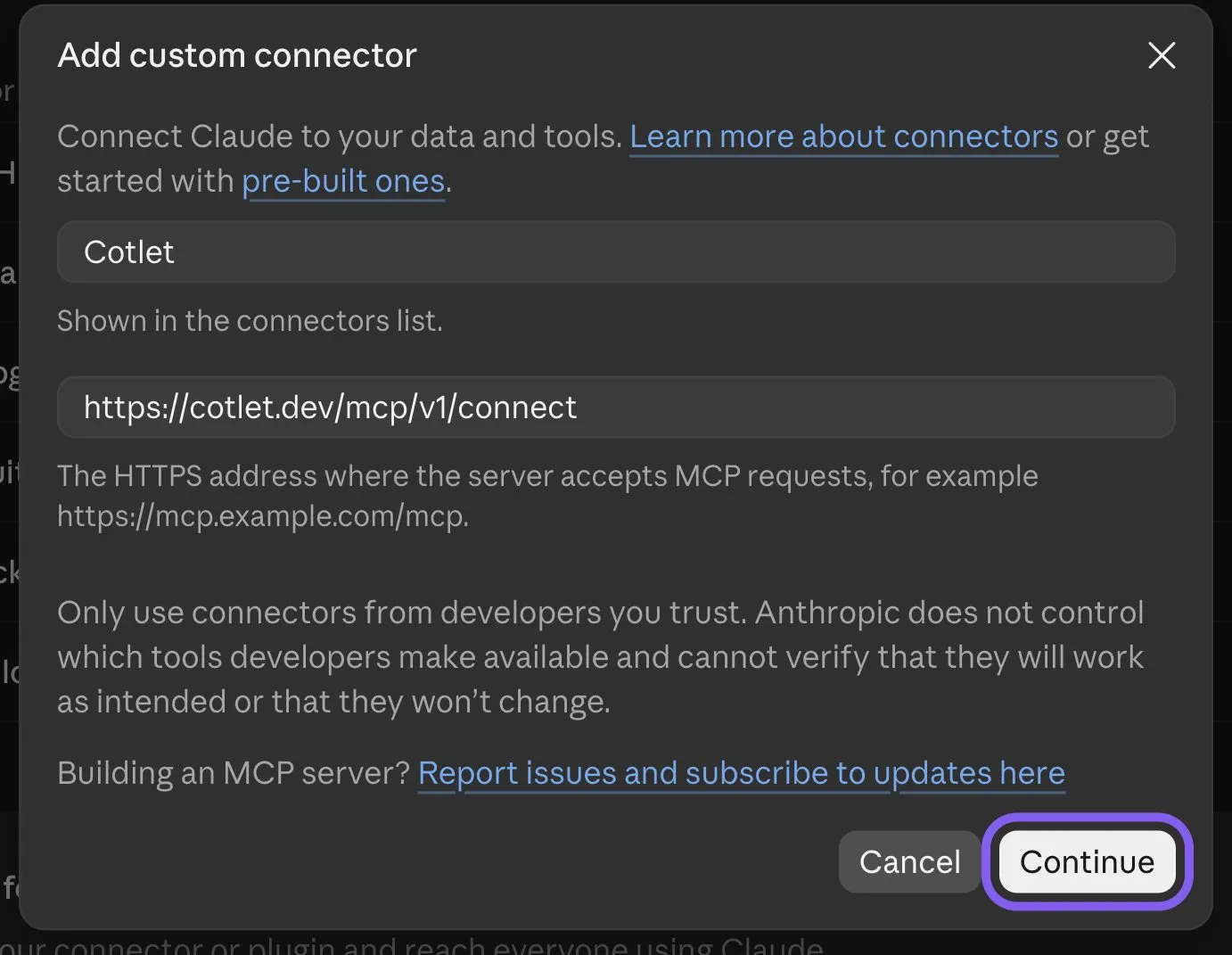
Claude, Add custom connector form, November 2026.
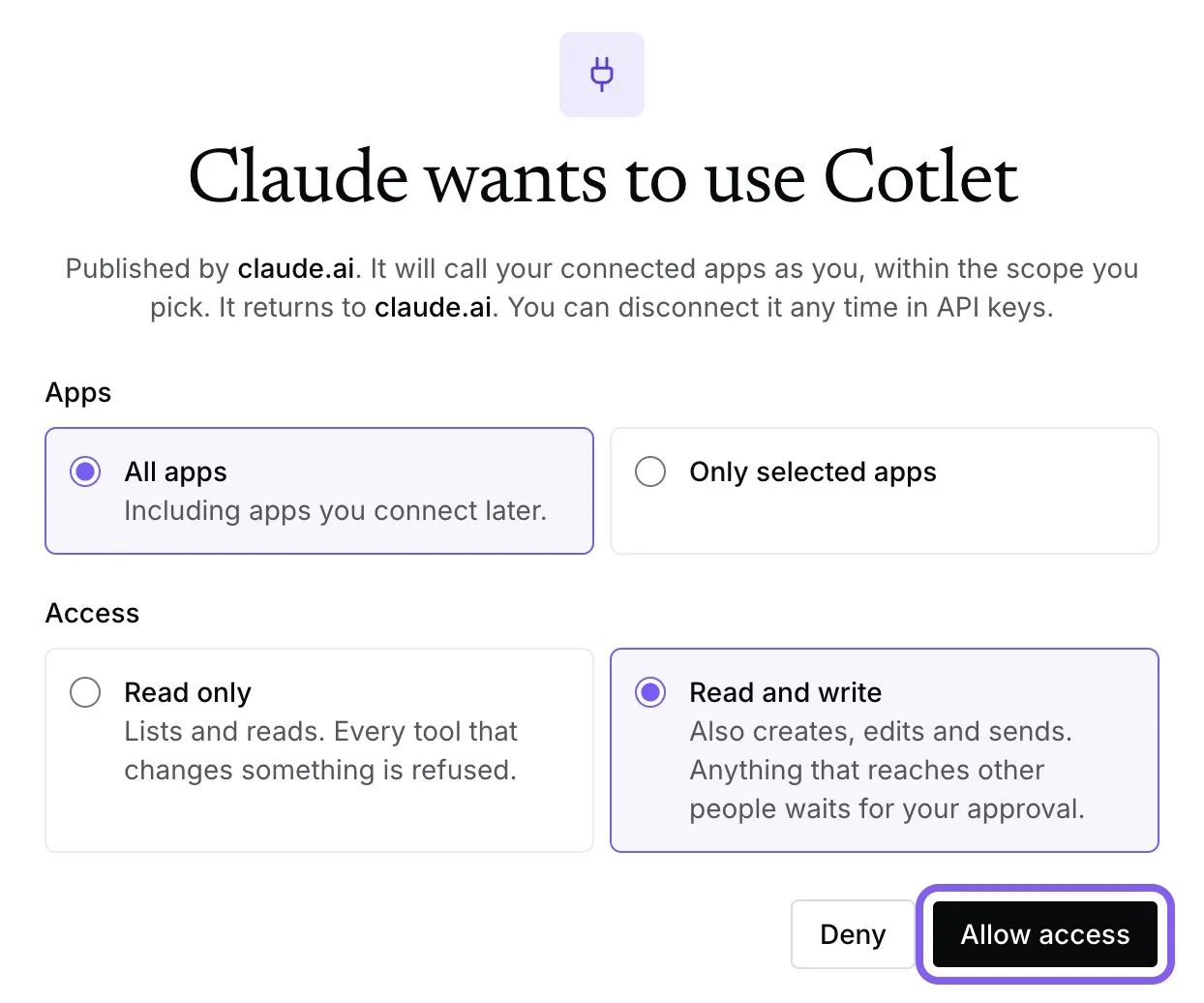
Cotlet consent page after you add the connector in Claude, November 2026.
Claude’s free plan allows one custom connector. On a Team or Enterprise plan, an owner adds Cotlet in Organization settings, Connectors, and you click Connect next to it.
How to connect Trainerize to Claude Code
Add Cotlet without a key, then sign in once in the browser:
claude mcp add --transport http cotlet https://cotlet.dev/mcp/v1/connectRun /mcp in Claude Code, pick cotlet and sign in to Cotlet. Prefer an API key, for example on a server? Create one in the Cotlet console and use:
claude mcp add --transport http cotlet https://cotlet.dev/mcp/v1 \
  --header "Authorization: Bearer $COTLET_API_KEY"
How to connect Trainerize to Codex
Create an API key in the Cotlet console, put it in the COTLET_API_KEY environment variable and add this to ~/.codex/config.toml:
[mcp_servers.cotlet]
url = "https://cotlet.dev/mcp/v1"
bearer_token_env_var = "COTLET_API_KEY"
How to connect Trainerize to Cursor
Create an API key in the Cotlet console, put it in the COTLET_API_KEY environment variable and add this to ~/.cursor/mcp.json:
{
  "mcpServers": {
    "cotlet": {
      "url": "https://cotlet.dev/mcp/v1",
      "headers": { "Authorization": "Bearer ${env:COTLET_API_KEY}" }
    }
  }
}
How to connect Trainerize to Grok
Grok takes custom MCP servers on grok.com, per xAI’s connectors documentation (checked 8 November 2026).
- Open grok.com/connectors and click New Connector.
- Pick Custom and paste the server URL
https://cotlet.dev/mcp/v1/connect. - Sign in to Cotlet when Grok asks, then click Allow access.
- Ask Grok: “Are you signed in to Cotlet through MCP?”
On Grok Business, an admin adds the connector first in the xAI console, under Grok Business, Connectors. The Grok chat inside X has no custom connector menu.
How to connect Trainerize to Hermes Agent
Add Cotlet to ~/.hermes/config.yaml in the format of the Hermes MCP config reference:
mcp_servers:
  cotlet:
    url: "https://cotlet.dev/mcp/v1"
    headers:
      Authorization: "Bearer ${COTLET_API_KEY}"
    trust: untrusted
Put COTLET_API_KEY in ~/.hermes/.env and check it with hermes mcp test cotlet. With trust: untrusted, Hermes runs reads at once and asks before every write. More on Hermes in our post on the Hermes Agent browser.
How to connect Trainerize to n8n
Use the MCP Client node, or the MCP Client Tool inside an AI Agent node:
- Server Transport: HTTP Streamable
- MCP Endpoint URL:
https://cotlet.dev/mcp/v1 - Authentication: Bearer Auth, with your Cotlet API key as the token Let the AI Agent node use Cotlet’s browser tools and read the Trainerize guide before navigating the coaching account.
Each Thursday, prepare a coach-only report separating submitted Trainerize check-ins from missing submissions, with draft replies kept unsent.
Any other MCP client
Point the client at https://cotlet.dev/mcp/v1 over Streamable HTTP, with the header Authorization: Bearer <your Cotlet API key>. A client that supports OAuth sign-in can use https://cotlet.dev/mcp/v1/connect instead and needs no key. The full reference is in the MCP docs.
Three Trainerize jobs to try first
Review submitted check-ins before writing replies
Review this week’s submitted check-ins for my selected clients. For each one, quote the concern that needs my attention and draft a short response. Separate a missing submission from a submission reporting a problem. Do not send anything.
Trainerize’s check-in form guidance describes the form workflow. A reminder or notification is different from a coach’s review of what somebody actually wrote. The assistant should report the source record and date rather than collapsing everything into an invented adherence score.
Read the drafts as the coach. A statement about pain, medication or an injury needs your professional response; it is not a reason for an assistant to invent a diagnosis. Approve the specific message only after deciding how you want to respond.
Reconcile missing progress entries
Read the body-stat entries for the review period I specify. List clients with no entry, show each last recorded date and draft a neutral reminder for me. Do not treat missing data as a change in body composition.
The body-stat instructions distinguish recorded measurements from reminders. The Insights Dashboard gives another view of client records. Your useful output is the missing-data list, not a fabricated measurement.
If you compare this with a direct API integration, check the API’s documented history window and your entitlement. Cotlet reads the entries visible to your signed-in role; it should state when a requested period is unavailable instead of silently shortening the review.
Prepare a program transition with the current assignment visible
Find the current program for the client I select. Compare its end date with the next block in my notes. Show the existing assignment, the proposed next program and the effective date. Wait for my decision before changing it.
The assistant first establishes what the client already has. Your notes should name the actual program and timing; a broad instruction to “progress everyone” is not enough to choose a training prescription. Check the proposed transition against the client’s situation, then approve the change you want.
For routine delivery tied to a purchased product, Trainerize’s own Product Automation may already cover the configured sequence. Cotlet adds a conversational way to inspect the surrounding account and perform the screen work you request.
Keep the two costs separate
Your Trainerize subscription and any FitMetrics entitlement are vendor costs. Cotlet has its own credit pricing: a 7-day trial with no card, then packs from $29 with 12-month validity and no Cotlet subscription. Using Cotlet does not require changing your Trainerize plan just to obtain an API key; your existing plan still determines which Trainerize features your account can see.
FAQ
Can Trainerize connect to ChatGPT or Claude officially?
Yes. Trainerize describes a FitMetrics MCP connection for both assistants (checked 12 Nov 2026). Compare the announced FitMetrics actions with your coaching task. Cotlet is a separate route and is not affiliated with ABC Trainerize or FitMetrics.
Does Trainerize have an API or an MCP server?
The API and webhooks depend on Studio, Enterprise or FitMetrics entitlement, set out in the API guide; a public article about the API is not a grant of access to every account. For MCP, FitMetrics is the described route, and Cotlet hosts https://cotlet.dev/mcp/v1/trainerize with 14 tools (checked 12 Nov 2026).
Can Zapier, Make or n8n automate Trainerize?
ABC Trainerize’s Zapier connector supports its published client, tag, group and program triggers and actions, and the API guide lists Zapier as automation without API access. Its actions do not read check-ins or appointments. No n8n node was found in the sources checked for this guide, and a Make listing could not be checked.
Is the FitMetrics MCP server operated by Trainerize?
The checked Trainerize announcement endorses and describes the FitMetrics connection, and its FitMetrics article explains the add-on. It does not, by itself, establish who operates every part of that server. Call it the FitMetrics connection described by Trainerize, rather than inventing an ownership claim.
Does connecting an assistant send check-in replies automatically?
A request to review forms can produce drafts without sending them. In Cotlet, calls marked Asks first require confirmation by default. State the client, recipient and final text before approving a send.
Start with one coaching review
Connect your Trainerize account and ask for one defined check-in period. You should recognize the clients, dates and quoted concerns before delegating a change. That makes the first useful result a review you can coach from, rather than another ungrounded summary of your roster.