How to connect WebinarJam to ChatGPT, Claude and any AI agent
WebinarJam has no official MCP server, and API keys need approval (checked 27 Nov 2026). Let ChatGPT or Claude list registrants and no-shows for you.
Cotlet team 10 min read
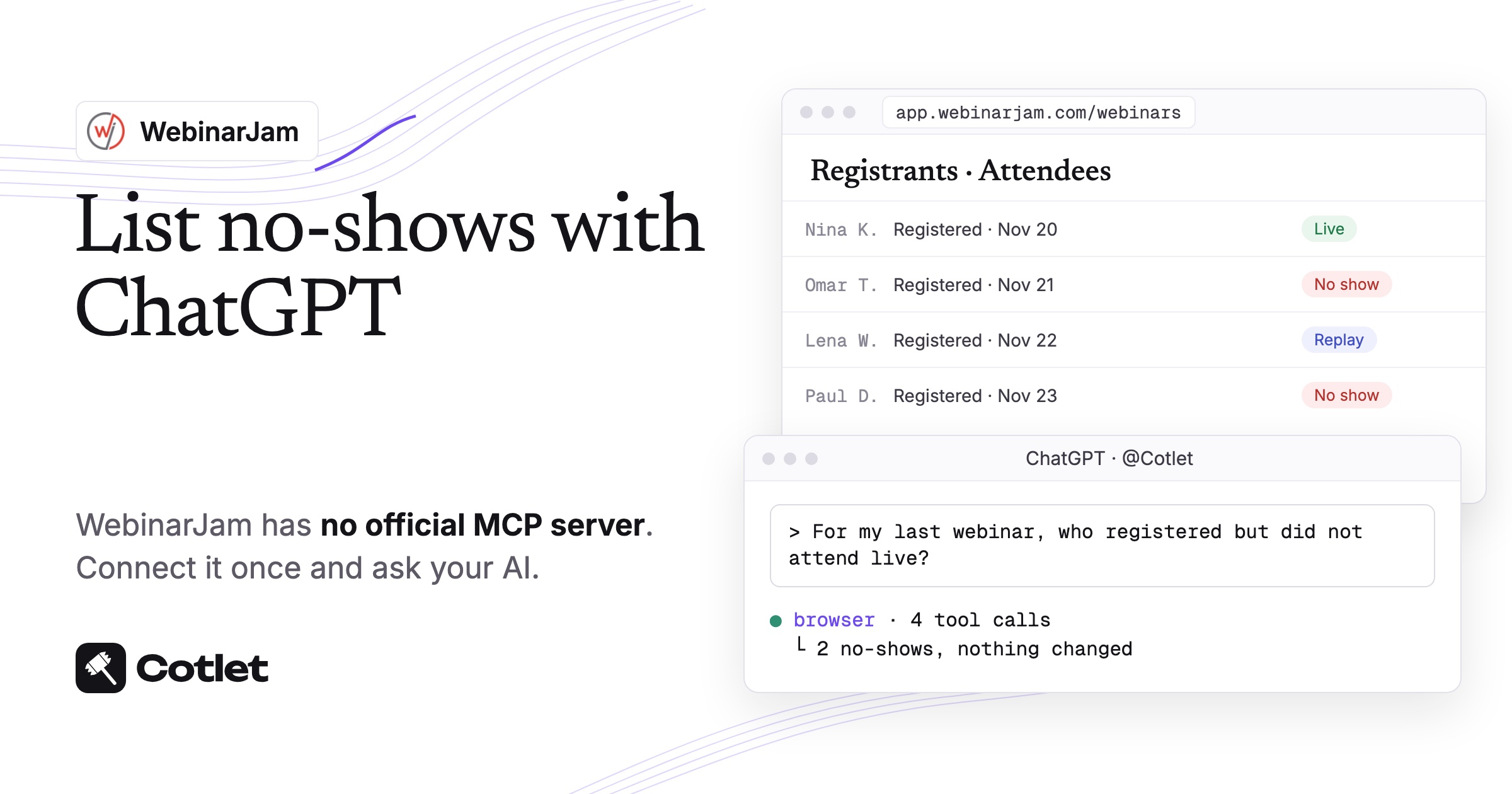
The webinar ended an hour ago. Four hundred people registered, and you want to email the ones who never showed up with the replay link. WebinarJam can export that list, but only if you open the webinar, find the right report and download it yourself. Our check on 27 Nov 2026 found no WebinarJam MCP server, no ChatGPT app and no Claude connector. The API exists, yet WebinarJam approves each key by hand, and trial accounts get none. A Cloud Browser logged in to your WebinarJam lets an agent open the report you would open.
This is for coaches, course creators and agencies who sell through live and automated webinars and run them from the WebinarJam dashboard. The attendee room is out of scope.
What ChatGPT and Claude can do in WebinarJam once connected
Say what you need after a session. The agent opens the screen that answers.
| Where in WebinarJam | What you get |
|---|---|
| Registrants and Attendees | For your last webinar: who registered, who joined live, who watched the replay and who did neither, with emails |
| Replay and follow-up | A draft replay email for people who missed the live session, using the webinar title and the replay link |
| EverWebinar schedule | Which evergreen sessions run this week and at what hour in your time zone |
| Live step, Offers | Every offer in your next webinar with the minute it appears and its link, with a broken link flagged |
| Analytics | Replay views for your last 10 webinars and the replay with the best watch rate |
| Account and plan | Your plan, your attendee limit and whether your API key is approved |
Reading changes nothing. An email to your registrants, or a change to a live webinar, is held until you say yes. Find further jobs on the WebinarJam MCP page. If your own tools need a report by URL, the API page explains how.
Does WebinarJam have AI, an API or an official ChatGPT app?
State on 27 November 2026:
- API: yes, by approval. The Help Center has a Developer API collection with articles on applying for a key, listing webinars and registering people. Zapier’s help says API access is not available for trial accounts and that WebinarJam approves each key, typically within two business days.
- Zapier: yes. There is a WebinarJam and EverWebinar app on Zapier. Its triggers include New Registration, New Live Attendee, Registrant Misses Webinar and Registrant Attends Replay. It has one action, which registers a person to a webinar.
- Report download: yes. A WebinarJam guide says you can download a report with registrants, contact details, whether they attended and whether they watched the replay.
- Chat connector: not found. No MCP article sits in the Developer API collection, and WebinarJam is absent from the MCP Registry.
Zapier announces events as they happen. It does not look back over a webinar you ran last month. The WebinarJam access review scores each point.
Before you start
- The login you use as the webinar host.
- One finished webinar with registrants, so there is a list to read. An EverWebinar schedule helps for the second job.
- ChatGPT or Claude.
- A Cotlet trial (pricing). You do not need an API key from WebinarJam.
Step 1: sign in to WebinarJam in your Cloud Browser
Point the Cloud Browser at app.webinarjam.com. The login page belongs to WebinarJam, so that is where the password goes. We hold only an encrypted session, and the console lets you revoke the agent’s access whenever you want (security).
Step 2: connect WebinarJam to ChatGPT, Claude or another AI agent
One short task links the two. After that, any new chat can work in your WebinarJam account.
Pick your AI above to see its steps.
How to connect WebinarJam to ChatGPT
Do this on chatgpt.com in your browser. Cotlet then works in the ChatGPT desktop and phone apps too.
- Open Plugins in ChatGPT and click Add.
- Click Add custom MCP server. Not in the menu? Turn on Developer mode in Settings, Security and login, then come back.
- Paste the name
Cotletand the server URLhttps://cotlet.dev/mcp/v1/connect. Keep Authentication on OAuth. - Tick “I understand and want to continue” and click Create as a plugin.
- Click Connect Cotlet. A Cotlet page opens, click Allow access.
- In a new chat, type
@Cotletand pick it from the list. - Ask ChatGPT: “Are you signed in to Cotlet through MCP?” Then try a first WebinarJam task: “In WebinarJam, for my last webinar, list who registered, who attended live and who watched the replay. Change nothing.”
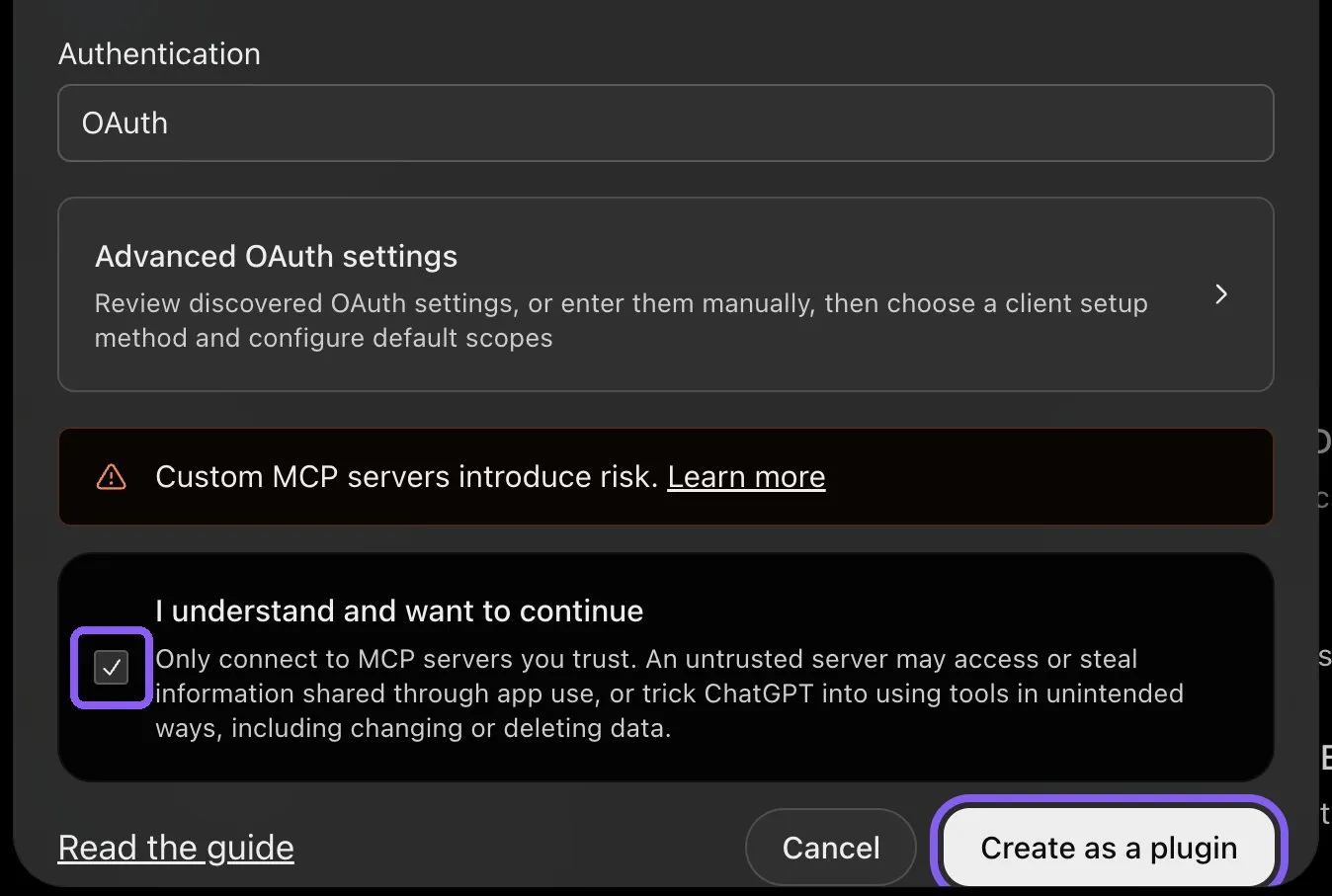
ChatGPT, bottom of the custom MCP server form, November 2026.
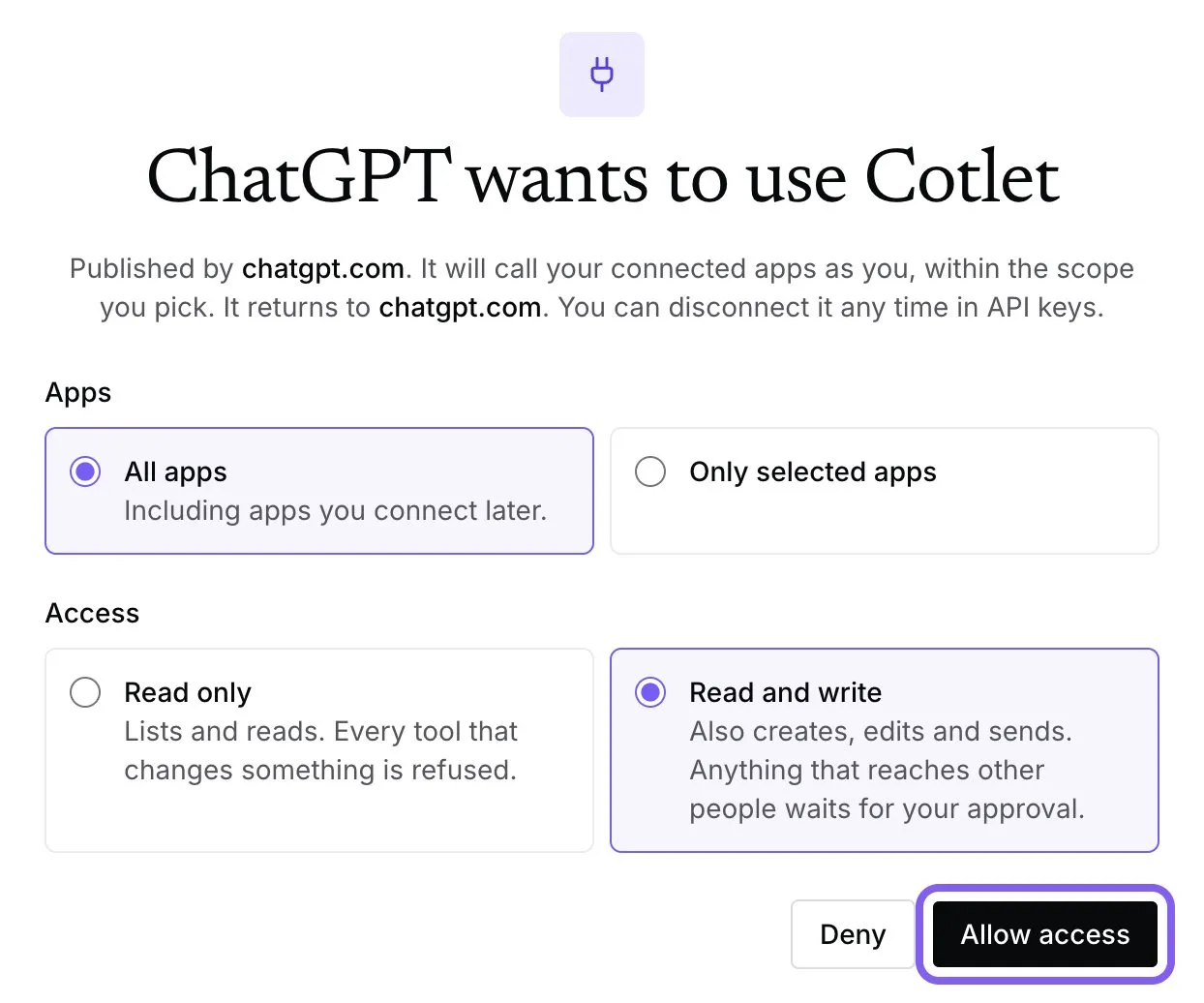
Cotlet consent page after you connect it in ChatGPT, November 2026.
ChatGPT asks “Allow ChatGPT to use Cotlet?” before some steps. Pick Always allow, or the chat waits for your click. On a Business, Enterprise or Edu workspace, an admin has to allow custom MCP servers first.
How to connect WebinarJam to Claude
- Open Connectors in Claude and click Add. In the desktop app it is under Customize, Connectors.
- Click Add custom connector.
- Paste the name
Cotletand the URLhttps://cotlet.dev/mcp/v1/connect, then click Continue. - Keep the settings and click Add.
- A Cotlet page opens. Click Allow access.
- In a chat, click the plus button, then Connectors, and turn Cotlet on.
- Ask Claude: “Are you signed in to Cotlet through MCP?”, then “In WebinarJam, list the product offers in my next webinar with the time they appear and the link. Change nothing.”. Claude asks before it uses a Cotlet tool the first time. Click Allow.
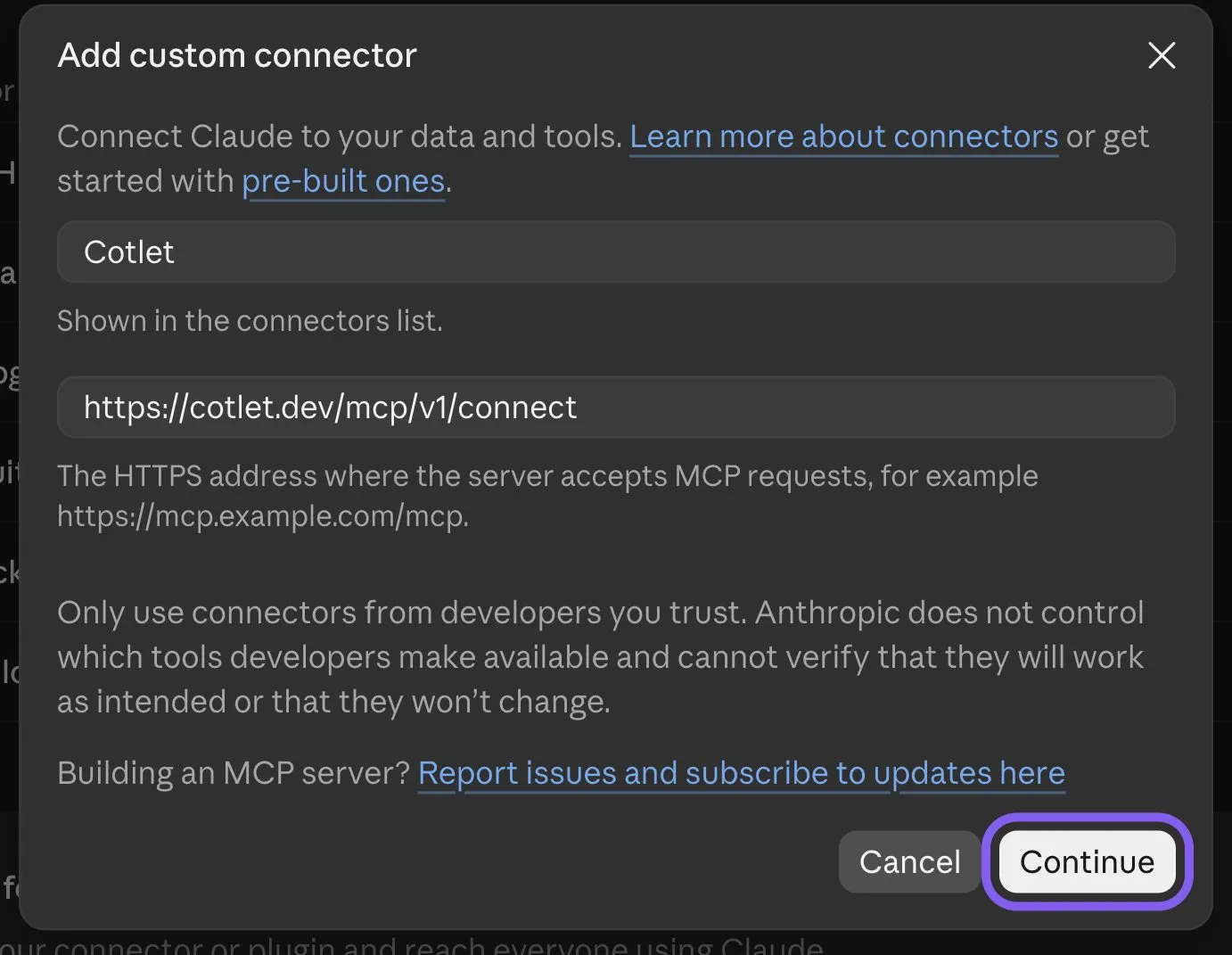
Claude, Add custom connector form, November 2026.
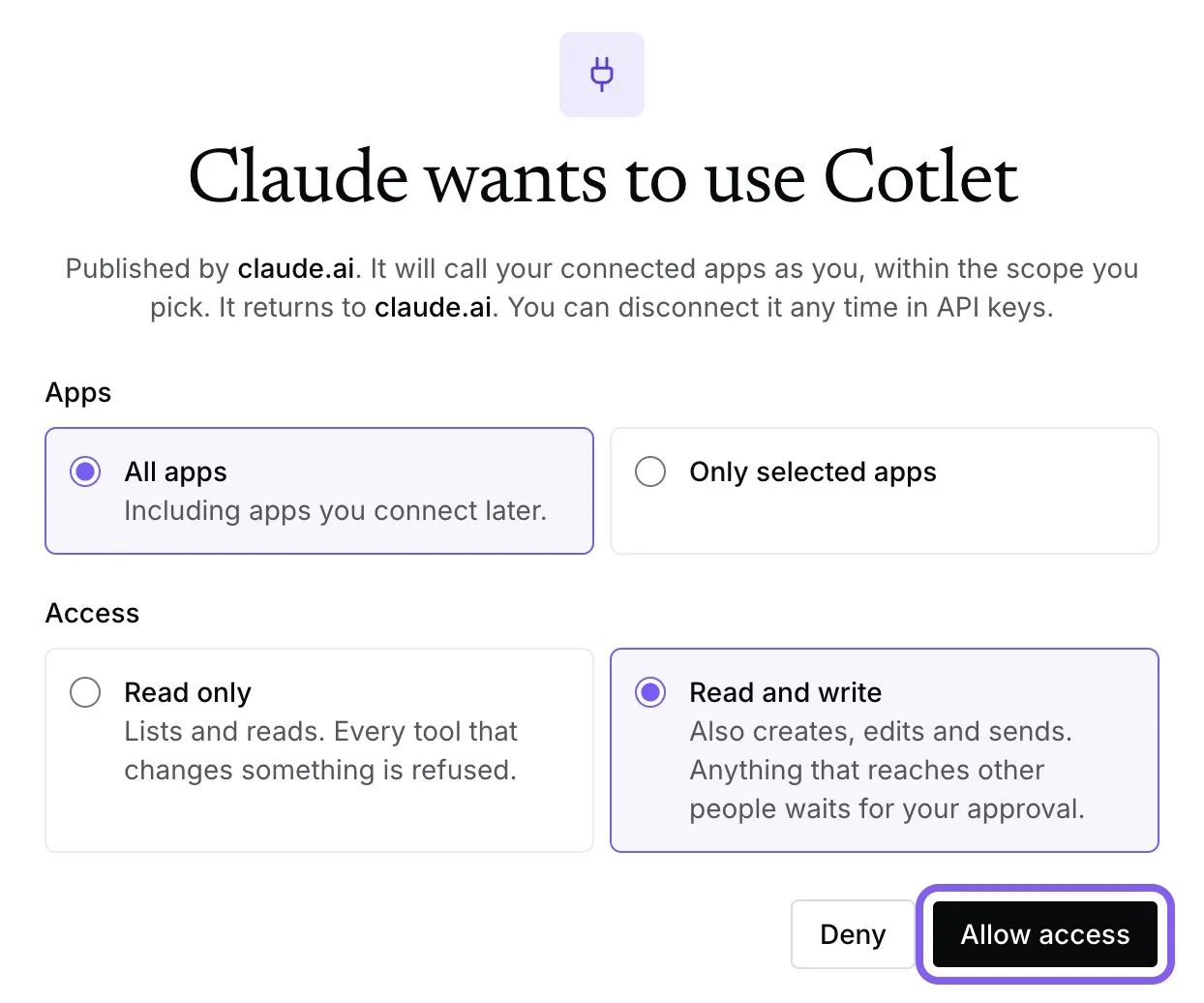
Cotlet consent page after you add the connector in Claude, November 2026.
Claude’s free plan allows one custom connector. On a Team or Enterprise plan, an owner adds Cotlet in Organization settings, Connectors, and you click Connect next to it.
How to connect WebinarJam to Claude Code
Add Cotlet without a key, then sign in once in the browser:
claude mcp add --transport http cotlet https://cotlet.dev/mcp/v1/connectRun /mcp in Claude Code, pick cotlet and sign in to Cotlet. Prefer an API key, for example on a server? Create one in the Cotlet console and use:
claude mcp add --transport http cotlet https://cotlet.dev/mcp/v1 \
  --header "Authorization: Bearer $COTLET_API_KEY"
How to connect WebinarJam to Codex
Create an API key in the Cotlet console, put it in the COTLET_API_KEY environment variable and add this to ~/.codex/config.toml:
[mcp_servers.cotlet]
url = "https://cotlet.dev/mcp/v1"
bearer_token_env_var = "COTLET_API_KEY"
How to connect WebinarJam to Cursor
Create an API key in the Cotlet console, put it in the COTLET_API_KEY environment variable and add this to ~/.cursor/mcp.json:
{
  "mcpServers": {
    "cotlet": {
      "url": "https://cotlet.dev/mcp/v1",
      "headers": { "Authorization": "Bearer ${env:COTLET_API_KEY}" }
    }
  }
}
How to connect WebinarJam to Grok
Grok takes custom MCP servers on grok.com, per xAI’s connectors documentation (checked 8 November 2026).
- Open grok.com/connectors and click New Connector.
- Pick Custom and paste the server URL
https://cotlet.dev/mcp/v1/connect. - Sign in to Cotlet when Grok asks, then click Allow access.
- Ask Grok: “Are you signed in to Cotlet through MCP?”
On Grok Business, an admin adds the connector first in the xAI console, under Grok Business, Connectors. The Grok chat inside X has no custom connector menu.
How to connect WebinarJam to Hermes Agent
Add Cotlet to ~/.hermes/config.yaml in the format of the Hermes MCP config reference:
mcp_servers:
  cotlet:
    url: "https://cotlet.dev/mcp/v1"
    headers:
      Authorization: "Bearer ${COTLET_API_KEY}"
    trust: untrusted
Put COTLET_API_KEY in ~/.hermes/.env and check it with hermes mcp test cotlet. With trust: untrusted, Hermes runs reads at once and asks before every write. More on Hermes in our post on the Hermes Agent browser.
How to connect WebinarJam to n8n
Use the MCP Client node, or the MCP Client Tool inside an AI Agent node:
- Server Transport: HTTP Streamable
- MCP Endpoint URL:
https://cotlet.dev/mcp/v1 - Authentication: Bearer Auth, with your Cotlet API key as the token
- Tools: let the AI Agent node use Cotlet’s browser tools; it reads Cotlet’s WebinarJam guide first and works in your signed-in WebinarJam account
Use it for work that should run on its own, such as a list of no-shows the morning after every live webinar.
Any other MCP client
Point the client at https://cotlet.dev/mcp/v1 over Streamable HTTP, with the header Authorization: Bearer <your Cotlet API key>. A client that supports OAuth sign-in can use https://cotlet.dev/mcp/v1/connect instead and needs no key. The full reference is in the MCP docs.
Three WebinarJam jobs to try first
Read before you write. A report sends nothing to your audience.
Who missed the live webinar
For my last webinar, list who registered, who attended live, who watched the replay and who did neither, with emails.
The registrants guide shows the report. The agent opens it for the webinar you name and sorts people into four groups. The group that did neither is your follow-up list.
A replay email for no-shows
Draft a 24-hour replay email for registrants who did not attend live, using the webinar title and replay link. Send nothing.
WebinarJam publishes a post on a follow-up email sequence. The agent writes one draft in your voice and fills in the title and the link. You read it, then you send it from WebinarJam or your mail tool.
Check the offers before you go live
List the product offers set in my next webinar with the time they appear and the link, and flag one with a broken link.
Offers sit in the live step, as the product offers article describes. A dead checkout link at minute 52 costs you sales, and this takes the agent a minute to find.
Later in the week
- Which EverWebinar sessions are scheduled, in your time zone.
- Replay views for each of your last 10 webinars.
- New registrants against your contact list, with their form answers.
What it costs
Seven days and 2,000 credits come free, with no card entered. Further credits are sold in packs starting at $29. They expire after 12 months, and failed calls are not charged (pricing). Your WebinarJam subscription stays as it was.
FAQ
Does WebinarJam have an API I can use?
Yes, on a paid plan, with a key WebinarJam approves first. Cotlet needs no key, so there is nothing to wait for.
Can ChatGPT or Claude email my registrants after the webinar?
It reads the lists and drafts the email. Sending to your registrants or changing a live webinar waits for your approval.
Does it work with EverWebinar?
EverWebinar is made by the same company and has its own help collection. Cotlet works on whatever screens your login opens.
Is Cotlet affiliated with WebinarJam?
No, they are separate companies.
Try it on your own WebinarJam account
Ask who missed your last session. Begin a trial, log in to WebinarJam and read the four groups. Other tools for creators live under integrations.